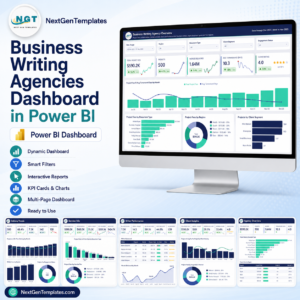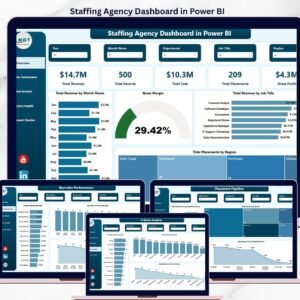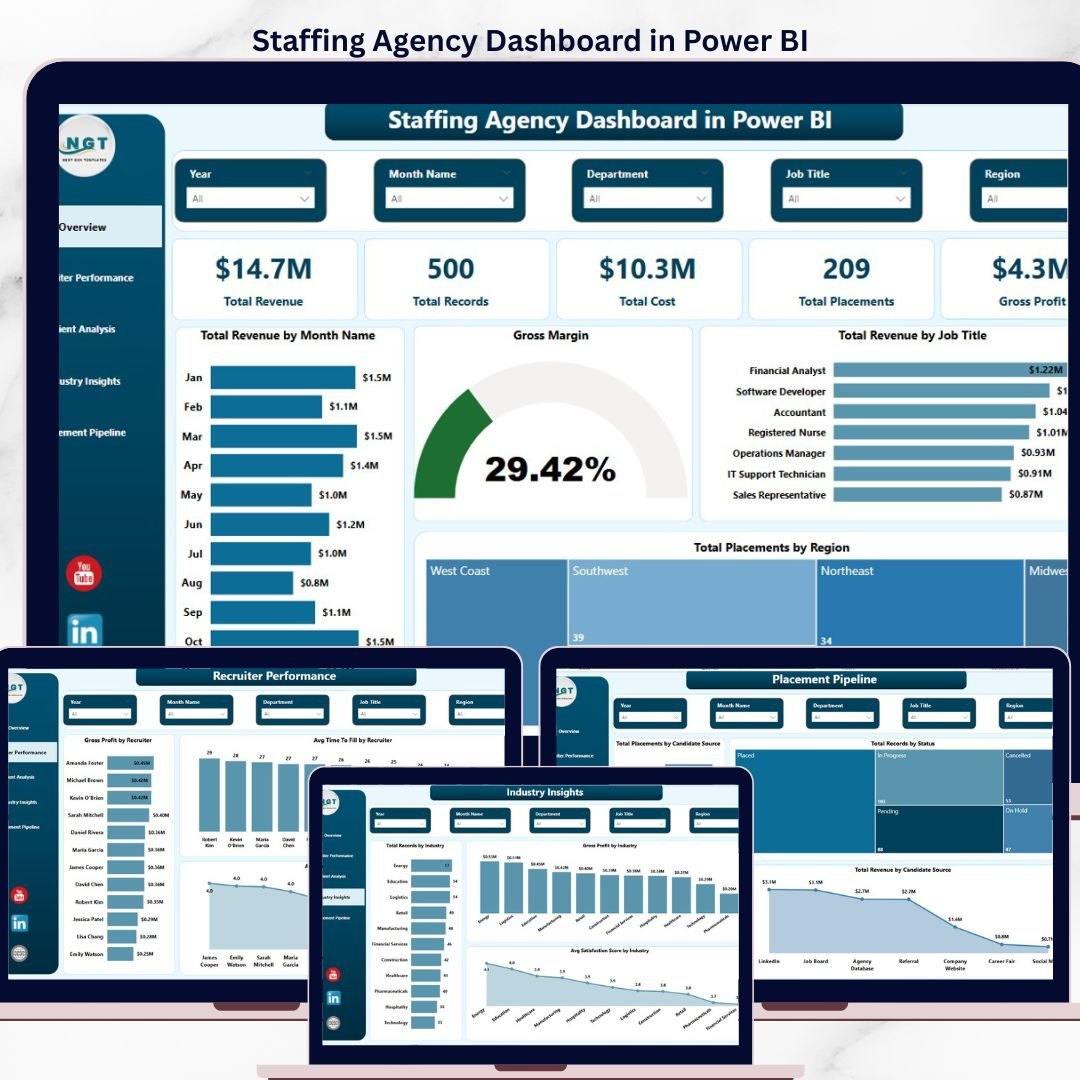
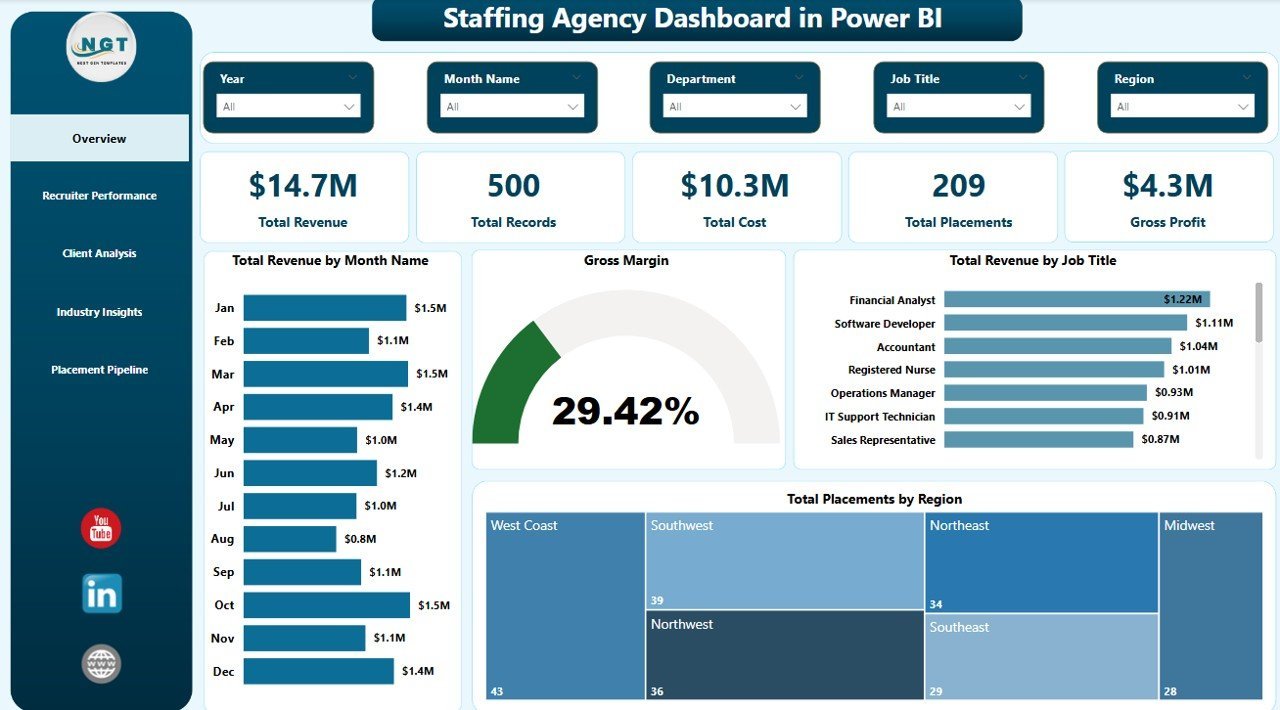
The Staffing Agency Dashboard in Power BI tracks 5 headline KPIs and 12+ chart visualizations across 5 interactive pages — Overview, Recruiter Performance, Client Analysis, Industry Insights, and Placement Pipeline. Setup takes under 10 minutes: open the .pbix file in Power BI Desktop, point it at your own placement data, and every card, chart, and slicer updates automatically.
🌍 Join 8,400+ teams in 40+ countries using NextGenTemplates to replace paid SaaS tools with one-time-purchase Excel, Google Sheets, Power BI, and HTML templates.
✅ Instant download · One-time payment · No subscription · No per-user fees · Lifetime access
🔑 Key Features of the Staffing Agency Dashboard in Power BI
This Power BI staffing dashboard is built for recruitment agencies, executive search firms, and in-house talent acquisition teams who need to see revenue, placements, and recruiter productivity in one place. Here’s what’s inside:
📊 5 Headline KPI Cards on the Overview page — Total Revenue, Total Records, Total Cost, Total Placements, and Gross Profit — all calculated live from your placement data using pre-built DAX measures.
📈 12+ interactive charts spanning revenue trends, gross margin analysis, placements by region, recruiter leaderboards, client satisfaction scores, and candidate source breakdowns.
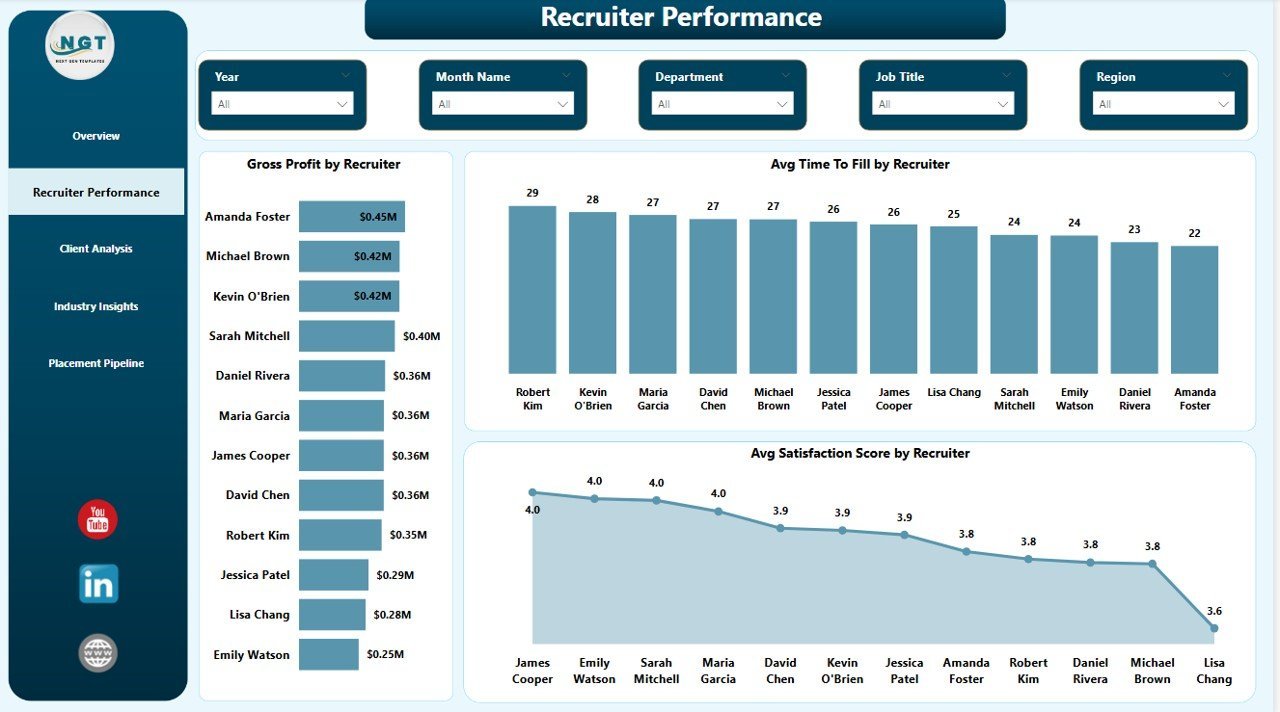
🎯 Recruiter Performance Tracking — Compare gross profit, average time-to-fill (days), and average candidate satisfaction score across every recruiter on your team. Identify top performers and coaching opportunities at a glance.
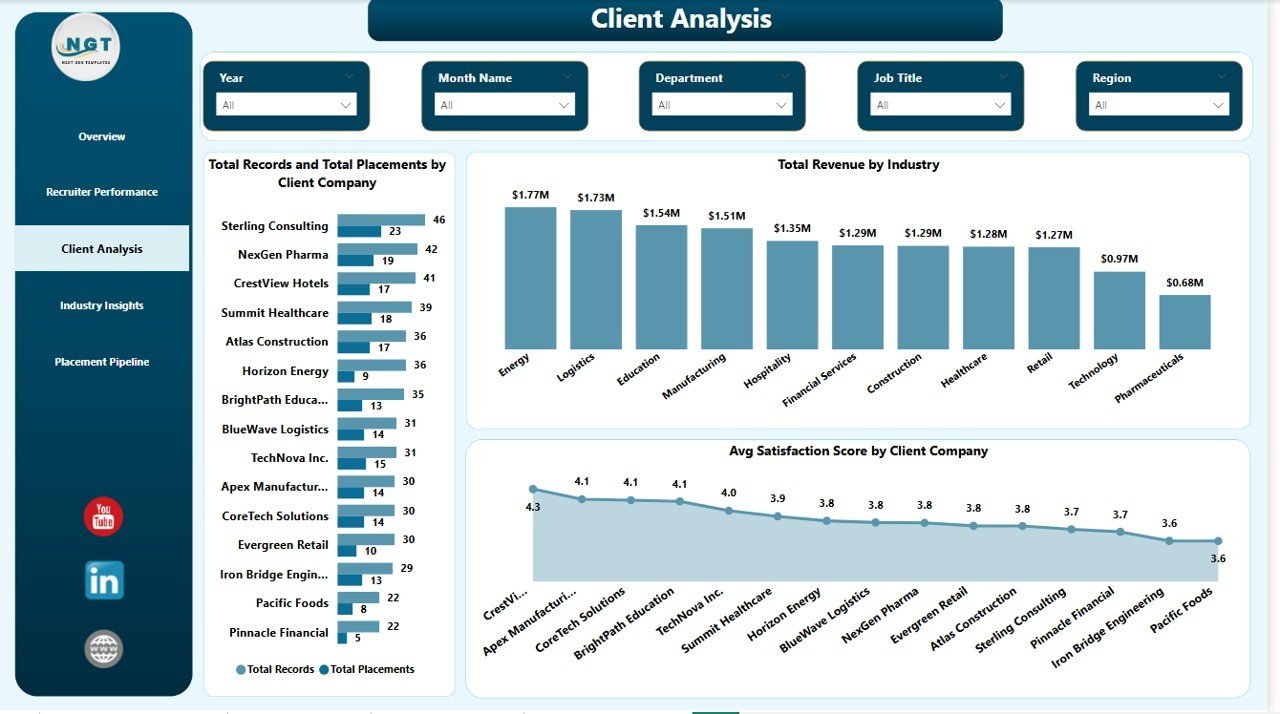
🏢 Client & Industry Deep-Dive — Drill into total records and placements by client company, revenue by industry, and average satisfaction score per client — so you know which accounts and verticals are worth doubling down on.
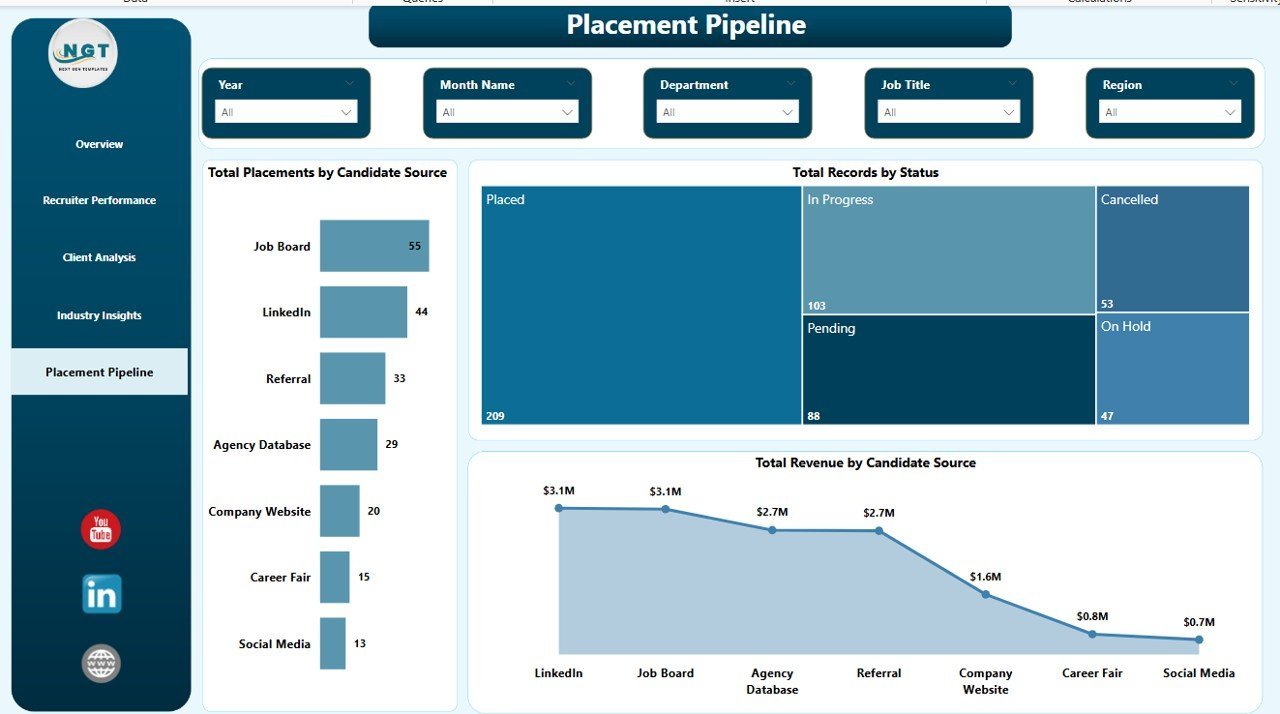
🔄 Placement Pipeline Visibility — See total placements by candidate source (LinkedIn, referrals, job boards, direct applications), total records by status (applied, interviewed, offered, placed), and revenue by source to optimize your sourcing spend.
🎚 Multi-level slicers on every page let you filter by region, industry, recruiter, status, and date range in seconds.
📦 What’s Inside the Staffing Agency Dashboard in Power BI
The template is a single .pbix file with a ready-to-use data model, 5 report pages, pre-written DAX measures, and branded visuals. Here’s the page-by-page breakdown:
1 – Overview Page
On the top of this page, we have the following Cards showing high-level information:
🔸 Total Revenue
🔸 Total Records
🔸 Total Cost
🔸 Total Placements
🔸 Gross Profit
Below are the charts used on the Overview page, each explained in 2 lines:
📊 Total Revenue by Month Name — Tracks monthly revenue across the full year so you can spot seasonality, peak months, and slow patches. Helps forecast cash flow and pipeline coverage.
📊 Gross Margin — Displays the gross margin percentage against total revenue and cost. Gives instant visibility into profitability trends and helps identify margin compression.
📊 Total Revenue by Job Title — Shows which roles (e.g., Data Engineer, Sales Manager, Accountant) generate the highest billing. Guides specialization and pricing decisions.
📊 Total Placements by Region — Maps placement volume across regions to highlight where your recruiters are winning and where to expand market coverage.
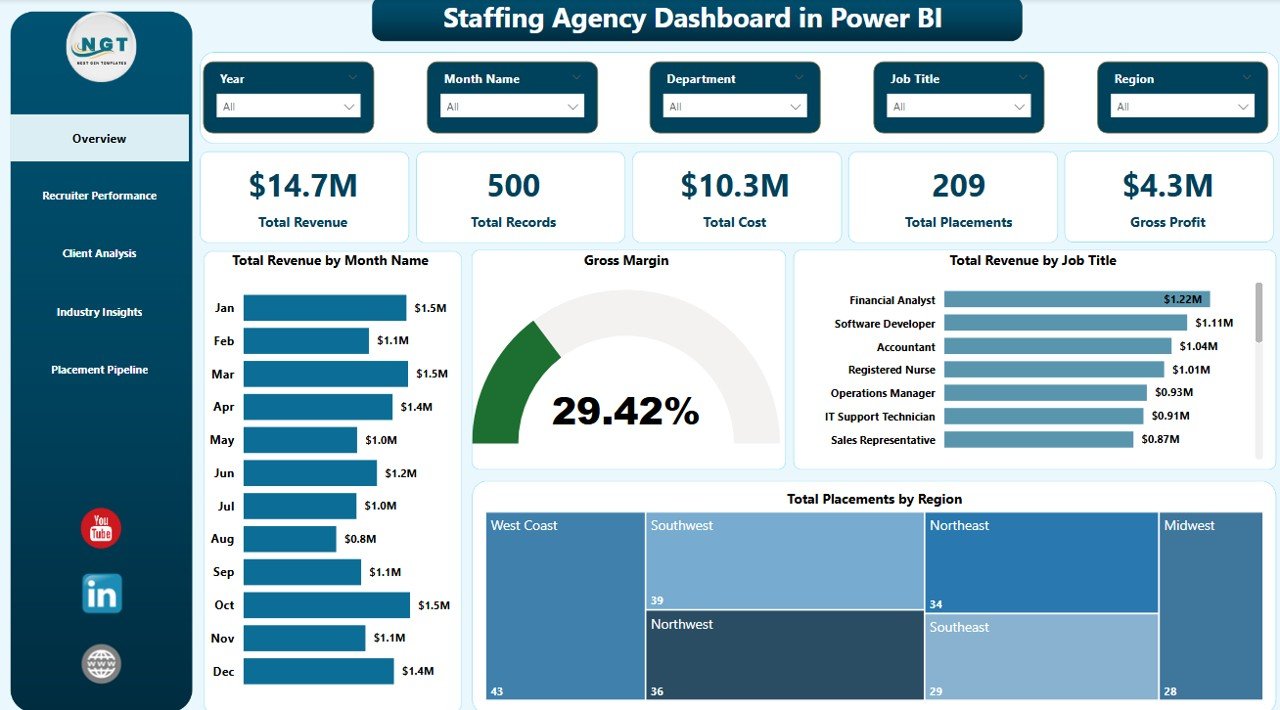
Staffing Agency Dashboard in Power BI — Overview Page
2 — Recruiter Performance
In this sheet tab, we have created the following analyses:
📊 Gross Profit by Recruiter — Ranks recruiters by profit contribution, not just placement count. Makes it easy to spot the quiet high-margin performers.
📊 Avg Time To Fill by Recruiter — Tracks how long each recruiter takes to close a role. Lower is better — this is your speed-to-hire scorecard.
📊 Avg Satisfaction Score by Recruiter — Captures candidate and client satisfaction by recruiter. Helps protect quality while pushing throughput.
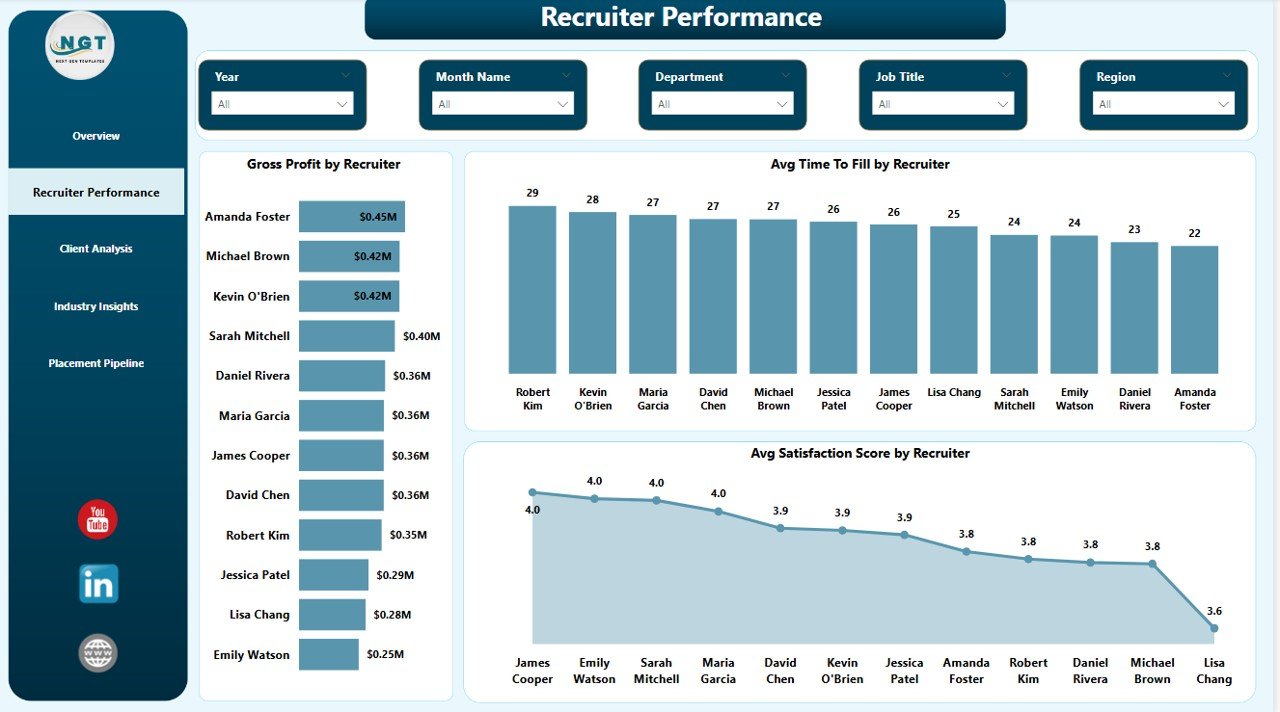
Recruiter Performance
3 — Client Analysis
In this sheet tab, we have created the following analyses:
📊 Total Records and Total Placements by Client Company — Compares pipeline volume vs. closed placements per client to surface your best-converting accounts.
📊 Total Revenue by Industry — Shows which verticals drive your top line (Tech, Finance, Healthcare, etc.) so you can double down on the right industries.
📊 Avg Satisfaction Score by Client Company — Flags clients where delivery is slipping before churn happens. Early-warning metric for account managers.
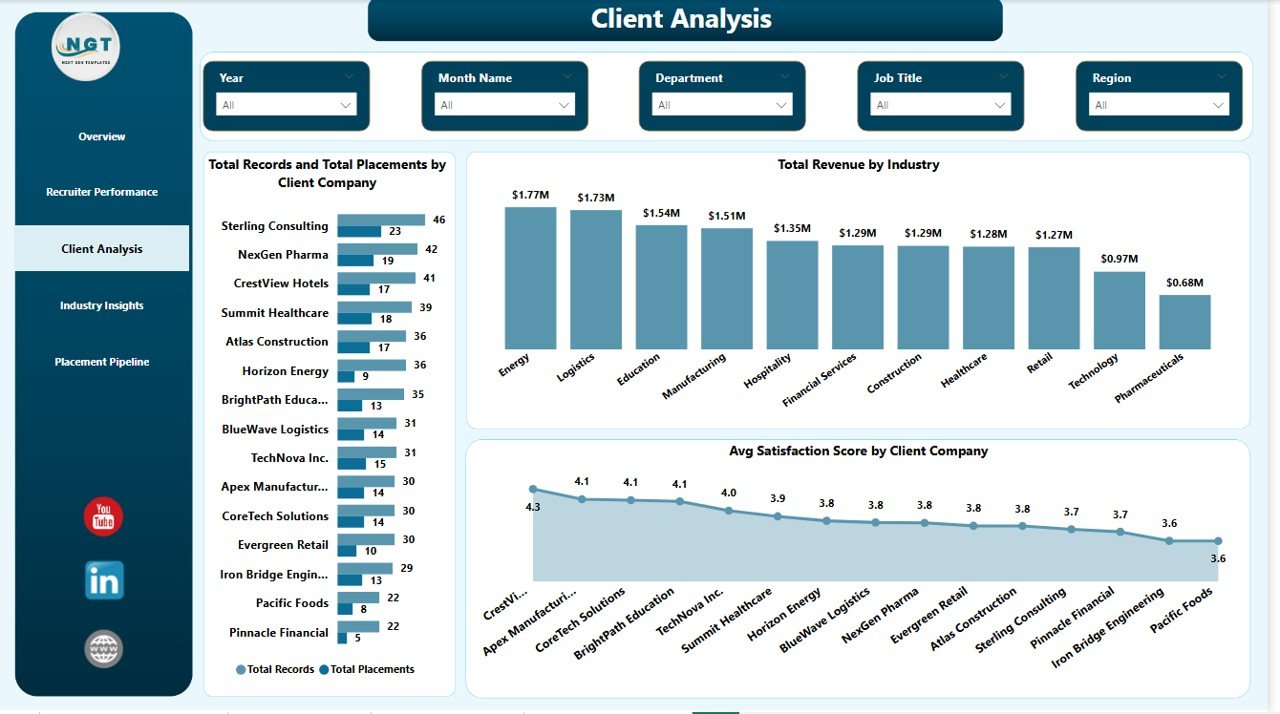
Client Analysis
4 — Industry Insights
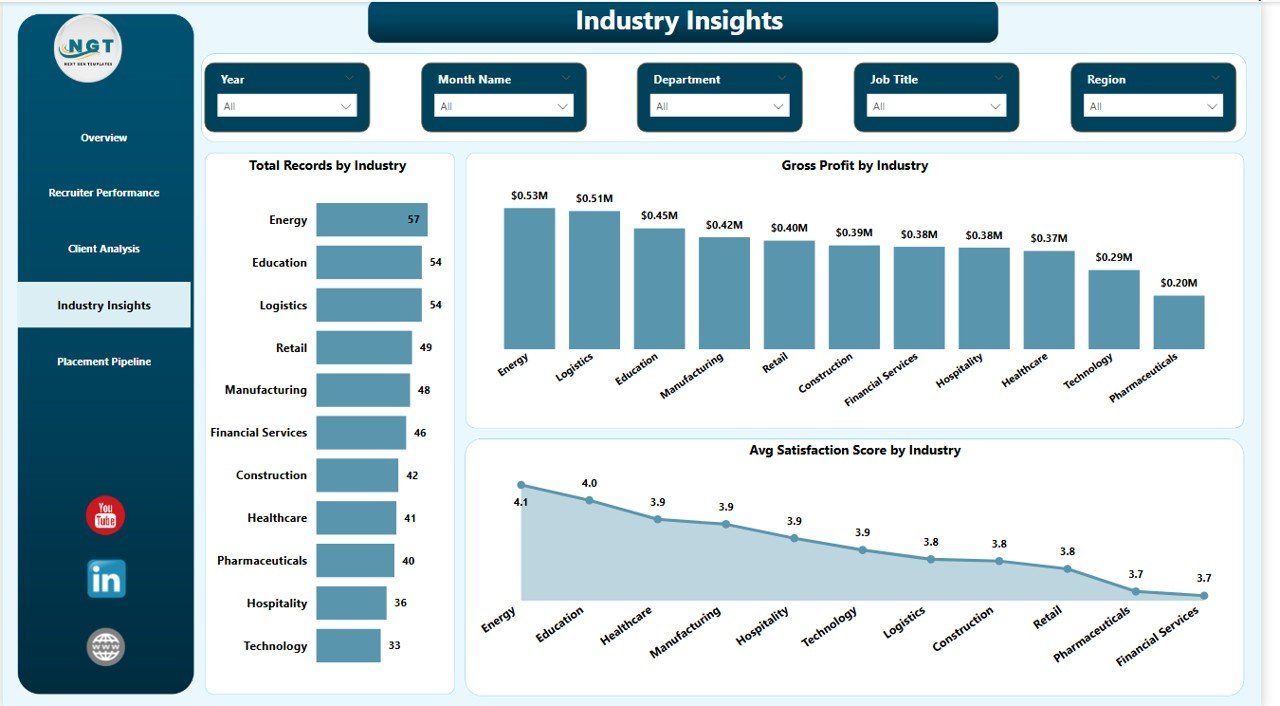
In this sheet tab, we have created the following analyses:
📊 Total Records by Industry — Shows where your pipeline is concentrated. Helps decide whether to diversify or specialize further.
📊 Gross Profit by Industry — Surfaces which verticals actually make money vs. which just look busy. A margin-first view of your book.
📊 Avg Satisfaction Score by Industry — Reveals industries where your fit is strongest and where delivery quality needs work.
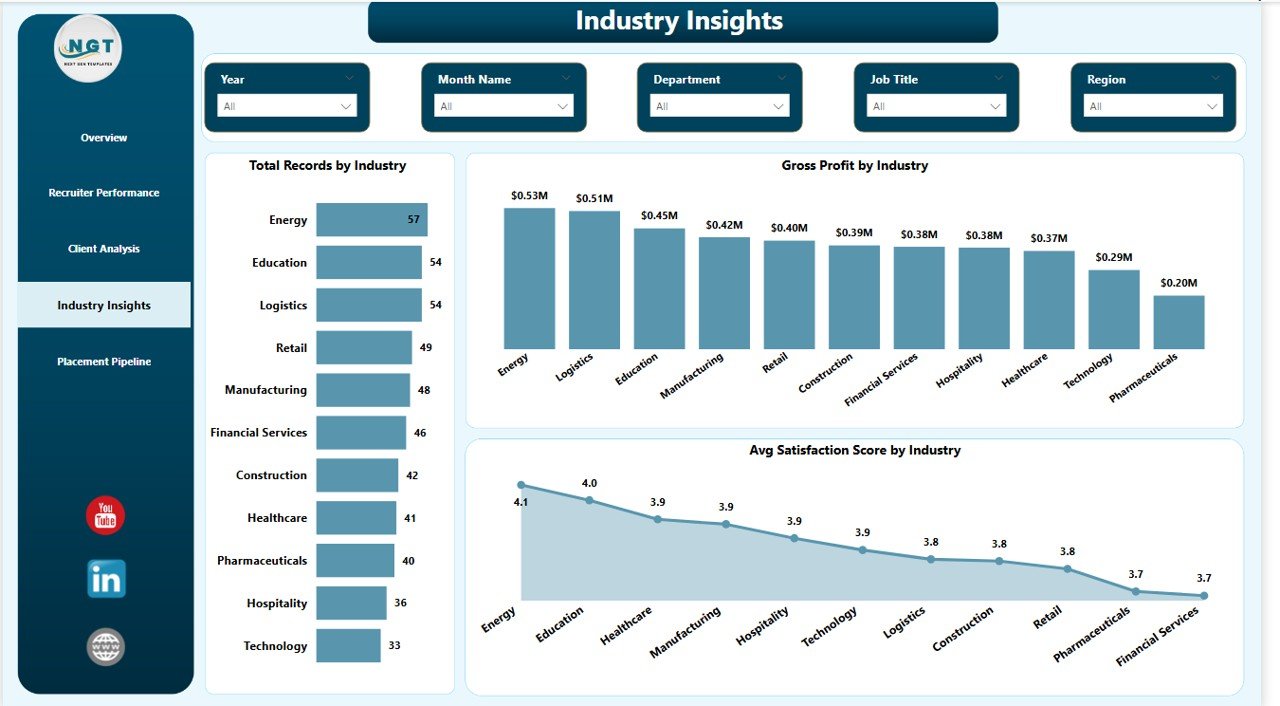
Industry Insights
5 — Placement Pipeline
In this sheet tab, we have created the following analyses:
📊 Total Placements by Candidate Source — Tells you which channel (LinkedIn, referrals, job boards, direct) actually delivers hires, not just clicks.
📊 Total Records by Status — A funnel view from applied → interviewed → offered → placed. Exposes the stage where candidates drop off.
📊 Total Revenue by Candidate Source — Ties sourcing channel directly to billed revenue. Lets you kill low-ROI channels and reinvest in winners.
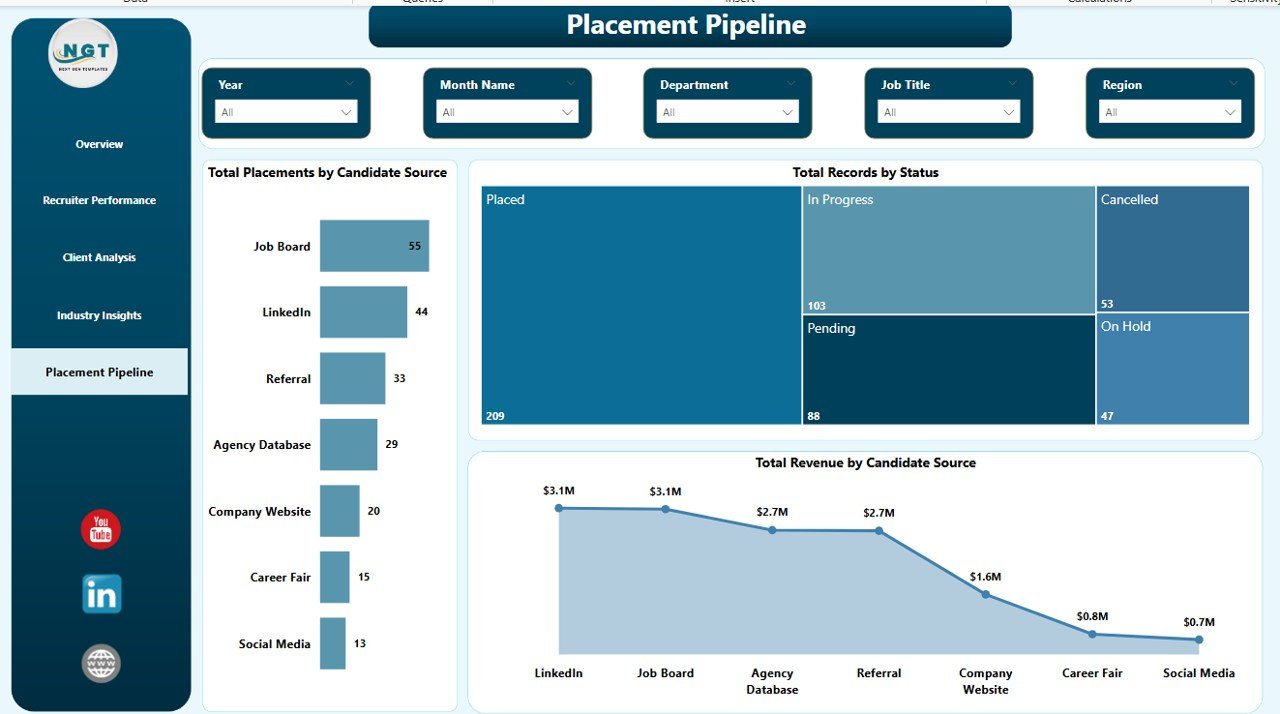
Placement Pipeline
📊 Staffing Agency Dashboard in Power BI vs. Tableau/Qlik vs. Bullhorn/Zoho Recruit — Where This Fits
| Feature | Staffing Agency Dashboard in Power BI | Tableau / Qlik Sense | Bullhorn / Zoho Recruit |
|---|---|---|---|
| Cost | $17.99 one-time | $70 / user / month | $30–$99 / user / month |
| Platform | Power BI Desktop (free) | Tableau / Qlik | Web-based ATS |
| Setup time | Under 10 minutes | 4–8 hours to build | 2–4 weeks onboarding |
| Pre-built recruiter KPIs | ✅ 15+ charts ready | ❌ Build from scratch | ✅ But locked to their data |
| Works with your own data | ✅ Any Excel/CSV/SQL source | ✅ | ❌ ATS lock-in |
| Editable DAX measures | ✅ Fully customizable | ✅ (Tableau calc fields) | ❌ |
| Share with link | ✅ (via Power BI Service) | ✅ | ✅ |
| Year-1 cost at 5 users | $17.99 | $4,200 | $1,800–$5,940 |
| No subscription, no per-user fees | ✅ One-time only | ❌ | ❌ |
For staffing firms that want Bullhorn-grade analytics without the $30–$99/user/month lock-in, the Staffing Agency Dashboard in Power BI sits in the sweet spot.
👥 Who This Template Is For — and Who It’s Not For
✅ This template is built for:
- Staffing agency owners with 2–50 recruiters who need a clear view of revenue, placements, and recruiter performance
- Executive search firms tracking high-value placements by industry and client company
- In-house talent acquisition leaders reporting recruiter KPIs to the CHRO or founder
- Recruitment consultants exporting data from Bullhorn, Zoho Recruit, or spreadsheets into Power BI for deeper analysis
- Agency operations managers who want a single source of truth for monthly and quarterly business reviews
❌ This template is NOT for:
- Enterprise staffing firms with 500+ recruiters needing SOC 2, SSO, and role-based row-level security out of the box
- Agencies that want a full applicant tracking system with CV parsing and email integration — this is analytics, not ATS
- Teams that have never opened Power BI Desktop and aren’t willing to spend 15 minutes learning the basics
⚙️ How to Use the Staffing Agency Dashboard in Power BI
- Download and unzip the Staffing Agency Dashboard in Power BI .pbix file from your NextGenTemplates order confirmation.
- Open in Power BI Desktop — download Power BI Desktop free from Microsoft if you don’t already have it.
- Replace the sample data in the Data model with your own placements table (Excel, CSV, SQL, or Bullhorn export — any source Power BI supports).
- Click Refresh — all 5 KPI cards and 12+ charts update automatically from your new data.
- Use the slicers on each page to filter by region, industry, recruiter, status, and date range.
- Publish to Power BI Service (optional) to share a live dashboard link with your team, clients, or leadership.
💼 Real-World Use Cases
Priya runs a 12-person tech recruitment agency in Bengaluru. She uses the Staffing Agency Dashboard in Power BI every Monday morning to review the previous week’s placements, gross profit by recruiter, and candidate source ROI — then emails a one-page screenshot to her team lead group. She cancelled her $390/month Bullhorn analytics add-on after switching.
Marcus leads executive search at a boutique firm in London. He plugs monthly placement data into the Industry Insights and Client Analysis pages before every quarterly business review, and presents the Gross Profit by Industry chart directly to his managing partners. No more copy-pasting between Excel and PowerPoint.
Ayesha is a solo recruitment consultant placing finance candidates on contract. She uses the Placement Pipeline page to see which candidate sources — LinkedIn, referrals, or job boards — actually convert to billed revenue, and reallocates her sourcing hours accordingly. The dashboard paid for itself the first week.
❓ Frequently Asked Questions
What KPIs does the Staffing Agency Dashboard in Power BI track?
The Staffing Agency Dashboard in Power BI tracks 5 headline KPIs — Total Revenue, Total Records, Total Cost, Total Placements, and Gross Profit — plus 12+ supporting metrics including gross margin, revenue by month, time-to-fill by recruiter, satisfaction score by client, and placements by candidate source.
Do I need Power BI Pro or a paid Microsoft license to use this dashboard?
No. The Staffing Agency Dashboard in Power BI runs on Power BI Desktop, which Microsoft offers free. You only need Power BI Pro ($10/user/month) if you want to publish the dashboard to the Power BI Service and share it with colleagues via a live link.
How does this compare to Bullhorn or Zoho Recruit analytics?
Bullhorn and Zoho Recruit cost $30–$99 per user per month and lock your data inside their ATS. The Staffing Agency Dashboard in Power BI is a $17.99 one-time purchase, works with data from any source, and gives you fully editable DAX measures — no per-user fees, ever.
Can I add my own custom KPIs and charts?
Yes. Every DAX measure, chart, and slicer in the Staffing Agency Dashboard in Power BI is fully editable. You can add new measures, duplicate visuals, rebrand the color palette, and rearrange pages to match your agency’s reporting style.
How long does setup take?
Under 10 minutes for most users. Open the .pbix file in Power BI Desktop, replace the sample placement table with your own data (same column structure), and click Refresh. All 5 pages and 12+ charts update automatically.
What data format does the dashboard expect?
The Staffing Agency Dashboard in Power BI expects one placements table with columns like Placement Date, Recruiter, Client Company, Industry, Job Title, Region, Candidate Source, Status, Revenue, Cost, Time to Fill, and Satisfaction Score. Column mapping details are shown inside the .pbix file.
Is this a one-time purchase or a subscription?
One-time purchase. $17.99 gets you lifetime access to the Staffing Agency Dashboard in Power BI with no recurring fees, no per-user charges, and no subscription renewals. Download once, use forever across unlimited projects.
👤 About the Author
Built by PK — Microsoft Certified Professional with 15+ years of Excel, Google Sheets, and Power BI experience. Founder of NextGenTemplates, reaching 300K+ subscribers across YouTube channels (@PK-AnExcelExpert, @NextGenTemplates, @NeoTechNavigators). Every template is hand-built and tested before release.
🔗 Explore Related Templates
Browse more Power BI Dashboard Templates and HR & Payroll Templates on NextGenTemplates.
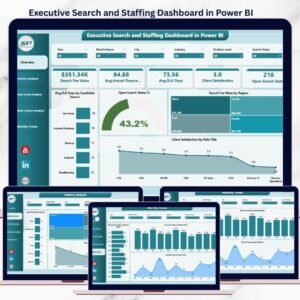
🎯 Executive Search and Staffing Dashboard in Power BI — for firms focused on C-suite and leadership placements.
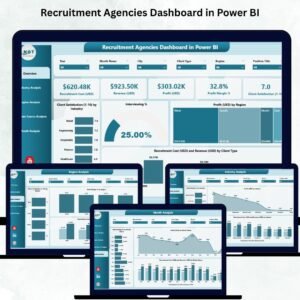
🎯 Recruitment Agencies Dashboard in Power BI — sibling dashboard focused on agency-wide recruitment metrics.
🎯 Recruitment Agencies KPI Dashboard in Power BI — scorecard-style view with traffic-light KPIs.
🔄 Also available as: Staffing Agency Dashboard in Excel · Staffing Agency Dashboard in HTML.
📖 Click here to read the Detailed Blog Post
Watch the step-by-step video tutorial:
🎥 Visit our YouTube channel for step-by-step video tutorials
👉 YouTube.com/@NextGenTemplates