Vendor performance can make or break your business. Suppliers influence product quality, delivery timelines, compliance standards, and cost control. Vendor Evaluation Tracking Checklist in Excel Yet many companies still manage vendor evaluations through emails, scattered notes, or manual follow-ups.
The result? Missed deadlines. Inconsistent assessments. Poor accountability.
If you want a structured, reliable, and easy-to-use system to monitor vendor evaluation tasks, the solution is clear:
You need the Vendor Evaluation Tracking Checklist in Excel.
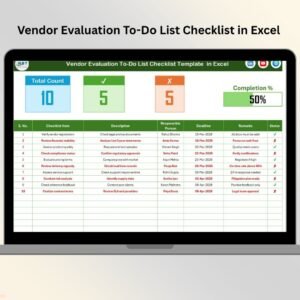
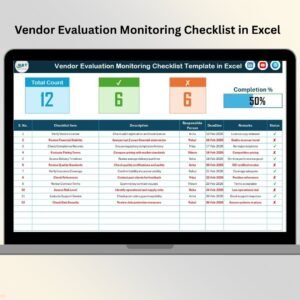
Vendor Evaluation Tracking Checklist in Excel This ready-to-use Excel template helps you track evaluation tasks, assign responsibilities, monitor deadlines, measure completion percentage, and improve supplier accountability — all in one organized file.
Stop chasing updates manually. Start tracking vendor performance with clarity and confidence.
🚀 Key Feature of Vendor Evaluation Tracking Checklist in Excel
This checklist is designed for simplicity, structure, and accountability.
✅ Structured Checklist Table
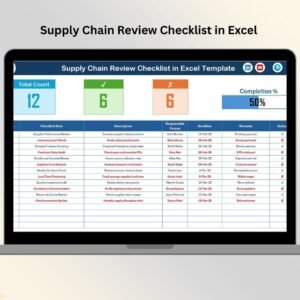
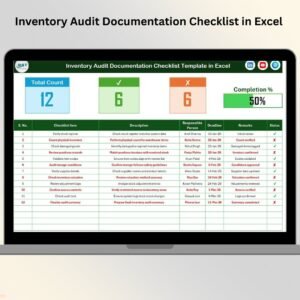
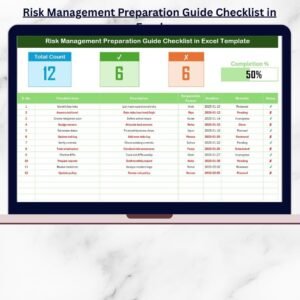
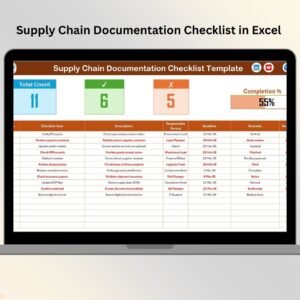
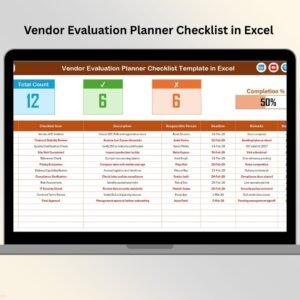
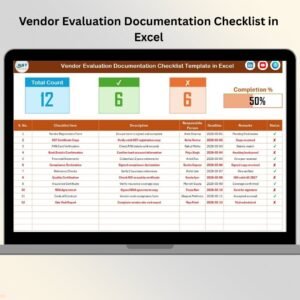
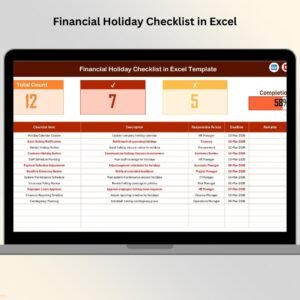
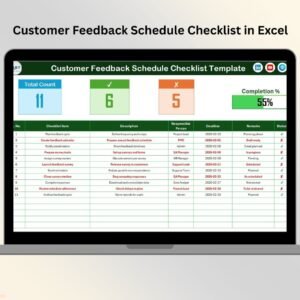
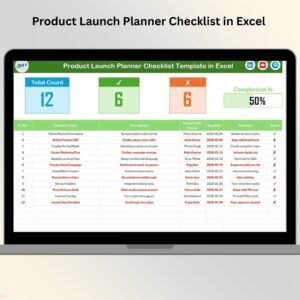
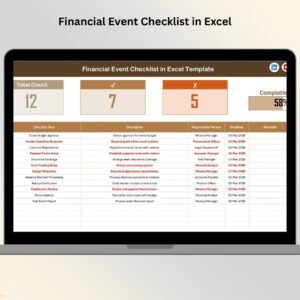
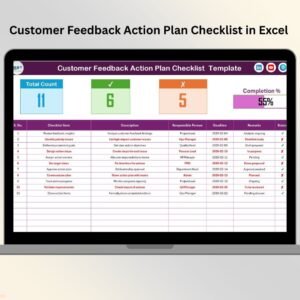
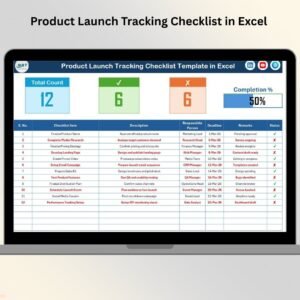
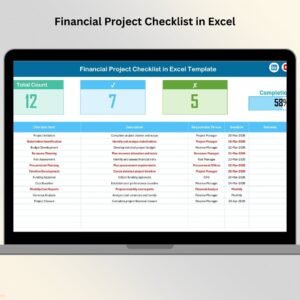
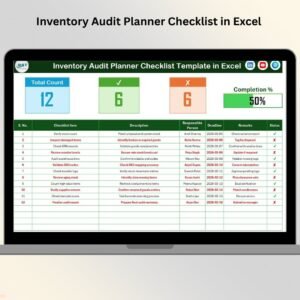
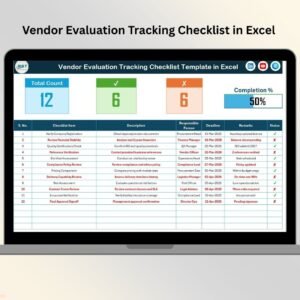
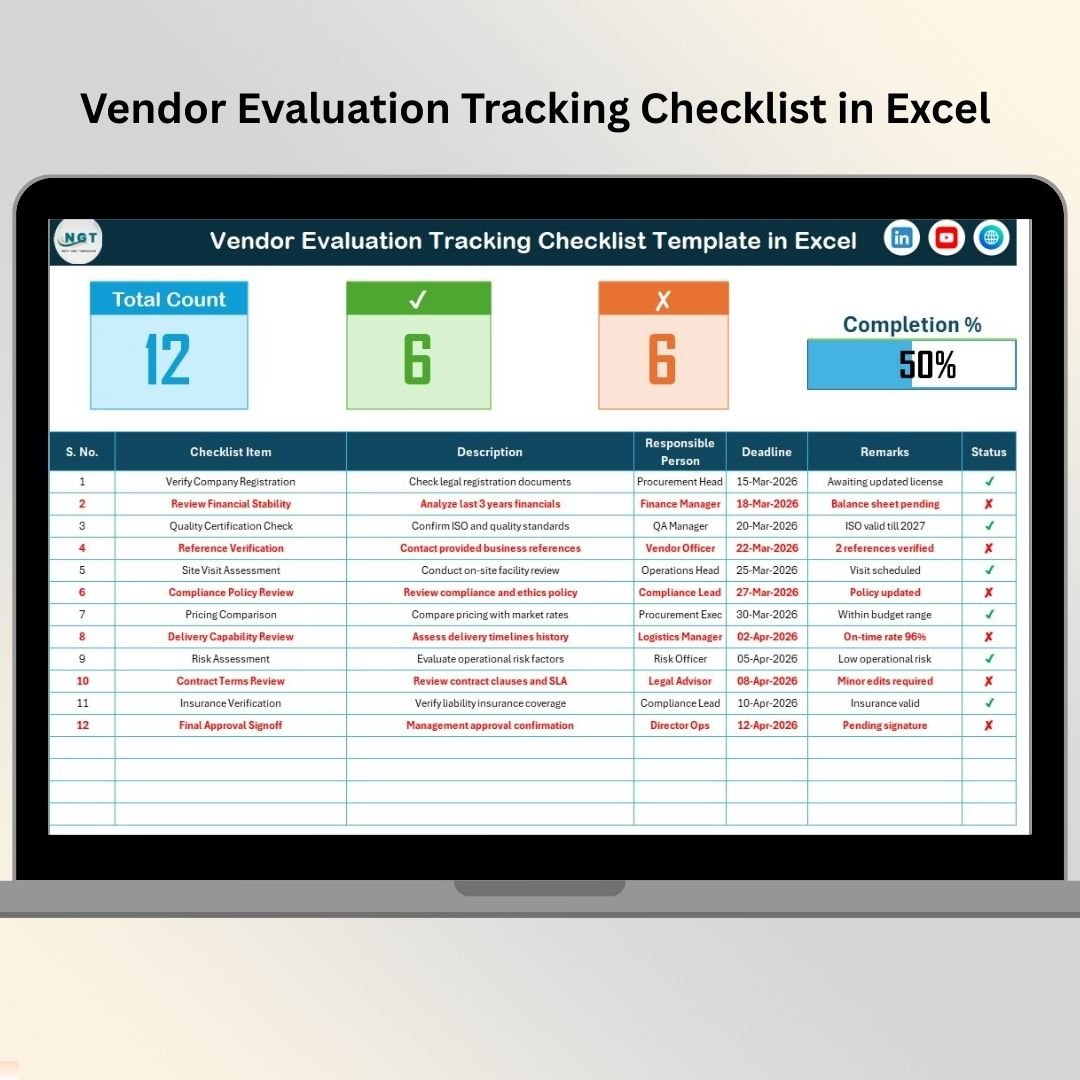
Track vendor evaluation tasks with Serial Number, Checklist Item, Description, Responsible Person, Deadline, Remarks, and Status.
✅ ✔ and ✘ Status Tracking
Simply mark ✔ for completed tasks and ✘ for pending or rejected tasks. The system updates automatically.
✅ Automatic Progress Bar
Visual progress bar shows completion percentage instantly.
✅ Summary Overview Section
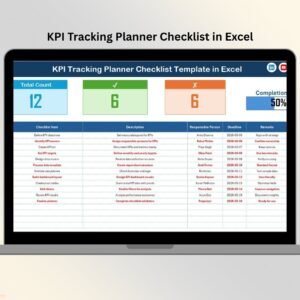
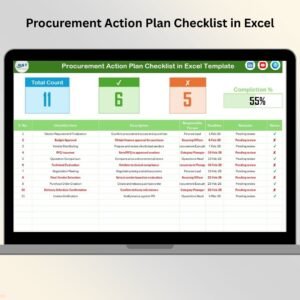
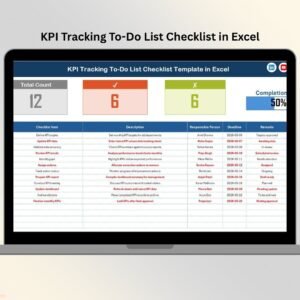
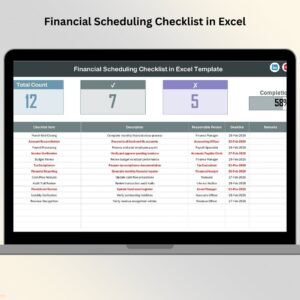
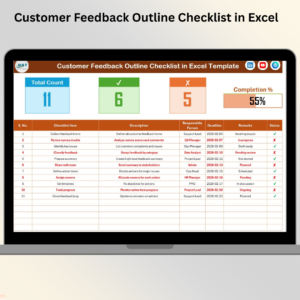
See Total Count, Checked Count, Crossed Count, and overall completion at the top.
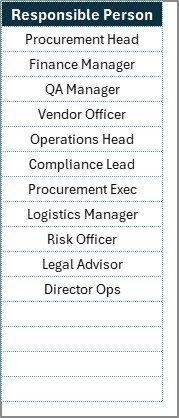
✅ Dropdown Management Sheet
Maintain standardized responsible persons list to avoid data duplication.
✅ Real-Time Updates
As soon as you update the Status column, the progress bar recalculates automatically.
Because it is Excel-based, you do not need expensive vendor management software.
📋 What’s Inside the Vendor Evaluation Tracking Checklist in Excel
This professional template includes 2 structured worksheets:
1️⃣ Vendor Evaluation Tracking Checklist Sheet
The main working sheet where you manage all vendor evaluation tasks.
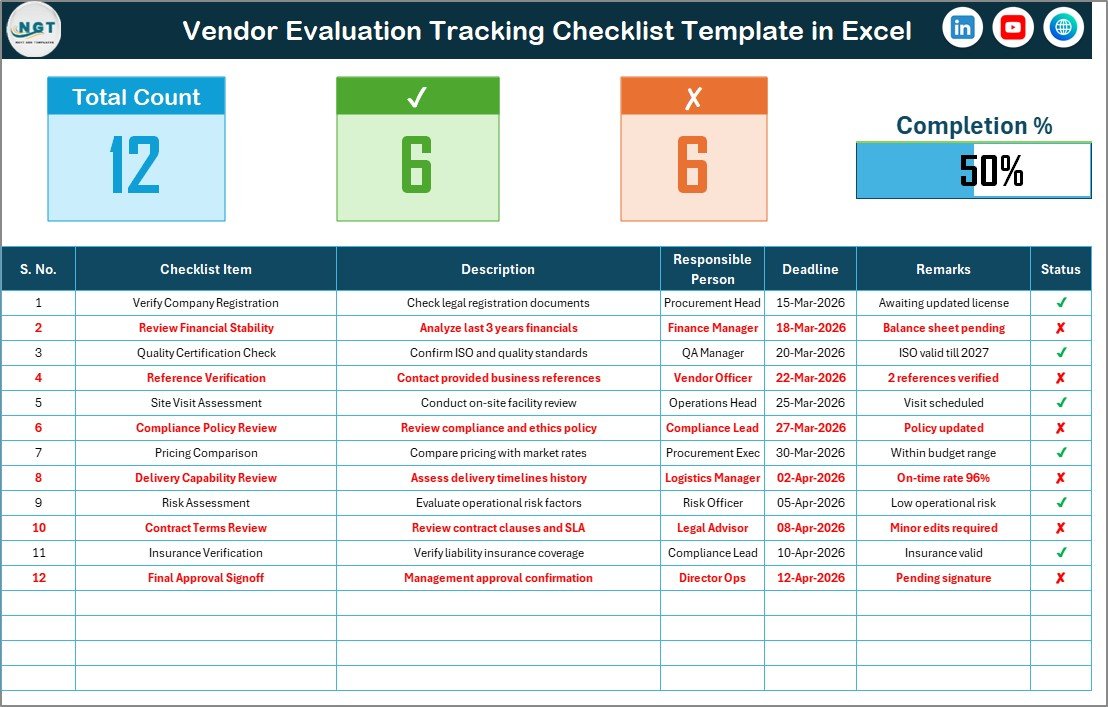
Top Section Includes:
-
Total Count of checklist items
-
Checked (Completed) Count
-
Crossed (Incomplete) Count
-
Visual Progress Bar
Checklist Table Includes:
-
Serial No.
-
Checklist Item
-
Description
-
Responsible Person
-
Deadline
-
Remarks
-
Status (✔ / ✘)
2️⃣ List Sheet Tab
This sheet stores the list of Responsible Persons for dropdown selection. It ensures standardized entries and clean data management.
You can include evaluation criteria such as:
📌 Quality Compliance
📌 Delivery Performance
📌 Cost Evaluation
📌 Regulatory Compliance
📌 Safety Standards
📌 Service & Support Performance
Everything is structured to ensure complete vendor accountability.
⚙️ How to Use the Vendor Evaluation Tracking Checklist in Excel
Using this template is simple:
Step 1: Enter checklist items and descriptions in the main table.
Step 2: Assign a Responsible Person using the dropdown list.
Step 3: Set realistic deadlines.
Step 4: Update Status using ✔ or ✘.
Step 5: Monitor the automatic progress bar at the top.
Within seconds, you can see:
✔ Pending tasks
✔ Completed evaluations
✔ Responsible team members
✔ Deadline risks
No advanced Excel skills required. Basic knowledge is enough.
👥 Who Can Benefit from This Vendor Evaluation Tracking Checklist in Excel
This checklist is ideal for:
✔ Procurement Teams
✔ Supply Chain Managers
✔ Vendor Management Departments
✔ Manufacturing Companies
✔ Retail Businesses
✔ Service-Based Organizations
✔ Logistics Firms
If your organization works with suppliers, this template helps you maintain control and reduce risk.
Because it is customizable, you can modify checklist items according to your business needs.
By using this checklist consistently, you can:
✔ Reduce supply chain risks
✔ Improve vendor accountability
✔ Strengthen compliance management
✔ Avoid missed deadlines
✔ Maintain structured documentation
✔ Enhance decision-making
Instead of reactive vendor management, you build a proactive system.
Click hare to read the Detailed blog post
Visit our YouTube channel to learn step-by-step video tutorials:
👉 https://www.youtube.com/@PKAnExcelExpert