


Every business wants to grow revenue, improve performance, and understand what truly drives results. But when monthly sales change, customer behaviour shifts, and teams run multiple campaigns at once, it becomes difficult to track everything manually. Leaders need real-time clarity—not multiple Excel files, not long reports—just one clean dashboard that shows everything instantly.
This is exactly where the Revenue Growth KPI Dashboard in Power BI becomes a game-changing tool for any organization.
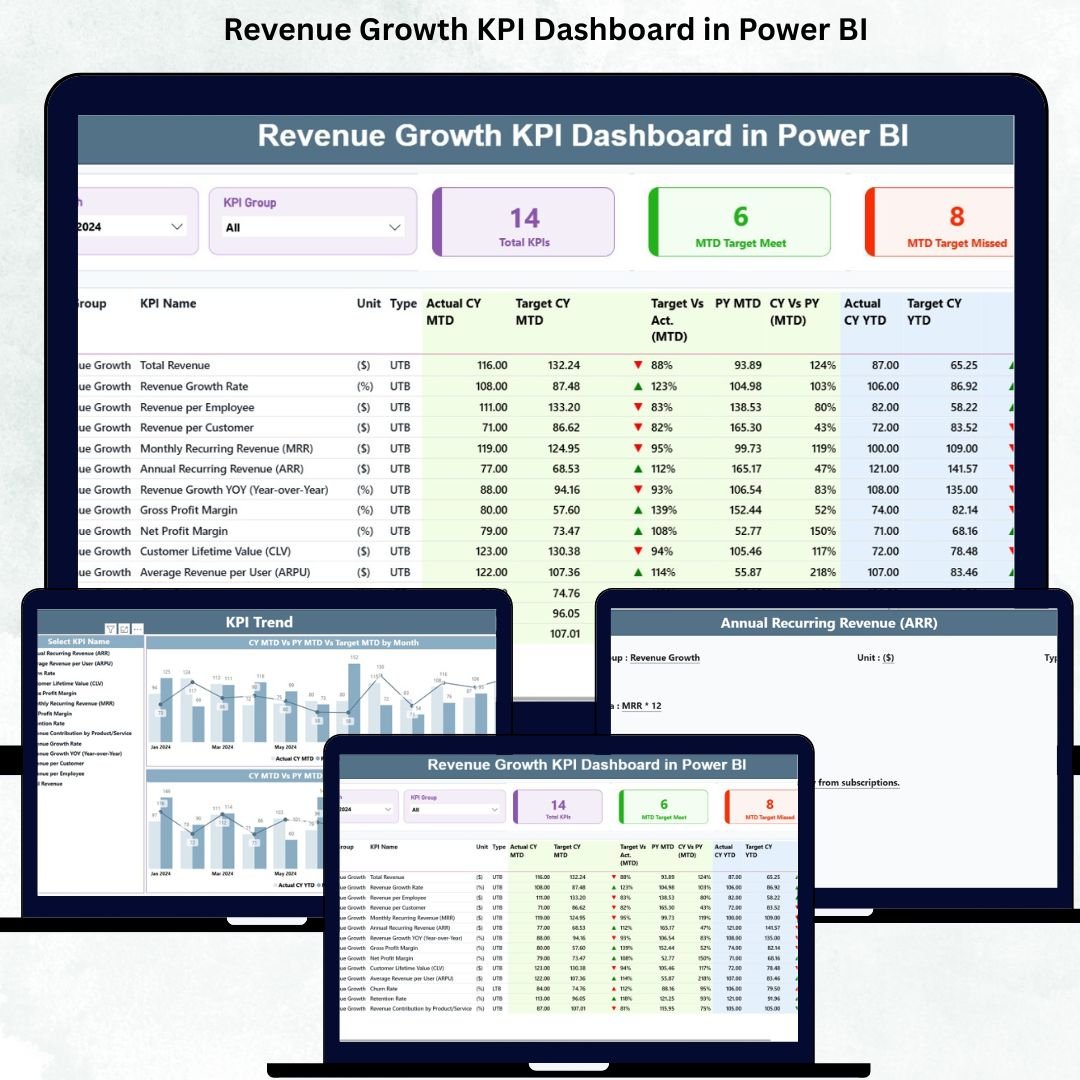
This ready-to-use Power BI dashboard converts raw revenue data into clear, interactive visuals. It helps teams track MTD progress, YTD numbers, targets, variance, and previous year comparisons in a single place. With powerful slicers, dynamic charts, drill-through pages, and auto-calculated KPIs, this dashboard becomes a complete command center for business growth.
Designed for CEOs, Sales Heads, Finance Managers, Marketing Teams, and Decision Makers—this dashboard gives you the insights you need to improve your performance faster, smarter, and with complete confidence.
🚀 Key Features of the Revenue Growth KPI Dashboard in Power BI
Below is a full breakdown of the dashboard, its structure, and how each part supports revenue acceleration.
⭐ Summary Page – Your Main Performance Hub
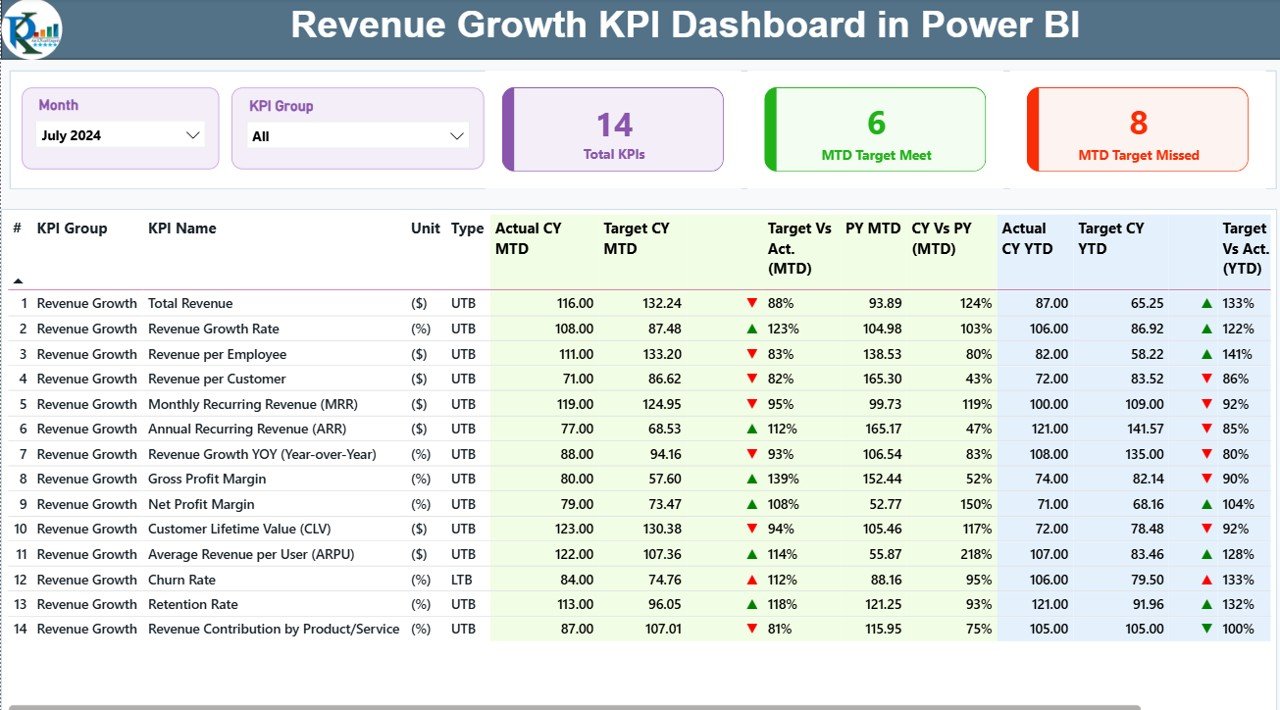
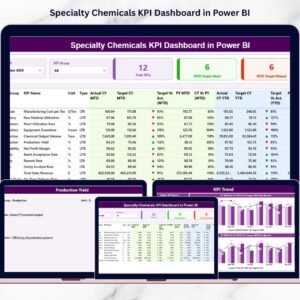
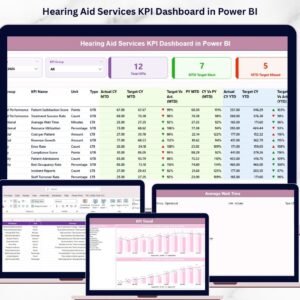
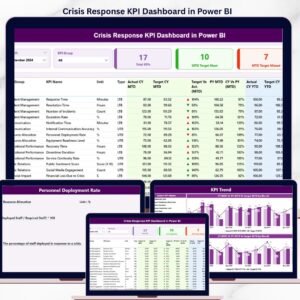
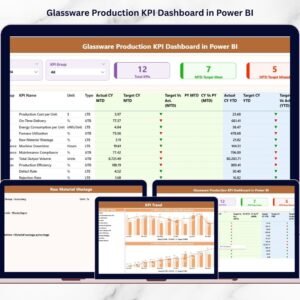
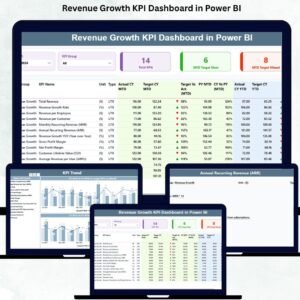
The Summary Page is the heart of this dashboard. It displays all KPIs in a single view along with smart slicers and auto-updating visuals.
🔹 Smart Slicers (Top Section)
Users can dynamically filter the dashboard by:
Month – View monthly performance instantly
KPI Group – Filter KPIs for Sales, Operations, Finance, Marketing, or Revenue
These slicers refresh the entire dashboard in real time.
🔹 KPI Cards for Quick Health Check
You get three powerful KPI Cards:
Total KPIs Count
MTD Target Met Count
MTD Target Missed Count
These cards give a clear summary of overall performance.
🔹 Detailed KPI Table – Full Revenue Intelligence
This KPI table is the backbone of the Summary Page. It includes:
KPI Number
KPI Group
KPI Name
Unit (%, $, Units, Nos.)
KPI Type (UTB – Upper the Better / LTB – Lower the Better)
Actual CY MTD
Target CY MTD
MTD Icon (▲ / ▼)
Target vs Actual (MTD)
Previous Year (PY MTD)
CY vs PY (MTD)
Actual CY YTD
Target CY YTD
YTD Icon (▲ / ▼)
Target vs Actual (YTD)
PY YTD
CY vs PY (YTD)
This table makes it extremely easy to identify KPIs that are on track, those that are missing targets, and those that need immediate attention.
⭐ KPI Trend Page – Track Growth Month-by-Month
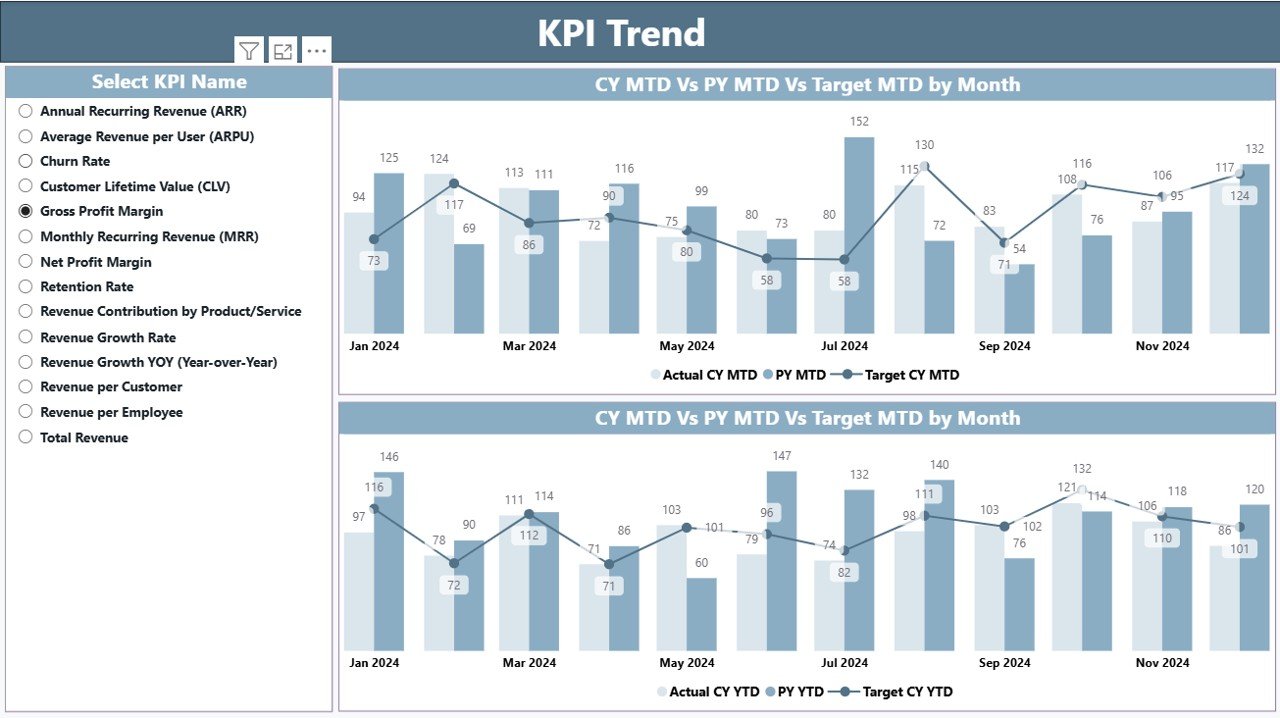
The KPI Trend Page helps teams understand long-term performance patterns.
🔹 KPI Name Slicer
Select any KPI to track its monthly trend.
🔹 Two Combo Charts
Powerful trend visuals show:
Current Year Actuals
Target Values
Previous Year Actuals
These charts are available for:
MTD Trend
YTD Trend
With these visuals, users can see if performance is improving, stable, or declining—helping teams take timely corrective actions.
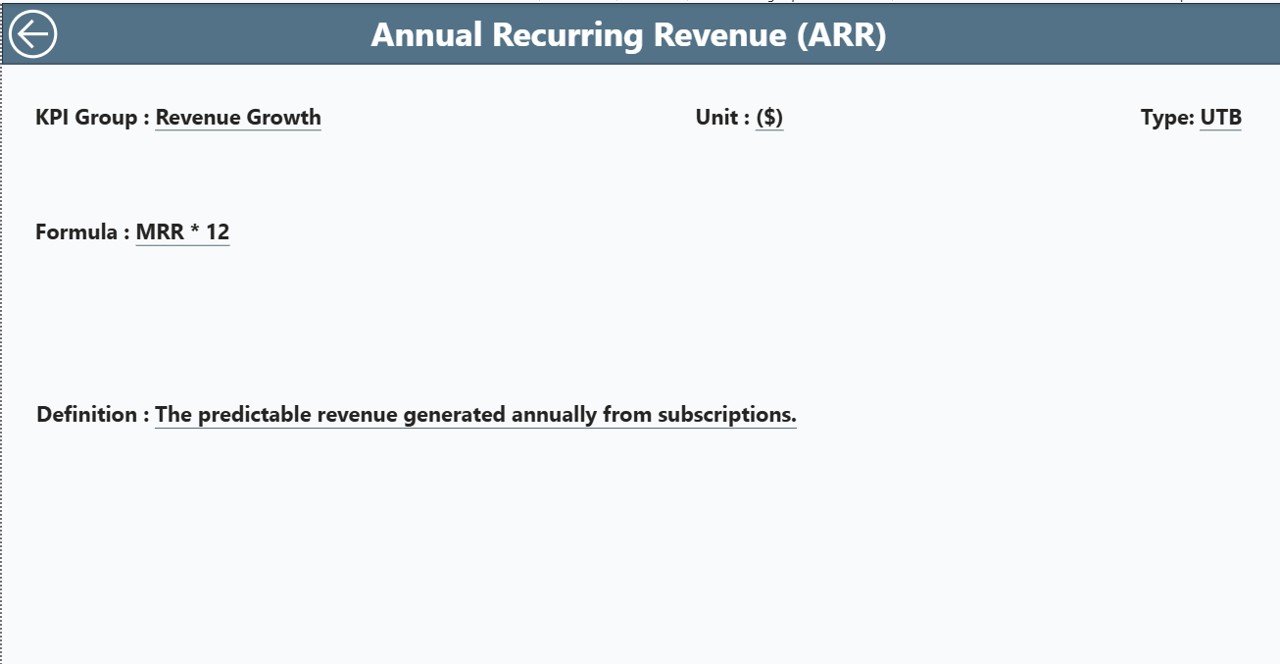
⭐ KPI Definition Page – Deep KPI Understanding
This hidden page opens through drill-through options on the KPI table.
It includes:
KPI Number
KPI Group
KPI Name
Unit
Formula
KPI Definition
KPI Type (LTB / UTB)
This page is extremely helpful for new users and ensures complete transparency across teams.
📦 What’s Inside the Dashboard?
3 powerful, interactive Power BI pages
Dynamic slicers for smooth filtering
Auto-calculated icons, variance, and comparisons
Drill-through capability
Clean layout for fast navigation
Fully structured Excel-based data source
Professional visuals designed for decision makers
🎯 Who Can Benefit from This Dashboard?
CEOs & Founders
Sales Directors & Sales Teams
Finance Departments
Marketing Teams
Business Analysts
Operations Managers
Strategy & Planning Teams
Any business that wants to grow revenue faster will benefit from this dashboard.
💡 How to Use the Revenue Growth Dashboard in Power BI
Enter Actual MTD/YTD values in the Input_Actual sheet
Enter MTD/YTD target values in Input_Target
Maintain KPI Definitions in KPI Definition sheet
Refresh Power BI to update all visuals
Use slicers to filter insights
Track trends using the Trend Page
Drill-through to understand KPI definitions
Compare CY vs PY to measure true growth
Even non-technical users can operate this dashboard easily.
### Click here to read the detailed blog post
📺 Visit our YouTube channel to learn step-by-step video tutorials
👉 youtube.com/@PKAnExcelExpert
Watch the step-by-step video tutorial:
Compatibility and Requirements
- Works in Power BI Desktop, which is free from Microsoft. Get it from Get Power BI Desktop.
- Your data sits in an Excel-based source with the Input_Actual, Input_Target and KPI Definition sheets. Refresh Power BI after you update them.
Frequently Asked Questions
How many pages does the dashboard have?
Three pages: Summary, KPI Trend and KPI Definition. The KPI Definition page opens through drill-through from the KPI table.
Where do I enter my numbers?
Enter actual MTD and YTD values in the Input_Actual sheet and target values in the Input_Target sheet. KPI names, units, formulas and definitions go in the KPI Definition sheet. Then refresh Power BI.
Can I compare this year with last year?
Yes. The Summary page shows CY vs PY for both MTD and YTD, next to the target comparison and the up and down icons.
How do I see the trend for one KPI?
Open the KPI Trend page and pick the KPI in the KPI Name slicer. Two combo charts show current year actuals, targets and previous year actuals for MTD and YTD.
Is there an Excel or Google Sheets version?
Yes. See the Revenue Growth KPI Dashboard in Excel and the Revenue Growth KPI Dashboard in Google Sheets.
Related Revenue Dashboards
- Revenue Growth KPI Dashboard in Excel: the same KPIs in Excel
- Revenue Growth KPI Dashboard in Google Sheets: the Google Sheets edition
- Revenue Analysis Dashboard in Power BI: a deeper look at revenue in Power BI
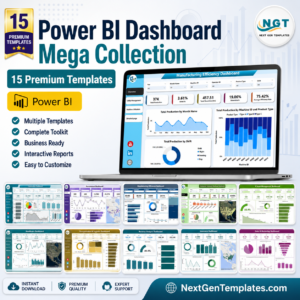
- Power BI Dashboard Mega Collection: 15 Power BI templates in one download
Browse all Power BI KPI dashboards.




Reviews
There are no reviews yet.