

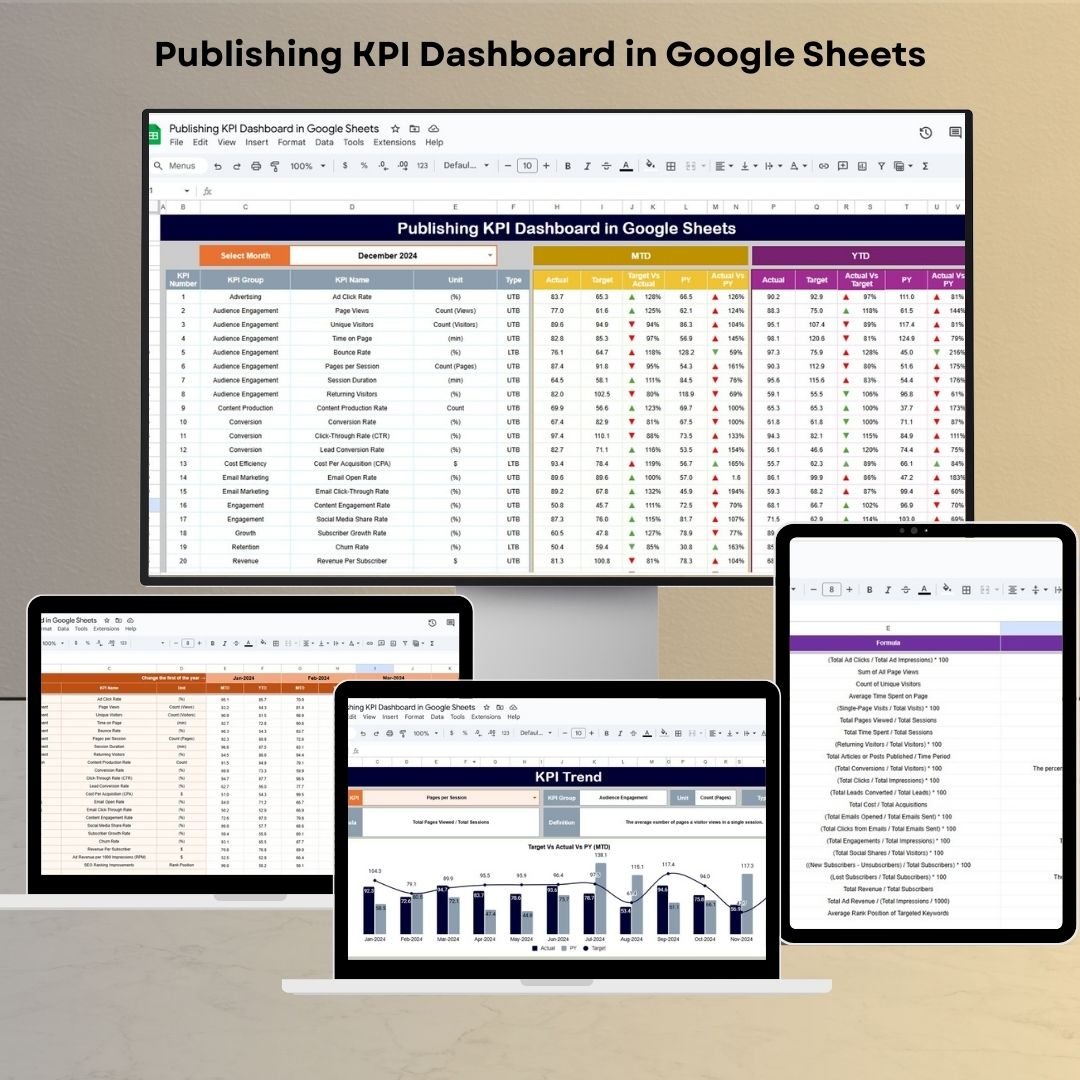
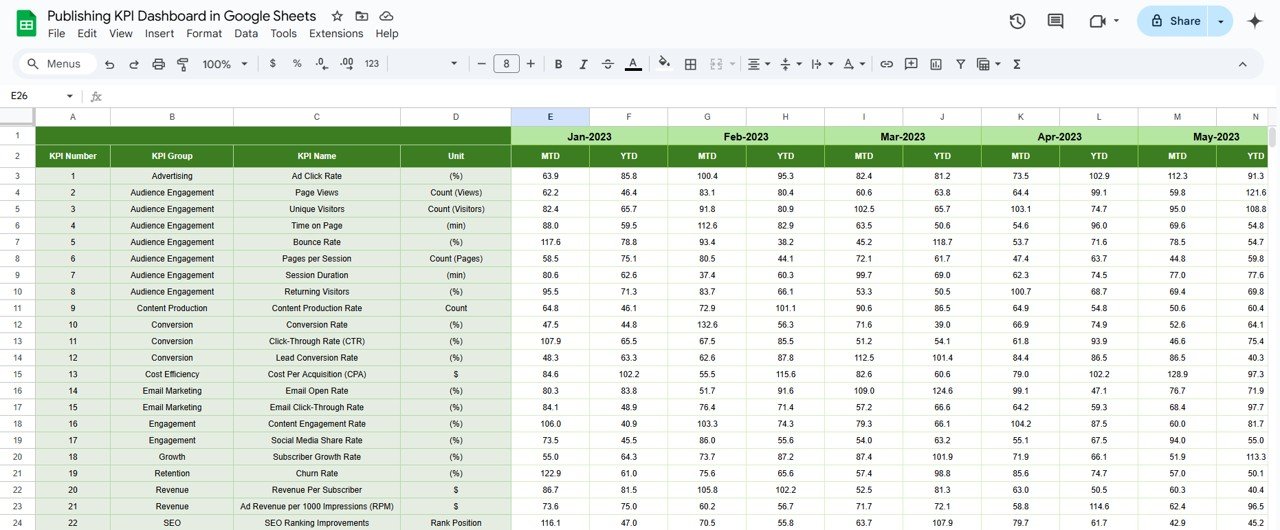
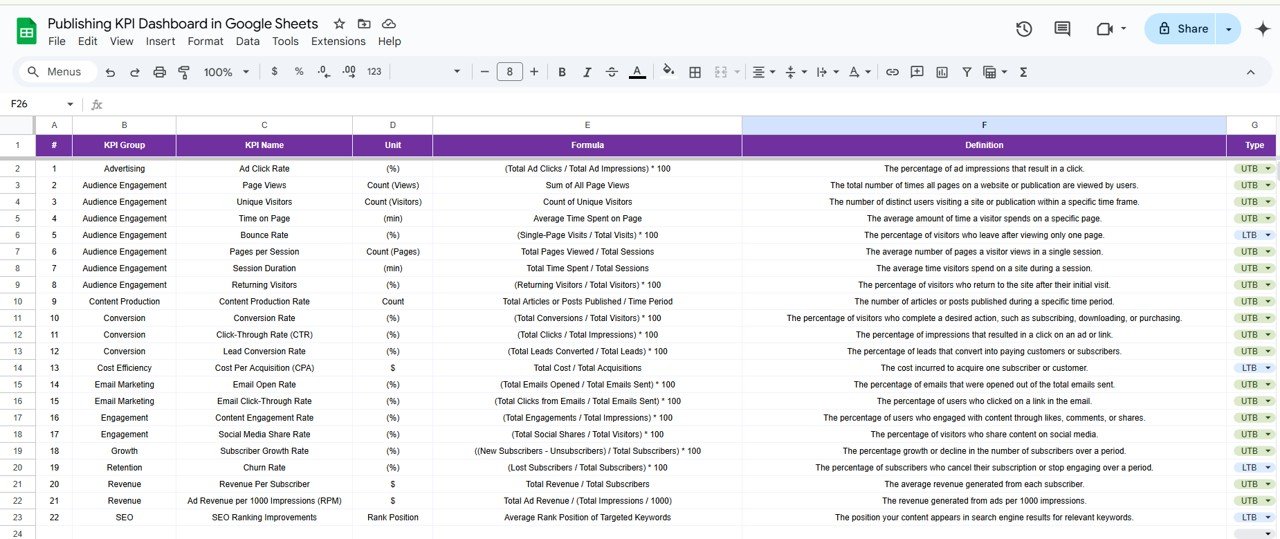

The Publishing KPI Dashboard in Google Sheets is a comprehensive tool designed to help publishing teams track, analyze, and optimize their key performance indicators (KPIs). This dashboard centralizes all important metrics into a user-friendly interface, allowing publishing teams to monitor performance, identify trends, and make data-driven decisions to improve operational efficiency.
Key Features of the Publishing KPI Dashboard in Google Sheets
📊 Comprehensive KPI Tracking
Monitor Key Metrics: Track important publishing KPIs such as content production, engagement rates, revenue per article, subscription growth, and more.
Real-Time Data Updates: The dashboard updates in real-time, reflecting the latest data from your publishing operations.
📈 Customizable Metrics
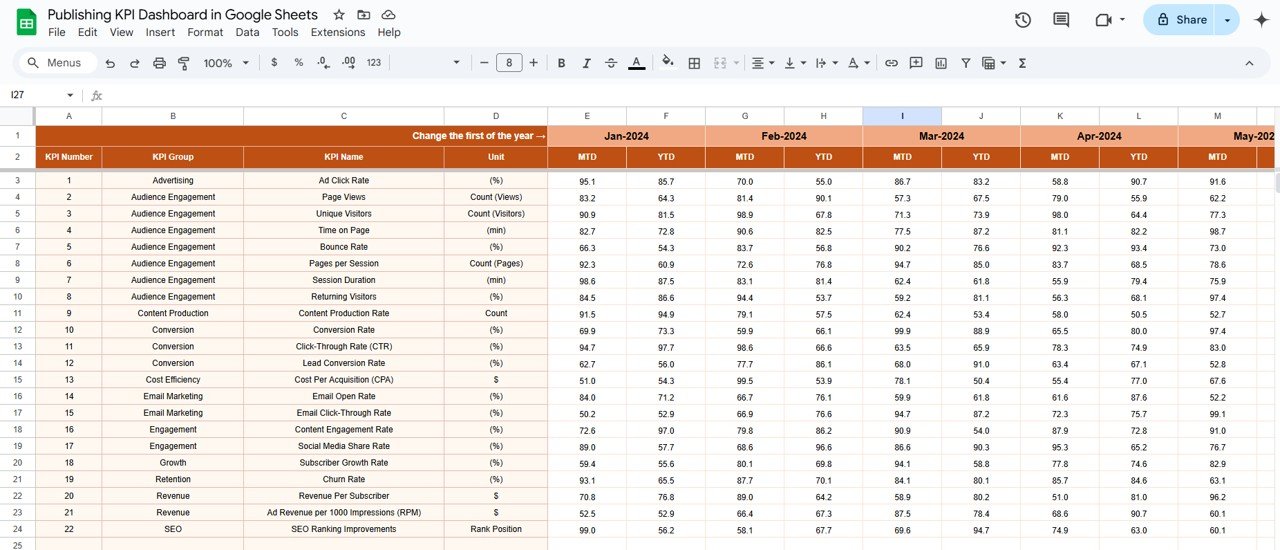
Tailored to Your Needs: Define and input KPIs that are most relevant to your publishing operations, ensuring the dashboard aligns with your goals.
Flexible Layout: Easily add new KPIs or modify existing ones to adapt the dashboard to your changing business needs.
🔧 User-Friendly Interface
Simple and Accessible: Designed with ease of use in mind, this dashboard is accessible even for users with limited experience in Google Sheets.
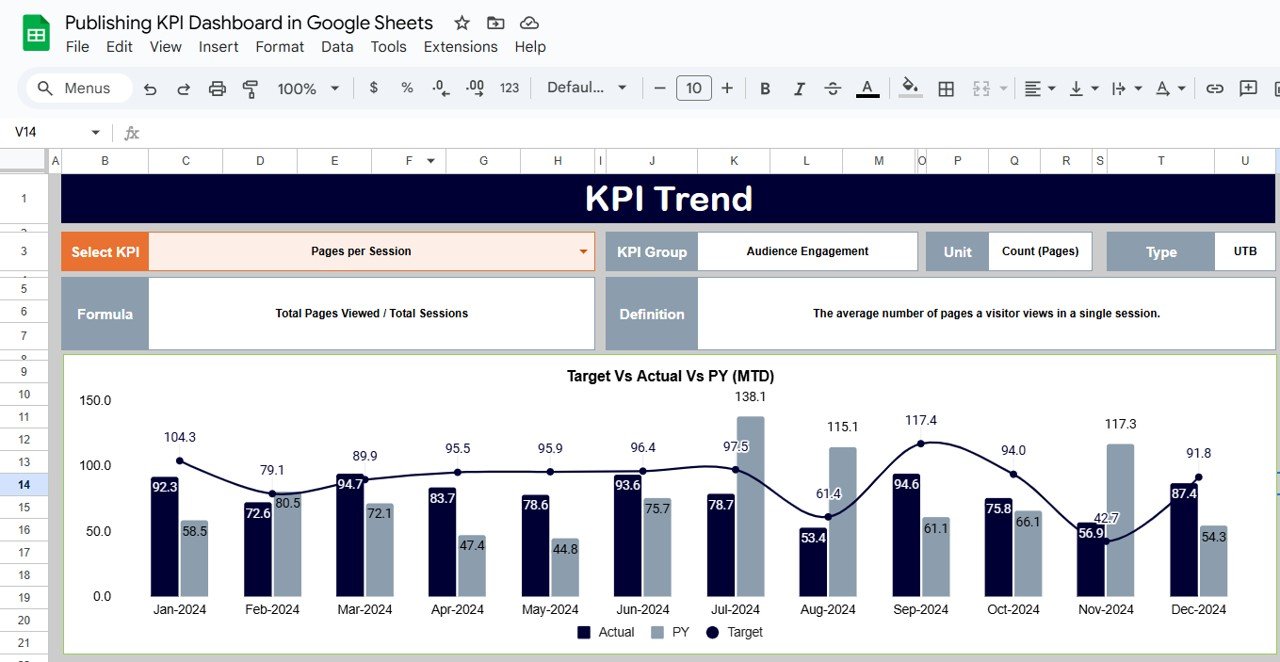
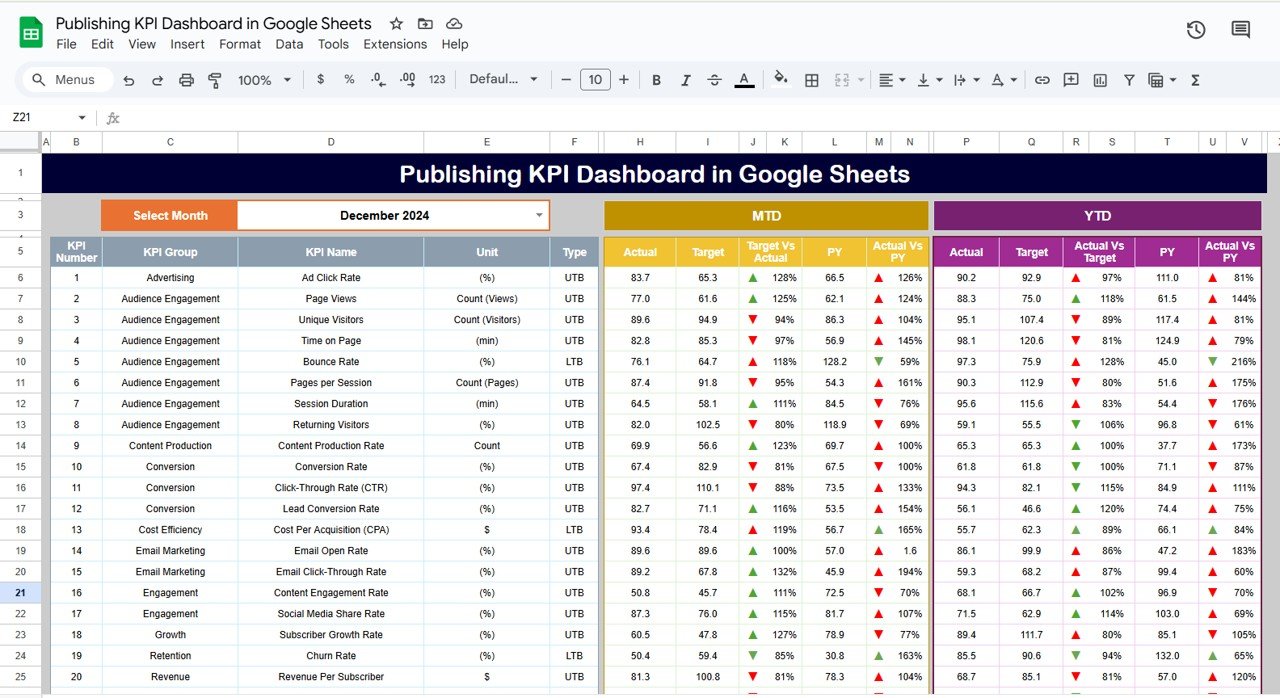
Visual Indicators: Use charts, graphs, and color-coded signals to visualize key performance trends and identify areas of success or improvement.
📅 Performance Monitoring & Reporting
Track MTD & YTD: Monitor Month-to-Date (MTD) and Year-to-Date (YTD) performance to compare current results with historical data.
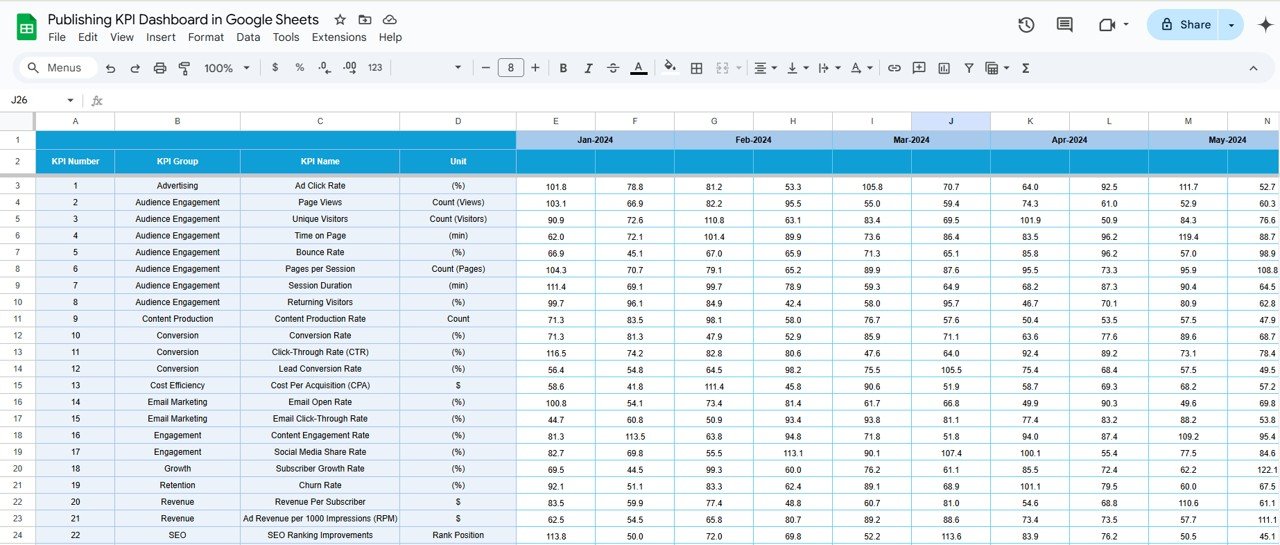
Target vs. Actual Comparison: Evaluate actual performance against set goals to ensure publishing objectives are being met.
Benefits of Using the Publishing KPI Dashboard in Google Sheets
✅ Informed Decision-Making
Make data-driven decisions with clear insights into how your publishing operations are performing. Access real-time data to ensure timely decisions.
✅ Increased Efficiency
Monitor key publishing metrics from one place, reducing the need for time-consuming manual tracking and improving efficiency across teams.
✅ Alignment with Business Goals
Ensure all publishing teams are aligned with organizational objectives by clearly tracking KPIs and monitoring progress against targets.
✅ Data-Driven Culture
Promote a culture of continuous improvement by regularly reviewing and acting on data to enhance publishing performance.
Getting Started with Your Publishing KPI Dashboard in Google Sheets
Download the Template: Download the Publishing KPI Dashboard template to begin customizing it for your team’s needs.
Set Your KPIs: Identify the key metrics that align with your publishing strategy, such as content engagement, revenue generation, and subscription growth.
Integrate Data: Input your data manually or import it from relevant systems to ensure real-time updates.
Track & Analyze: Use the dashboard to track performance and assess which areas need attention or improvement.
Share Insights: Distribute the dashboard to stakeholders to ensure transparency and encourage collaboration in achieving publishing goals.
By using the Publishing KPI Dashboard in Google Sheets, your team can streamline its operations, optimize publishing strategies, and achieve better results in content creation, distribution, and engagement.
Click here to read the Detailed blog post
Publishing KPI Dashboard in Google Sheets
Visit our YouTube channel to learn step-by-step video tutorials
YouTube.com/@NeotechNavigators
Watch the step-by-step video Demo:
Who Uses This Dashboard
Publishers, editors and editorial teams, and media business owners who want content, engagement and revenue numbers in one shared sheet.
Compatibility and Requirements
- Works in Google Sheets. You need a free Google account and a web browser.
- New to Sheets? Google’s guide How to use Google Sheets covers the basics.
Frequently Asked Questions
Which publishing KPIs does it track?
It tracks content production, engagement rates, revenue per article and subscription growth, among other publishing metrics.
Can I compare results with my goals?
Yes. It shows month-to-date and year-to-date results and compares actual performance with the goals you set.
How do I get my data in?
You can type your data in or import it from the systems you already use.
Can I add my own KPIs?
Yes. You can add new KPIs or change existing ones as your needs change.
Related Publishing Templates
- Publishing KPI Dashboard in Excel: the same KPIs in Excel
- Publishing Industry KPI Dashboard in Power BI: publishing KPIs in Power BI
- Printing & Publishing KPI Dashboard in Google Sheets: add print production KPIs
- Publishing Dashboard in Excel: a full publishing dashboard in Excel
- Google Sheets Business Pack (Pro): 14 business templates for Google Sheets in one download
Browse all Google Sheets KPI dashboards or the Google Sheets dashboards.






Reviews
There are no reviews yet.