




Data privacy is no longer a background function. With evolving regulations, rising customer expectations, and growing audit pressure, organizations must track privacy performance with clarity and confidence. Unfortunately, many data privacy teams still rely on scattered Excel files, delayed reports, and manual tracking—making compliance harder than it needs to be.
That’s exactly where the Data Privacy Office KPI Dashboard in Power BI becomes a game-changer 🚀
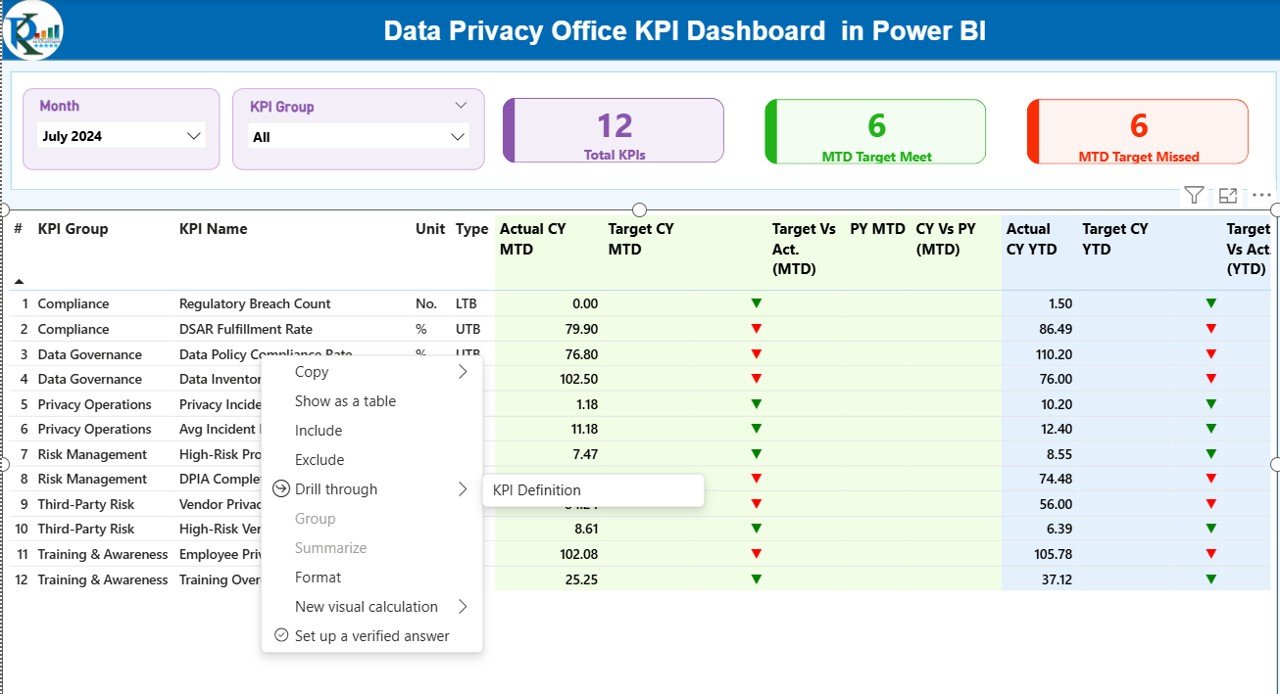
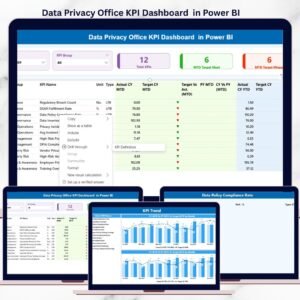
This ready-to-use dashboard transforms raw privacy KPI data into clear visuals, performance indicators, and trend analysis. Instead of chasing numbers at the last minute, data privacy teams gain instant visibility into compliance status, risks, and progress—all in one centralized Power BI dashboard.
Built using Excel as the data source and Power BI as the visualization layer, this solution combines simplicity with powerful analytics. You update data easily in Excel, and Power BI handles the insights automatically.
## 🔑 Key Features of Data Privacy Office KPI Dashboard in Power BI
📊 Centralized Privacy KPI Monitoring
Track all data privacy KPIs from a single dashboard without juggling multiple files.
🎯 MTD & YTD Performance Tracking
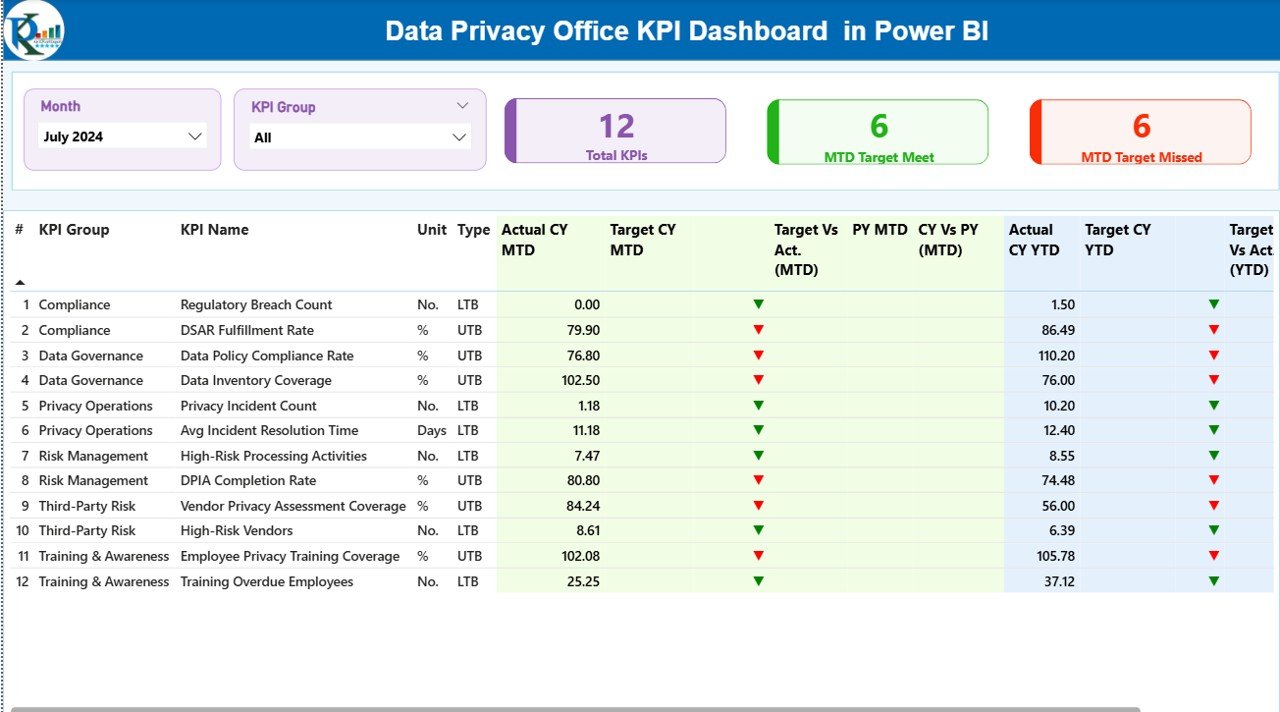
Monitor Month-to-Date and Year-to-Date actuals, targets, and achievement status.
📈 Target vs Actual Comparison
Instantly see which KPIs meet targets and which require attention using icons and colors.
🔄 Current Year vs Previous Year Analysis
Compare CY and PY performance to understand trends and improvements.
🧩 Interactive Slicers & Drill-Through
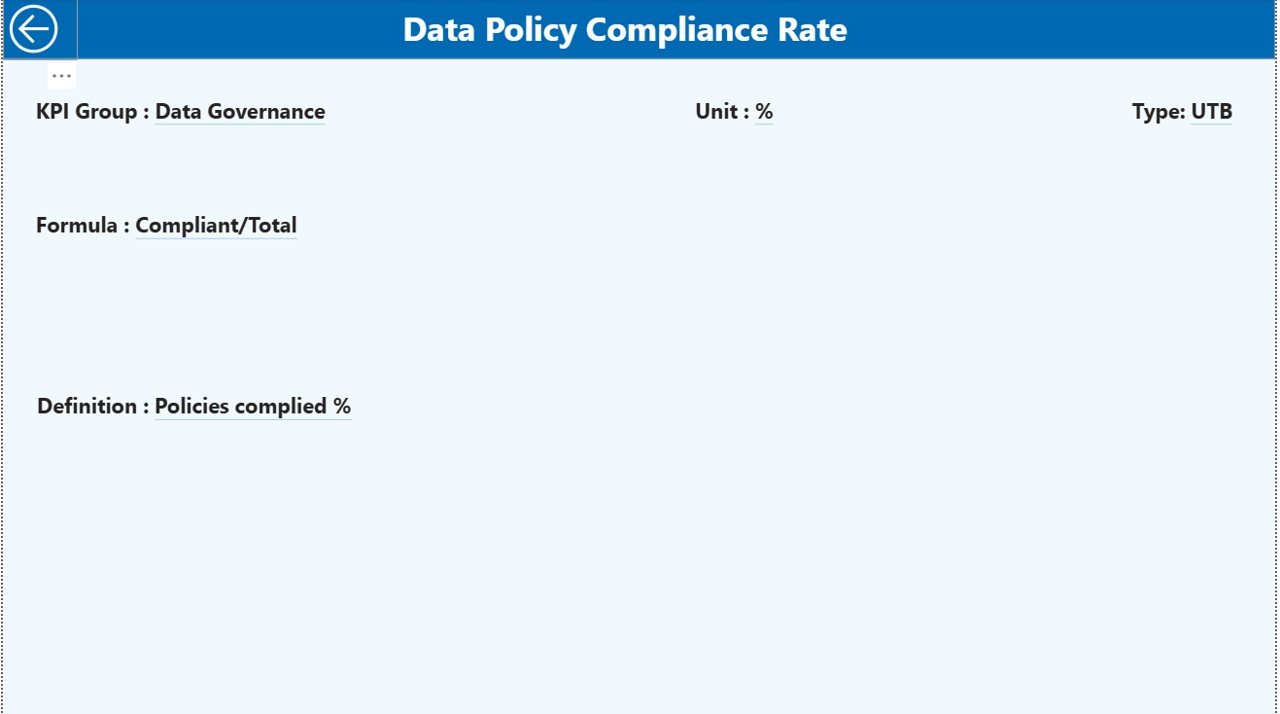
Filter data by month and KPI group, and drill into KPI definitions instantly.
📁 Excel-Based Data Entry
No complex systems—just structured Excel sheets that anyone can update.
🛡️ Audit-Ready KPI Documentation
Clear KPI definitions, formulas, and types ensure transparency and consistency.
## 📦 What’s Inside the Data Privacy Office KPI Dashboard
This Power BI dashboard comes with a clean and structured setup designed for real-world use:
🗂 Excel Data File with 3 Sheets
Input_Actual – Capture MTD and YTD actual KPI values
Input_Target – Store MTD and YTD target values
KPI_Definition – Define KPI number, group, unit, formula, and type (LTB/UTB)
📄 Power BI Dashboard with 3 Pages
Summary Page – KPI cards, slicers, and a detailed performance table
KPI Trend Page – Combo charts showing actuals, targets, and PY comparison
KPI Definition Page – Drill-through reference page for KPI clarity
This structure keeps your data clean, consistent, and ready for audits.
## 🛠 How to Use the Data Privacy Office KPI Dashboard
Using this dashboard is simple—even for non-technical users:
1️⃣ Enter actual KPI values in the Input_Actual sheet
2️⃣ Update targets in the Input_Target sheet
3️⃣ Maintain KPI definitions in the KPI_Definition sheet
4️⃣ Refresh the Power BI dashboard
5️⃣ Analyze performance using slicers, tables, charts, and icons
That’s it! No advanced Power BI skills required.
## 👥 Who Can Benefit from This Data Privacy Office KPI Dashboard
This dashboard is ideal for:
👤 Data Privacy Officers (DPOs)
👤 Compliance & Governance Teams
👤 Risk Management Professionals
👤 Internal Audit Teams
👤 Senior Leadership & Management
Whether you manage a few KPIs or dozens, this dashboard scales easily with your organization.
Click here to read the Detailed Blog Post
Watch the step-by-step video tutorial:
Visit our YouTube channel to learn step-by-step video tutorials
Compatibility and Requirements
- Works in Power BI Desktop, which is free to download. Microsoft explains the install in Get Power BI Desktop.
- Data is entered in an Excel file with three sheets: Input_Actual, Input_Target and KPI_Definition.
Frequently Asked Questions
Which sheets are in the Excel data file?
Three sheets: Input_Actual for MTD and YTD actual values, Input_Target for MTD and YTD targets, and KPI_Definition for KPI number, group, unit, formula and type (LTB or UTB).
How many pages does the Power BI dashboard have?
Three pages: Summary, KPI Trend and KPI Definition. The Summary page has KPI cards, slicers and a detailed performance table. The KPI Trend page has combo charts with actuals, targets and previous year.
How do I update the dashboard with new figures?
Enter actual values in Input_Actual and targets in Input_Target in the Excel file, then refresh the Power BI dashboard.
Can I compare this year with last year?
Yes. The dashboard compares current year and previous year performance, and the KPI Trend page shows the comparison in combo charts.
Can I see how a KPI is defined?
Yes. The KPI Definition page is a drill-through page that shows the KPI group, unit, formula and type for the KPI you select.
Is there an Excel version?
Yes. See the Data Privacy Office KPI Dashboard in Excel.
Related Data Privacy and Office Templates
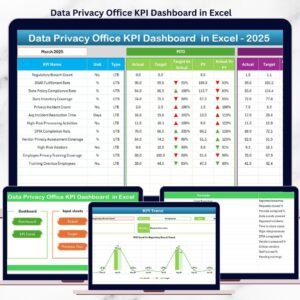
- Data Privacy Office KPI Dashboard in Excel: the same KPIs in Excel
- Data Privacy KPI Dashboard in Power BI: a data privacy KPI view in Power BI
- Data Privacy Checklist Template in Excel: a checklist to track privacy tasks
- Office Security Incident Dashboard in Power BI: security incidents in Power BI
- Power BI Dashboard Mega Collection: 15 Power BI templates in one download
Browse all Power BI KPI dashboards.

Reviews
There are no reviews yet.