

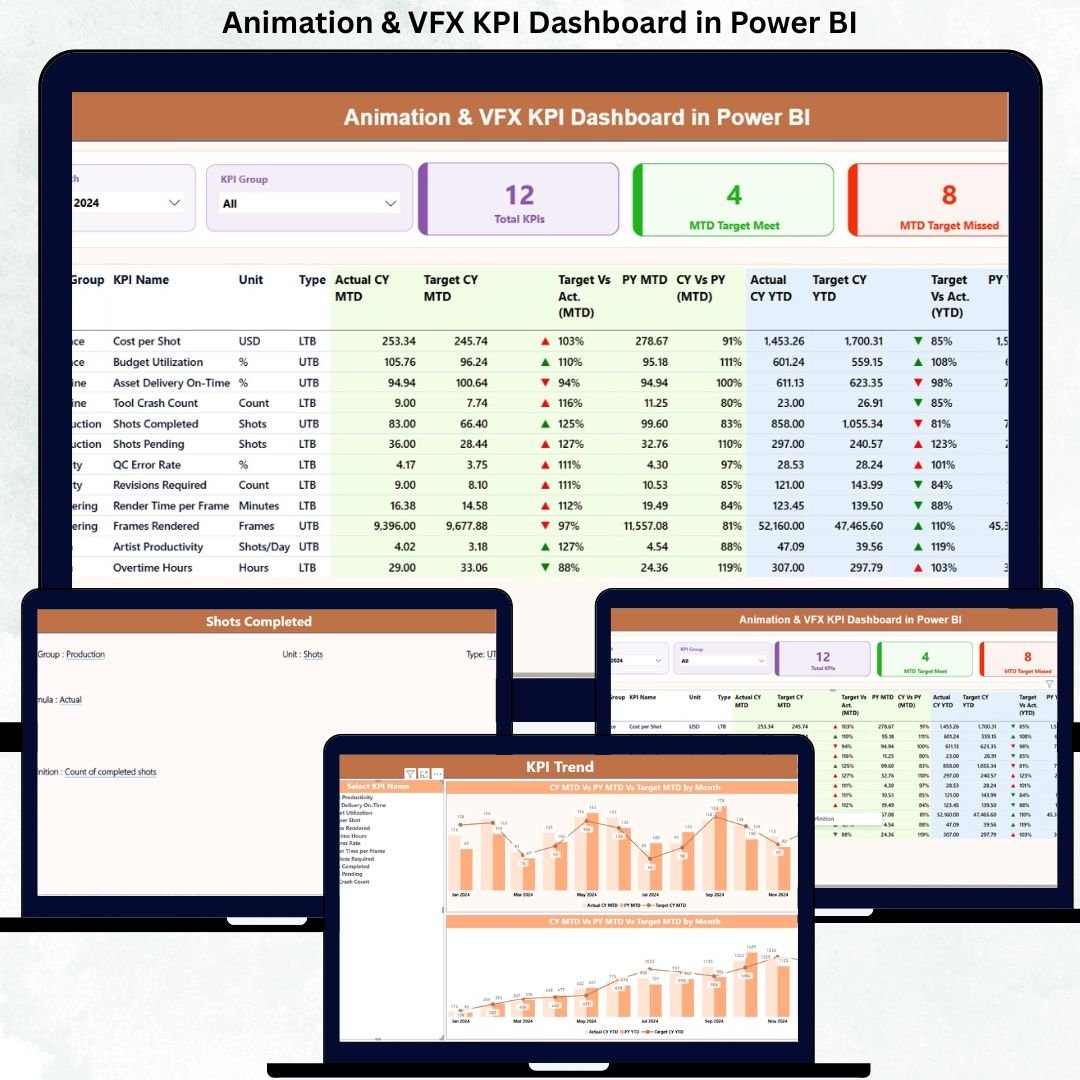

In the high-pressure world of animation and visual effects, studios must balance creativity, timelines, quality, and budgets—every single day. However, when performance data is scattered across Excel files, emails, and manual reports, it becomes nearly impossible to track progress accurately. That is exactly why the Animation & VFX KPI Dashboard in Power BI is a game-changing solution for modern studios.
This ready-to-use Power BI dashboard transforms raw production data into clear, interactive, and actionable insights. Instead of spending hours preparing reports, studios can instantly monitor performance, compare targets vs actuals, and identify trends that impact delivery and profitability. Most importantly, this dashboard is designed using simple Excel data inputs, making it accessible even for non-technical users.
🚀 Key Features of Animation & VFX KPI Dashboard in Power BI
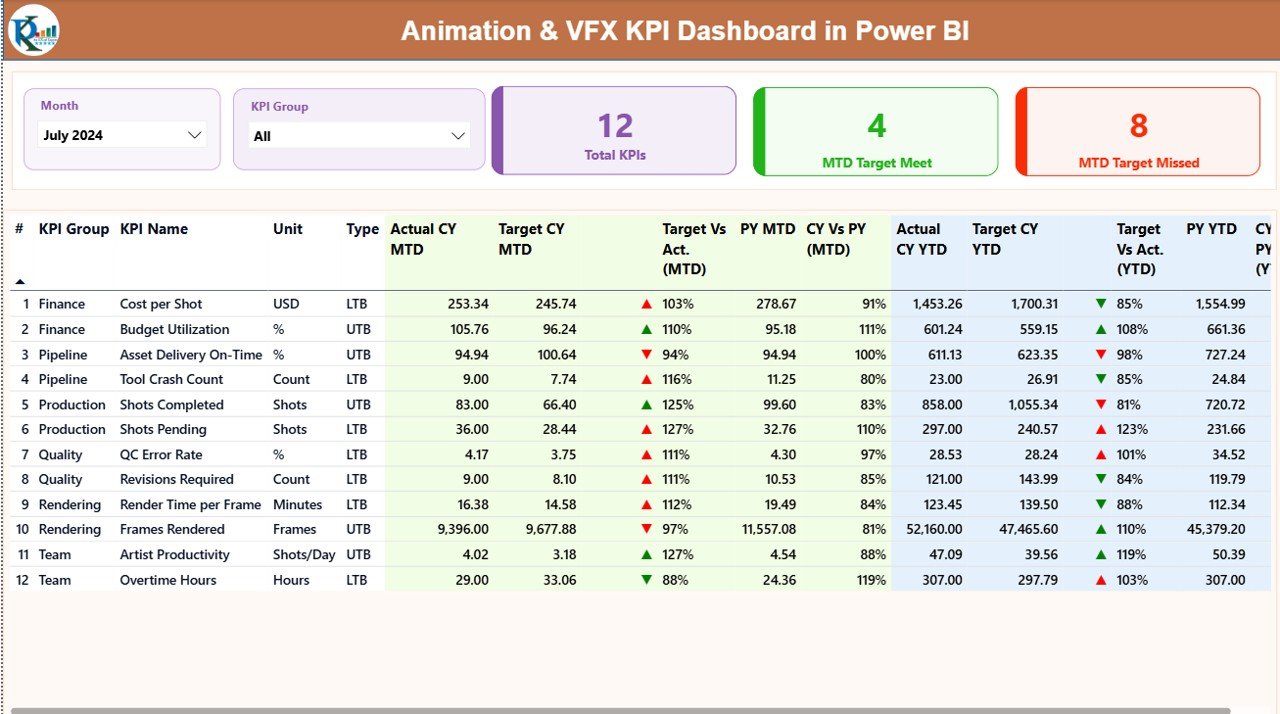
🎯 Centralized KPI Monitoring – Track all animation and VFX KPIs in one professional Power BI dashboard
📊 MTD & YTD Performance Tracking – Monitor Month-to-Date and Year-to-Date performance effortlessly
📈 Target vs Actual Comparison – Instantly identify performance gaps with visual indicators
📅 Previous Year Comparison – Measure improvement trends using CY vs PY analysis
🎛 Interactive Slicers – Filter by Month and KPI Group dynamically
🟢🔴 Performance Icons – Visual up/down indicators for quick decision-making
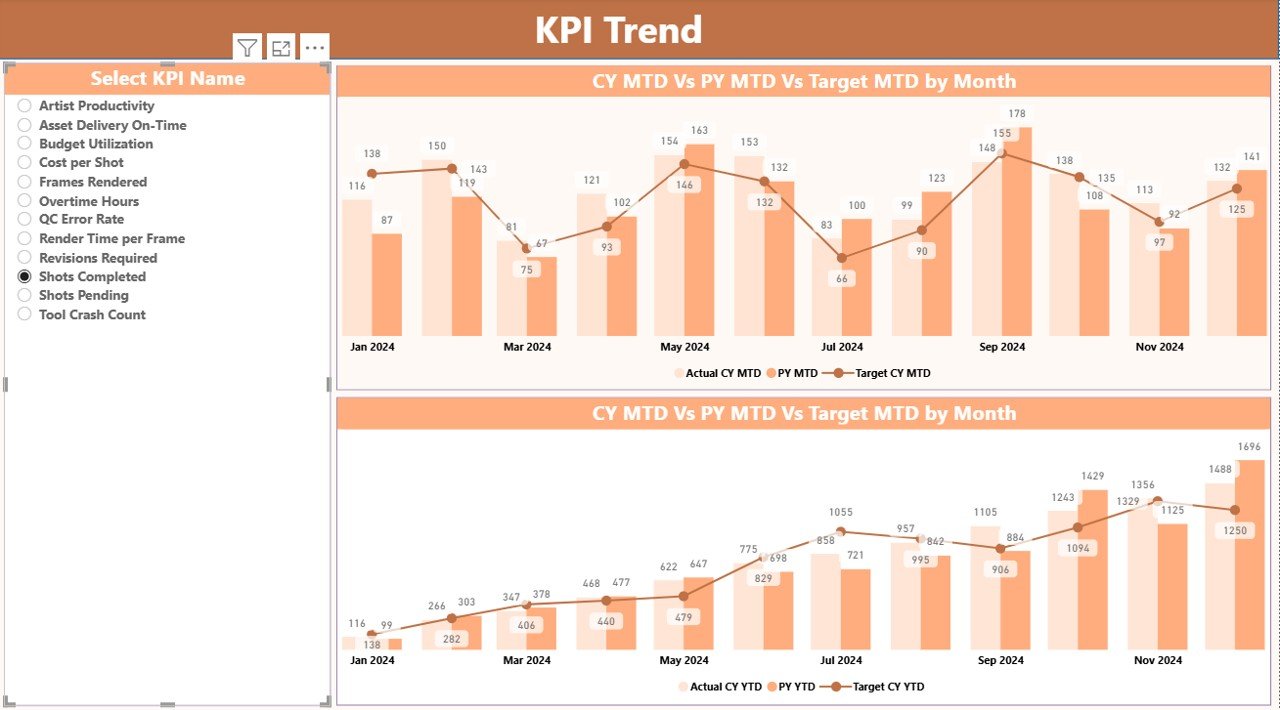
📉 Trend Analysis Page – Analyze KPI movement using combo charts
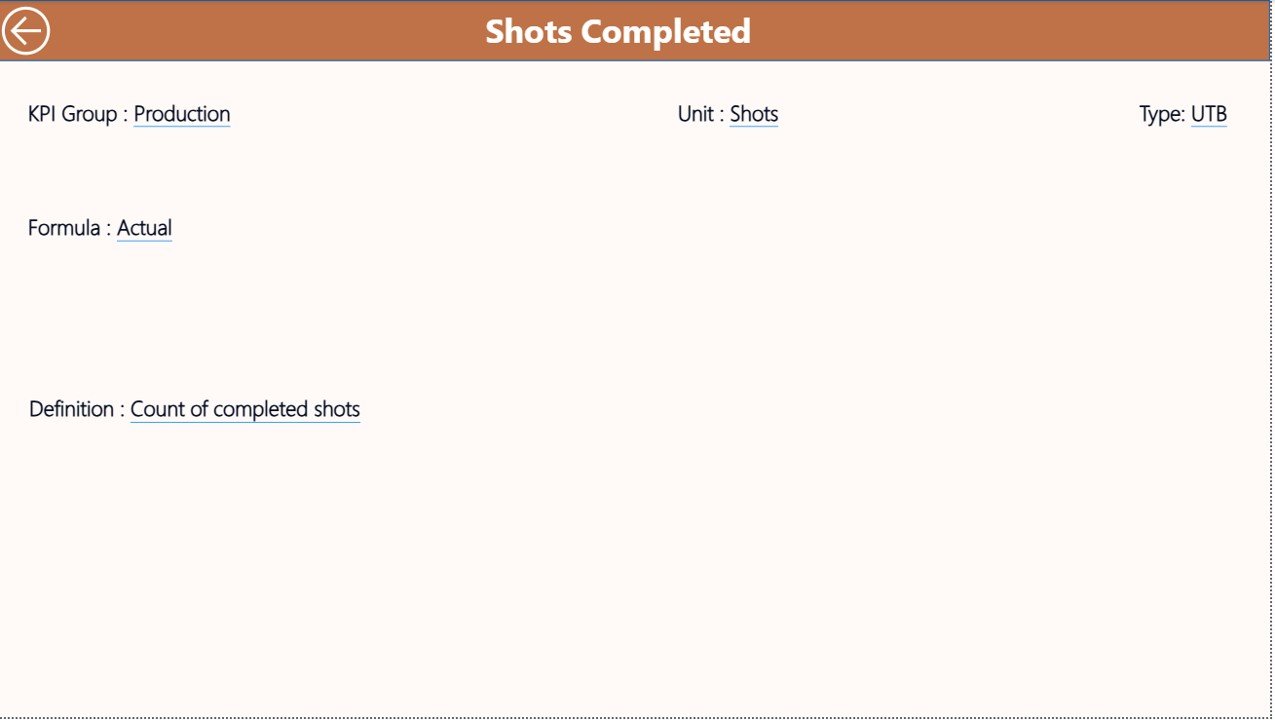
📘 KPI Definition Page – Maintain clarity with formula, definition, and KPI type visibility
📦 What’s Inside the Animation & VFX KPI Dashboard in Power BI
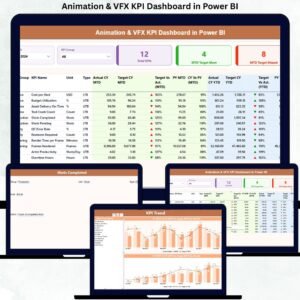
This digital product includes a 3-page professionally designed Power BI dashboard:
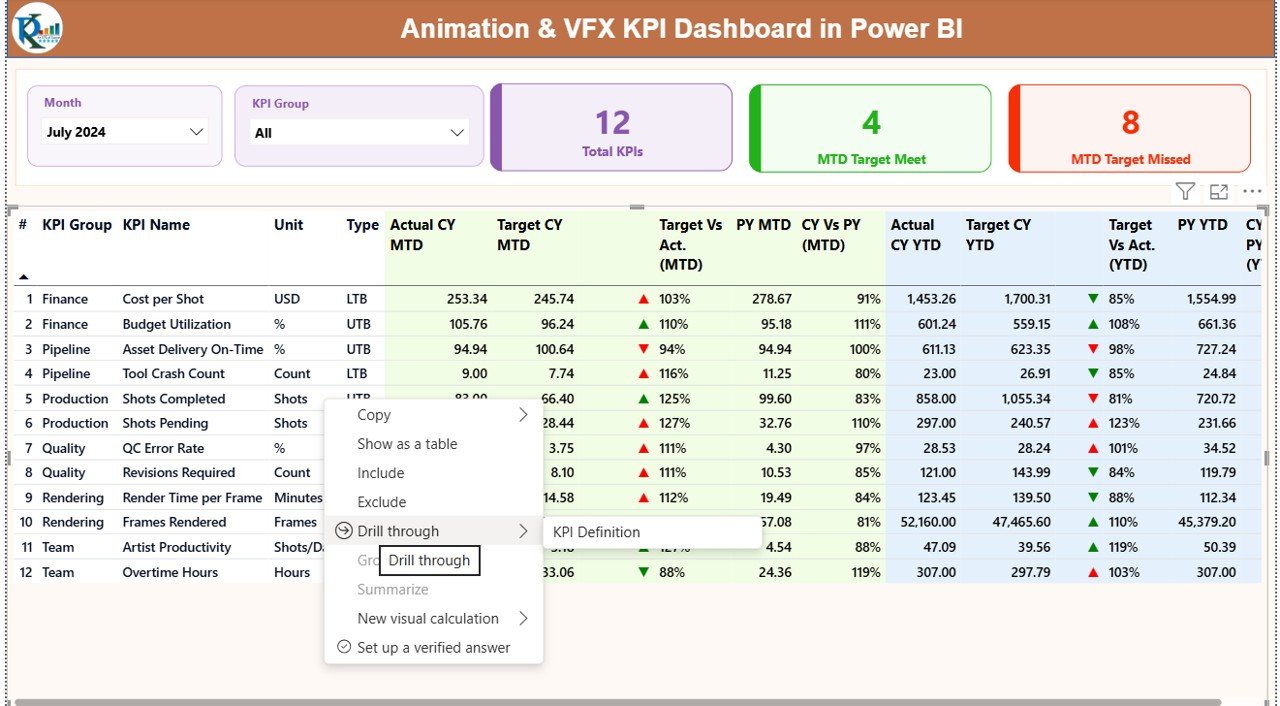
🔹 Summary Page
KPI Group & Month slicers
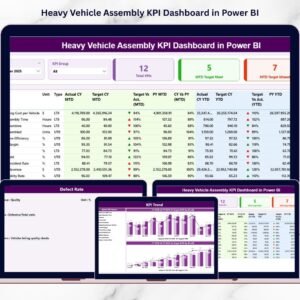
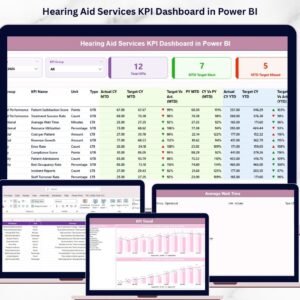
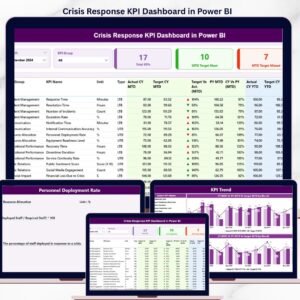
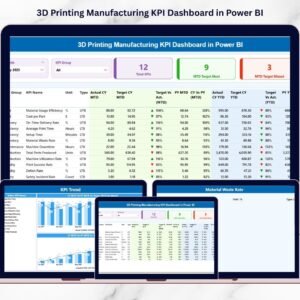
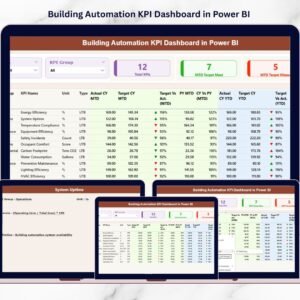
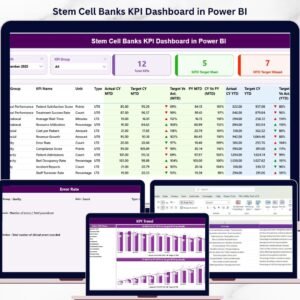
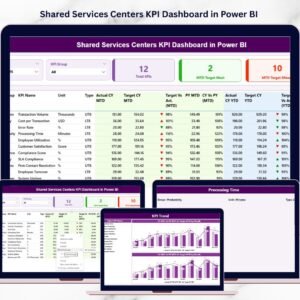
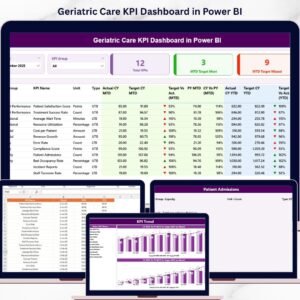
KPI Cards: Total KPIs, MTD Target Met, MTD Target Missed
Detailed KPI table with MTD, YTD, Target, Previous Year, and performance icons
🔹 KPI Trend Page
Combo charts for MTD Actual vs Target vs PY
Combo charts for YTD Actual vs Target vs PY
KPI Name slicer for focused trend analysis
🔹 KPI Definition Page (Drill-through)
KPI Formula
KPI Definition
KPI Type (LTB / UTB)
Additionally, the dashboard connects to a structured Excel data source with:
Input_Actual sheet
Input_Target sheet
KPI Definition sheet
🛠 How to Use the Animation & VFX KPI Dashboard in Power BI
Using this dashboard is simple and user-friendly:
1️⃣ Enter actual KPI values in the Input_Actual Excel sheet
2️⃣ Enter target values in the Input_Target sheet
3️⃣ Define KPIs clearly in the KPI Definition sheet
4️⃣ Refresh the Power BI dashboard
5️⃣ Analyze performance using slicers, tables, and charts
No coding. No complex setup. Just update Excel and refresh Power BI.
👥 Who Can Benefit from This Animation & VFX KPI Dashboard in Power BI
🎬 Animation & VFX Studio Owners
🎥 Production Managers
📅 Project & Delivery Leads
💰 Finance & Cost Control Teams
📊 Operations Managers
✅ Quality Assurance Teams
Whether you run a small creative studio or manage a large VFX production house, this dashboard scales perfectly to your needs.
Click here to read the Detailed blog post
Watch the step-by-step video tutorial:
Visit our YouTube channel to learn step-by-step video tutorials
Youtube.com/@PKAnExcelExpert
Compatibility and Requirements
- Works in Power BI Desktop, which is free to download. Install it on a Windows PC to open and refresh the dashboard.
- The dashboard reads its data from an Excel workbook with the Input_Actual, Input_Target and KPI Definition sheets. Microsoft explains the app in Get Power BI Desktop.
Frequently Asked Questions
Where do I enter my KPI numbers?
Enter actual values in the Input_Actual sheet and target values in the Input_Target sheet of the Excel data source. Define each KPI in the KPI Definition sheet, then refresh the Power BI dashboard.
How many pages does the dashboard have?
Three pages: Summary, KPI Trend and KPI Definition. The KPI Definition page opens by drill-through.
Can I compare this year with last year?
Yes. The Summary table shows MTD, YTD, Target and Previous Year for each KPI, and the KPI Trend page charts Actual vs Target vs PY for both MTD and YTD.
How can I see which KPIs missed their target?
The Summary page has cards for Total KPIs, MTD Target Met and MTD Target Missed, and the KPI table uses up and down icons. You can filter by Month and KPI Group with the slicers.
Is there an Excel version?
Yes. See the Animation & VFX KPI Dashboard in Excel and the Animation & VFX Dashboard in Power BI.
Related Animation and KPI Templates
- Animation & VFX KPI Dashboard in Excel: the same KPIs in Excel
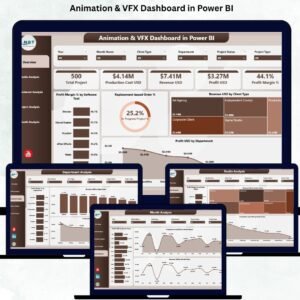
- Animation & VFX Dashboard in Power BI: a Power BI dashboard for animation and VFX studios
- Animation & VFX Dashboard in Excel: the Excel edition of that dashboard
- Operations KPI Dashboard in Power BI: operations metrics in Power BI
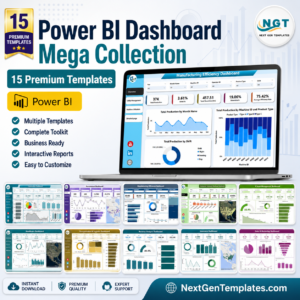
- Power BI Dashboard Mega Collection: 15 Power BI templates in one download
Browse all Power BI KPI dashboards.


Reviews
There are no reviews yet.