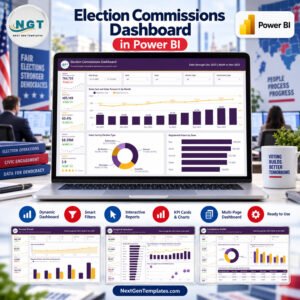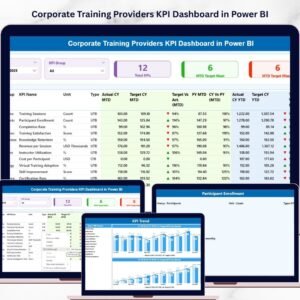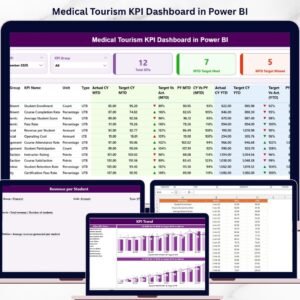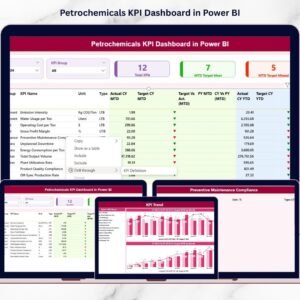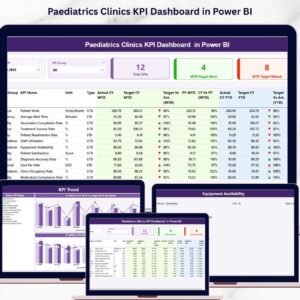

Free, fair, and transparent elections are the foundation of democracy. But managing election performance through scattered spreadsheets and delayed reports can slow down decision-making. What if you could monitor voter registration progress, pollingreadiness, complaint resolution time, and budget utilization — all in one powerful system?Introducing the Election Commissions KPI Dashboard in Power BI — a ready-to-use, fully interactive performance monitoring solution designed specifically for election authorities.This dashboard converts complex election data into clear visuals, KPI indicators, and dynamic reports. With real-time tracking of MTD (Month-To-Date) and YTD (Year-To-Date) performance, leaders can instantly identify gaps, monitor trends, and take corrective action.
No more manual consolidation. No more confusion. Just clear insights and confident decisions.
🚀 Key Feature of Election Commissions KPI Dashboard in Power BI
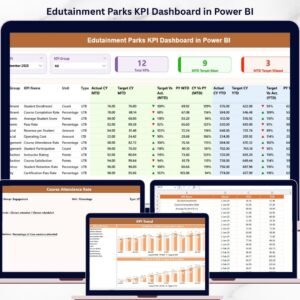
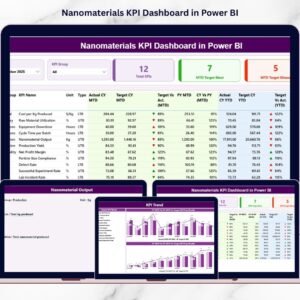
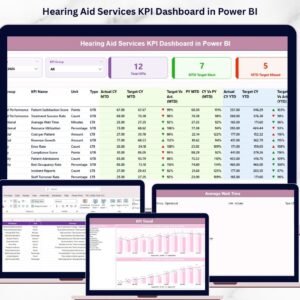
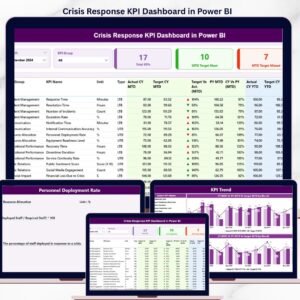
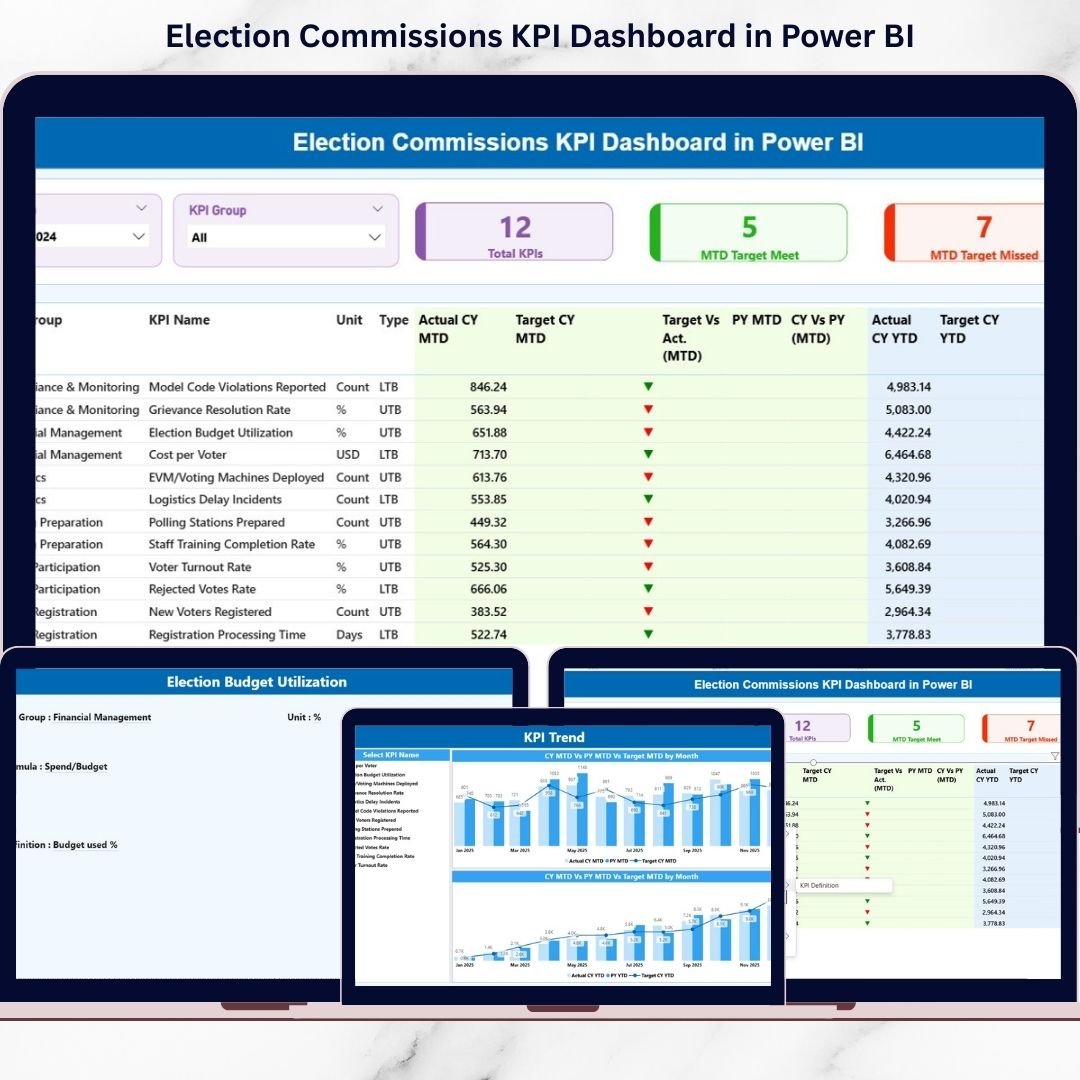
📊 3 Fully Interactive Dashboard Pages – Summary, KPI Trend, and KPI Definition pages for complete performance monitoring.
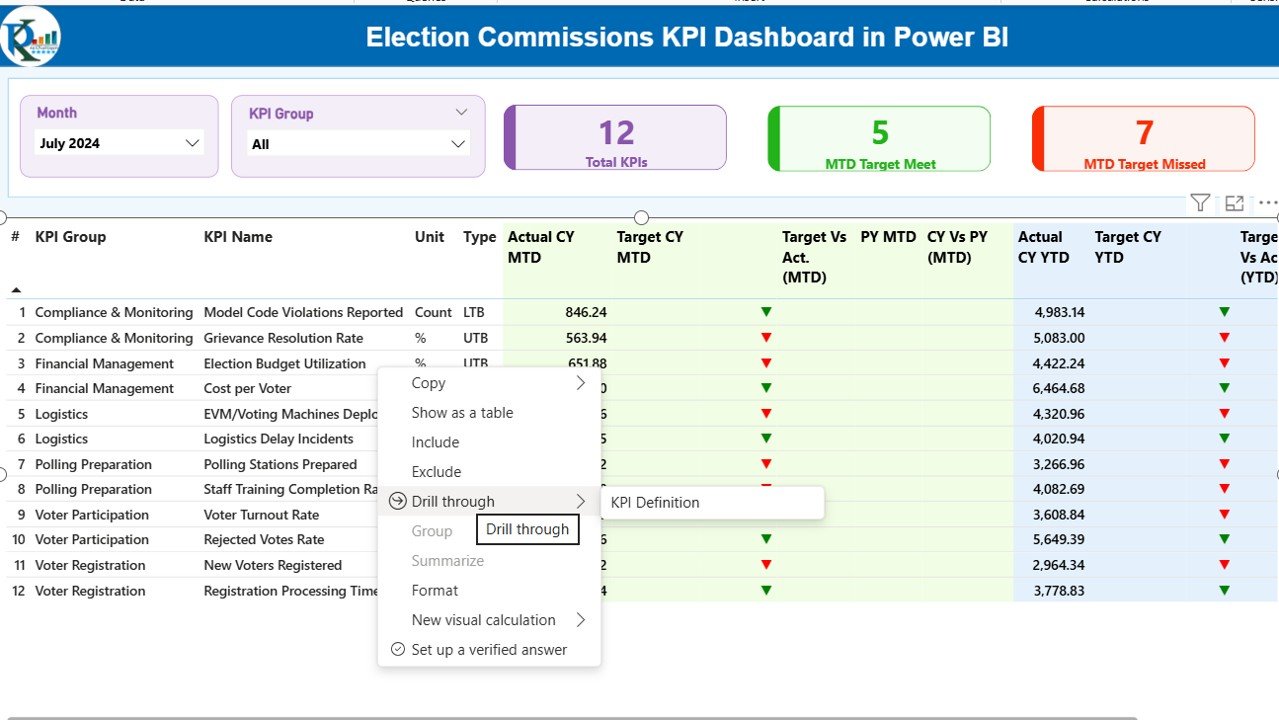
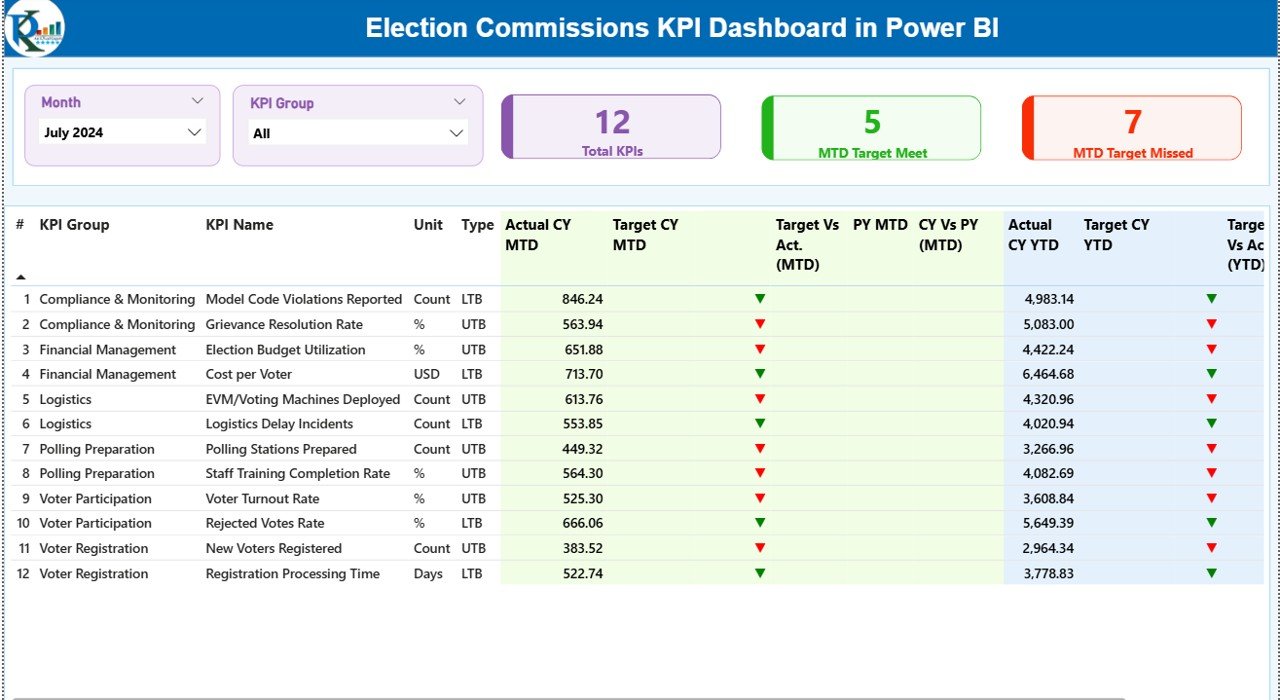
🎯 Smart KPI Cards – Instantly view Total KPIs, MTD Target Meet, and MTD Target Missed counts.
📅 Dynamic Month & KPI Group Slicers – Filter results instantly for deeper analysis.
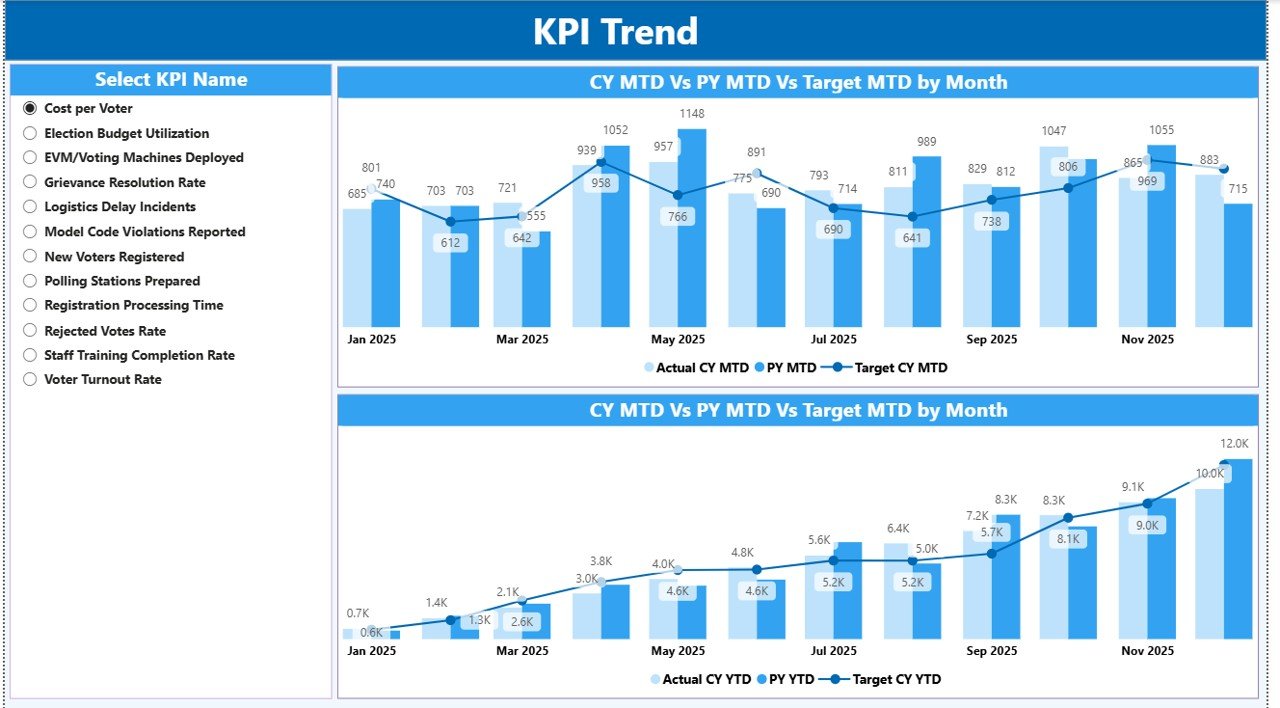
📈 MTD & YTD Trend Charts – Combo charts compare Actual vs Target vs Previous Year.
📉 Performance Status Icons – Green ▲ and Red ▼ indicators highlight underperformance.
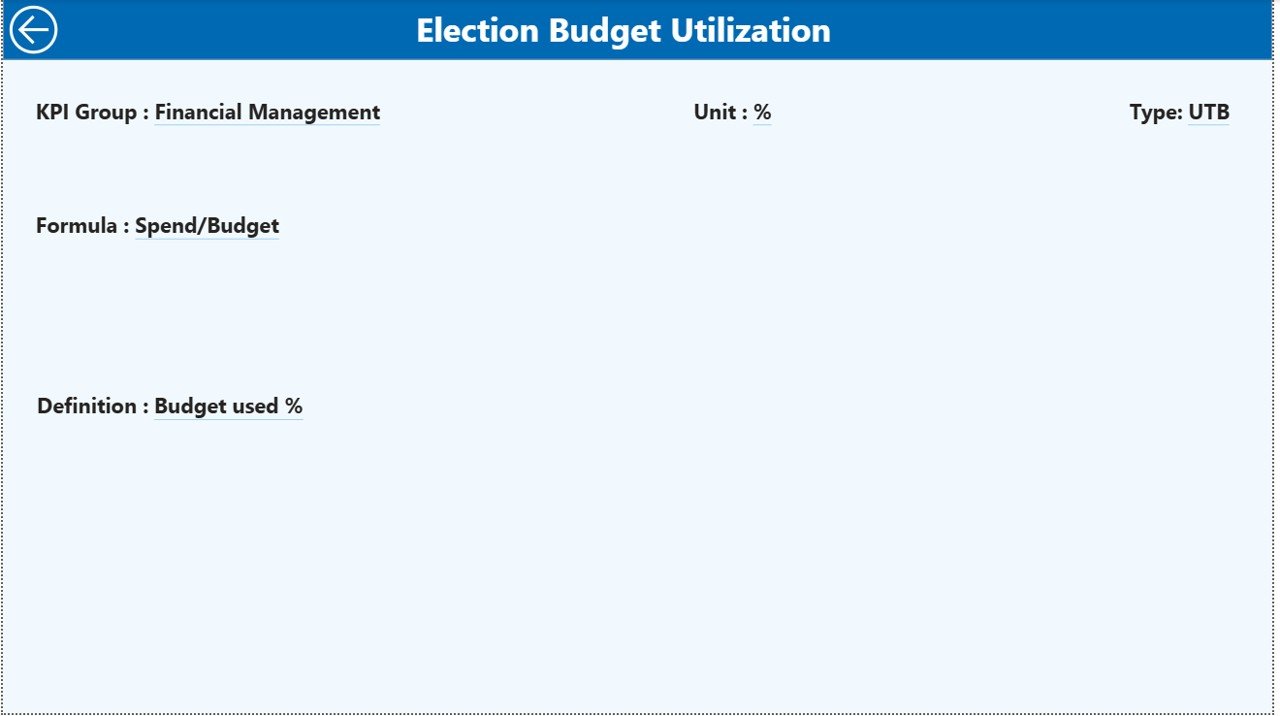
🔍 Drill-Through KPI Definition Page – View KPI formula, category, and measurement details.
📂 Excel Data Integration – Update numbers in Excel and refresh Power BI instantly.
📊 Year-over-Year Comparison – Measure long-term progress using CY vs PY analysis.
This dashboard is built to give election leaders clarity, speed, and confidence.
📦 What’s Inside the Election Commissions KPI Dashboard in Power BI
When you download this product, you receive:
✔️ Power BI Desktop (.pbix) File
✔️ Structured Excel Data Source File
✔️ Input_Actual Sheet for MTD & YTD performance
✔️ Input_Target Sheet for target tracking
✔️ KPI Definition Sheet for formulas and categories
✔️ Pre-configured DAX calculations
✔️ Clean visual layout with slicers and icons
✔️ Drill-through functionality enabled
The Summary Page acts as your control center. It displays KPI cards and a detailed KPI table showing:
KPI Number
KPI Group
KPI Name
Unit
Type (LTB or UTB)
Actual vs Target (MTD & YTD)
Previous Year comparisons
Status indicators
The KPI Trend Page allows you to select a specific KPI and analyze growth patterns using combo charts.
The KPI Definition Page provides formula transparency and measurement clarity.
Everything is structured, automated, and easy to understand.
🛠️ How to Use the Election Commissions KPI Dashboard in Power BI
Using this dashboard is simple and efficient.
1️⃣ Open the Excel data file.
2️⃣ Enter MTD and YTD actual values in the Input_Actual sheet.
3️⃣ Enter monthly targets in the Input_Target sheet.
4️⃣ Update KPI details in the KPI Definition sheet if needed.
5️⃣ Open the Power BI file.
6️⃣ Click Refresh.
That’s it.
The dashboard will automatically update visuals, status icons, comparisons, and trends.
No advanced technical knowledge required. Basic Excel and Power BI navigation skills are enough.
👥 Who Can Benefit from This Election Commissions KPI Dashboard in Power BI
🏛️ National Election Commissions
🏢 State Election Authorities
📍 Local Election Offices
📊 Election Performance Monitoring Units
💼 Government Oversight Bodies
📈 Policy and Planning Teams
Whether you operate at local, state, or national level, this dashboard helps you improve transparency, strengthen accountability, and ensure election readiness.
This solution helps election authorities:
✔ Monitor real-time performance
✔ Improve reporting accuracy
✔ Identify gaps quickly
✔ Conduct monthly performance reviews
✔ Increase public trust through transparency
Stop managing election KPIs manually.
Start making data-driven decisions today.
Click hare to read the Detailed blog post
Watch the step-by-step video tutorial:
Visit our YouTube channel to learn step-by-step video tutorials
https://www.youtube.com/@PKAnExcelExpert
Compatibility and Requirements
- Works in Power BI Desktop, which is free to download. Microsoft explains how to get it in Get Power BI Desktop.
- The data lives in an Excel file, so you also need Excel to enter your figures.
Frequently Asked Questions
How many pages does the dashboard have?
Three pages: Summary, KPI Trend and KPI Definition. The Summary page shows the KPI cards and a table with each KPI’s actual and target figures.
Where do I enter my election data?
In the Excel data file. Enter MTD and YTD actual values in the Input_Actual sheet and monthly targets in the Input_Target sheet. KPI formulas and categories are kept in the KPI Definition sheet.
How do I update the dashboard after changing the Excel file?
Open the Power BI file and click Refresh. The visuals, status icons, comparisons and trend charts update from the new numbers.
Can I compare this year with last year?
Yes. The dashboard compares the current year with the previous year, and the trend charts show Actual, Target and Previous Year together.
Is there an Excel or other Power BI version?
Yes. See the Election Commissions KPI Dashboard in Excel and the Election Commissions Dashboard in Power BI.
Related Election and KPI Dashboard Templates
- Election Commissions KPI Dashboard in Excel: the same KPI dashboard in Excel
- Election Commissions Dashboard in Power BI: another Power BI dashboard for election authorities
- Election Commissions Dashboard in Excel: the Excel edition of that dashboard
- Risk Management KPI Dashboard in Power BI: track risk KPIs with the same layout
- Power BI Dashboard Mega Collection: 15 Power BI templates in one download
Browse all Power BI KPI dashboards.