

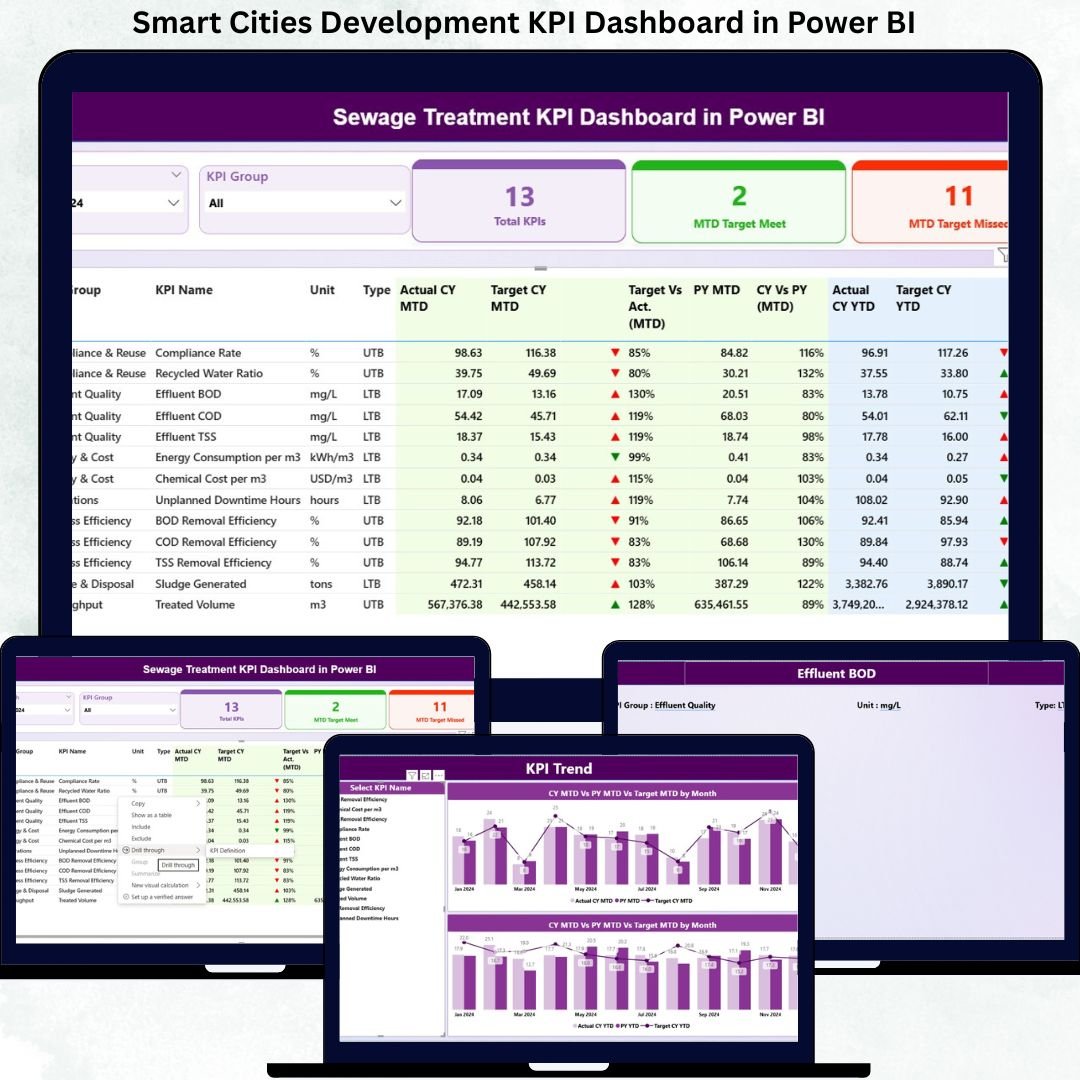
Smart cities demand clarity, accountability, and measurable progress. However, when urban development data remains scattered across Excel files, static reports, and disconnected systems, decision-makers lose visibility and control. That is exactly why the Smart Cities Development KPI Dashboard in Power BI is a must-have analytics solution for modern city governance.
This ready-to-use Power BI dashboard converts complex smart city performance data into a clean, interactive, and decision-ready system. Instead of spending time compiling reports, city planners and smart city mission teams can instantly track progress, identify gaps, and evaluate outcomes using structured KPIs. Designed for simplicity and impact, this dashboard helps cities move from reactive reporting to proactive governance.
Whether you are monitoring infrastructure development, digital services adoption, sustainability goals, or citizen outcomes, this dashboard provides real-time insights without technical complexity.
🔑 Key Features of Smart Cities Development KPI Dashboard in Power BI
📊 Centralized KPI Monitoring – Track all smart city KPIs in one structured Power BI report
📅 Month & KPI Group Slicers – Filter performance by time period and KPI category instantly
🎯 MTD & YTD Performance Tracking – Monitor short-term execution and long-term progress together
📈 Target vs Actual Analysis – Identify performance gaps clearly with calculated ratios
🔁 Previous Year Comparison – Measure growth or decline using CY vs PY metrics
🚦 Visual Performance Indicators – Green/red arrows highlight success and risk areas
📊 KPI Trend Analysis – Analyze historical patterns using dynamic combo charts
📘 Drill-Through KPI Definitions – Access formulas, units, and definitions instantly
⚙ Excel-Based Data Input – Simple data updates without complex databases
📈 Scalable Framework – Add or modify KPIs without redesigning the dashboard
📦 What’s Inside the Smart Cities Development KPI Dashboard
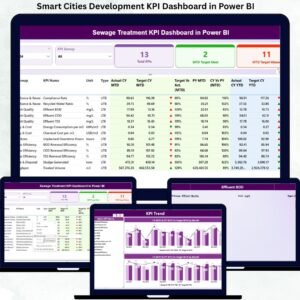
This Power BI product includes a three-page structured dashboard, each designed for a specific level of analysis:
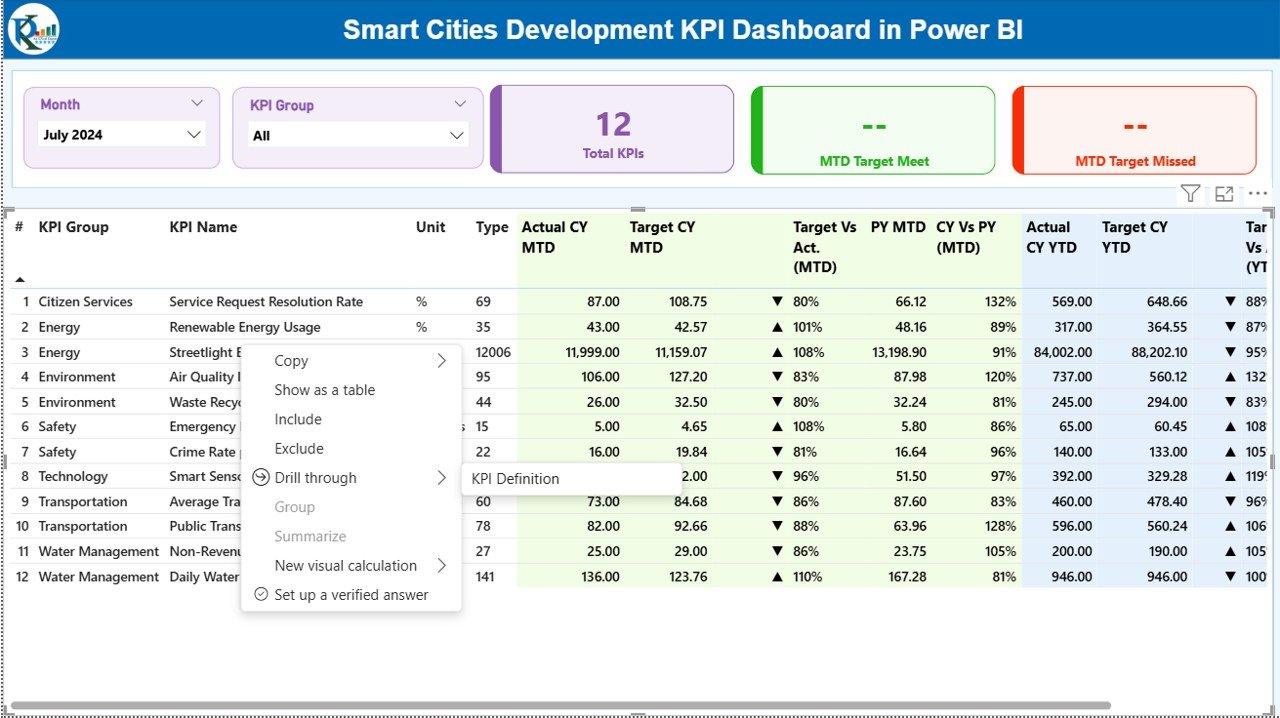
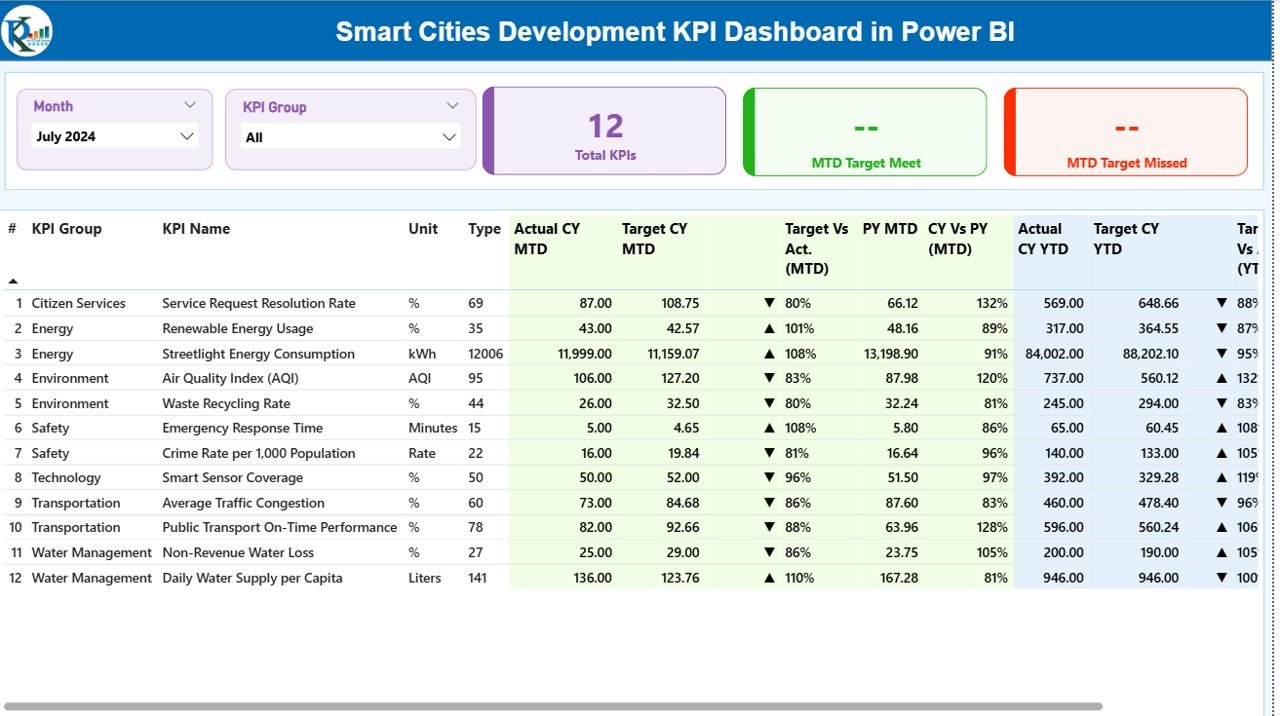
📍 Summary Page
Month and KPI Group slicers
KPI cards showing Total KPIs, MTD Target Met, and MTD Target Missed
Detailed KPI table with MTD & YTD metrics, targets, icons, and year-over-year comparisons
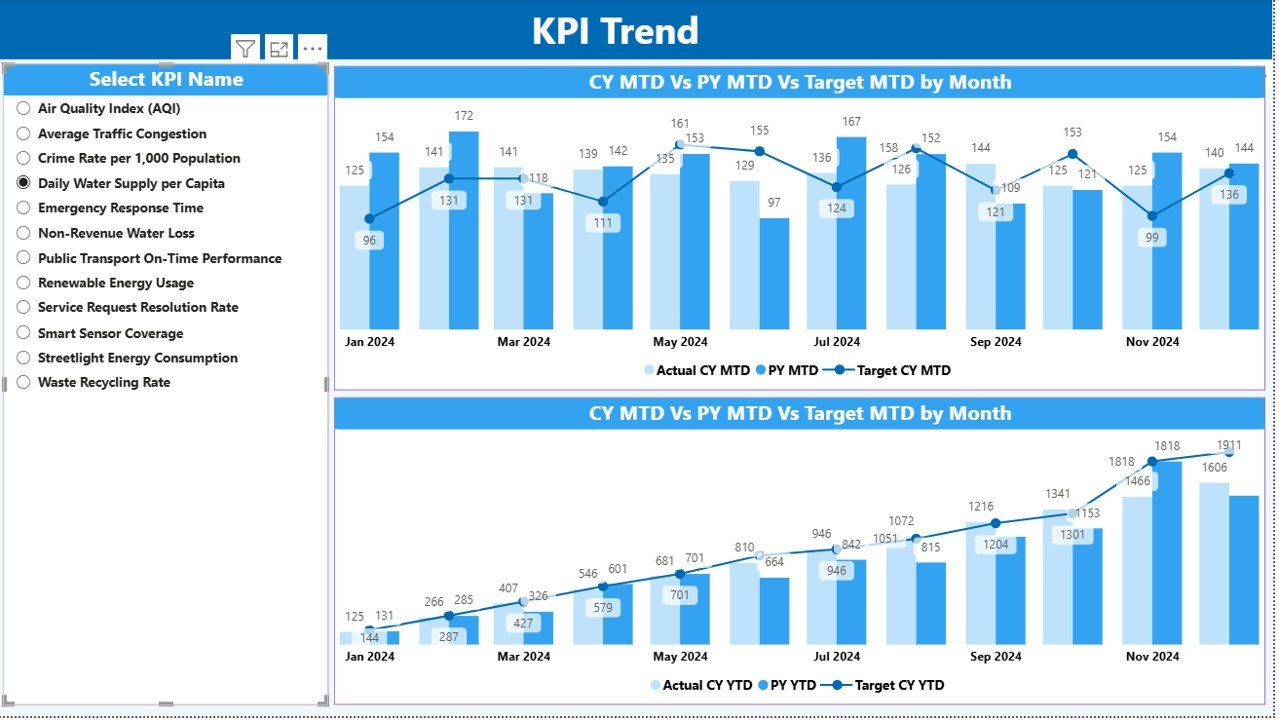
📈 KPI Trend Page
Interactive combo charts
Current Year, Previous Year, and Target trends
KPI selector to analyze individual indicators
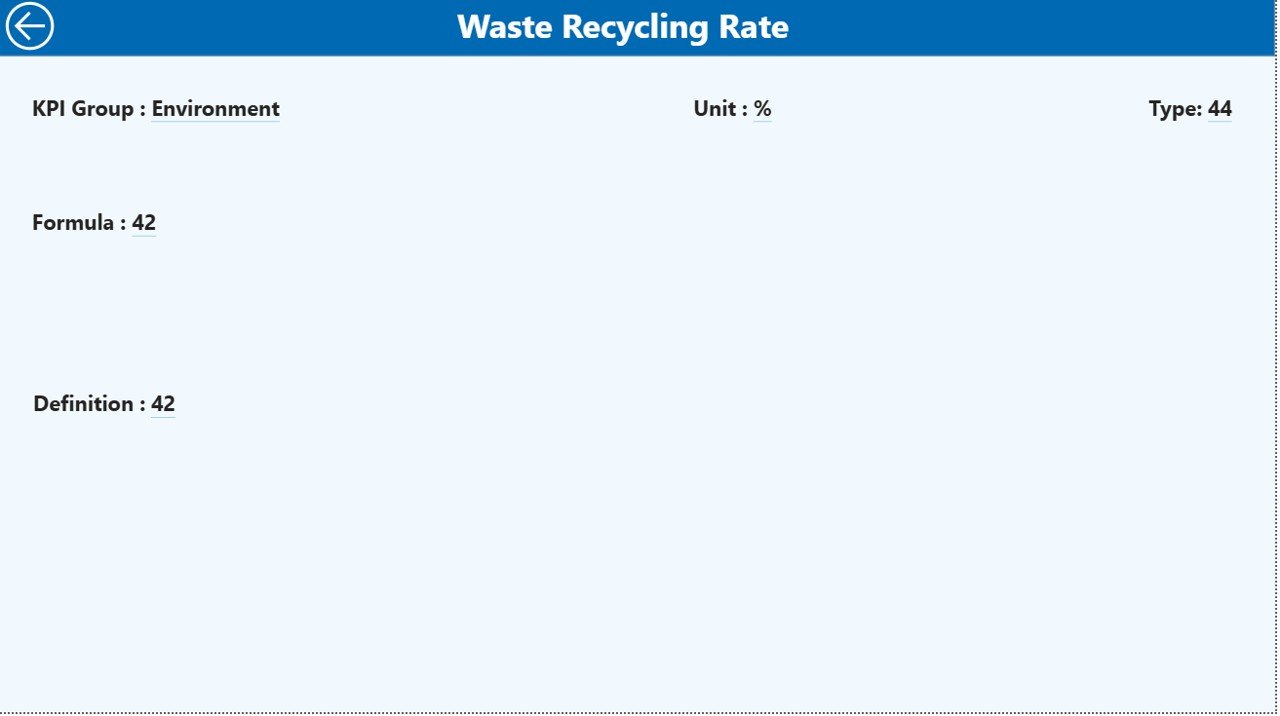
📘 KPI Definition Page (Drill-Through)
KPI formula and definition
Unit of measurement
KPI type (LTB or UTB)
Back button for smooth navigation
📂 Excel Data Source (Included Structure)
Input_Actual sheet
Input_Target sheet
KPI Definition master sheet
🚀 How to Use the Smart Cities Development KPI Dashboard
📝 Step 1: Enter actual performance values in the Excel Input_Actual sheet
🎯 Step 2: Add target values in the Input_Target sheet
📘 Step 3: Define KPIs, units, formulas, and types in the KPI Definition sheet
🔄 Step 4: Refresh the Power BI file
📊 Step 5: Use slicers, tables, and charts to analyze performance instantly
No advanced Power BI skills are required. The dashboard is intuitive, user-friendly, and decision-focused.
🎯 Who Can Benefit from This Smart Cities Development KPI Dashboard
🏙 Urban Planners & City Development Authorities
🏛 Municipal Corporations & Local Governments
📊 Smart City Mission & PMO Teams
🚧 Infrastructure & Utilities Project Managers
📈 Policy Analysts & Government Consultants
🌱 Sustainability & Governance Teams
If your organization manages multi-department smart city initiatives, this dashboard is built for you.
Click here to read the Detailed Blog Post
Watch the step-by-step video tutorial:
Visit our YouTube channel to learn step-by-step video tutorials
Compatibility and Requirements
- Works in Power BI Desktop, which is free to download from Microsoft. See Get Power BI Desktop.
- Data comes from an Excel file with three sheets: Input_Actual, Input_Target and KPI Definition.
Frequently Asked Questions
How many pages does the dashboard have?
Three pages: Summary, KPI Trend and KPI Definition. The KPI Definition page opens as a drill-through with a back button.
Where do I enter my data?
Enter actual values in the Input_Actual sheet and targets in the Input_Target sheet of the Excel source file. Define each KPI, its unit, formula and type in the KPI Definition sheet, then refresh the Power BI file.
Can I filter by month or KPI group?
Yes. The Summary page has Month and KPI Group slicers. The KPI table shows MTD and YTD figures, targets, icons and year-over-year comparisons.
Can I see the trend for a single KPI?
Yes. The KPI Trend page has combo charts for Current Year, Previous Year and Target, with a KPI selector to pick one indicator.
Is there an Excel or Google Sheets version?
Yes. See the Smart Cities Development KPI Dashboard in Excel and the Smart Cities KPI Dashboard in Google Sheets.
Related Smart Cities Templates
- Smart Cities Development KPI Dashboard in Excel: the same KPI dashboard in Excel
- Smart Cities KPI Dashboard in Power BI: a general smart city KPI view in Power BI
- Smart Cities Development Dashboard in Power BI: a dashboard edition for development tracking
- Smart Cities KPI Dashboard in Google Sheets: a Google Sheets edition
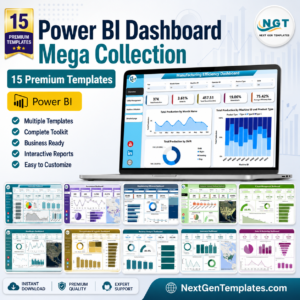
- Power BI Dashboard Mega Collection: 15 Power BI templates in one download
Browse all Power BI KPI dashboards.

Reviews
There are no reviews yet.