

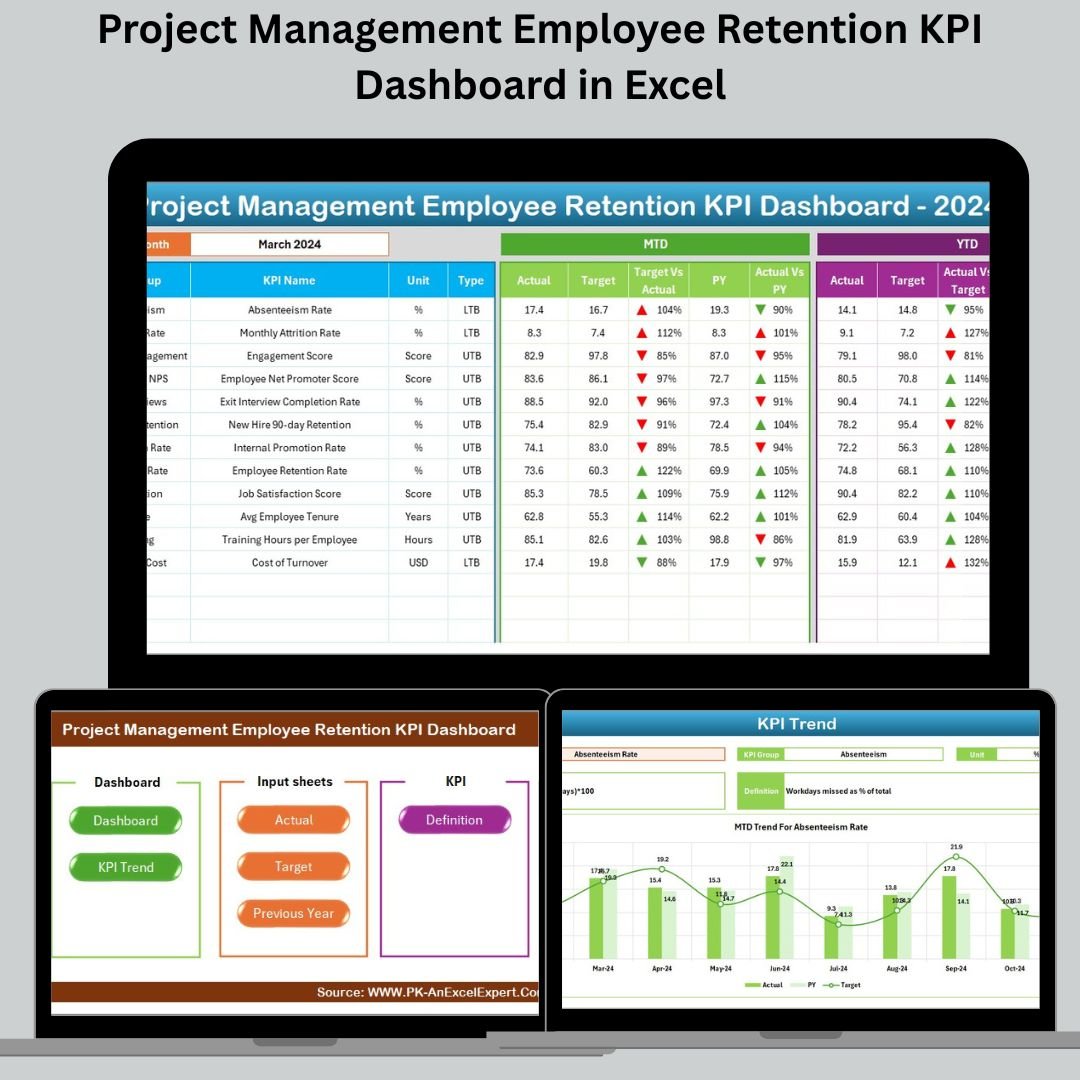



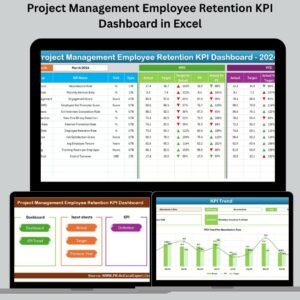
In today’s rapidly evolving work environment, employee retention isn’t just an HR issue—it’s a project management necessity. If your top talent is walking out the door, so is your project’s continuity. That’s why we built the Project Management Employee Retention KPI Dashboard in Excel — a ready-to-use Excel template that empowers you to track retention trends, analyze performance, and take real-time action.
Whether you’re a project manager, HR professional, or team lead, this dashboard will help you visualize key retention KPIs, identify warning signs, and strengthen your workforce stability.
✨ Key Features of the Employee Retention KPI Dashboard
📋 7 Intelligently Designed Worksheets
Home Sheet – Quick navigation to all key sections

Dashboard Sheet – Visual summary with performance trends
KPI Trend Sheet – Analyze retention metrics over time
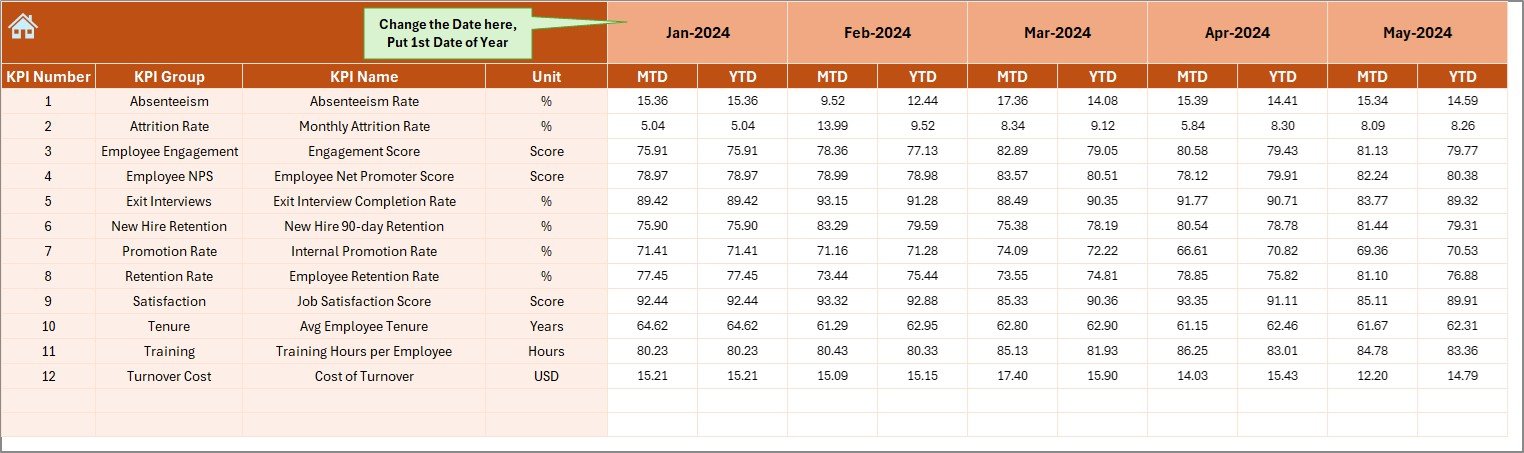
Actual Numbers Input Sheet – Feed MTD/YTD employee metrics
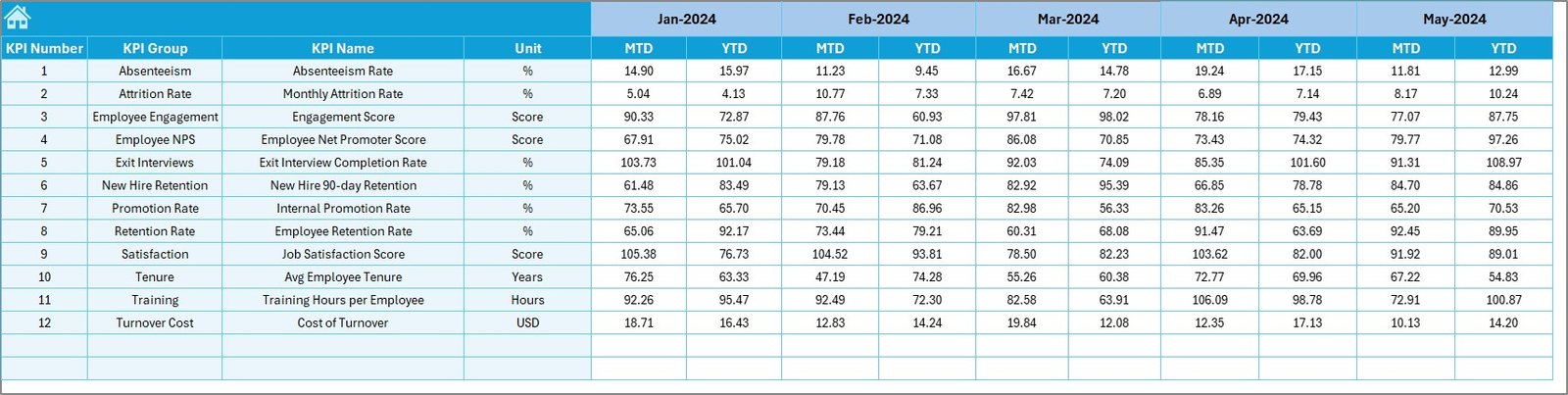
Target Sheet – Set performance goals monthly and annually
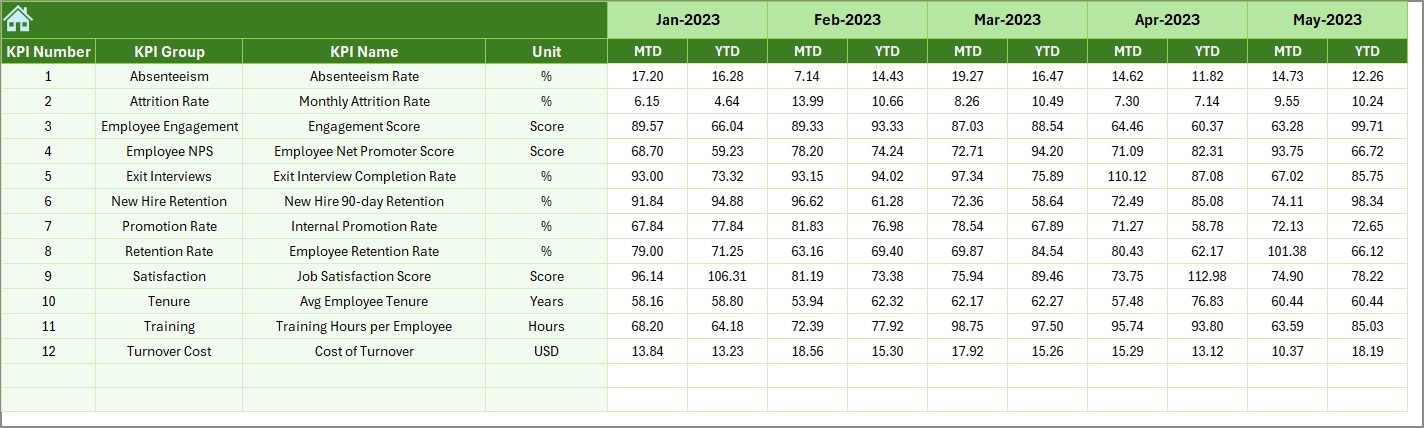
Previous Year Sheet – Store last year’s retention figures
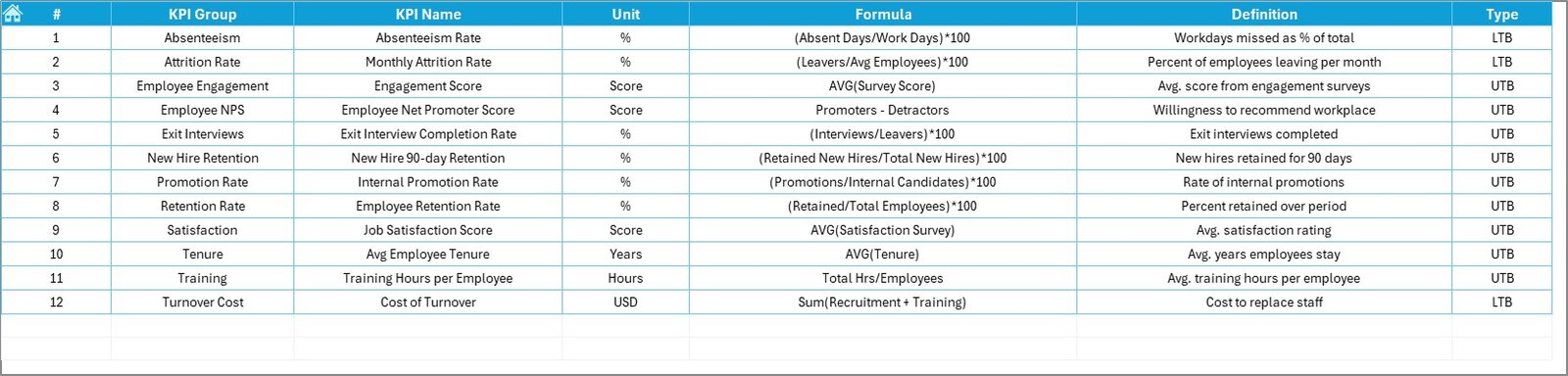
KPI Definition Sheet – Your go-to for formulas, units, and KPI types
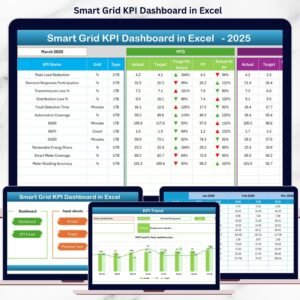
📊 Real-Time Dashboard with Monthly Selector
View MTD (Month-to-Date) and YTD (Year-to-Date) metrics
Conditional formatting shows up/down arrows for quick visual feedback
See Actual vs Target vs Previous Year all in one glance
📈 Interactive KPI Trend Sheet
Select any KPI from a dropdown to track performance trends
Visualize actual, target, and previous year values for MTD & YTD
📁 Clear Data Input Sheets
Just plug in your monthly values—no formula editing needed
Use cell E1 to set the first month of the year for seamless tracking
📦 What’s Inside the Employee Retention KPI Template?
🔹 Retention Metrics Visualized – See trends for KPIs like Voluntary Turnover, Internal Mobility, and Training Completion
🔹 Target Comparisons – Align your current performance with strategic goals
🔹 Year-over-Year Insights – Monitor retention improvements over time
🔹 Conditional Formatting – Arrows and color coding instantly flag issues
🔹 Dropdown Controls – Easily filter KPIs and months without confusion
🔹 Fully Editable – Modify KPIs, charts, layouts, and colors to suit your team
🛠 How to Use the KPI Dashboard in Excel
✅ Open the Excel file and go to the Actual Numbers Input Sheet
📥 Enter your MTD and YTD retention data for the current month
🎯 Add your targets in the Target Sheet for goal tracking
🔙 Enter last year’s data in the Previous Year tab
📊 Navigate to the Dashboard to visualize performance
🔄 Use the Trend Sheet to analyze performance patterns
📘 Refer to the KPI Definitions tab to keep things aligned
👥 Who Can Benefit from This Template?
This dashboard is ideal for anyone involved in managing people and projects:
🧑💼 Project Managers – Track team continuity and engagement
👩💻 HR Teams – Align retention KPIs with business outcomes
📊 Team Leads – Monitor satisfaction and address turnover early
🏢 Department Heads – Justify resource planning with real data
🔍 Analysts – Convert employee metrics into actionable insights
🚀 Why Choose This Dashboard?
✨ Boost Retention Rates – See red flags before people leave
🔍 Make Informed Decisions – Use MTD/YTD data to guide strategy
🛠 Customize Freely – No code, no limits, just Excel
📈 Save Hours – Built-in formulas, dynamic visuals, and dropdowns
🎯 Stay Aligned – Share goals across project and HR teams
🔁 Click here to read the Detailed blog post
📺 Visit our YouTube channel to learn step-by-step video tutorials
Watch the step-by-step video tutorial:
Compatibility and Requirements
- Works in Microsoft Excel desktop (Excel 2016 or later, or Microsoft 365).
- You pick the month and the KPI from dropdowns. Microsoft explains them in Create a drop-down list.
Frequently Asked Questions
Which sheets are included?
Seven sheets: Home, Dashboard, KPI Trend, Actual Numbers Input, Target, Previous Year and KPI Definition.
How do I update the dashboard?
Enter your MTD and YTD retention figures on the Actual Numbers Input sheet and your goals on the Target sheet. Then choose the month on the Dashboard sheet. Use cell E1 to set the first month of the year.
Can I compare this year with last year?
Yes. Add last year’s figures to the Previous Year sheet. The Dashboard shows actual, target and previous year values together, with up and down arrows from conditional formatting.
How do I see the trend for one KPI?
Open the KPI Trend sheet and select a KPI from the dropdown. It shows actual, target and previous year values for MTD and YTD.
Is there a version for other teams or platforms?
Yes. See the Employee Retention KPI Dashboard in Google Sheets and the Human Resources Employee Retention KPI Dashboard in Excel.
Related Employee Retention Templates
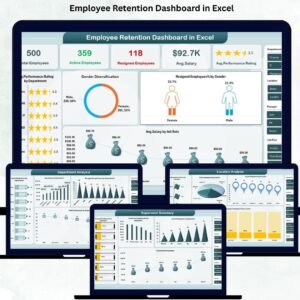
- Employee Retention KPI Dashboard in Excel: a general version for any team
- Human Resources Employee Retention KPI Dashboard in Excel: the same KPIs set up for HR teams
- Employee Retention KPI Dashboard in Google Sheets: the Google Sheets edition
- Project Management Employee Satisfaction KPI Dashboard in Excel: a companion dashboard for project teams
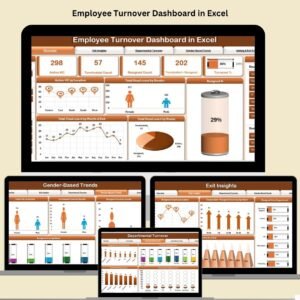
- Employee Turnover Dashboard in Excel: a turnover view for HR
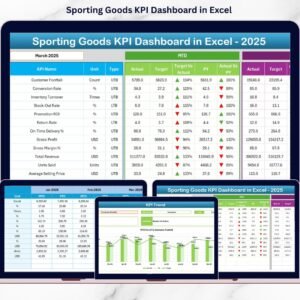
Browse all Excel KPI dashboards.


Reviews
There are no reviews yet.