


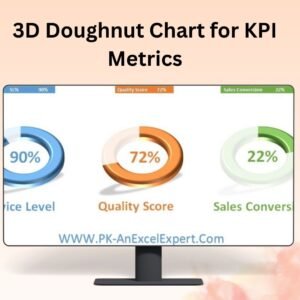
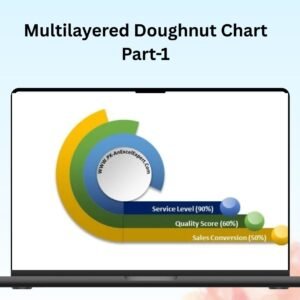
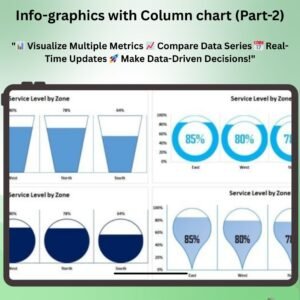
The Group of Circle Charts in Excel is a ready-made Excel chart template that uses a series of circle charts to display multiple data sets side by side. It suits business analysts, marketing teams, sales managers and anyone who needs to present large amounts of data in a more digestible format. The result is clear, engaging reports and presentations where your audience can quickly grasp important insights.

Why Use Circle Charts in Excel?
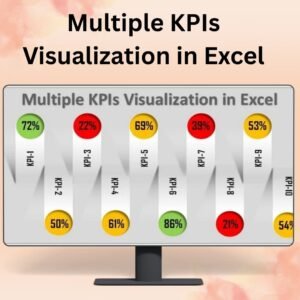
Standard tables can make complex data hard to read. Circle charts in Excel turn numbers such as sales figures, market share or other key metrics into a visual format that is easy to compare and contrast. Because the template groups several circle charts together, you can compare multiple datasets at a glance instead of jumping between separate charts. With customizable elements, you can tailor the charts to your specific needs so your data is presented clearly and effectively.
Key Features
- Multiple circle charts: Display multiple datasets using a series of circle charts, making it easier to compare various metrics.
- Customizable charts: Adjust the size, colors and data points of each chart to suit your data visualization needs.
- Visual data representation: Present your data in a visually engaging way that captures your audience’s attention.
- Time-based insights: Track and visualize trends over time with clear, dynamic chart presentations.
- Interactive data exploration: Modify and update data within the chart and see the changes in real time.
- User-friendly interface: A simple layout lets users of all experience levels navigate and customize the charts.
Benefits for Your Reports
- Engaging data visualization: Show your data in an exciting, easy-to-understand circle chart format.
- Customizable for your needs: Fit the charts to your specific data, from sales to marketing metrics.
- Simplifies complex data: Make complex datasets easy to understand and visually appealing.
- Enhances reporting: Use the charts in reports or presentations to communicate your insights clearly.
- Flexible and easy to update: Change the data and charts easily to keep your reports up to date.
What’s Inside the Template
| Component | What it does |
|---|---|
| Multiple circle charts | Display various datasets side by side for easier comparison. |
| Customizable data points | Tailor each circle chart to present your data exactly how you need it. |
| Color and size customization | Adjust the size and color scheme to match your brand or presentation style. |
| Time-based tracking | Visualize changes and trends over specific time periods. |
| Real-time data modifications | Update your data and the charts refresh to reflect the changes. |
Who Is This Excel Chart Template For?
- Business analysts who need to compare several key metrics in one view.
- Marketing teams presenting campaign or market share figures.
- Data analysts looking for a clean data visualization format.
- Sales managers showcasing sales figures across teams or periods.
- Consultants preparing client-ready reports.
- Presenters who want slides and reports that stand out.
- Project managers tracking progress across multiple measures.
How to Use the Group of Circle Charts in Excel
- Download the template: Instantly access the Excel file upon purchase.
- Input your data: Enter your data into the customizable fields.
- Adjust chart settings: Modify colors, sizes and data points to suit your visualization needs.
- Visualize and analyze: Use the charts to analyze and present your data effectively.
- Update and modify: Change your data at any time and the charts update instantly.
Learn More and Watch the Tutorial
Click here to read the detailed blog post
Visit our YouTube channel to learn from step-by-step video tutorials: Youtube.com/@PKAnExcelExpert
Watch the step-by-step video tutorial:
Frequently Asked Questions
What is the Group of Circle Charts in Excel?
It is a customizable Excel template that uses a series of circle charts to display multiple data sets, making it easier to compare and contrast data points such as sales figures, market share or other key metrics.
Can I compare multiple datasets in one view?
Yes. The template displays various datasets side by side using multiple circle charts, so you can compare multiple datasets quickly.
Can I change the colors and sizes of the charts?
Yes. You can adjust the size, colors and data points of each chart to match your brand, presentation style or specific data needs.
Do the charts update when I change my data?
Yes. When you modify and update the data, the charts reflect the changes in real time, keeping your reports up to date.
Can I use it to track trends over time?
Yes. The charts support time-based tracking, so you can visualize changes and trends over specific time periods.
Is it suitable for beginners?
Yes. The simple, user-friendly layout is designed so users of all experience levels can navigate and customize the charts, and a step-by-step video tutorial is available above.
Create stunning data visualization and present your data effectively with this easy-to-use, customizable Group of Circle Charts in Excel.
Also check our Dynamic Sales Score Meter Chart
Last updated: October 2026
Compatibility and Requirements
- Works in Microsoft Excel desktop (Excel 2016 or later, or Microsoft 365).
- Microsoft explains Excel charts in Create a chart from start to finish.
Related Chart Templates
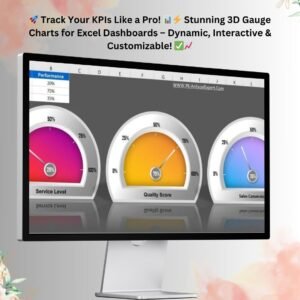
- 3D Gauge Chart in Excel
- Rating Meter Chart in Excel: show a single score on a meter
- Info-graphics: Stunning Thermometer Chart in Excel: track progress toward a target
- Dynamic Comparison in Butterfly Chart: compare two series side by side
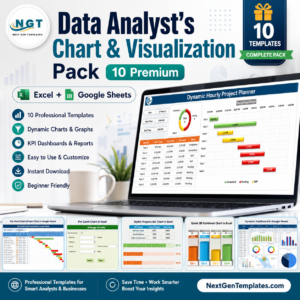
- Data Analyst’s Chart & Visualization Pack: 10 Excel and Google Sheets chart templates
Browse all Excel chart templates or the Excel dashboards.








Reviews
There are no reviews yet.