

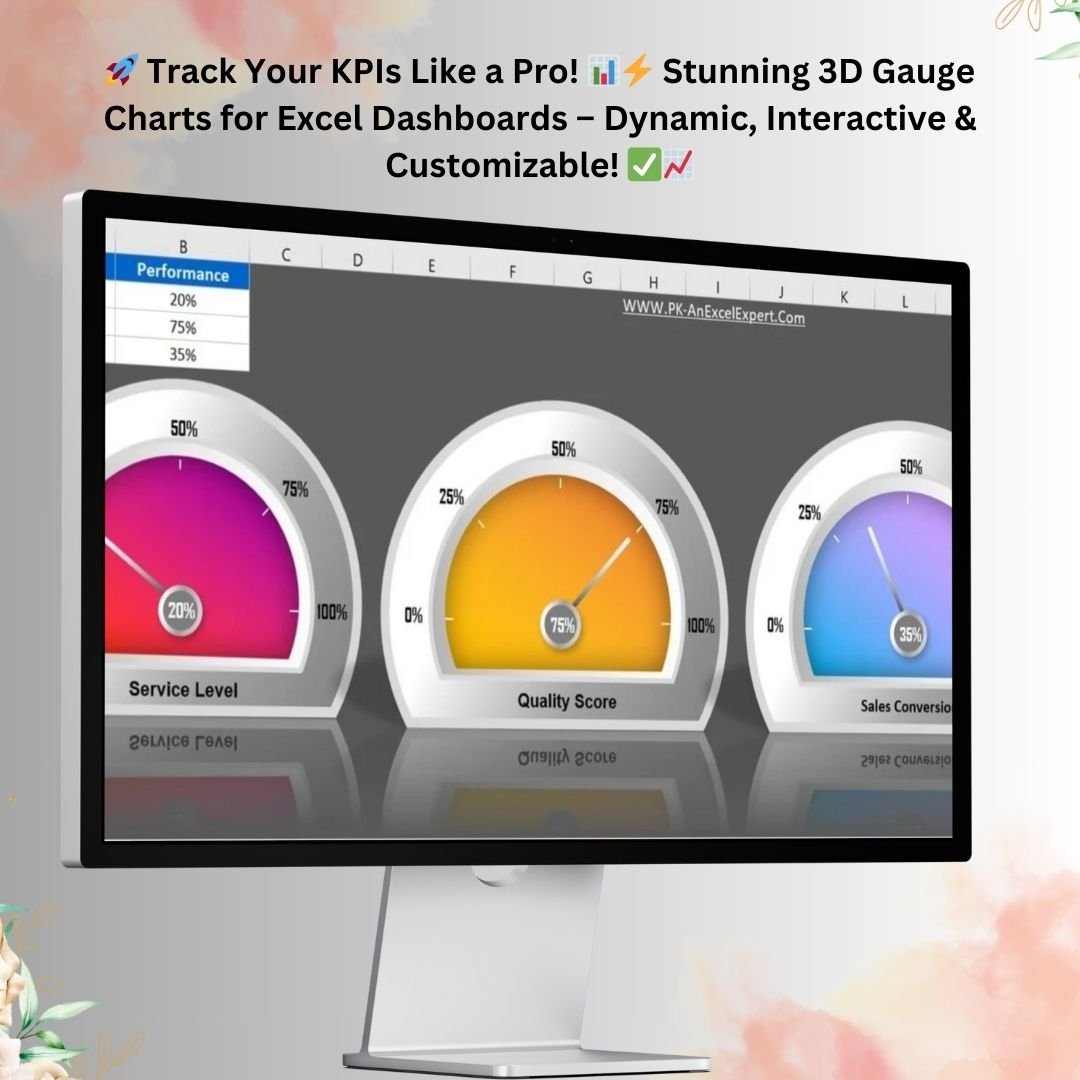

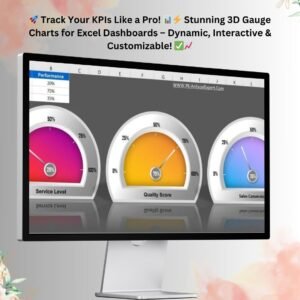
The 3D Gauge Chart in Excel is a ready-made template that turns your KPI percentages into a sleek, speedometer-style dial. It is built for managers, analysts, executives and anyone who builds reports, and its main outcome is simple: you can read performance at a glance. Type in a value, the needle moves automatically, and no coding or VBA is needed.
Why Use a 3D Gauge Chart for KPI Reporting?
Visualizing key performance indicators (KPIs) is central to good data analysis. Standard bar or line charts work well for trends. A gauge chart is better when you need to show progress, performance levels or completion percentages against a range. This Excel KPI chart gives you a professional, visually appealing way to track metrics such as service levels, quality scores and sales conversion rates. It is a strong fit for an Excel dashboard or a business presentation.
Key Features of the 3D Gauge Chart in Excel
1. Effective Data Visualization
The chart shows data in an intuitive, semi-circular dial format, similar to a speedometer. The dial indicator points to the exact value, so viewers understand performance immediately. This makes it especially useful for displaying progress, performance levels or completion percentages.
2. Highly Customizable
You can customize the colors, labels and ranges to suit your business needs. You can also adjust the thresholds to sort results into performance levels such as poor, average and excellent. This lets the visual match your corporate branding or reporting standards.
3. Interactive and Dynamic
This is not a static chart. It updates dynamically whenever input values change, so it suits both real-time data and periodic performance updates. The needle moves automatically based on the percentage you enter, which gives you a real-time tracking mechanism inside Excel.
4. Easy to Use: No Coding Required
The template is designed for simplicity. Users with basic Excel knowledge can create, modify and use the chart without effort. No VBA or macros are required, so it is accessible to a wide range of users.
5. Supports Multiple Metrics
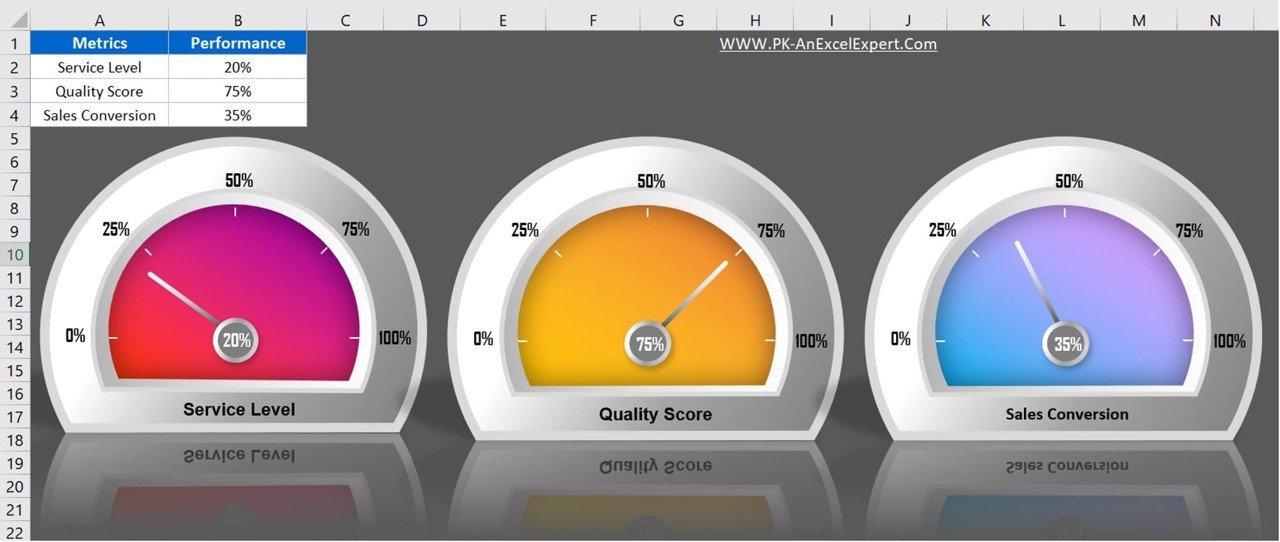
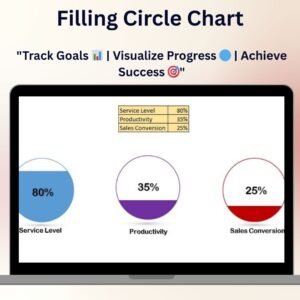
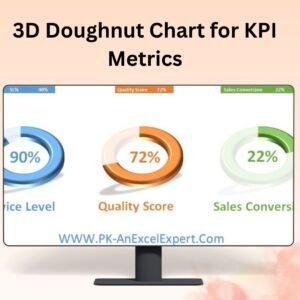
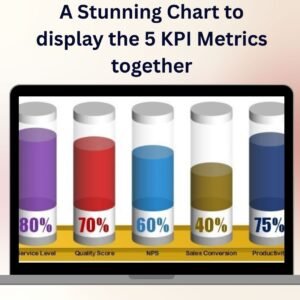
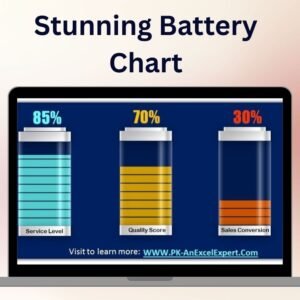
You can place multiple gauge charts on a single sheet and track several KPIs at the same time. The sample template shows service level, quality score and sales conversion rate together. This side-by-side view helps you compare and analyze performance trends across different business areas.
6. Professional Dashboard Integration
The gauge adds both visual appeal and functional insight to any Excel dashboard. You can use it alongside bar charts, line charts and pivot tables to build a complete performance review system.
7. No Need for External Software
Many businesses depend on third-party applications for data visualization. This Excel-based solution removes the need for any additional software. It is lightweight, portable and compatible with all versions of Microsoft Excel, which makes it a practical alternative to costly BI tools.
8. Instant Performance Tracking and Time Savings
You see instant changes every time you enter a new value. This makes the template a good tool for monitoring monthly sales targets, customer service performance, project completion rates or employee productivity.
Building KPI charts by hand takes time. Because this template is pre-designed and automates the calculations and visuals, you can spend your time on analysis instead of formatting.
What’s Inside the Template
| Component | What It Does |
|---|---|
| 3D gauge charts | Semi-circular, speedometer-style dials with a needle that points to the current value |
| Sample KPIs | Service level, quality score and sales conversion rate gauges on a single sheet |
| Value inputs | Enter a percentage and the needle updates automatically |
| Customizable ranges | Adjustable colors, labels and thresholds, for example poor, average and excellent |
Who Is It For?
- Sales & Marketing: Track conversion rates, lead performance and customer retention metrics.
- Finance & Budgeting: Monitor expense utilization, revenue growth and profit margins.
- HR & Employee Performance: Measure employee engagement, productivity and goal achievement.
- Quality Assurance: Visualize quality scores, defect rates and operational efficiency.
- Project Management: Evaluate project completion percentage and milestone tracking.
It suits both business and personal use. Managers, analysts and executives can use it to present data-driven stories in a compelling way.
How to Use the 3D Gauge Chart in Excel
- Open the template in Microsoft Excel.
- Enter your KPI values, such as service level, quality score or sales conversion rate, as percentages.
- Watch the needle on each gauge move automatically to reflect the new value.
- Customize the colors, labels and thresholds to match your branding and performance levels.
- Add the gauges to your Excel dashboard or report, alongside bar charts, line charts or pivot tables.
Click here to read the detailed blog post
Visit our YouTube channel for step-by-step video tutorials: Youtube.com/@PKAnExcelExpert
Watch the step-by-step video tutorial:
Frequently Asked Questions
Do I need VBA or macros to use this gauge chart?
No. The 3D Gauge Chart in Excel works without any coding, VBA or macros. You only need to enter your values.
Which Excel versions does it work with?
The template is described as compatible with all versions of Microsoft Excel, and it needs no external software.
Can I track more than one KPI?
Yes. You can place multiple gauges on a single sheet. The sample template shows service level, quality score and sales conversion rate together.
Can I change the colors and performance ranges?
Yes. You can customize colors, labels and ranges, and adjust the thresholds to define levels such as poor, average and excellent.
Does the needle update automatically?
Yes. The needle moves automatically based on the percentage you enter, so you get instant, real-time performance tracking.
Can I use it in an existing Excel dashboard?
Yes. The gauge chart fits into Excel dashboards and works alongside bar charts, line charts and pivot tables.
Also check our Power Gantt Chart in Excel
Last updated: October 2026
Compatibility and Requirements
- Works in Microsoft Excel desktop (Excel 2016 or later, or Microsoft 365).
- The gauges need no VBA or macros. Microsoft’s guide to creating a chart explains how Excel charts work if you want to restyle them.
Related Gauge and Meter Charts
- Ultimate Speedometer in Excel: a speedometer with a VBA-driven needle
- RYG Dial Gauge Meter in MS Excel: red, yellow and green zones on a dial
- Dynamic Sales Score Meter Chart in Excel: a meter built for sales scores
- Rating Meter Chart in Excel: a meter for ratings
- Data Analyst’s Chart & Visualization Pack: 10 chart templates for Excel and Google Sheets
Browse all Excel chart templates or the Excel dashboards.








Reviews
There are no reviews yet.