


Managing office documents should be simple, organized, and transparent. However, in reality, documents keep increasing, versions change frequently, approvals get delayed, and multiple departments access the same files. Emails, shared folders, and manual trackers quickly turn document management into chaos. As a result, organizations struggle with version control, approvals, confidentiality, and accountability.Office Document Management Dashboard in Google Sheets
That is exactly why the Office Document Management Dashboard in Google Sheets is a powerful and practical solution.
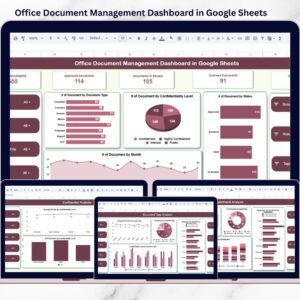
This ready-to-use Google Sheets dashboard gives you a centralized system to track office documents, monitor approvals, analyze departments, manage confidentiality levels, and search records instantly. Instead of guessing document status or chasing teams, you gain real-time visibility and control through interactive dashboards and filters.
Built entirely in Google Sheets, this dashboard is cloud-based, easy to share, simple to update, and accessible from anywhere—making it ideal for modern, collaborative workplaces.

## 🚀 Key Features of Office Document Management Dashboard in Google Sheets
📂 Centralized Document Tracking
Monitor all office documents from a single dashboard without scattered files.
📊 Real-Time KPI Monitoring
Instantly view total documents, approved, in-review, archived, and draft files.
🗂️ Department-Wise Analysis
Understand document workload, approvals, and revisions by department.
🔐 Confidentiality Level Control
Track documents by Public, Internal, Confidential, and Highly Confidential levels.
🔄 Version Management Insights
Analyze average document versions to identify frequent revisions.
📅 Monthly Document Trend Analysis
Track document creation trends over time to manage workload.
🔍 Advanced Filters & Slicers
Search documents by title, owner, department, type, status, version, tags, month, and year.
☁️ 100% Google Sheets Based
No software installation—just open, update, and collaborate in real time.
## 📦 What’s Inside the Office Document Management Dashboard
📄 Overview Dashboard
A complete snapshot showing total documents, approval status, document trends, and distribution by type, confidentiality, and status.
🏢 Department Analysis Page
Track document count, approval flow, version averages, and document types by department.
📑 Document Type Analysis Page
Understand how different document types behave in terms of approvals, versions, and confidentiality.
🔐 Confidential Analysis Page
Monitor sensitive documents and ensure proper control over confidential and highly confidential files.
🔎 Search & Filter Section
Quickly find any document using interactive filters instead of manual searching.
📊 Raw Data Sheet
A structured data table capturing Document ID, Title, Department, Owner, Type, Status, Version, Dates, and Confidentiality Level.
## 🛠️ How to Use the Office Document Management Dashboard
1️⃣ Enter or update document details in the raw data sheet
2️⃣ Dashboard metrics and charts update automatically
3️⃣ Use slicers to filter by department, document type, owner, or status
4️⃣ Analyze approval delays, version issues, and confidentiality risks
5️⃣ Share the dashboard with your team for real-time collaboration
No technical expertise required—any Google Sheets user can operate it easily.
## 🎯 Who Can Benefit from This Office Document Management Dashboard
🏢 Office Administrators managing internal documents
👥 HR Teams handling employee records and policies
⚖️ Legal Departments managing contracts and compliance files
📦 Operations Teams tracking SOPs and internal documentation
🔍 Compliance Managers monitoring sensitive records
📈 Management Teams seeking visibility and control
This dashboard is perfect for small businesses, startups, and large organizations.
### 👉 Click here to read the Detailed blog post
Watch the step-by-step video tutorial:













Reviews
There are no reviews yet.