

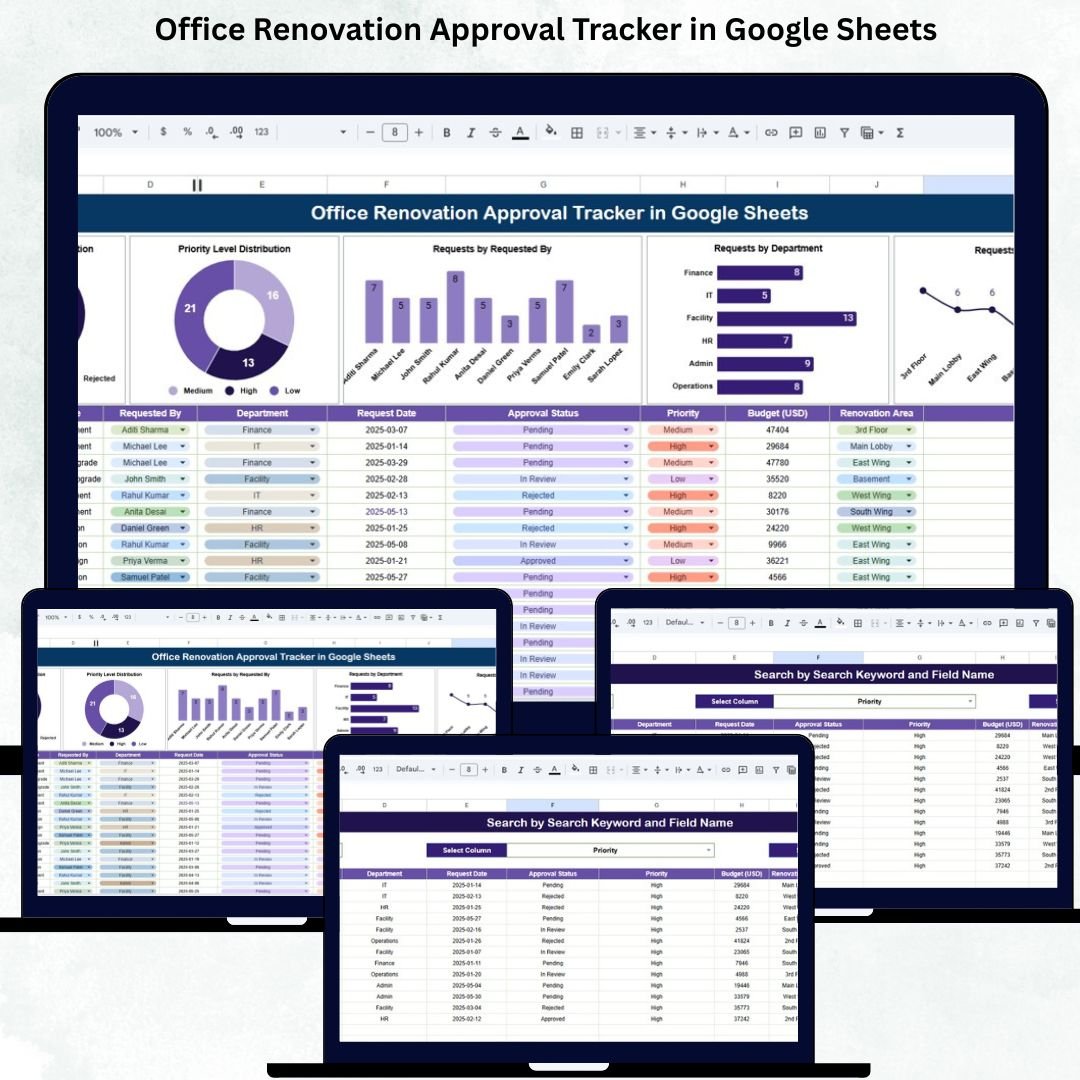
Managing Office Renovation Approval Tracker in Google Sheets can become messy when multiple departments, priority levels, and approval stages are involved. Renovation requests pile up in emails, approvals get delayed, and teams struggle to track what is pending, approved, or rejected. This leads to poor coordination between facility teams, HR, admin departments, and management. The Office Renovation Approval Tracker in Google Sheets solves these challenges with an organized, automated, and cloud-based approach.
This ready-to-use tracker centralizes all renovation requests in one system, helping teams manage approvals, track renovation areas, assign priorities, and maintain complete transparency across the organization. Whether your office has one floor or multiple branches, this tracker provides the structure you need to ensure smooth renovation workflows, faster decision-making, and accurate tracking.
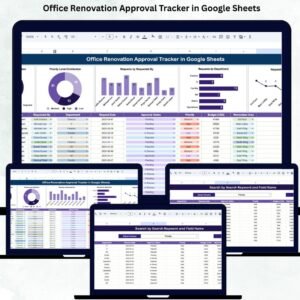
With visual dashboards, automated charts, KPI indicators, and a powerful search tool, the Office Renovation Approval Tracker transforms renovation management into a clean, efficient, and easy-to-monitor process.
✨ Key Features of the Office Renovation Approval Tracker in Google Sheets
📊 1. Clear Visualization of Approval Status
The dashboard highlights how many renovation requests are:
Approved
Pending
Rejected
Cancelled
These visuals help management understand workload and approval bottlenecks instantly.
⭐ 2. Priority Level Distribution
Track High, Medium, and Low priority renovation tasks so facility teams can focus on what matters most.
🏢 3. Department-Level Request Tracking
Know which departments are generating the most renovation requests. This helps identify patterns like recurring maintenance needs or department-specific issues.
📍 4. Renovation Area Insights
Analyze renovation demand across areas such as:
Lobby, pantry, washroom, workstations, reception, conference rooms, etc.
This helps teams plan maintenance, upgrades, and budgeting more effectively.
📦 What’s Inside the Office Renovation Approval Tracker in Google Sheets
📈 1. Tracker Sheet – Main Dashboard
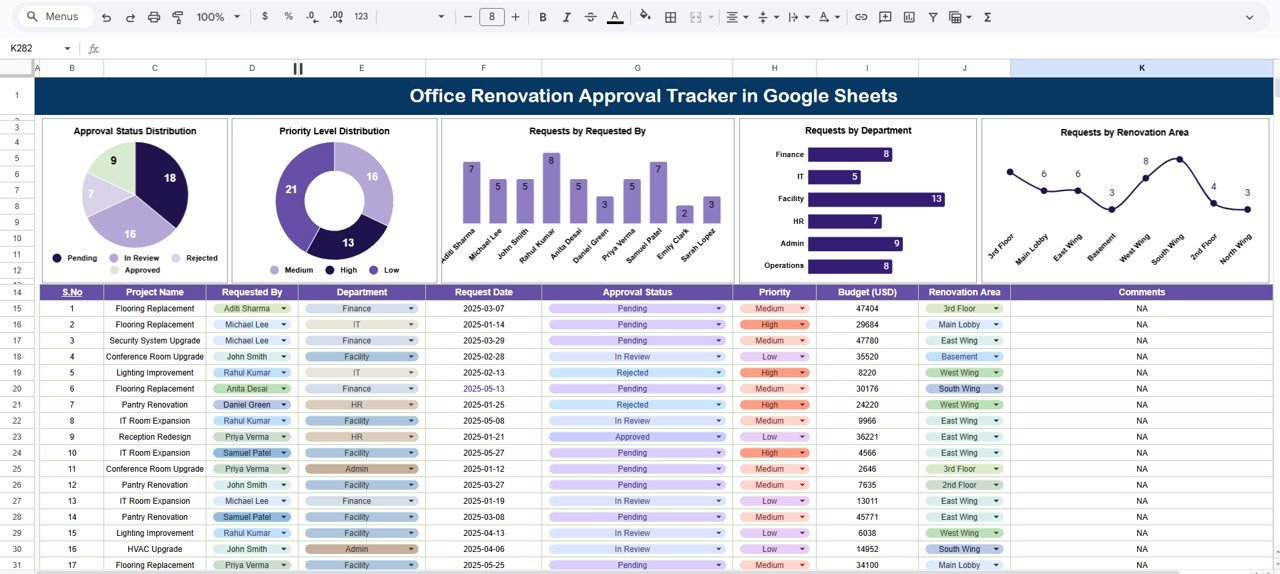
This sheet visually summarizes all renovation activities. You get charts showing:
Approval Status Distribution
Priority Level Distribution
Requests by Requested By
Requests by Department
Requests by Renovation Area
Every time a new request is added in the data sheet, the dashboard updates instantly. This gives stakeholders a real-time understanding of renovation progress.
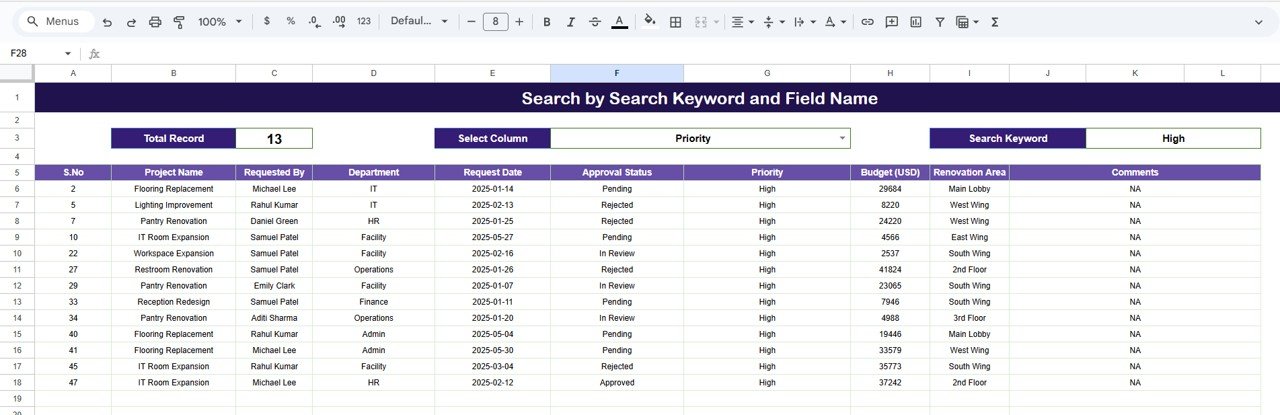
🔍 2. Search Sheet – Fast Request Lookup
The search panel allows users to find any renovation request with ease. You can search using:
Keywords
Department
Requested By
Renovation Area
Status
Priority
Date
This eliminates manual scrolling and makes it extremely easy to pull up records for approvals, audits, or review meetings.
📄 3. Data Sheet – Centralized Request Repository
This is the backbone of the tracker, storing:
Request ID
Requested By
Department
Renovation Area
Priority
Status
Request Date
Approval Date
Notes
All dashboard charts and KPIs read directly from this sheet, ensuring clean automation.
🎯 Who Can Benefit from the Office Renovation Approval Tracker in Google Sheets
🏢 Facility & Admin Teams
Monitor all renovation requests in one place, prioritize tasks, and streamline execution.
👥 HR Departments
Track renovation needs impacting employee workspaces.
📊 Management
Get a top-level view of renovation trends, bottlenecks, and high-priority tasks.
🌍 Multi-Branch Organizations
Manage renovation requests across locations with clarity and consistency.
Click here to read the Detailed blog post
Watch the step-by-step video Demo:






















Reviews
There are no reviews yet.