


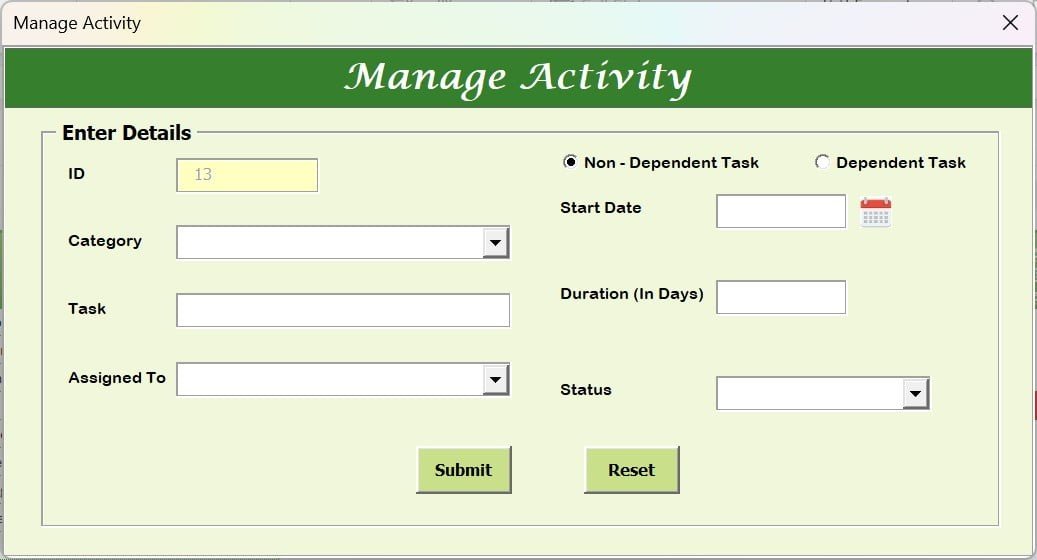
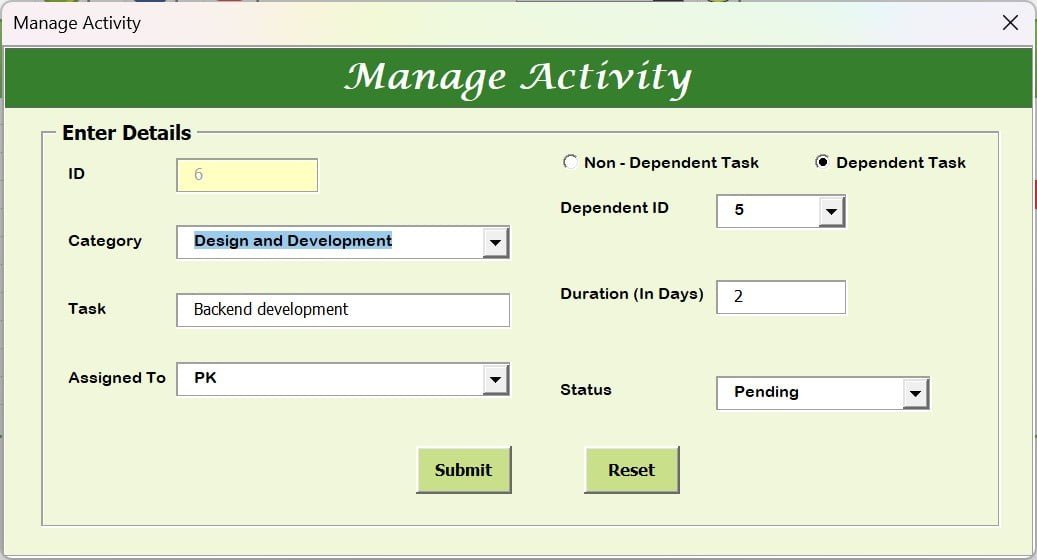

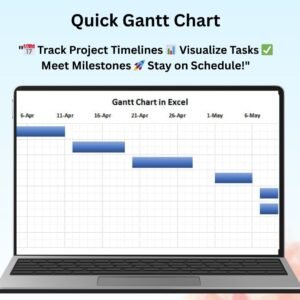
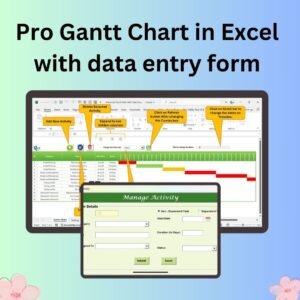
The Pro Gantt Chart in Excel with Data Entry Form is a ready-made, macro-enabled (VBA) project planning tool for adding, updating and organizing project activities through a simple form instead of editing cells by hand. It is built for project managers, team leaders, freelancers, startup founders, students and researchers. Every change is reflected in the Gantt chart, so you always see where your project stands.
Key Features of This Gantt Chart in Excel
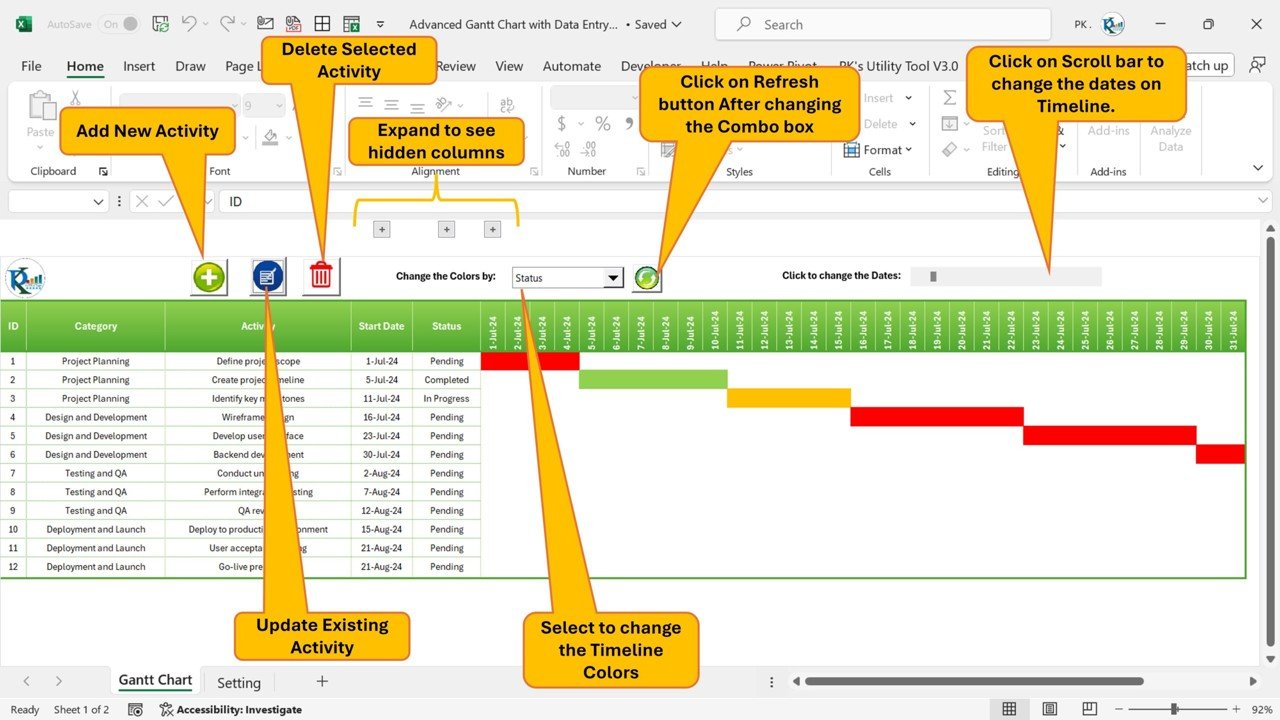
- Easy activity addition – Add new activities quickly using an intuitive data entry form that streamlines project setup.
- Seamless updates – Update existing activities with pre-filled forms, so changes happen in real time without manual effort.
- Simple deletions – Remove activities with a single click to keep your project plan clutter-free and structured.
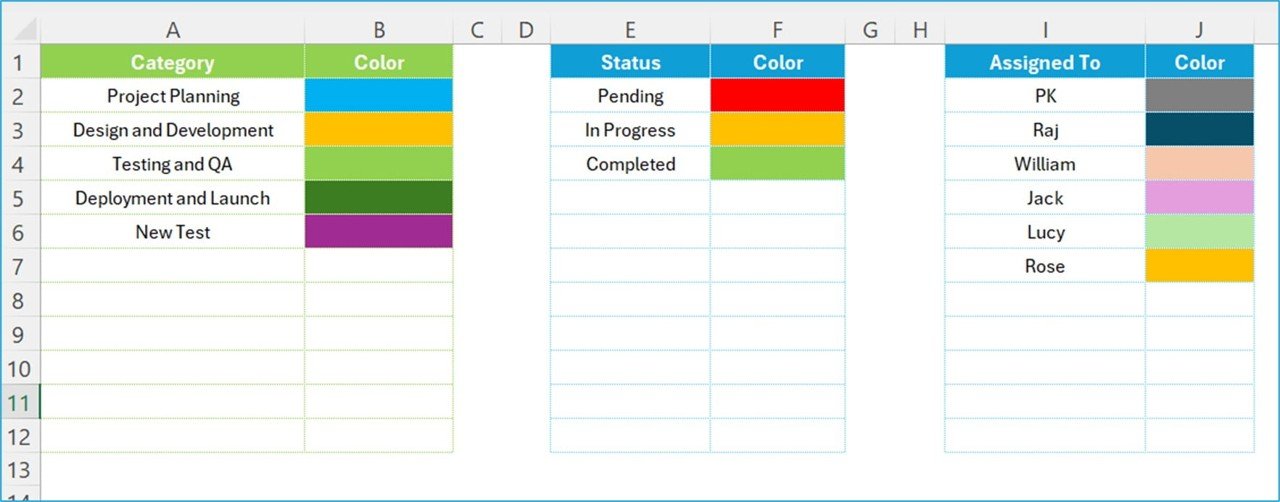
- Customizable colors – Change activity colors based on category, status or assignee for better visualization and quick identification.
- Expandable fields – Use grouped fields to expand or collapse project details, making large datasets easier to manage.
- Interactive timeline – Scroll through the project timeline and adjust dates and schedules dynamically.
- Automated status updates – Track task progress with automatic status indicators such as “Pending,” “In Progress” and “Completed.”
- Quick search and filters – Apply search and filter functions to locate specific tasks or categories instantly.
- Project dependencies – Identify dependent and independent tasks to plan project sequences effectively.
- Export and share – Save and export project data to Excel for easy sharing, reporting and team collaboration.
- Secure and reliable – Built-in data validation and structured entry help keep your task tracking accurate and consistent.
- User-friendly interface – No coding required, so it suits both professionals and beginners.
What’s Inside the Template
The workbook combines two core parts that work together:
- Manage Activity form – A built-in data entry form for entering project details, including category, assigned person, start date and duration. The same form is used to update or delete existing activities.
- Interactive Gantt chart – A visual project timeline that reflects every addition, update and deletion, with color-coded bars and status markers, grouped expandable fields, and search and filter options.
Why Choose This Gantt Chart?
| Benefit | What it means for you |
|---|---|
| User-friendly interface | No need for advanced Excel skills; form-based entry makes task management effortless. |
| Real-time project tracking | Keep an eye on project status and deadlines without manually updating spreadsheets. |
| Customizable and scalable | Tailor the template to your project needs, whether for small teams or large enterprises. |
| Time-saving automation | Eliminate repetitive manual entries with dynamic updates and auto-filling functions. |
| Data accuracy | Reduce errors with structured input fields that keep project data consistent. |
Who It’s For
- Project managers – Plan and track project milestones with ease.
- Team leaders – Assign tasks and monitor team progress.
- Freelancers – Manage client projects and deadlines efficiently.
- Startup founders – Keep an overview of business operations.
- Students and researchers – Organize academic projects with structured timelines.
If you need straightforward project management in a familiar Excel environment, this template gives you a structured, visual way to stay on schedule.
How to Use It
- Download, unzip and enable macros – After downloading and unzipping the file, make sure macros are enabled before use. For step-by-step instructions, see our tutorial: https://www.pk-anexcelexpert.com/4-easy-ways-to-enable-macros-in-excel-vba/
- Add new activities – Open the Manage Activity form and enter the category, assigned person, start date and duration.
- Modify existing tasks – Select a task, update its details in the pre-filled form, and see the change instantly in the Gantt chart.
- Color-code your tasks – Assign colors by category or assignee for an organized visual view.
- Track task dependencies – Mark dependent and independent tasks to plan the right sequence.
- Monitor progress – Use the color-coded status markers to get an overview of project completion.
- Delete unwanted activities – Remove outdated or incorrect activities with a single click to keep the project timeline clean.
Click here to read the detailed blog post
Watch the step-by-step video tutorial:
Visit our YouTube channel to learn from step-by-step video tutorials: Youtube.com/@PKAnExcelExpert
Frequently Asked Questions
Do I need coding skills to use this Gantt chart in Excel?
No. All activities are added, updated and deleted through the Manage Activity data entry form, so no coding or advanced Excel knowledge is required.
Do I need to enable macros?
Yes. The tool is built with VBA, so after downloading and unzipping the file you should enable macros before use. Our tutorial linked above explains how to do this.
Can I color-code tasks?
Yes. You can change activity colors based on category, status or assignee for quick identification on the project timeline.
How does task tracking work?
The template shows automatic status indicators such as “Pending,” “In Progress” and “Completed,” along with color-coded status markers, so you can see progress at a glance.
Can I track dependent tasks?
Yes. You can identify dependent and independent tasks to plan project sequences effectively.
Can I share the project data with my team?
Yes. You can save and export project data to Excel for easy sharing, reporting and team collaboration.
Also check our Download Attachments from Multiple Emails Automatically using VBA
Last updated: October 2026
Compatibility and Requirements
- Microsoft Excel desktop on Windows (Excel 2016 or later, or Microsoft 365).
- Macros must be enabled, because the forms and buttons run on VBA. Microsoft shows how in Enable or disable macros in Microsoft 365 files.
- It does not run in Excel for the web, Google Sheets or the Excel mobile apps.
Related Gantt Chart Templates
- Power Gantt Chart in Excel
- Dynamic Hourly Gantt Chart for Projects: schedule tasks by the hour.
- Project Plan Gantt Chart in Excel: a simple project plan Gantt chart.
- Pro Gantt Chart Project Planner in Google Sheets: a Gantt planner in Google Sheets.
- Project Management Pro Bundle: 9 project templates for Excel and Google Sheets.
Browse all Excel charts and visualization templates or the Excel project management templates.







Reviews
There are no reviews yet.