

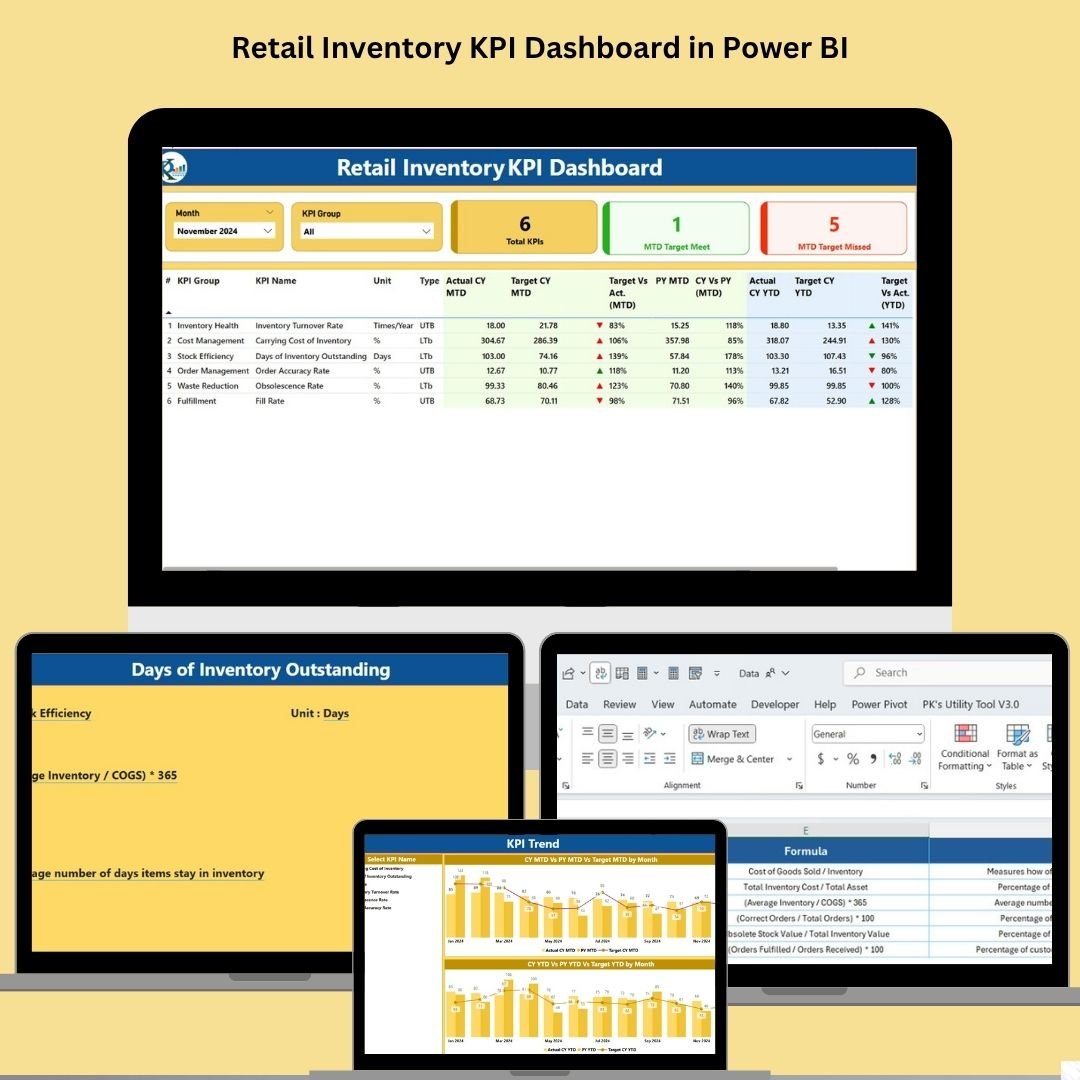

In retail, your inventory is your engine—and to keep that engine running efficiently, you need real-time insights. The Retail Inventory KPI Dashboard in Power BI is a smart, interactive tool designed to help you track your key inventory metrics with visual clarity and zero spreadsheet chaos.
Whether you’re managing stock levels, tracking sell-through rates, or analyzing returns, this dashboard empowers your retail team to make data-backed decisions, reduce stockouts, and boost efficiency. Built with sleek Power BI visuals and linked directly to an Excel data source, it’s automation made simple.
📊 What’s Inside the Dashboard?
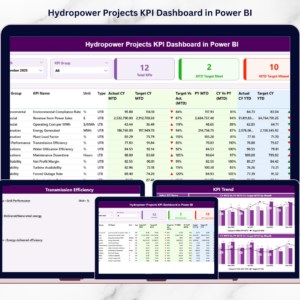
This Power BI template features three dynamic pages, each tailored to a specific analytical need:
🧩 1. Summary Page
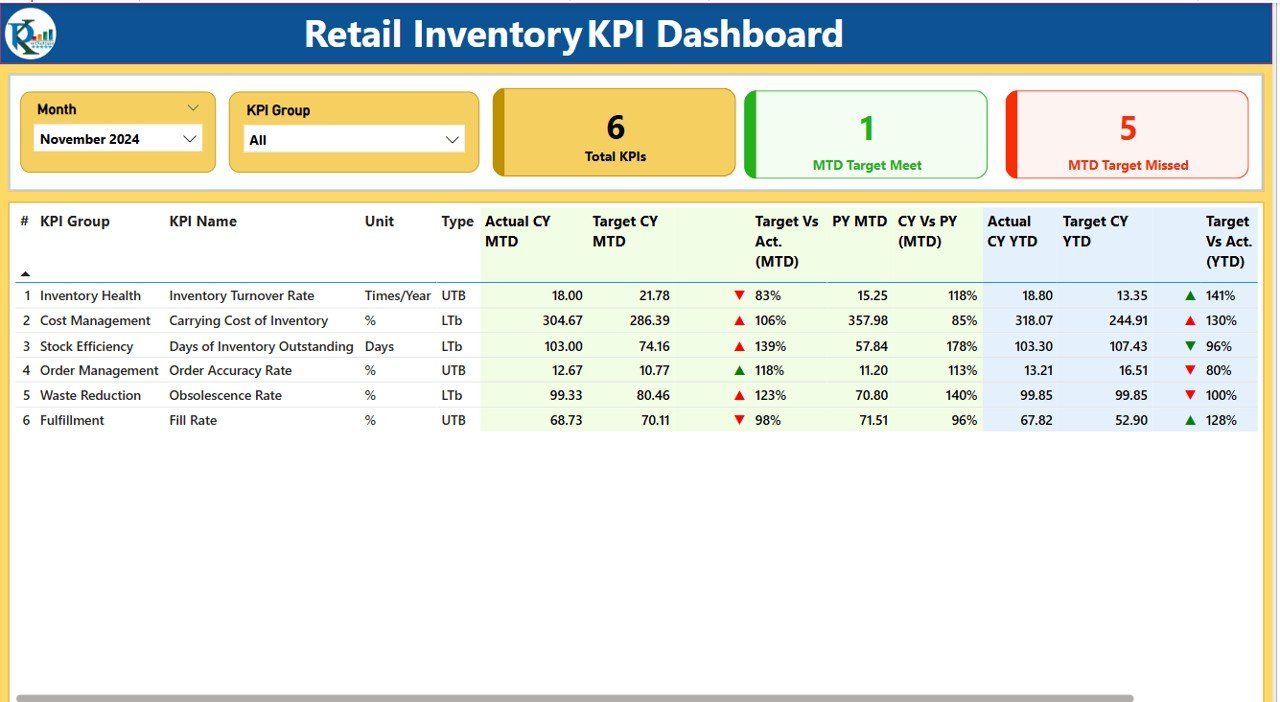
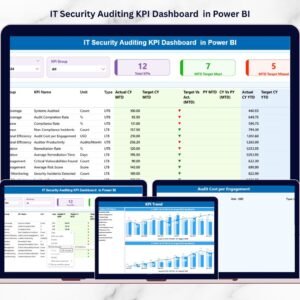
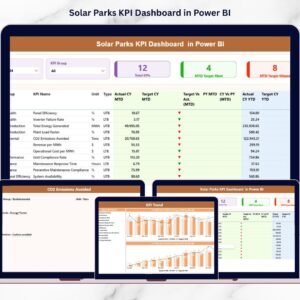
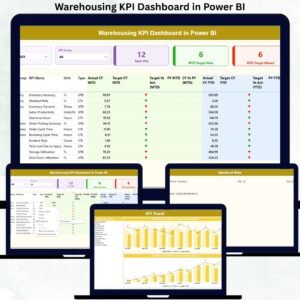
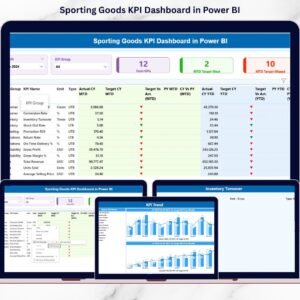
Your high-level control panel, featuring:
Slicers to filter by month and KPI Group
Summary Cards:
Total KPIs
MTD Target Met
MTD Target Missed
Detailed KPI Table: View actuals, targets, and comparisons in one place
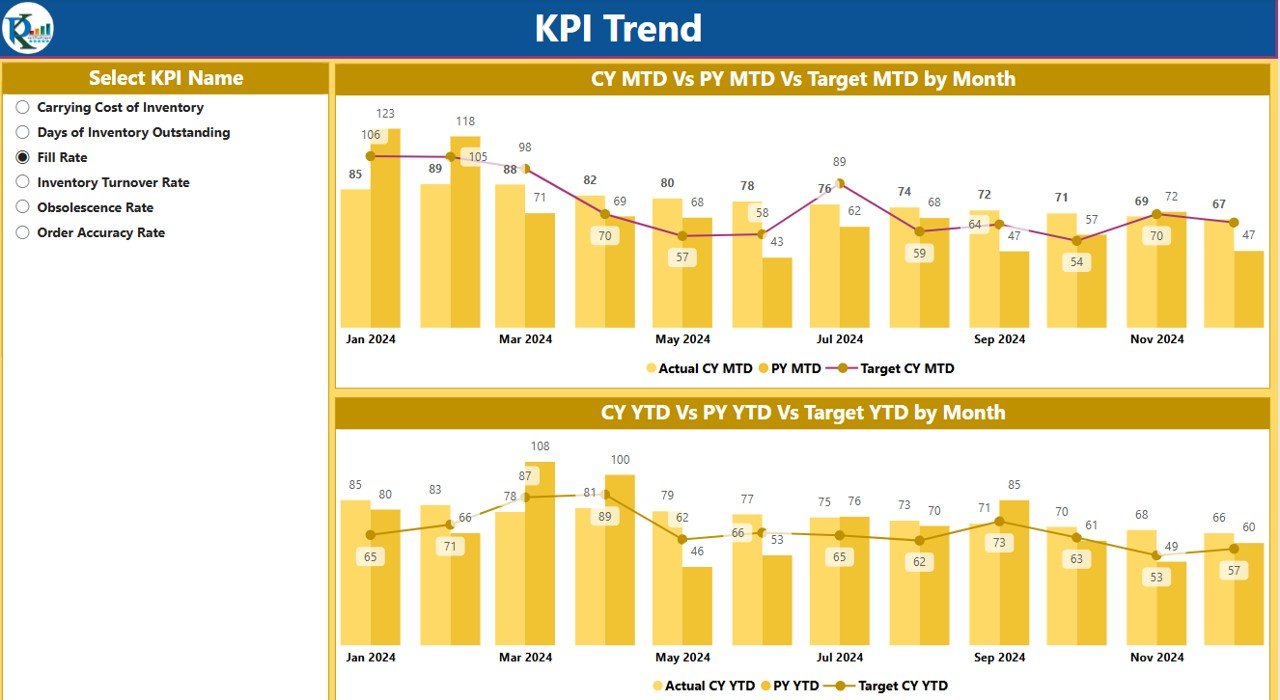
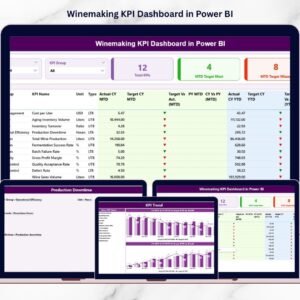
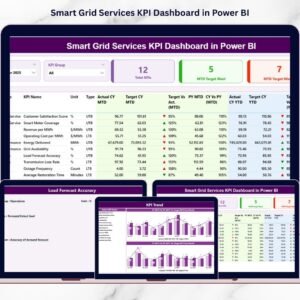
📈 2. KPI Trend Page
See the full picture with trend lines and comparisons for:
MTD vs. Target vs. Previous Year
YTD vs. Target vs. Previous Year
KPI Selector for focused analysis
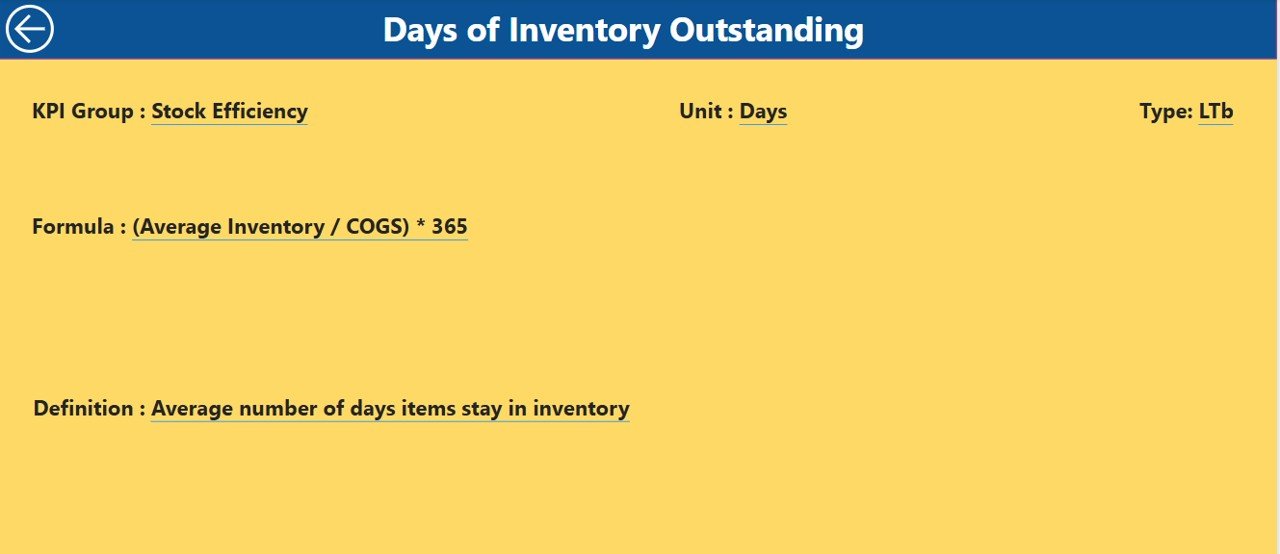
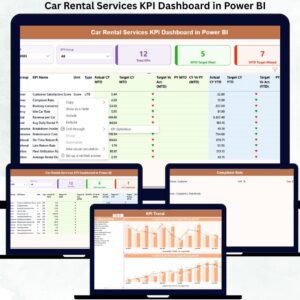
🧠 3. KPI Definition Page (Drillthrough Enabled)
Right-click any KPI and dive deep into:
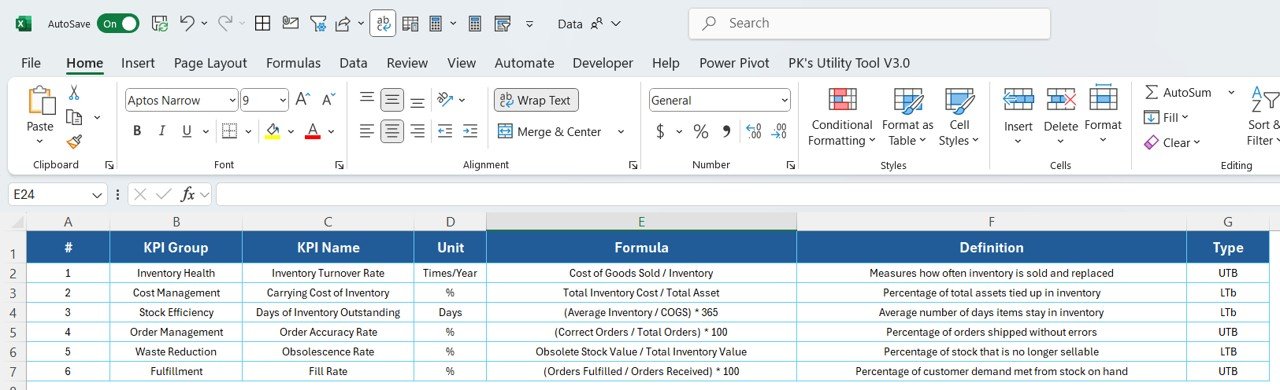
KPI Formula
Clear, concise Definitions
Performance Type: Lower-the-Better (LTB) or Upper-the-Better (UTB)
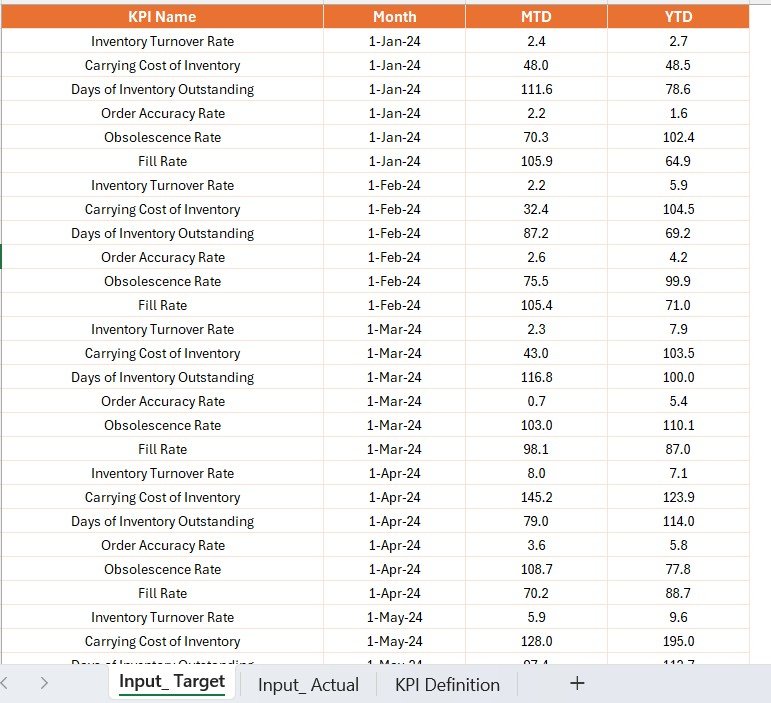
🗂 How the Data Works
All visuals are powered by a connected Excel data source, making it easy to update:
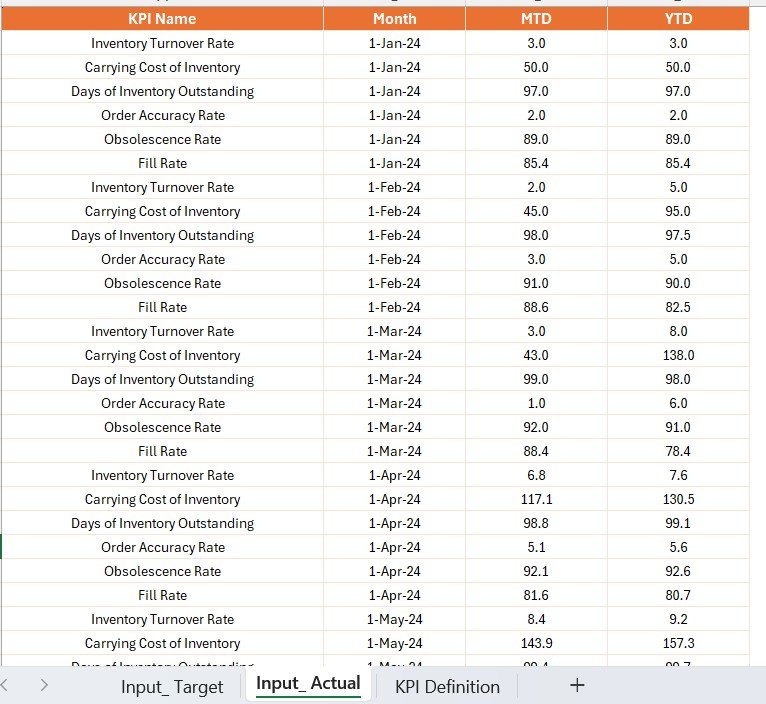
Input_Actual Sheet: Actual KPI values (MTD & YTD)
Input_Target Sheet: Target goals for each KPI
KPI Definition Sheet: KPI name, formula, definition, and measurement type
This structured backend keeps your dashboard clean, flexible, and scalable.
🚀 Key Benefits
📊 Real-Time KPI Monitoring
Track inventory performance with a single click—no more toggling between spreadsheets.
📉 Spot Issues Early
Visual cues, icons, and red/green status help you act before small issues become big losses.
📈 Smarter Decisions
Review trends, analyze gaps, and identify overstock or understock patterns instantly.
🔁 Zero Manual Effort
Simply update the Excel file and refresh Power BI—your visuals update automatically.
🧭 KPI Drilldowns
Gain context behind every metric using built-in drillthrough functionality.
🎨 Interactive Design
Use slicers, filters, and tooltips to create a personalized analytical experience.
🧠 Best Practices for Retailers
✅ Keep data formats consistent (especially dates and KPI names)
✅ Refresh your data daily or weekly for maximum accuracy
✅ Use KPI groups (e.g., Stock, Returns, Delivery) to streamline visuals
✅ Add tooltips for better usability by all team members
✅ Set up Power BI Service for automated sharing and publishing
🛒 Who Can Use This?
This dashboard is ideal for:
Retail Managers & Inventory Planners
E-commerce Operations Teams
Chain Store Analysts
Warehouse Heads
Procurement Teams
Category Managers
📈 Common Inventory KPIs to Track
Stock Turnover Rate
Days of Inventory on Hand
Inventory Accuracy
Sell-Through Rate
Stock-Out Frequency
Shrinkage Rate
🔧 Customization Options
Add or remove KPI groups
Connect to cloud sources (SQL, Azure, Google Sheets, etc.)
Modify visuals, color themes, or branding
Build summary views using custom bookmarks
🎯 Conclusion
If you want to make smarter, faster retail inventory decisions, this Power BI Dashboard is your perfect companion. It replaces guesswork with actionable insight, chaos with clarity, and manual effort with automation.
🎬 Learn how to set it up:
youtube.com/@PKAnExcelExpert
Watch the step-by-step video tutorial:
Compatibility and Requirements
- Works in Power BI Desktop, which is free. Get it from Get Power BI Desktop.
- The dashboard reads its data from a connected Excel file, so you also need Microsoft Excel or another way to edit that file.
Frequently Asked Questions
What pages does the dashboard have?
Three pages: Summary, KPI Trend and KPI Definition. The Summary page has month and KPI Group slicers, summary cards and a detailed KPI table. The KPI Trend page compares MTD and YTD against target and previous year. The KPI Definition page shows the formula, definition and type of each KPI.
Where does the data come from?
From a connected Excel file with three sheets: Input_Actual for actual MTD and YTD values, Input_Target for target goals, and KPI Definition for the KPI name, formula, definition and measurement type.
How do I update the dashboard?
Update the Excel file with your new actual and target values, then refresh Power BI. The visuals update from the refreshed data.
How do I see the formula behind a KPI?
Right-click any KPI and use drillthrough to open the KPI Definition page. It shows the formula, the definition and whether the KPI is Lower-the-Better (LTB) or Upper-the-Better (UTB).
Is there an Excel or Google Sheets version?
Yes. See the Retail Inventory KPI Dashboard in Excel and the Retail Inventory KPI Dashboard in Google Sheets.
Related Retail and Inventory Templates
- Retail Inventory KPI Dashboard in Excel: the same dashboard in Excel
- Retail Inventory KPI Dashboard in Google Sheets: the Google Sheets edition
- Inventory Management Dashboard in Power BI: a wider inventory view in Power BI
- Retail Inventory KPI Scorecard in Excel: a scorecard view of retail inventory KPIs
- Inventory & Warehouse Master Kit: 8 inventory templates in one download
Browse all Power BI KPI dashboards.



Reviews
There are no reviews yet.