

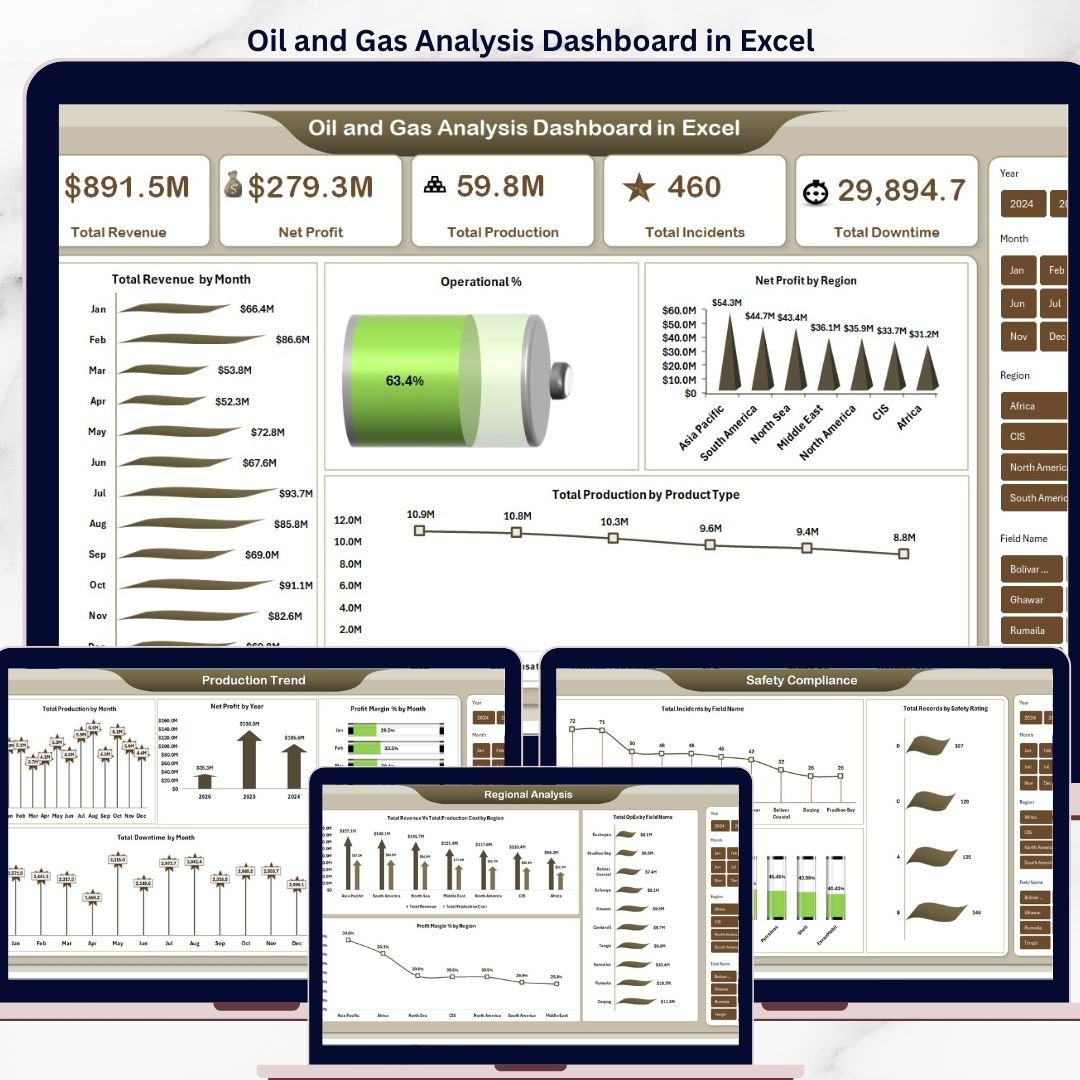



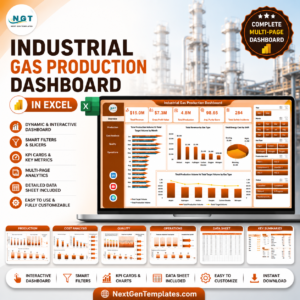
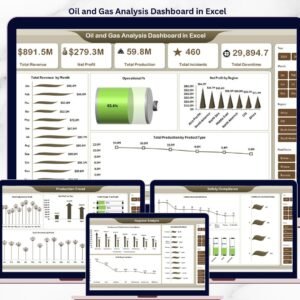
The Oil and Gas Analysis Dashboard in Excel tracks 5 core KPIs across 5 interactive pages, with 14 pre-built charts, 5 data slicers, and a fully pivot-driven Support Sheet. Setup takes under 10 minutes — paste your upstream production data into the Data Sheet, click Refresh All, and every card, chart, and regional view updates automatically.
🌍 Join 8,400+ teams in 40+ countries using NextGenTemplates to replace paid SaaS tools with one-time-purchase Excel, Google Sheets, Power BI, and HTML templates.
✅ Instant download · One-time payment · No subscription · No per-user fees · Lifetime access
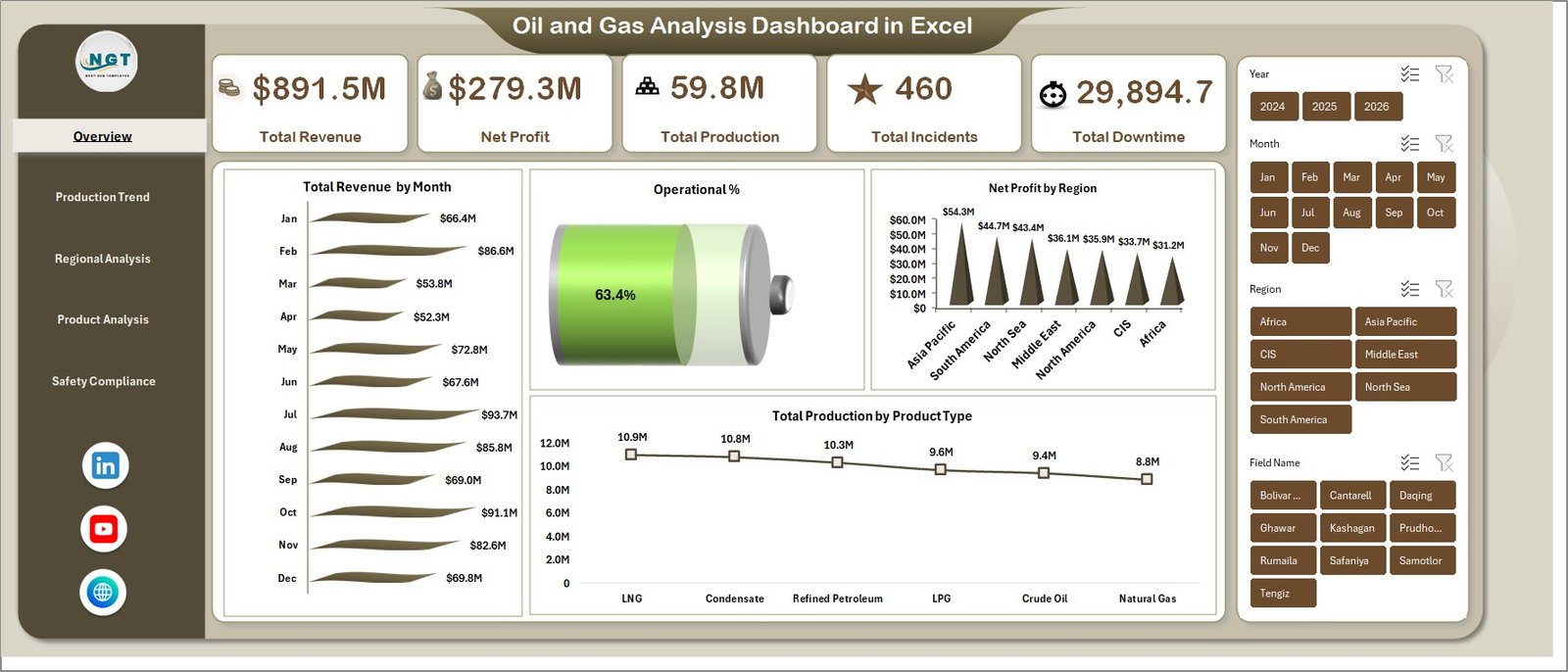
Oil and Gas Analysis Dashboard in Excel
🔑 Key Features of the Oil and Gas Analysis Dashboard in Excel
🛢️ 5 KPI cards on the Overview page — Total Revenue, Net Profit, Total Production, Total Incidents, and Total Downtime — are wired to pivot measures so every card recalculates the moment you refresh the workbook. These are the same headline metrics upstream operators use to brief management on barrel output, margin, and safety performance each month.
📊 14 pivot-driven charts across 5 analysis pages covering Production Trend, Regional Analysis, Product Analysis, and Safety & Compliance. Every chart sits on top of a pivot table in the hidden Support Sheet, so you never edit a chart manually — you just refresh and the visuals rebuild themselves.
🧭 Multiple slicers for fast, filtered views so you can drill from a global view to a single field, operator, product type, or well type in two clicks. Built for operations leads, finance controllers, and HSE managers who need different slices of the same dataset.
🗂️ Structured Data Sheet + hidden Support Sheet — the Data Sheet holds your production, revenue, cost, incident, and downtime records in one flat table; the Support Sheet holds the pivots feeding every dashboard page. You can hide the Support Sheet in daily use and the dashboard keeps working.
🎨 Clean upstream-industry visual style — dark navigation bar, card KPIs, consistent number formatting in millions and percentages, and chart titles named for what they measure (for example, “Total Revenue by Month” rather than “Chart 3”).
📦 What’s Inside the Oil and Gas Analysis Dashboard in Excel
The workbook is organised into 7 tabs. Pages 1 to 5 are the dashboard. Page 6 is your data entry sheet. Page 7 is the hidden pivot engine.
1 — Overview Page. 5 KPI cards (Total Revenue, Net Profit, Total Production, Total Incidents, Total Downtime) and charts covering Total Revenue by Month, Operational %, Net Profit by Region, and Total Production by Product Type. This is the single-screen executive summary for a monthly or quarterly operations review.
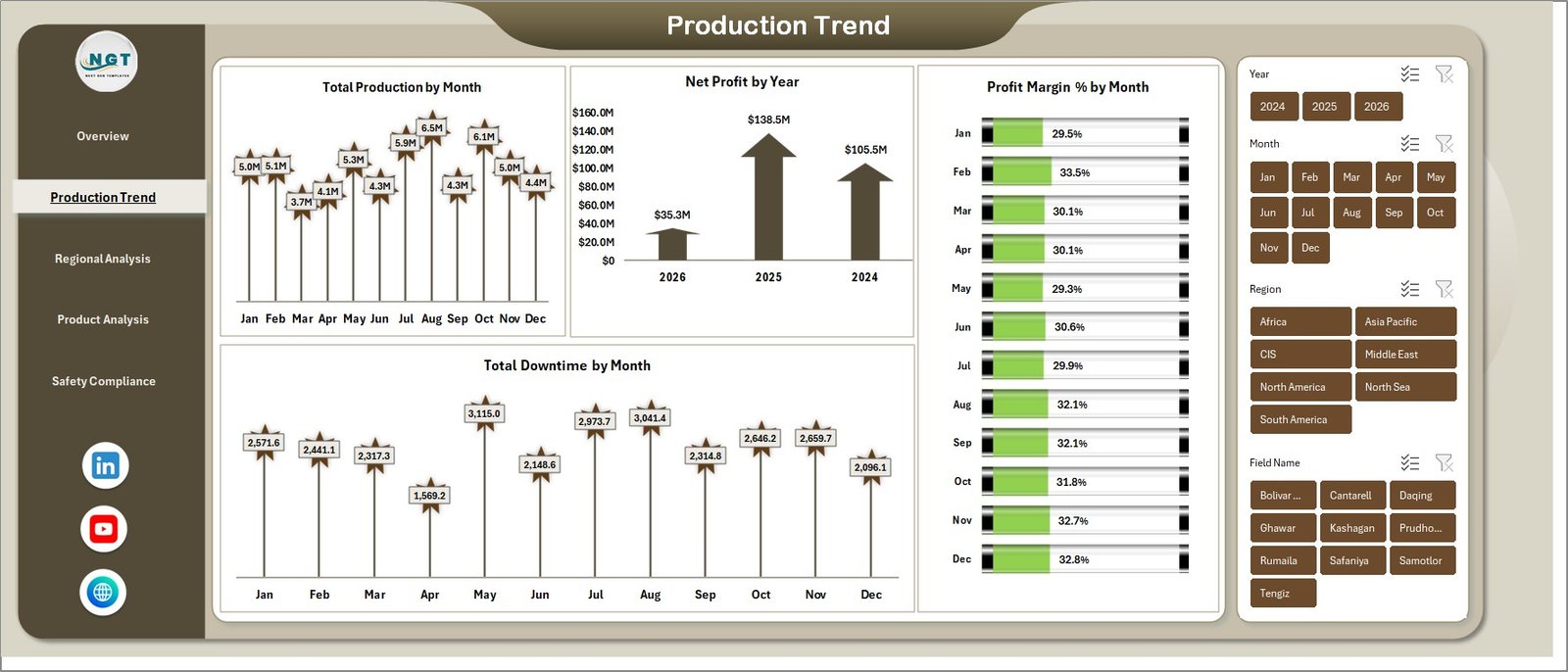
Production Trend
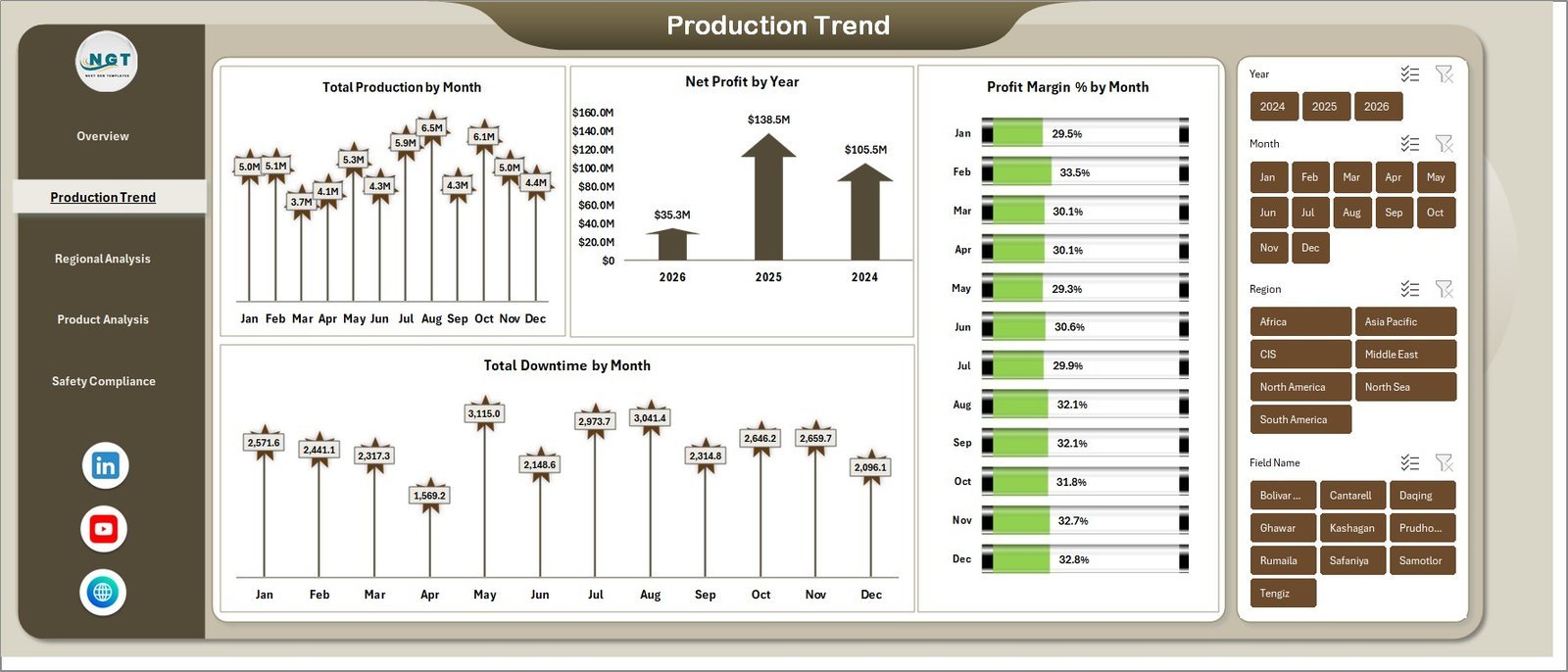
2 — Production Trend. Total Production by Month, Net Profit by Year, Profit Margin % by Month, and Total Downtime by Month. Use this page to spot seasonality in output, year-over-year profit direction, and the exact months where unplanned downtime ate into margin.
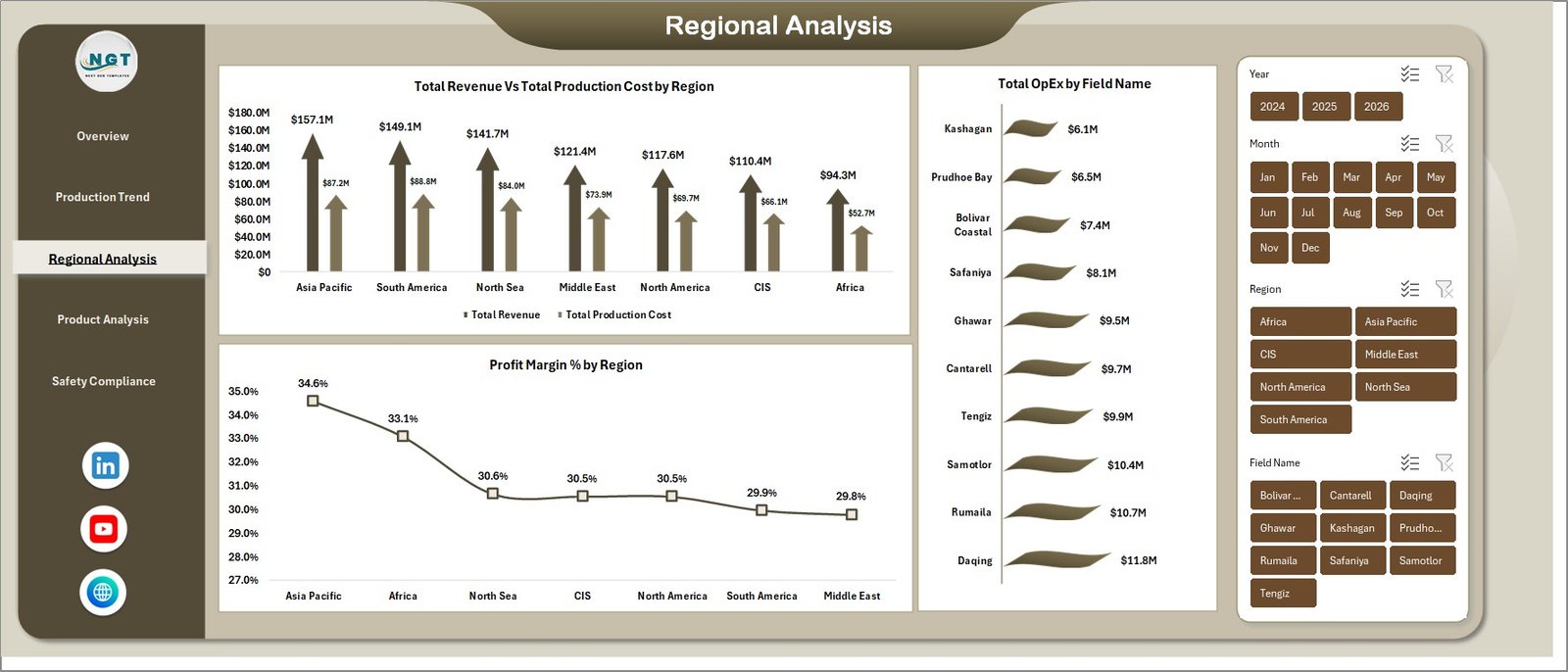
Regional Analysis
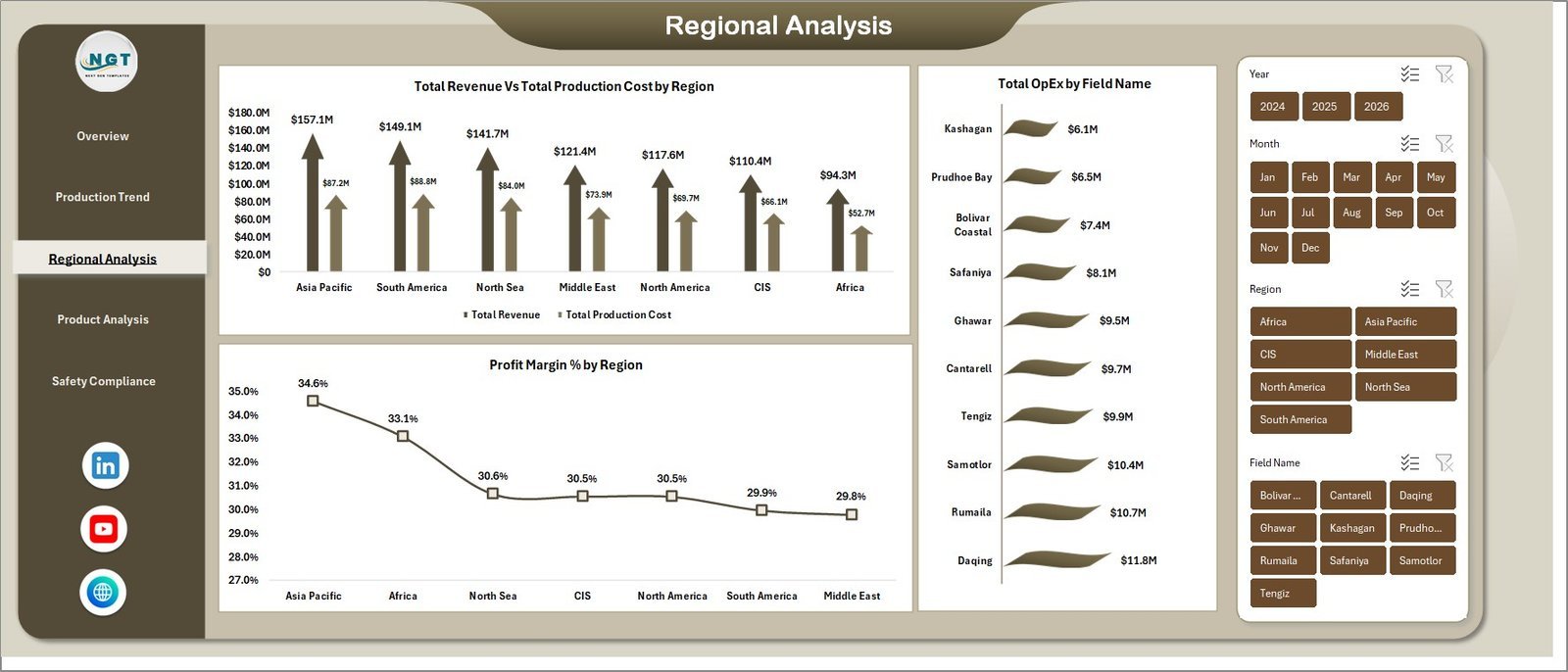
3 — Regional Analysis. Total Revenue vs. Total Production Cost by Region, Total OpEx by Field Name, and Profit Margin % by Region. Helps regional managers see which basins and fields are carrying the portfolio and which are eroding margin through high operating expense.
Product Analysis
4 — Product Analysis. Total Revenue vs. Net Profit by Product Type, Total Production Cost by Extraction Method, and Net Profit by Well Type. Use this page to compare crude vs. gas vs. condensate economics, and to see whether conventional or unconventional wells are the real profit drivers.
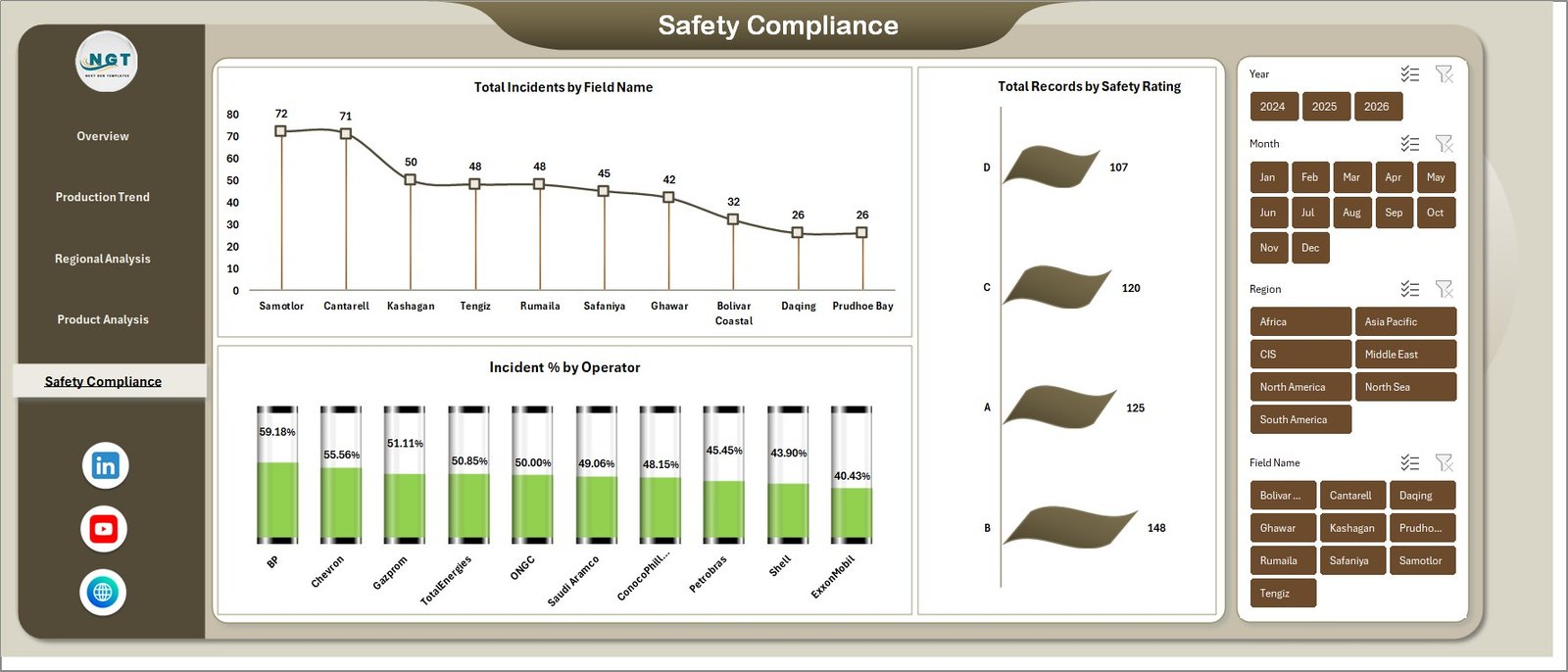
Safety Compliance
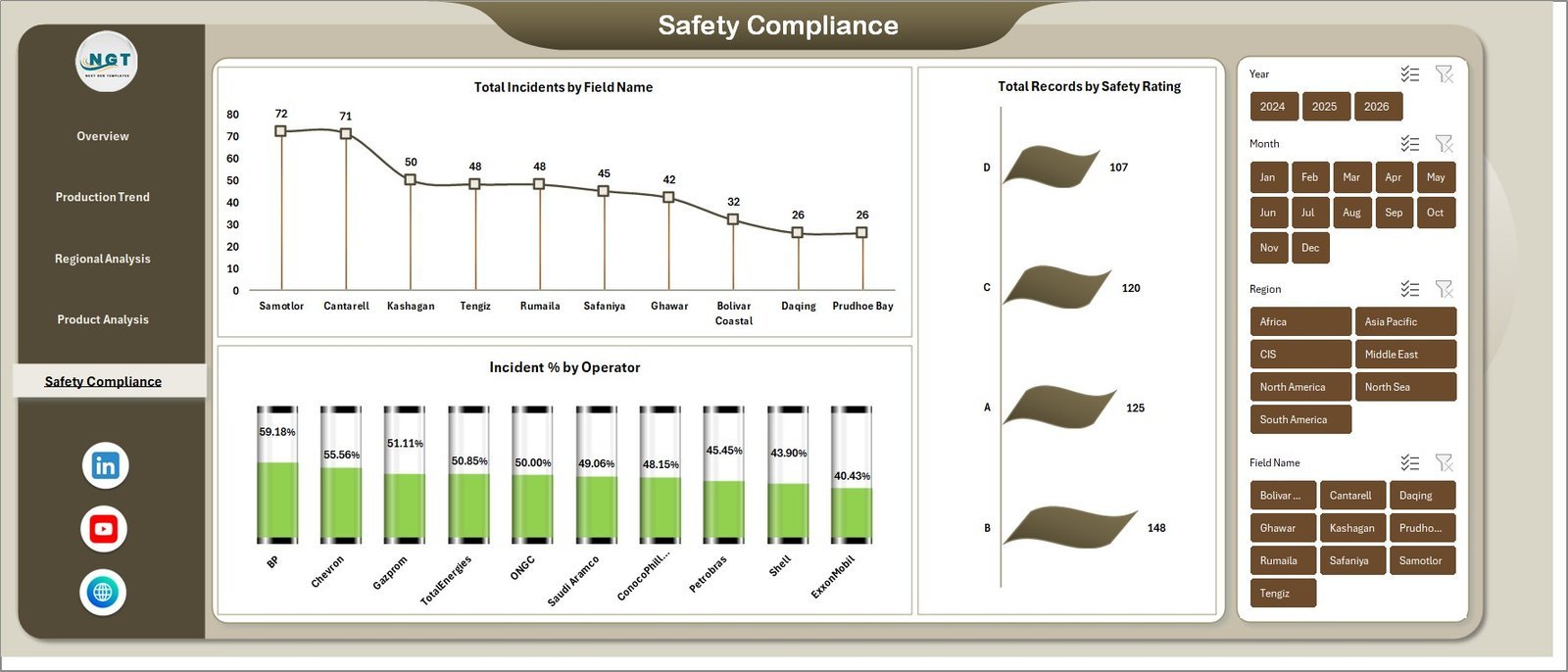
5 — Safety Compliance. Total Incidents by Field Name, Total Records by Safety Rating, and Incident % by Operator. This is the HSE view — a one-page read of where incidents are concentrated, how safety ratings are distributed across the portfolio, and which operators need attention.

Data Sheet tab
6 — Data Sheet. The single input table for the entire dashboard. Add your records in the same column format — date, region, field name, operator, product type, well type, extraction method, production volume, revenue, cost, OpEx, downtime hours, incidents, and safety rating — then refresh.

Support sheet tab
7 — Support Sheet. Holds every pivot table that feeds every chart. Go to the Data tab in the Excel ribbon and click Refresh All after you update the Data Sheet — every pivot and every chart across all 5 dashboard pages rebuilds in one step. You can keep this sheet hidden in daily use.
📊 Oil and Gas Analysis Dashboard in Excel vs. Power BI vs. Paid Oil & Gas SaaS — Where This Fits
| Feature | Oil and Gas Analysis Dashboard in Excel | Power BI alternative | Paid Oil & Gas Analytics SaaS |
|---|---|---|---|
| Cost | $17.99 one-time | $10–20 per user/month (Power BI Pro) | $30,000–$250,000 per year |
| Platform | Microsoft Excel (2016+) | Power BI Desktop + Service | Cloud SaaS |
| Setup time | Under 10 minutes | 2–5 days | 6–12 weeks implementation |
| Tracks revenue, production, downtime, incidents in one view | ✅ | ✅ | ✅ |
| Regional & field-level drill-down with slicers | ✅ | ✅ | ✅ |
| Works offline / no internet required | ✅ | ❌ (Service requires cloud) | ❌ |
| No per-user license fees | ✅ | ❌ | ❌ |
| Fully editable formulas & pivots | ✅ | Partial (DAX only) | ❌ |
| Year-1 cost at 5 users | $17.99 | $600–$1,200 | $30,000+ |
For operations and finance teams that want upstream-grade KPI tracking without paying enterprise SaaS prices, the Oil and Gas Analysis Dashboard in Excel sits in the sweet spot.
👥 Who This Template Is For — and Who It’s Not For
✅ This template is built for:
- Operations managers at small-to-mid upstream E&P companies tracking 1–20 fields
- Finance controllers at oilfield services firms who need margin-by-region visibility monthly
- HSE leads who want a single Excel view of incidents and safety ratings by operator
- Energy consultants preparing client reviews for oil and gas operators
- Analysts and MBA students building upstream case studies and teaching examples
❌ This template is NOT for:
- Supermajors needing real-time SCADA integration and live well-by-well streaming data
- Teams requiring SOC 2 compliance, SSO, or row-level security across thousands of users
- Downstream refining economics that need linear programming models for blend optimisation
⚙️ How to Use the Oil and Gas Analysis Dashboard in Excel
- Download the ZIP file, unzip it, and open the workbook in Microsoft Excel 2016 or later.
- Go to the Data Sheet tab and replace the sample rows with your own production, revenue, cost, and incident records in the same column format.
- Click the Data tab in the Excel ribbon and hit Refresh All. Every pivot and chart rebuilds.
- Open the Overview page and use the slicers to filter by region, field, product type, or well type.
- Walk through Production Trend, Regional Analysis, Product Analysis, and Safety Compliance for the deep-dive views.
- Right-click the Support Sheet tab and choose Hide when you hand the workbook to end users.
💼 Real-World Use Cases
Amit runs operations at a mid-sized Indian E&P company with 6 onshore fields. He uses the Oil and Gas Analysis Dashboard in Excel to prepare a monthly operations review for the leadership committee — one page on revenue and production trend, one page on regional margin, and one page on safety incidents — all off a single Data Sheet his junior analyst updates every month-end.
Priya is a finance controller at an oilfield services contractor working across the Middle East. She uses the Product Analysis and Regional Analysis pages to compare Net Profit by Well Type and Profit Margin % by Region when negotiating new service contracts — without paying $30,000 a year for an enterprise analytics platform she only needs once a month.
Daniel is an energy consultant preparing a buy-side due diligence report on a small North American upstream operator. He drops the target’s historical production and cost data into the Data Sheet, refreshes, and walks the client through downtime patterns, OpEx by field, and incident concentration — all in under an hour of prep time.
❓ Frequently Asked Questions
What KPIs does the Oil and Gas Analysis Dashboard in Excel track?
The Oil and Gas Analysis Dashboard in Excel tracks 5 core KPIs: Total Revenue, Net Profit, Total Production, Total Incidents, and Total Downtime. It also breaks these down across region, field name, operator, product type, well type, and extraction method on dedicated analysis pages.
How long does the Oil and Gas Analysis Dashboard in Excel take to set up?
Setup takes under 10 minutes. You replace the sample data on the Data Sheet with your own production, revenue, cost, and incident records in the same column format, then go to the Data ribbon and click Refresh All. Every chart and KPI on all 5 dashboard pages updates instantly.
How does the Oil and Gas Analysis Dashboard in Excel compare to paid oil and gas SaaS?
Paid upstream analytics SaaS typically starts around $30,000 per year with 6–12 week implementations. The Oil and Gas Analysis Dashboard in Excel is a one-time purchase at $17.99, installs in under 10 minutes, works offline, and has no per-user fees. It fits teams that do not need real-time SCADA integration.
Do I need Power BI or any add-ins to use this dashboard?
No. The Oil and Gas Analysis Dashboard in Excel runs entirely in Microsoft Excel 2016 or later. It uses pivot tables, pivot charts, and slicers — no macros, no Power Query, no Power BI. If you can refresh a pivot table, you can run this dashboard.
Can I customise the charts and add new KPIs?
Yes. Every chart is a standard Excel pivot chart built on a pivot in the Support Sheet. You can add columns to the Data Sheet, extend the pivot fields, drop new measures into existing charts, or copy a chart and repoint it to a new pivot to build additional views.
Is the Oil and Gas Analysis Dashboard in Excel suitable for offshore operations?
Yes. The Region, Field Name, and Well Type dimensions work for both onshore and offshore portfolios. You simply label your fields and wells accordingly in the Data Sheet — the dashboard treats them the same way and produces the same revenue, production, and safety analytics.
What Excel version do I need?
Microsoft Excel 2016 or later on Windows or Mac. The dashboard uses pivot tables, pivot charts, and slicers, which are all standard features in Excel 2016+. It also runs correctly in Microsoft 365.
👤 About the Author
Built by PK — Microsoft Certified Professional with 15+ years of Excel, Google Sheets, and Power BI experience. Founder of NextGenTemplates, reaching 300K+ subscribers across YouTube channels (@PK-AnExcelExpert, @NextGenTemplates, @NeoTechNavigators). Every template is hand-built and tested before release.
🔗 Explore Related Templates
🛢️ Oil and Gas Dashboard in Excel — the original single-page Oil & Gas dashboard, ideal if you only need a summary view.
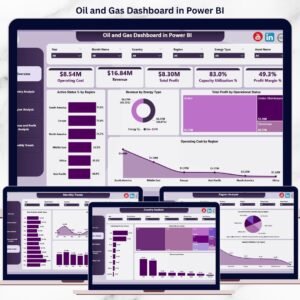
📈 Oil and Gas Dashboard in Power BI — the Power BI version, for teams already standardised on the Power BI Service.
⛽ Petroleum Industry KPI Dashboard in Excel — a complementary KPI scorecard view focused on downstream petroleum metrics.
🔋 Energy Trading KPI Dashboard in Google Sheets — for trading and commercial teams working in Google Sheets.
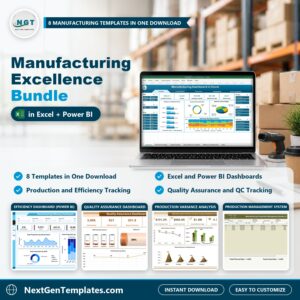
💎 Save on manufacturing-grade analytics: Get the Manufacturing Excellence Bundle — 8 Premium Templates covering production, quality, supply chain, and more.
Browse more Excel Dashboard Templates or explore the full NextGenTemplates shop.
📖 Click here to read the Detailed Blog Post
🎥 Visit our YouTube channel for step-by-step video tutorials
👉 YouTube.com/@NextGenTemplates
Watch the step-by-step video tutorial:
YouTube
Compatibility and Requirements
- Works in Microsoft Excel desktop (Excel 2016 or later, or Microsoft 365).
- It uses pivot tables, pivot charts and slicers with no macros, Power Query or Power BI. Microsoft explains PivotTables in Create a PivotTable to analyze worksheet data.













Reviews
There are no reviews yet.