


🥋 Key Features of Martial Arts Studio KPI Dashboard in Power BI
📊 All-in-One Performance Dashboard
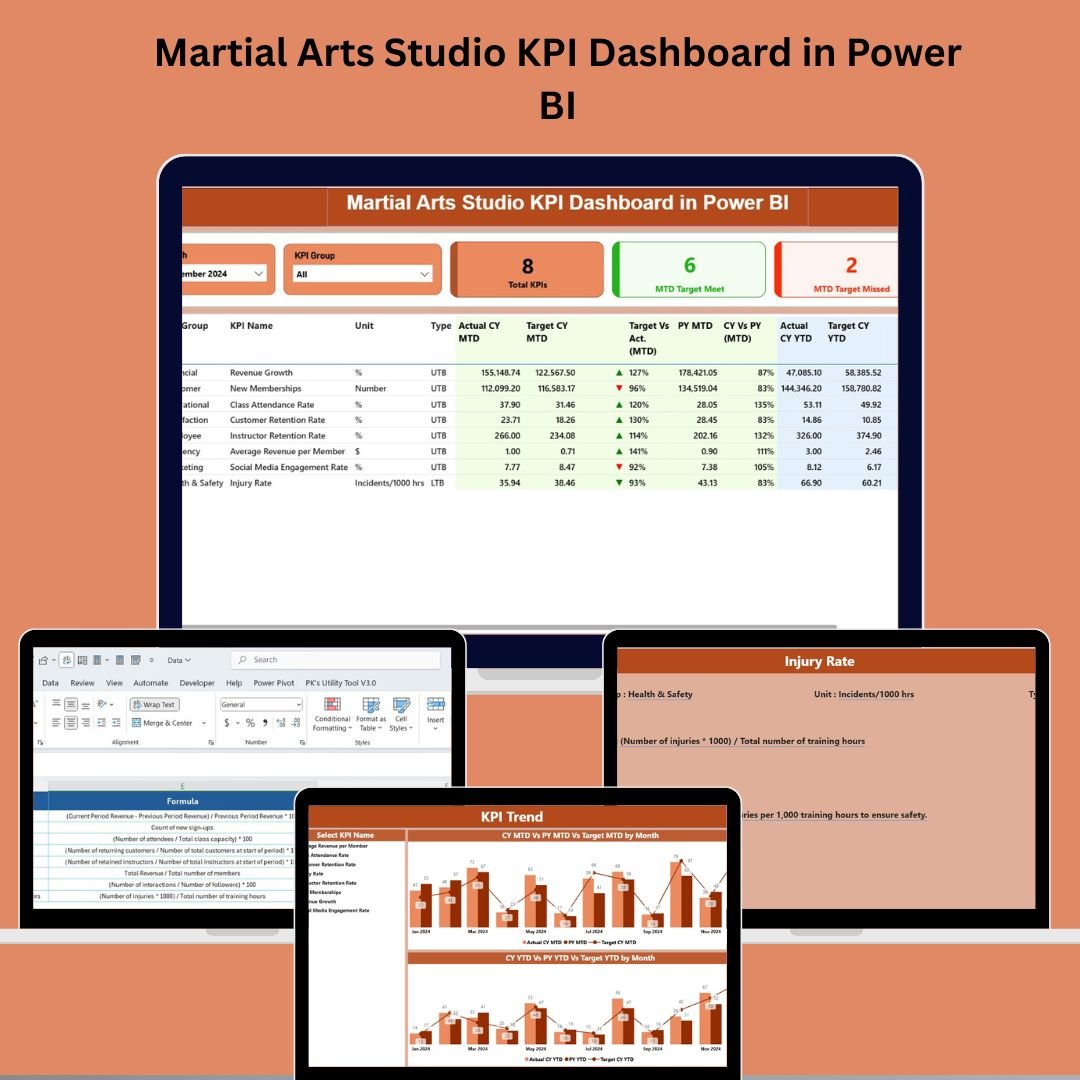
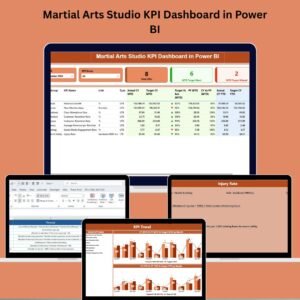
Track class attendance, student enrollments, instructor metrics, and financial KPIs—all from one interactive, visual dashboard powered by Power BI.
⏱️ Real-Time Monitoring with MTD & YTD Insights
Get a clear picture of Month-to-Date (MTD) and Year-to-Date (YTD) performance metrics. Know instantly whether your studio is meeting its targets.
🧠 Smart KPI Cards & Target Indicators
Visual cues show if your KPIs are on track—green for met, red for missed, with % variance and CY vs PY comparisons at a glance.
📈 Trend Analysis for KPI Growth
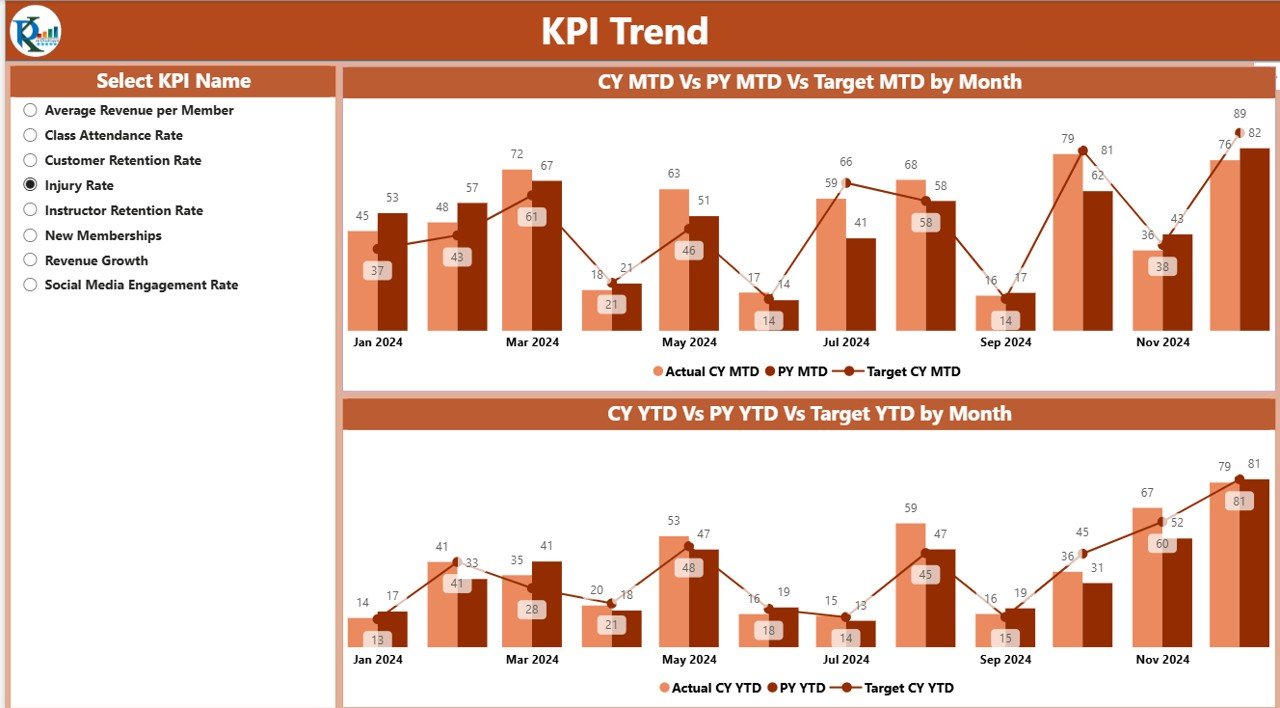
Use combo charts to visualize MTD and YTD progress over time. Identify seasonal trends and analyze campaign impact on enrollments or revenue.
🔍 Drill-Through KPI Definitions
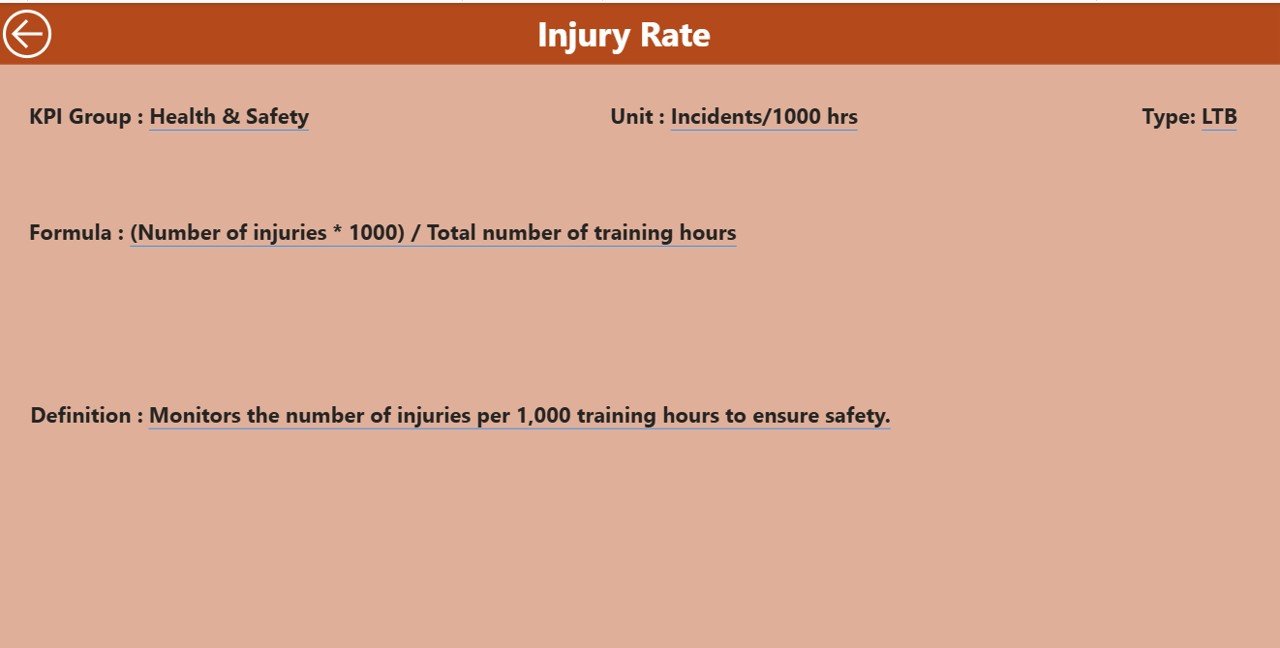
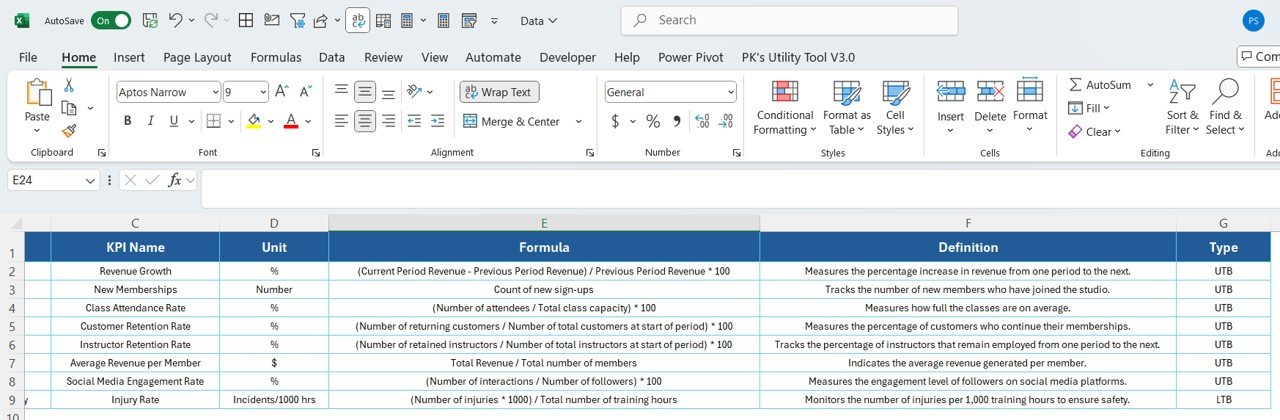
Click to explore detailed KPI formulas, units, and classification (LTB/UTB). Understand each metric before taking action.
📥 Excel-Powered & Easy to Update
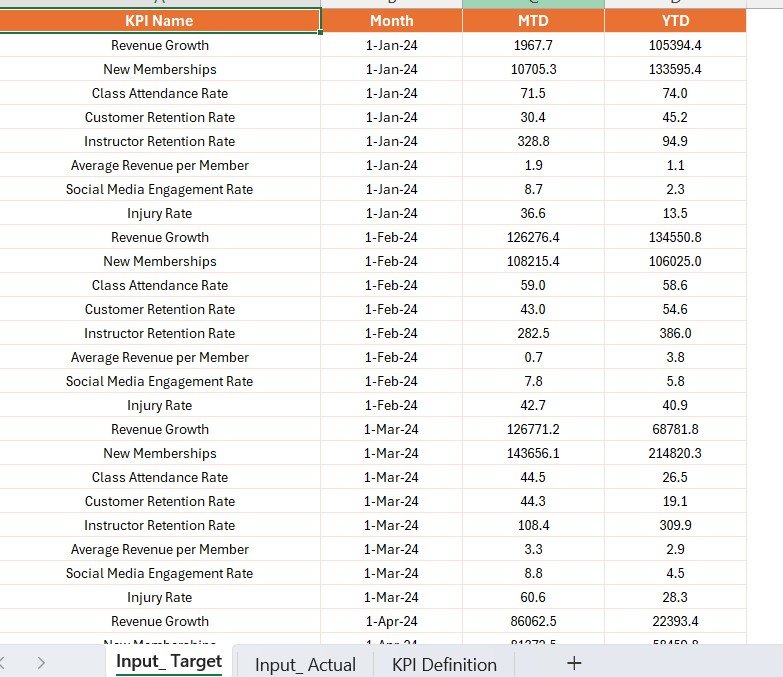
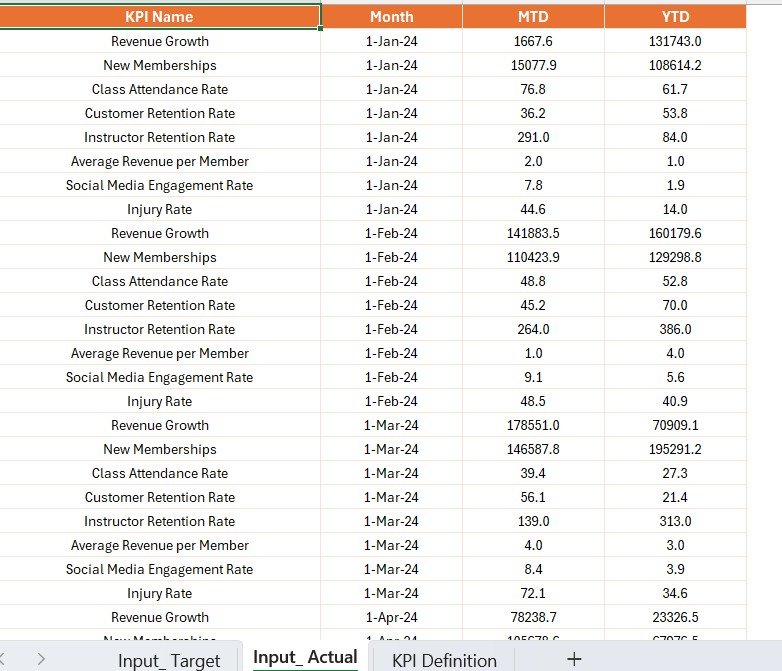
Maintain your performance data through three simple Excel sheets: Actual, Target, and KPI Definition. No technical setup needed.
📎 Slicers for Dynamic Filtering
Filter KPIs by Month and KPI Group to focus on Finance, Operations, Training, or HR—all without leaving the dashboard.
🚀 No Coding Needed
This Power BI solution is fully plug-and-play. Just connect your data, refresh, and you’re ready to analyze.
📂 What’s Inside the Martial Arts Studio KPI Dashboard
✅ Power BI File (.pbix) – Prebuilt dashboard file linked to Excel data
✅ 3 Powerful Pages:
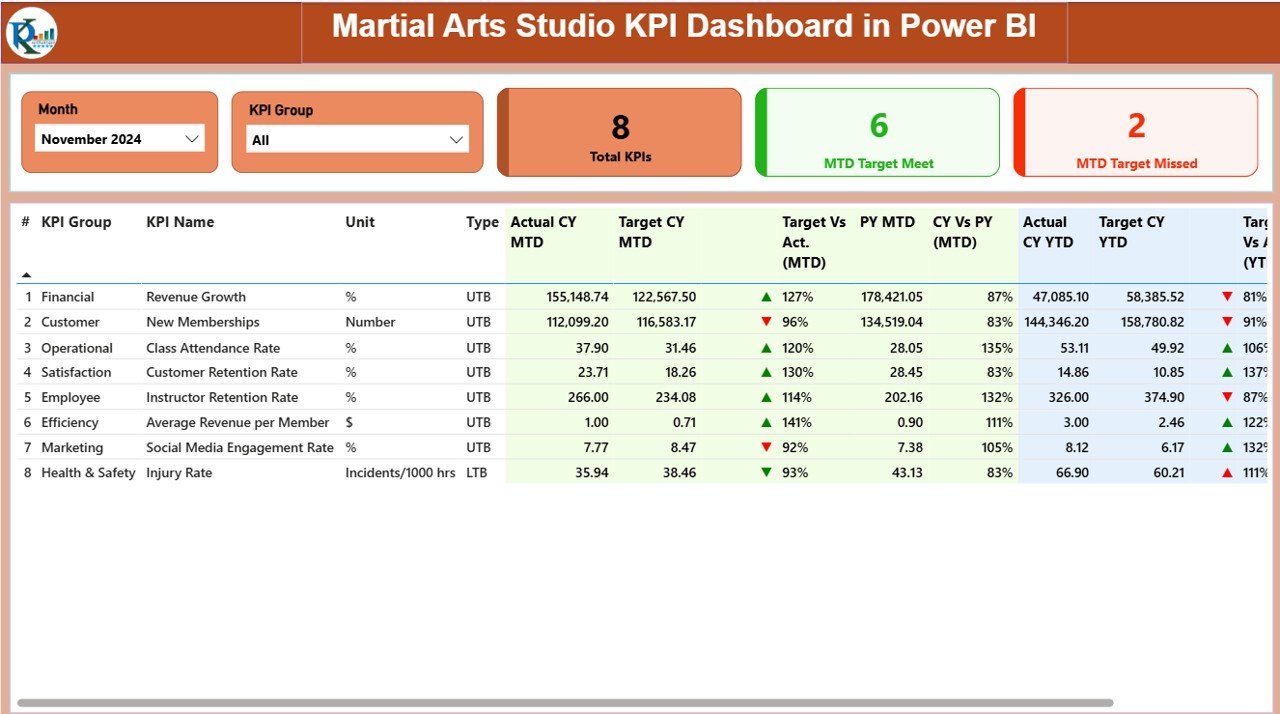
Summary Page – High-level view of MTD/YTD performance and KPI status
KPI Trend Page – Analyze Actual vs Target vs Previous Year using combo charts
KPI Definition Page – Drill-through view for definitions, formulas, and classifications
✅ Excel Data Source (3 Tabs):
Input_Actual Sheet – Record MTD and YTD actual values
Input_Target Sheet – Record targets in the same format
KPI Definition Sheet – Store formulas, types (LTB/UTB), units, and descriptions
✅ Interactive Elements:
Slicers for Month and KPI Group
Target achievement indicators (✔ or ✘)
CY vs PY comparison metrics
Navigation buttons for seamless page jumps
⚙️ How to Use the Martial Arts Studio KPI Dashboard
🧾 Step 1: Prepare Your Excel File
Define your KPIs, enter actual and target numbers, and complete the KPI Definition sheet.
📂 Step 2: Open Power BI Desktop
Load the .pbix file and connect it to your Excel file. Hit Refresh to populate visuals.
🧭 Step 3: Navigate Between Pages
Use the page navigator or slicers to switch between views and KPI groups (Finance, Training, Operations, etc.).
📈 Step 4: Review KPIs and Trends
Use the Summary and Trend pages to understand current vs target performance. Use icons and variance % to spot underperformance.
🔍 Step 5: Drill Down for Clarity
Click any KPI to jump to the Definition page, where you’ll see its formula, type, and explanation.
📤 Step 6: Export Reports
Need to present to stakeholders? Export the dashboard visuals or pages as PDFs.
👥 Who Can Benefit from This Dashboard
🥋 Studio Owners – Understand every angle of your business—from finance to operations
📋 Operations Managers – Track instructor hours, class schedules, and resource allocation
📈 Lead Instructors – Monitor training efficiency and student engagement
🏢 Franchise Chains – Scale reporting across branches with minimal effort
💼 Finance & Marketing Teams – Use data to optimize campaigns and budgets
Whether you’re running a local dojo or managing a franchise network, this dashboard empowers you to take data-driven decisions.
🔗 Click here to read the Detailed blog post
🎥 Visit our YouTube channel to learn step-by-step video tutorials
Watch the step-by-step video tutorial:
Compatibility and Requirements
- Works in Power BI Desktop, which is free. Get it from Get Power BI Desktop.
- The dashboard reads its data from an Excel file with three sheets: Input_Actual, Input_Target and KPI Definition.
Frequently Asked Questions
Which pages are included?
Three pages: Summary, KPI Trend and KPI Definition. The Summary page shows MTD and YTD performance and KPI status. The KPI Trend page compares Actual, Target and Previous Year in combo charts.
Where do I enter my data?
In the Excel data source. Record MTD and YTD actual values on the Input_Actual sheet and your targets on the Input_Target sheet. Then open the .pbix file, connect it to your Excel file and click Refresh.
Can I filter the dashboard by month or KPI group?
Yes. Slicers filter by Month and KPI Group, so you can focus on Finance, Operations, Training or HR metrics.
How do I see how a KPI is calculated?
Click a KPI to drill through to the KPI Definition page. It shows the formula, the unit and whether the KPI is Lower the Better (LTB) or Upper the Better (UTB).
Is there an Excel or Google Sheets version?
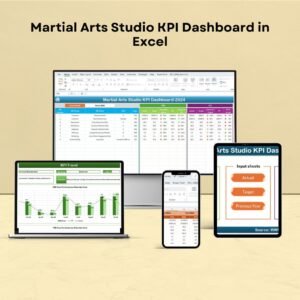
Yes. See the Martial Arts Studio KPI Dashboard in Excel and the Martial Arts Studio KPI Dashboard in Google Sheets.
Related Studio Dashboards
- Martial Arts Studio KPI Dashboard in Excel: the same KPIs in Excel
- Martial Arts Studio KPI Dashboard in Google Sheets: the Google Sheets edition
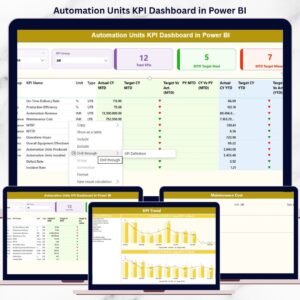
- Arts & Culture KPI Dashboard in Power BI: another arts-sector KPI dashboard in Power BI
- Fitness Studio KPI Dashboard in Excel: a similar studio dashboard for fitness
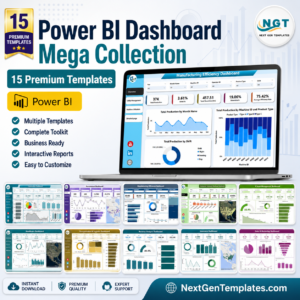
- Power BI Dashboard Mega Collection: 15 Power BI dashboards in one download
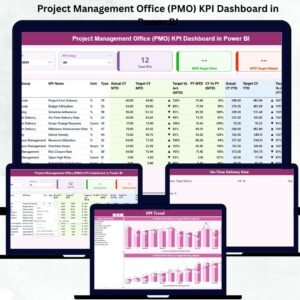
Browse all Power BI KPI dashboards.










Reviews
There are no reviews yet.