

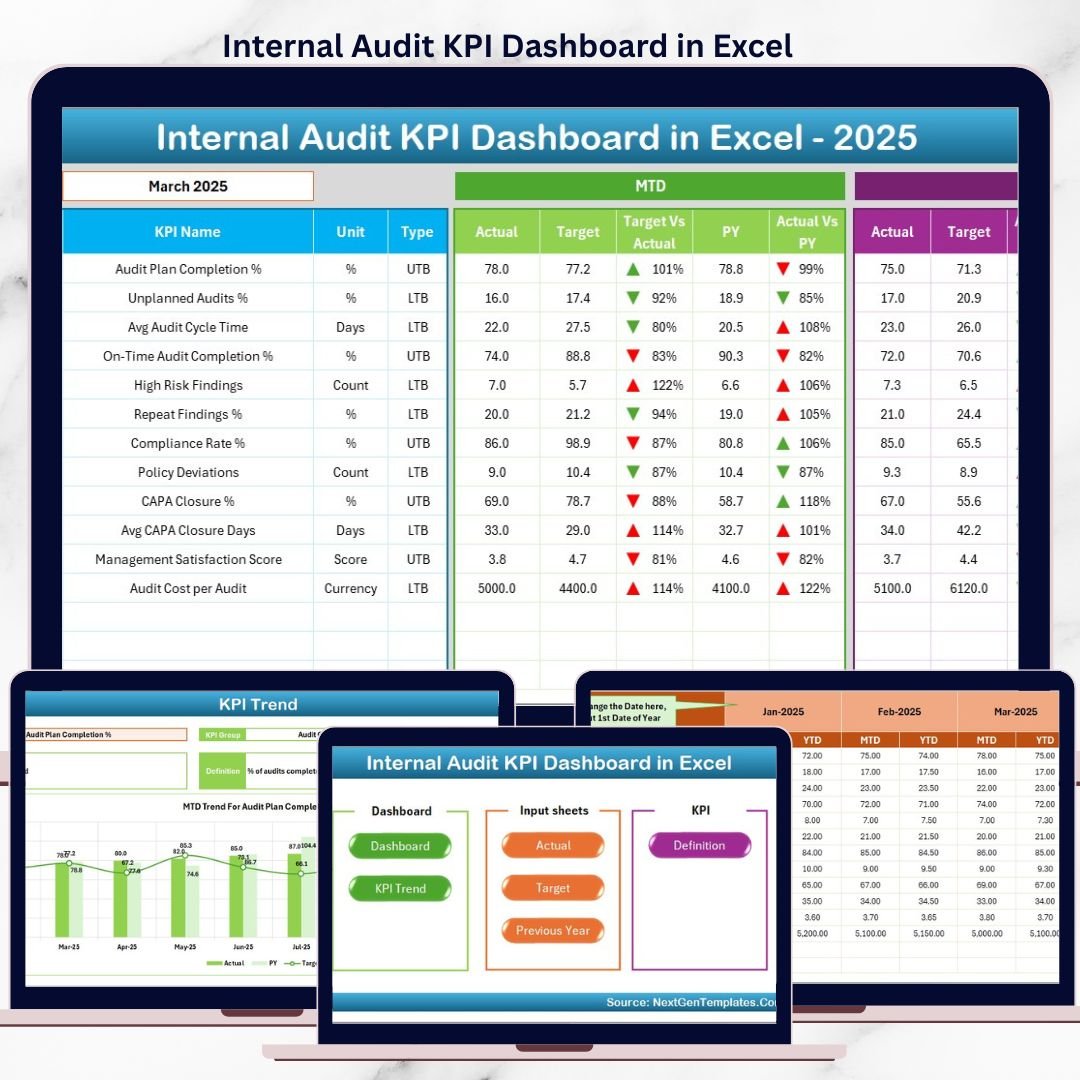


Internal audit teams are under constant pressure to ensure compliance, manage risks, meet timelines, and report performance accurately. However, when audit data is scattered across emails, registers, and disconnected Excel files, visibility drops and decision-making becomes reactive.
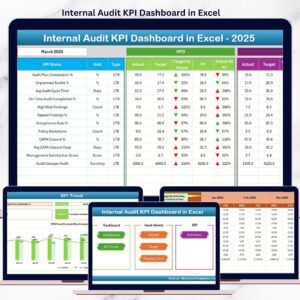
The Internal Audit KPI Dashboard in Excel is a ready-to-use, professionally designed Excel solution that brings all audit KPIs into one centralized, automated dashboard. Instead of manually reviewing reports, audit managers and leadership teams get instant clarity on performance, targets, trends, and year-over-year progress.
Built entirely in Excel, this dashboard combines structured KPI definitions, automated calculations, trend analysis, and visual indicators—making audit performance tracking simple, reliable, and management-ready.
🚀 Key Features of Internal Audit KPI Dashboard in Excel
📌 Centralized Audit KPI Monitoring
Track all internal audit KPIs in one dashboard instead of multiple reports.
📊 MTD & YTD Performance Tracking
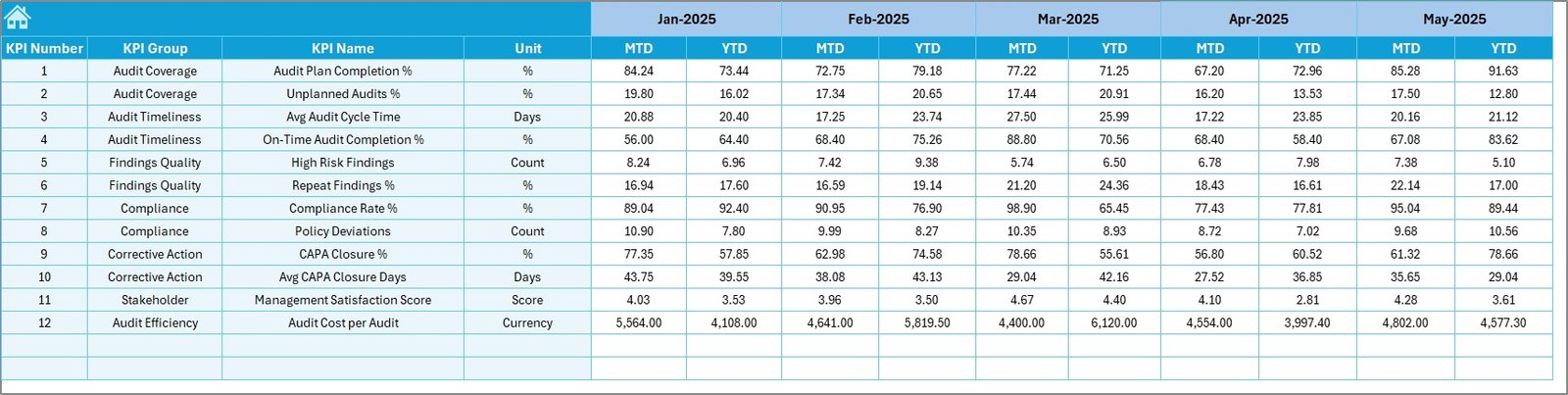
Monitor Month-to-Date and Year-to-Date actuals, targets, and previous-year values.
🎯 Target vs Actual & PY Comparisons
Instantly identify gaps using automated comparisons and indicators.
📈 KPI Trend Analysis
Analyze MTD and YTD trends for each KPI using dynamic charts.
🧭 Easy Navigation with Home Page
Quickly move between sheets using built-in navigation buttons.
🎨 Smart Visual Indicators
Conditional formatting with up/down arrows highlights performance status instantly.
⚙️ 100% Excel-Based & Cost-Effective
No Power BI, no add-ins, no subscriptions—just Excel.
📦 What’s Inside the Internal Audit KPI Dashboard in Excel
📁 Home Sheet
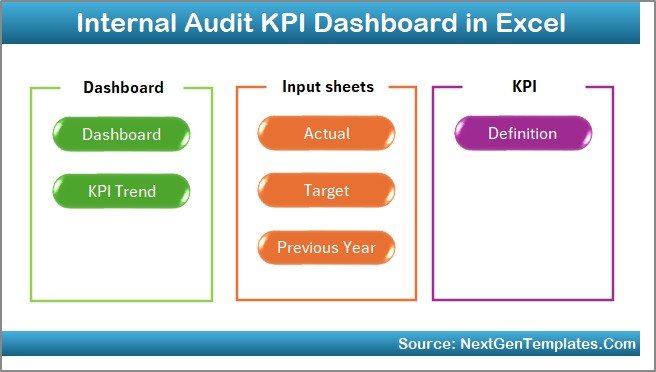
Acts as the index page with 6 navigation buttons for smooth movement across the dashboard.
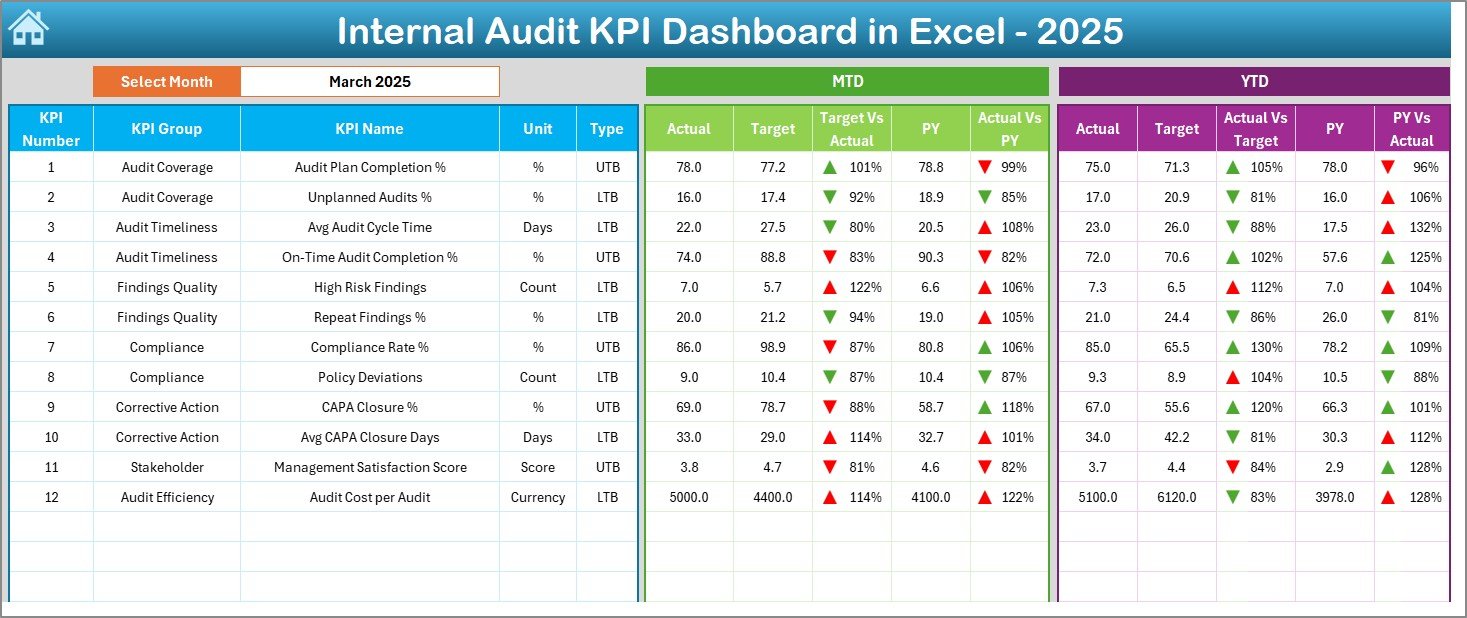
📁 Dashboard Sheet
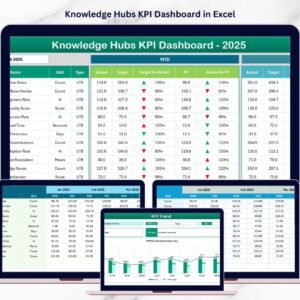
The main KPI overview page showing:
MTD Actual, Target, and Previous Year
YTD Actual, Target, and Previous Year
Target vs Actual and PY vs Actual comparisons
Conditional formatting for quick insights
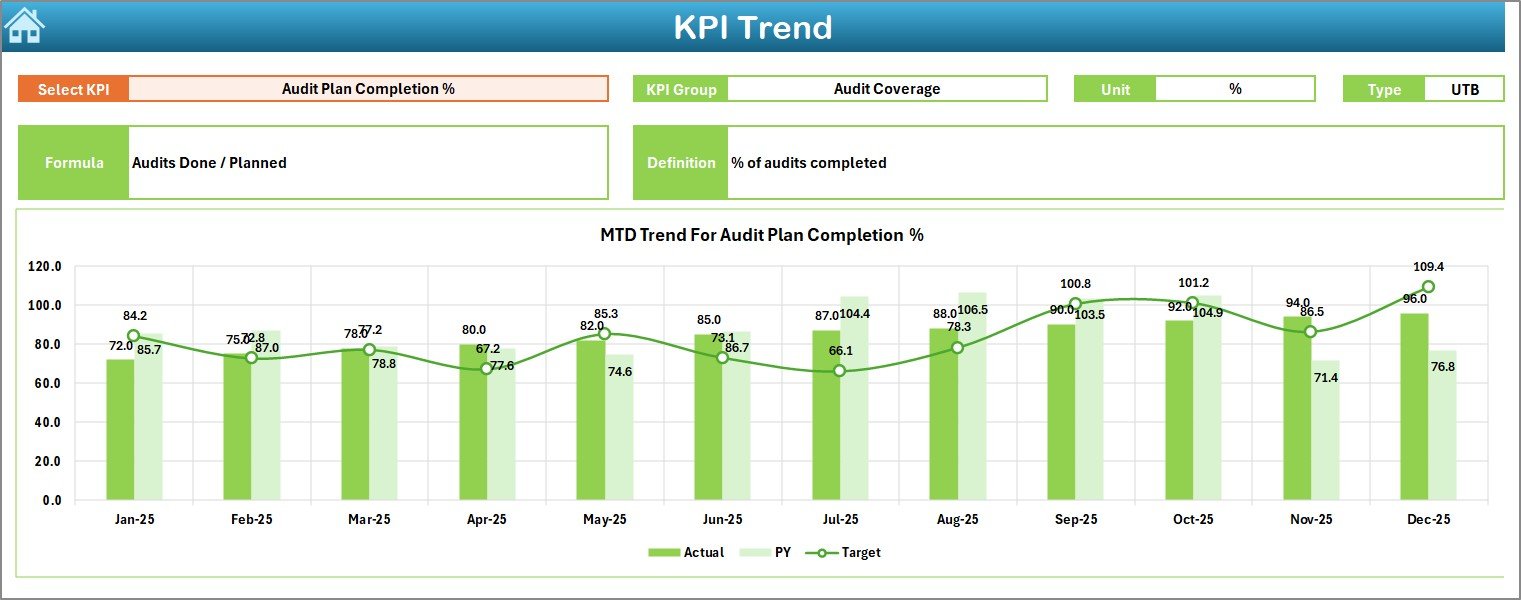
📁 KPI Trend Sheet
Deep analysis for a selected KPI, including:
KPI group, unit, type, formula, and definition
MTD trend chart (Actual, Target, PY)
YTD trend chart (Actual, Target, PY)
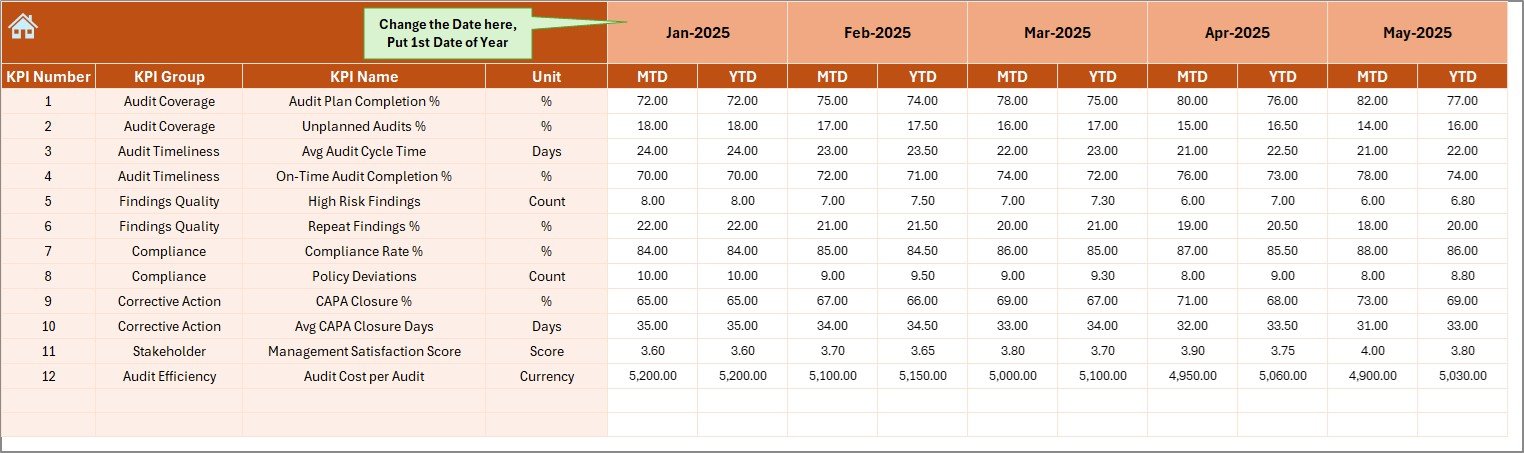
📁 Actual Numbers Input Sheet
Enter current-year MTD and YTD actual values with month control.
📁 Target Sheet
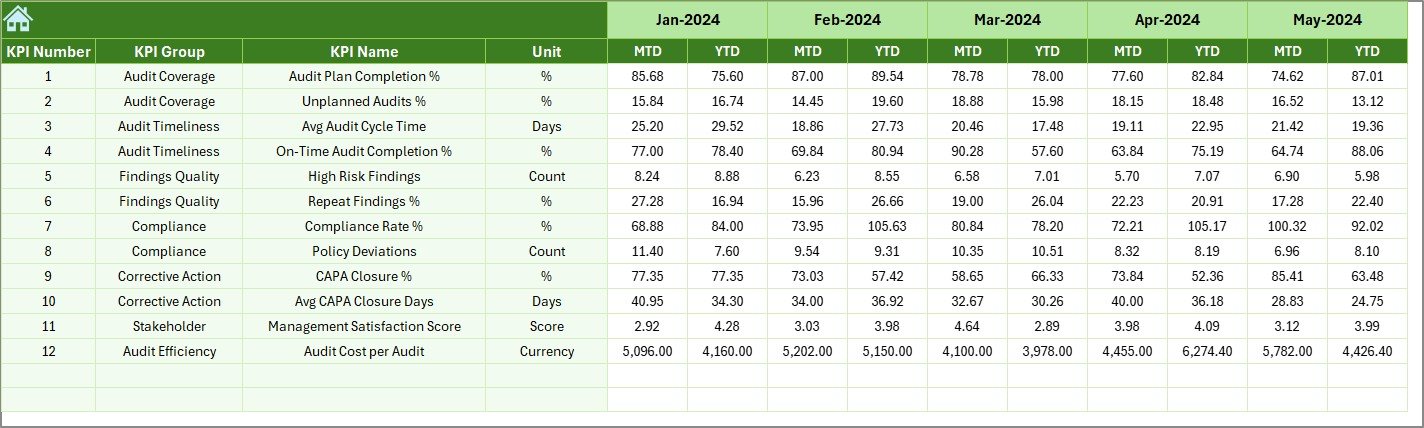
Define MTD and YTD target values for each KPI.
📁 Previous Year Number Sheet
Store historical data for accurate year-on-year comparison.
📁 KPI Definition Sheet
Central repository for KPI names, groups, units, formulas, and definitions.
🛠️ How to Use the Internal Audit KPI Dashboard in Excel
1️⃣ Enter KPI definitions in the KPI Definition Sheet
2️⃣ Update monthly actual values in the Actual Numbers Input Sheet
3️⃣ Define targets in the Target Sheet
4️⃣ Add previous-year data in the Previous Year Sheet
5️⃣ Select the reporting month from the dashboard
6️⃣ Review MTD, YTD, trends, and comparisons instantly
No advanced Excel skills required—everything updates automatically.
👥 Who Can Benefit from This Internal Audit KPI Dashboard
🧾 Internal Audit Managers – Track audit performance and accountability
🏢 Audit Executives – Gain leadership-level visibility into KPIs
⚠️ Compliance Teams – Identify gaps and risks early
📊 Risk Management Teams – Monitor audit effectiveness over time
💼 CFOs & Finance Leaders – Support governance and reporting decisions
📋 Audit Committees – Review clear, structured audit performance metrics
If your audit function relies on Excel, this dashboard fits perfectly.
📘 Click here to read the Detailed blog post
🎥 Visit our YouTube channel to learn step-by-step video tutorials
👉 Youtube.com/@PKAnExcelExpert
Watch the step-by-step video tutorial:
Compatibility and Requirements
- Works in Microsoft Excel desktop (Excel 2016 or later, or Microsoft 365).
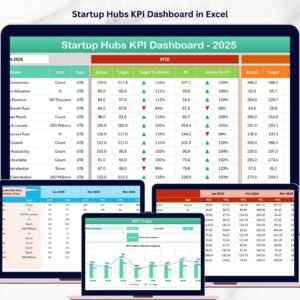
- The dashboard shows MTD and YTD actuals, targets and previous-year values as charts and conditional formatting arrows. Microsoft explains how to build charts in Create a chart from start to finish.
Frequently Asked Questions
Which sheets are included?
Seven sheets: Home, Dashboard, KPI Trend, Actual Numbers Input, Target, Previous Year Number and KPI Definition.
How do I update the dashboard each month?
Enter your MTD and YTD actual values in the Actual Numbers Input sheet and select the reporting month on the dashboard. The Dashboard and KPI Trend sheets update automatically.
Can I compare results with last year?
Yes. Add last year’s figures to the Previous Year Number sheet. The Dashboard shows PY next to actuals and targets for both MTD and YTD, with Target vs Actual and PY vs Actual comparisons.
How do I analyze a single KPI?
Open the KPI Trend sheet and select the KPI. It shows the KPI group, unit, type, formula and definition, plus MTD and YTD trend charts for Actual, Target and PY.
Is there a Power BI version?
Yes. See the Internal Audit KPI Dashboard in Power BI.
Related Internal Audit Templates
- Internal Audit KPI Dashboard in Power BI: the same KPIs as a Power BI dashboard
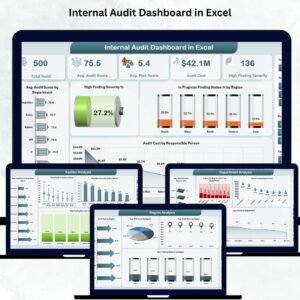
- Internal Audit Dashboard in Excel: a dashboard view of audit activity
- Audit & Internal Controls KPI Dashboard in Excel: KPIs for internal controls
- Compliance Audit Tracker in Excel: track compliance audit items
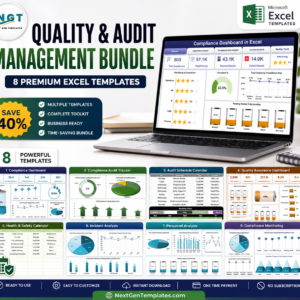
- Quality & Audit Management Bundle: 8 Excel templates for audit and quality work in one download
Browse all Excel KPI dashboards.



Reviews
There are no reviews yet.