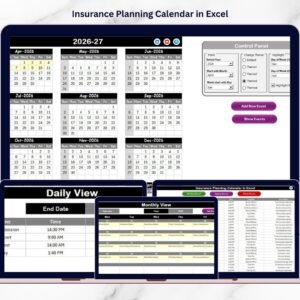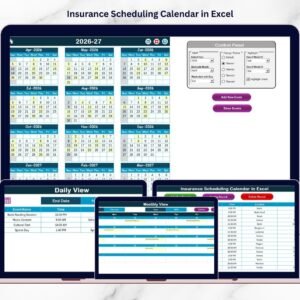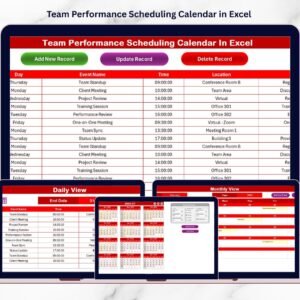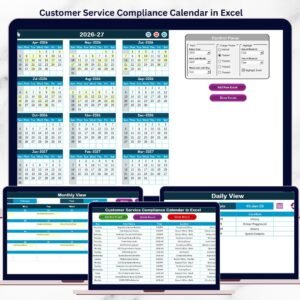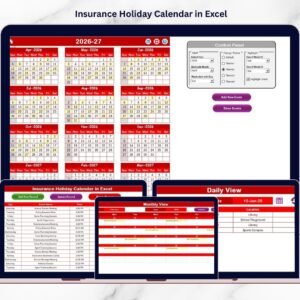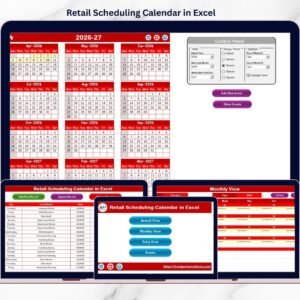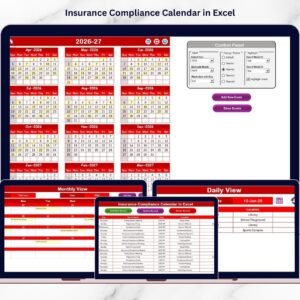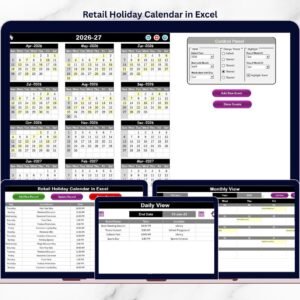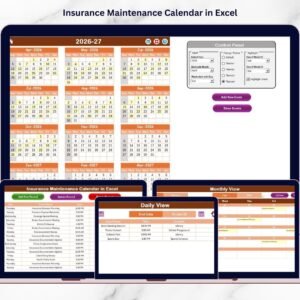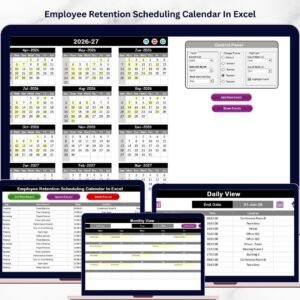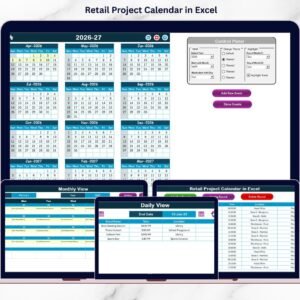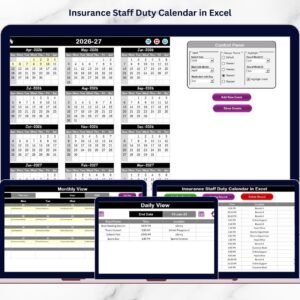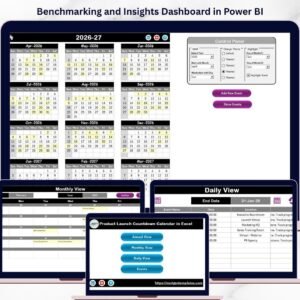
Managing insurance projects without a structured system often leads to missed deadlines, scattered communication, and operational confusion. Insurance teams handle policy renewals, compliance audits, customer meetings, claims timelines, and internal projects simultaneously. When these activities are tracked manually, productivity decreases and errors increase.
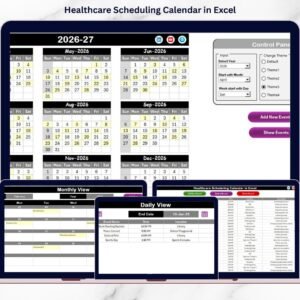
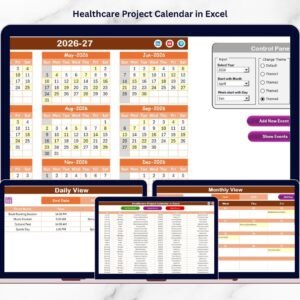
The Insurance Project Calendar in Excel is a powerful, ready-to-use solution designed to simplify insurance project planning and scheduling. Built within Microsoft Excel, this smart calendar centralizes all activities into one organized system, allowing teams to plan, monitor, and manage projects efficiently without learning new software.
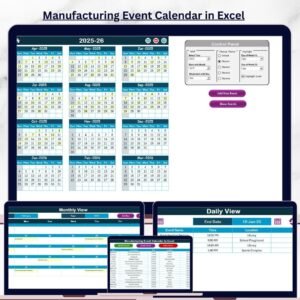
Instead of juggling multiple spreadsheets or emails, professionals can now track yearly plans, monthly schedules, and daily events from a single workbook. With automated views, interactive navigation, and a structured event database, this template transforms Excel into a professional insurance project management tool.
Whether you manage compliance deadlines, renewal schedules, or internal operations, this calendar helps you stay organized, improve visibility, and execute projects confidently. 🚀
## Key Features of Insurance Project Calendar in Excel
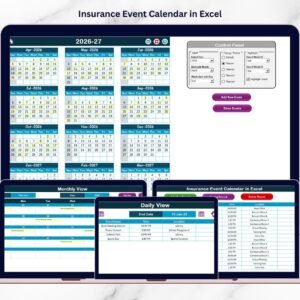
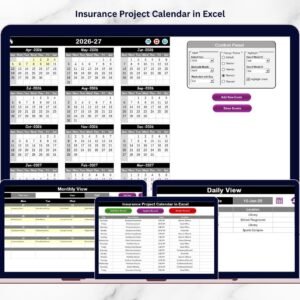
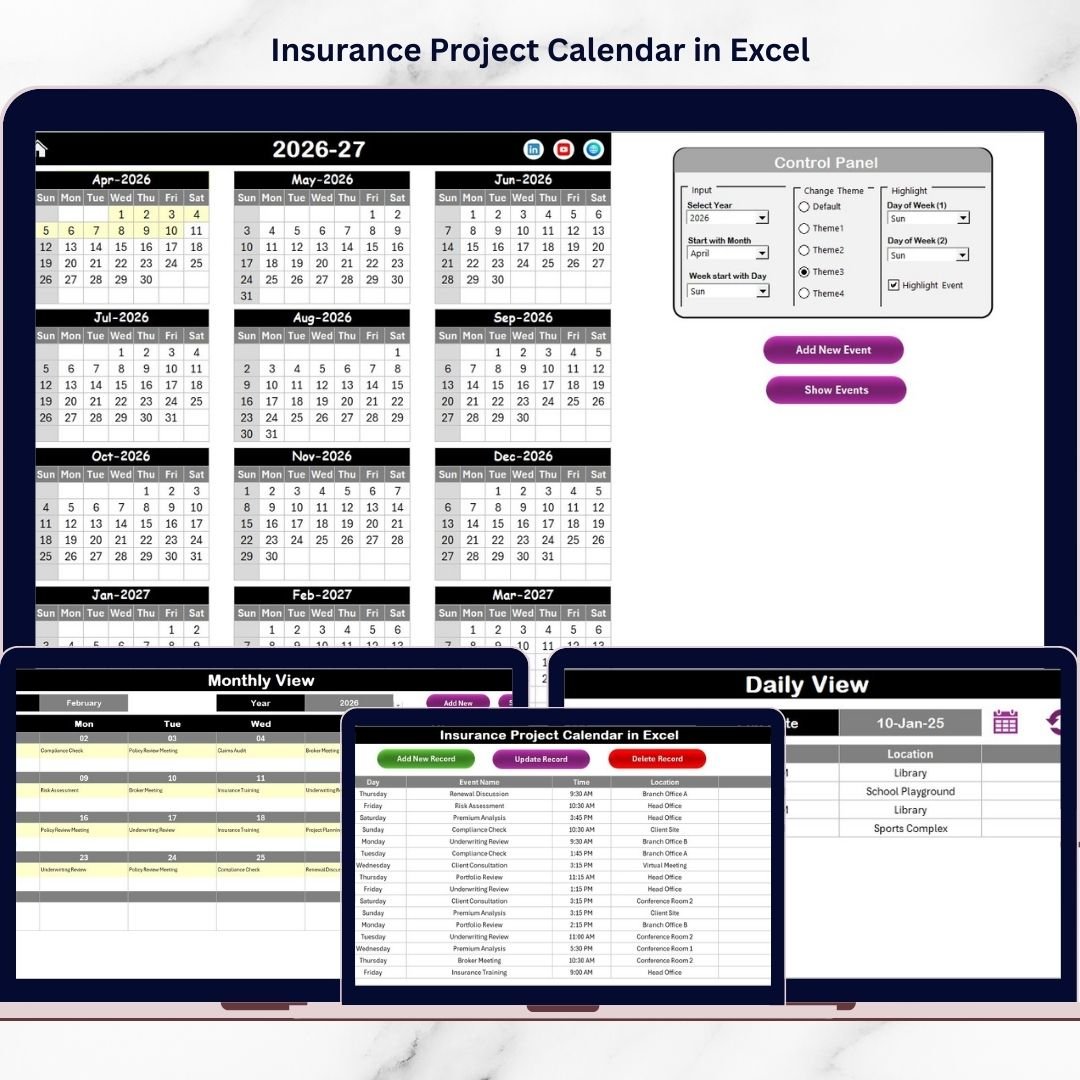
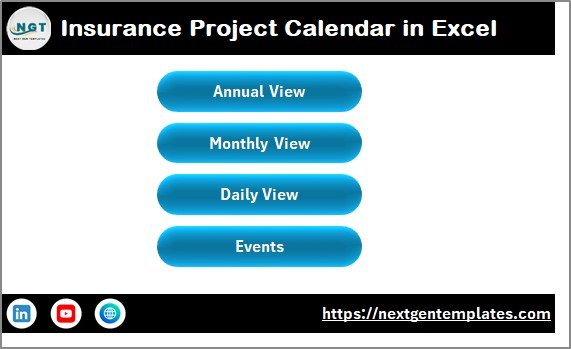
📅 Interactive Home Dashboard – Navigate instantly between Annual, Monthly, Daily, and Events views using smart buttons.
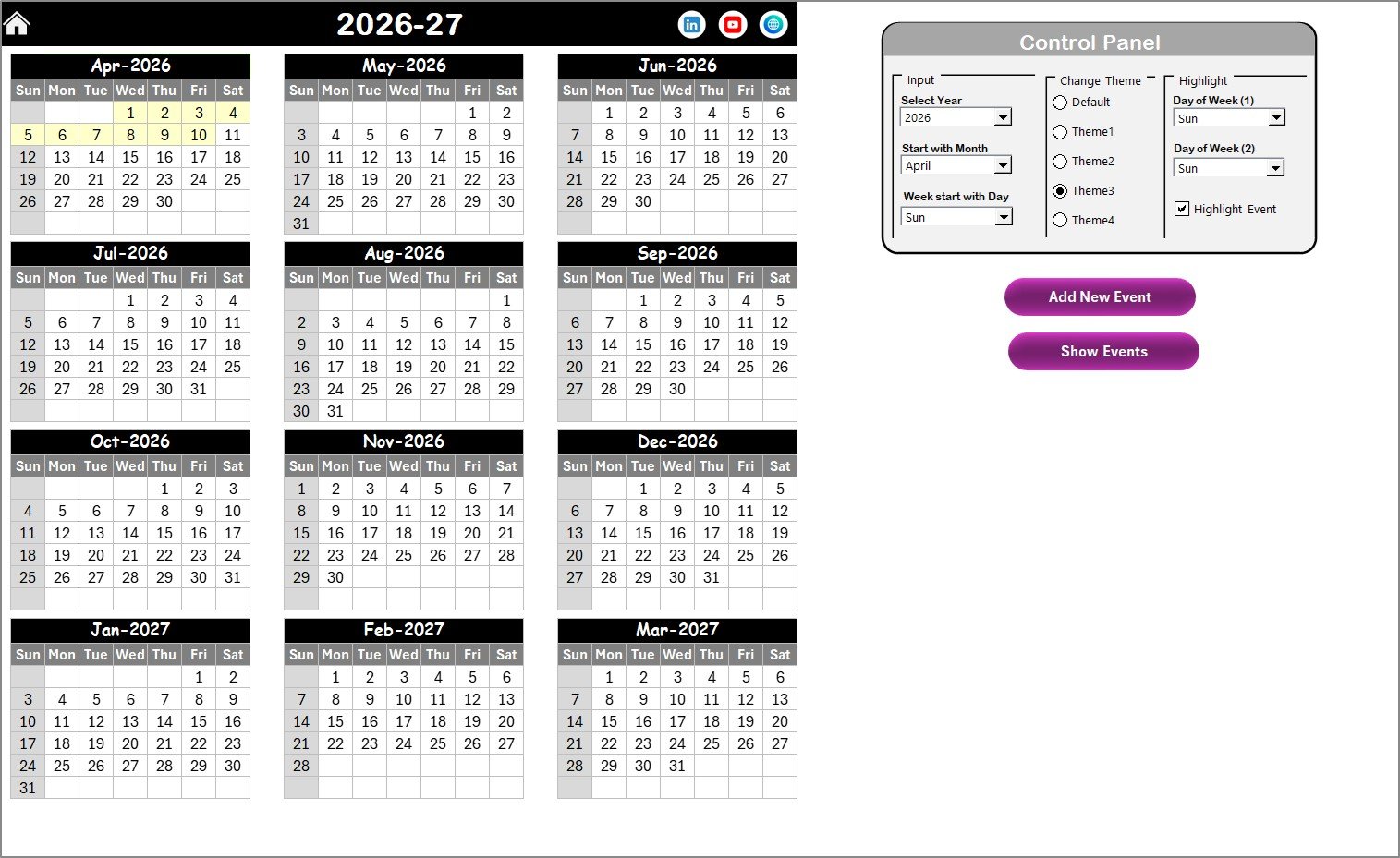
📊 Annual Planning View – Visualize all 12 months in one screen for strategic project planning.
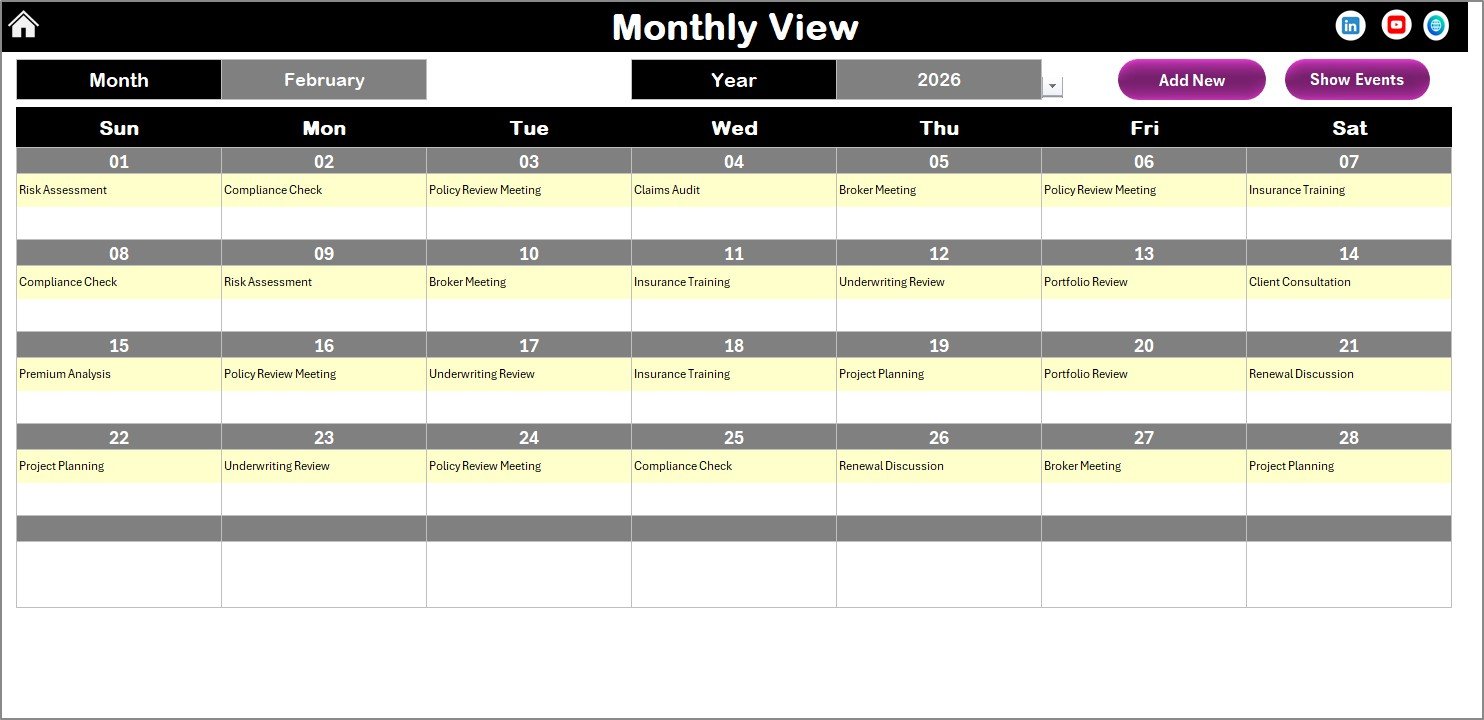
🗓️ Dynamic Monthly Calendar – Monitor detailed schedules with automatic updates based on selected month and year.
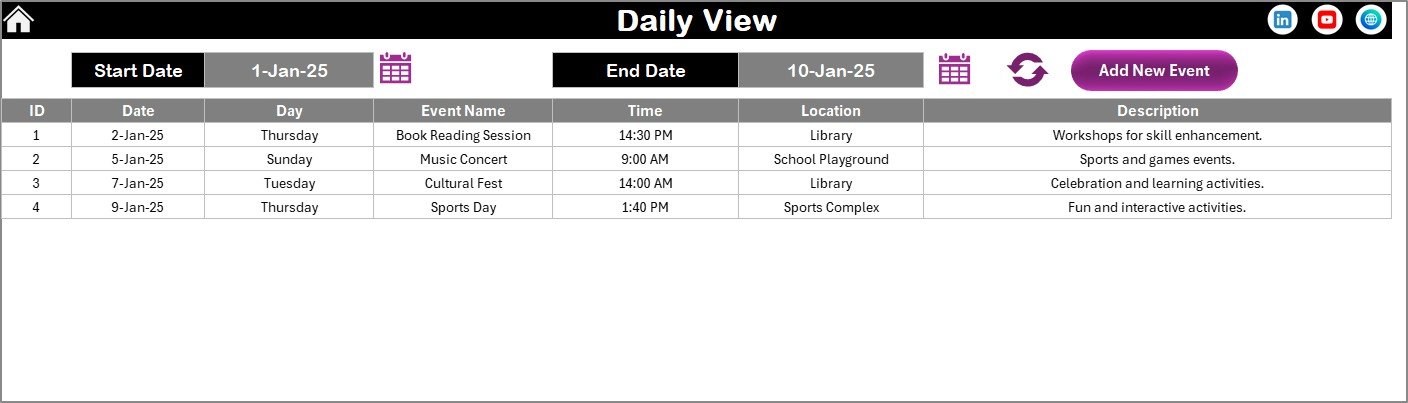
🔎 Daily Activity Monitoring – Track events within selected date ranges for better workload management.
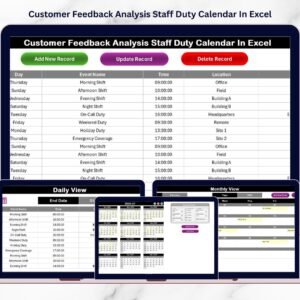
⚡ Automated Event Management – Add, update, or delete events using user-friendly forms.
🎨 Customizable Themes – Choose from multiple color themes to match organizational branding.
✨ Highlight Important Days – Automatically mark weekends or critical project dates.
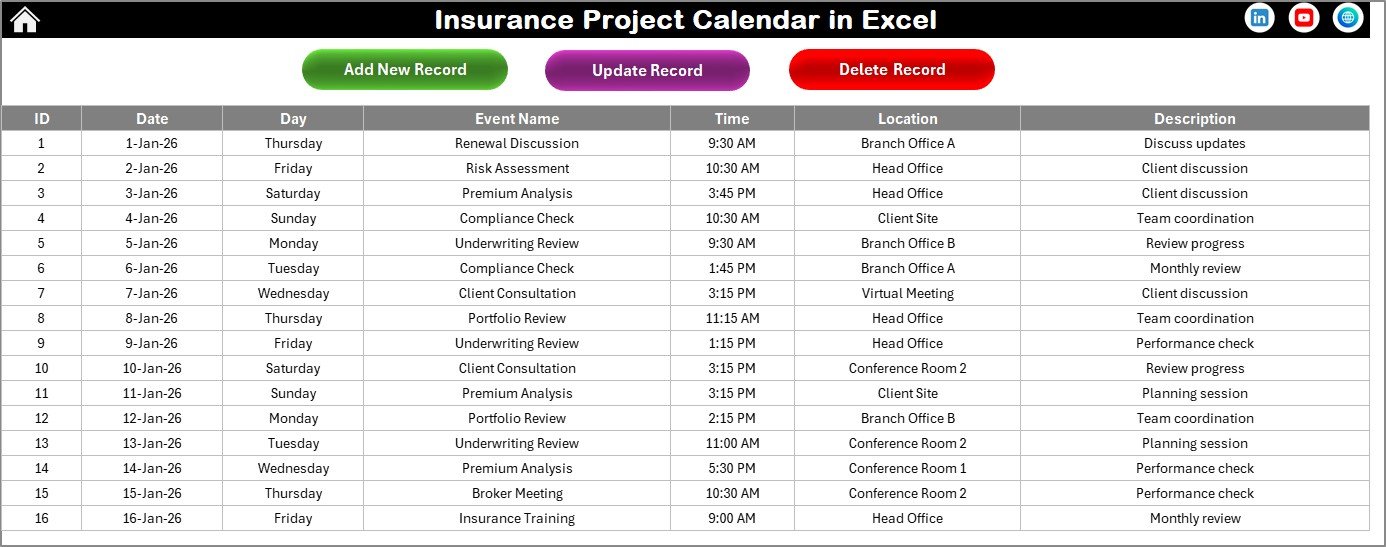
📁 Centralized Event Database – Store all project activities in one structured data sheet.
These features help insurance teams reduce manual effort while improving scheduling accuracy and operational clarity.
## What’s Inside the Insurance Project Calendar in Excel
The template includes five professionally designed worksheets:
✅ Home Sheet – Navigation control center for seamless movement across views.
✅ Annual View Sheet – Complete yearly planning dashboard with customization controls.
✅ Monthly View Sheet – Operational planning interface showing monthly schedules.
✅ Daily View Sheet – Detailed event tracking for selected date ranges.
✅ Events Database Sheet – Central storage capturing event ID, date, time, location, and descriptions automatically.
Together, these sheets create a fully structured insurance scheduling environment.
## How to Use the Insurance Project Calendar in Excel
Using the template is simple and beginner-friendly:
1️⃣ Open the Home Sheet to access navigation buttons.
2️⃣ Configure calendar settings like year and starting day.
3️⃣ Select a date and click Add New Event to enter details.
4️⃣ Use Monthly View to manage operational schedules.
5️⃣ Monitor workloads through Daily View analysis.
6️⃣ Update or manage records directly from the Events database.
Within minutes, users can start managing insurance projects professionally without complex setup.
## Who Can Benefit from This Insurance Project Calendar in Excel
This template is ideal for:
👨💼 Insurance companies and agencies
📑 Policy administrators
🧾 Claims management teams
⚖️ Compliance and audit professionals
📈 Insurance consultants
📣 Marketing teams handling campaigns
🗂️ Project coordinators managing timelines
From small teams to large departments, anyone managing insurance schedules can improve efficiency using this calendar.
A structured scheduling system dramatically improves productivity. By centralizing events, automating updates, and simplifying planning, the Insurance Project Calendar in Excel helps teams focus less on managing schedules and more on delivering results.
Instead of reacting to deadlines, your team stays ahead of them — organized, prepared, and fully in control. ✅
### Click here to read the Detailed blog post
Visit our YouTube channel to learn step-by-step video tutorials:
👉 YouTube.com/@PKAnExcelExpert