

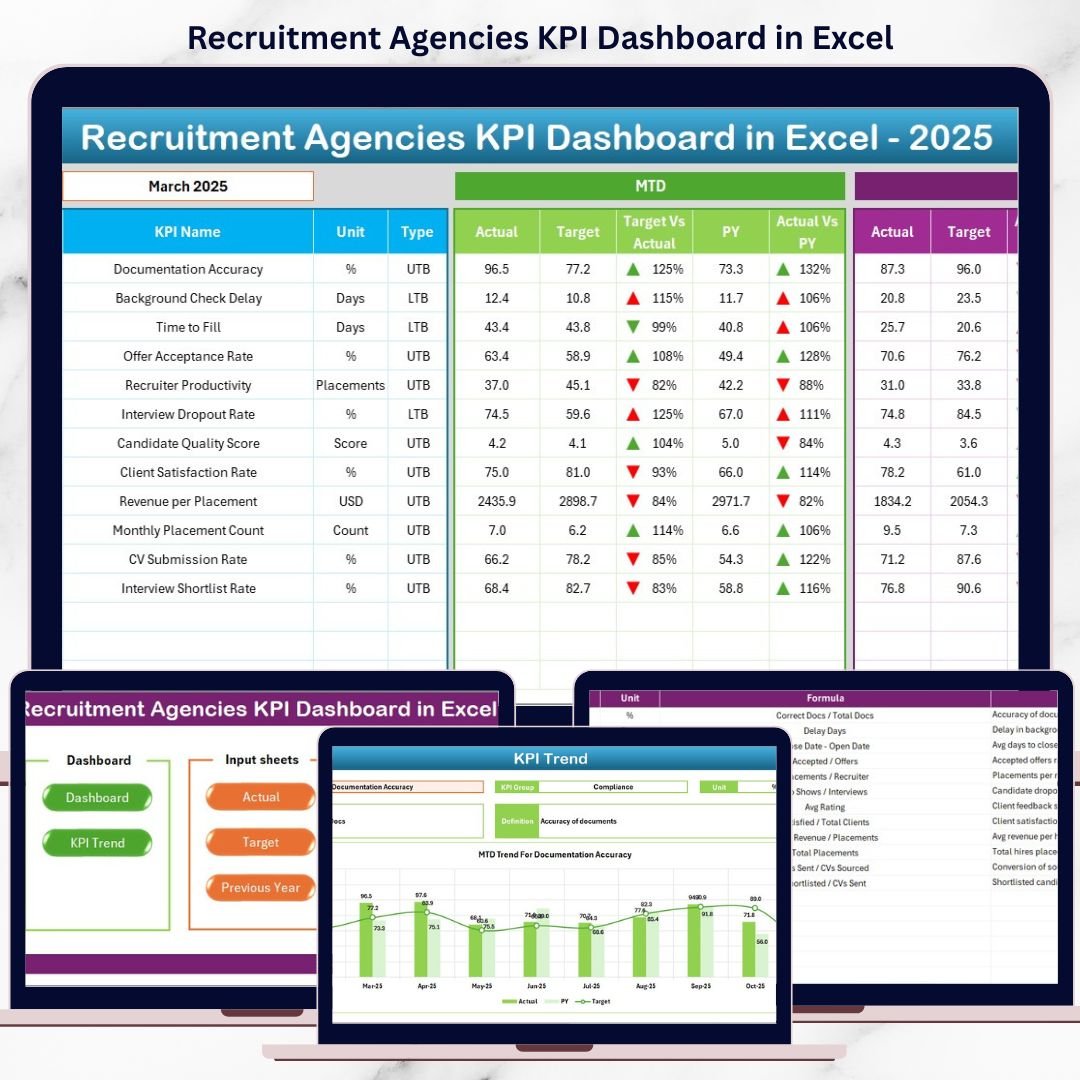

Recruitment agencies operate in a fast-paced, target-driven environment where every hire, interview, and placement matters. However, managing recruitment performance using scattered Excel files or manual reports leads to missed insights, delayed decisions, and lost revenue opportunities.
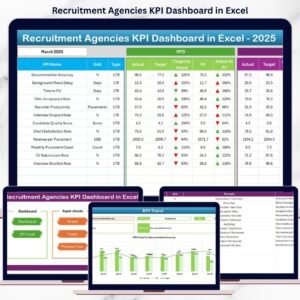
The Recruitment Agencies KPI Dashboard in Excel is a ready-to-use, professionally designed performance management solution that helps recruitment firms track, analyze, and optimize their recruitment operations with clarity and confidence.
This dashboard transforms raw recruitment data into clear KPIs, trends, and performance comparisons—all inside Excel. As a result, recruiters and managers stop guessing and start making data-driven decisions.
🔑 Key Features of Recruitment Agencies KPI Dashboard in Excel
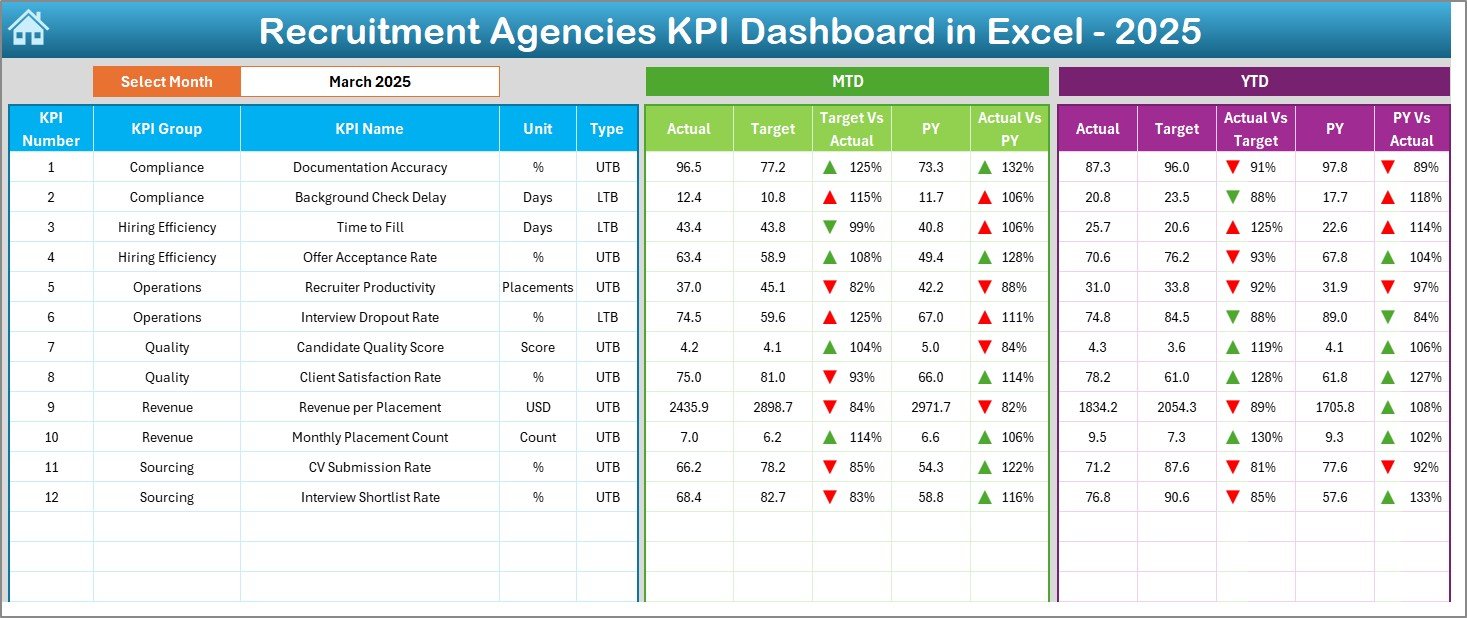
📈 MTD & YTD Performance Tracking – Monitor short-term execution and long-term progress together
🎯 Target vs Actual Comparison – Instantly identify performance gaps
📊 Previous Year Benchmarking – Measure growth and decline with historical data
🟢🔴 Conditional Formatting Indicators – Green and red arrows show improvement or decline at a glance
📅 Interactive Month Selection – Change the month and update the entire dashboard automatically
🧭 Easy Navigation with Index Page – Jump to any sheet with one click
📂 Excel-Based & Customizable – No BI tools, no coding, no extra cost
📁 What’s Inside the Recruitment Agencies KPI Dashboard in Excel
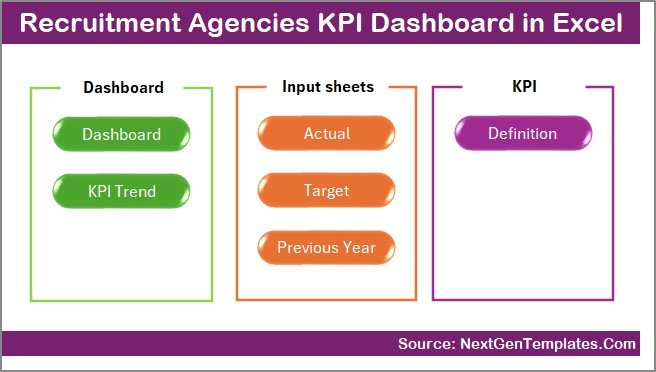
🧾 Summary Page (Index Sheet)
Acts as the navigation hub with clickable buttons for smooth user experience
📊 Dashboard Sheet
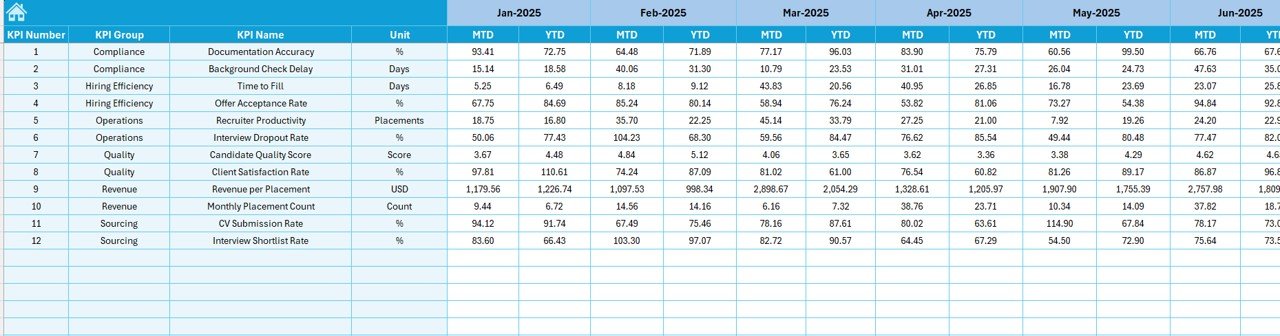
Displays all KPIs with MTD & YTD Actual, Target, and Previous Year comparisons
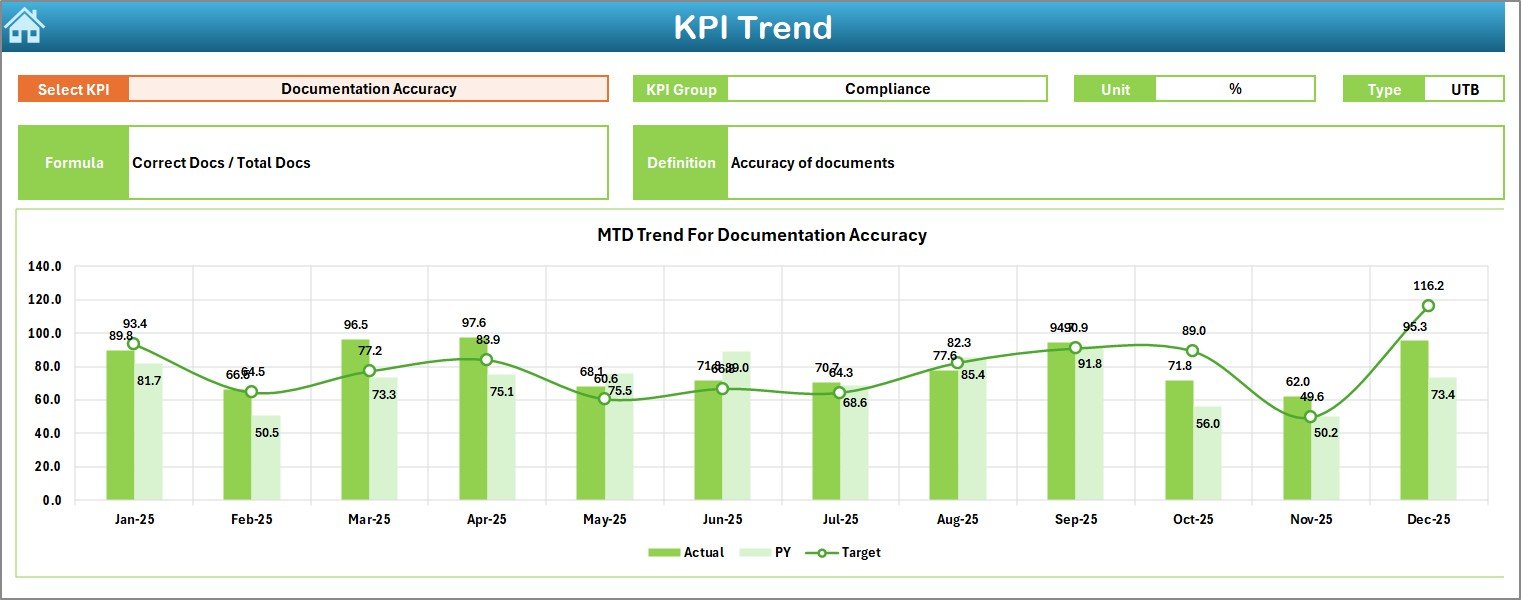
📈 Trend Analysis Sheet
Shows KPI-wise MTD and YTD trends with interactive KPI selection
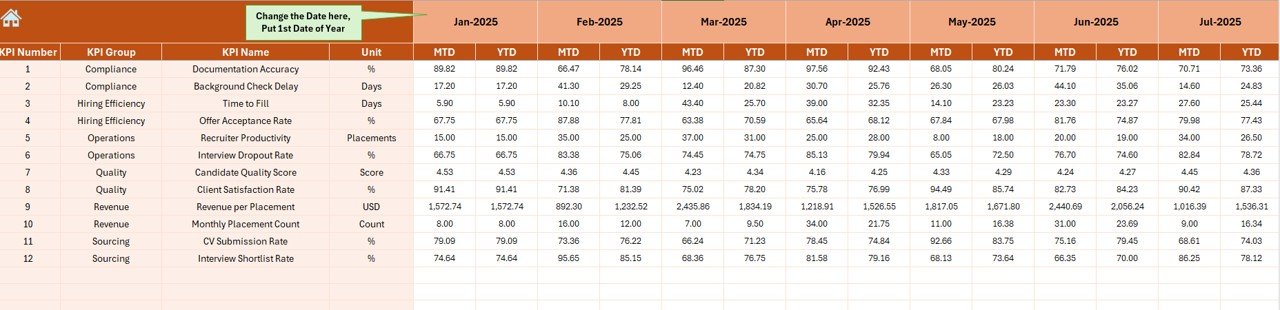
✍️ Actual Numbers Input Sheet
Simple data entry for monthly recruitment performance
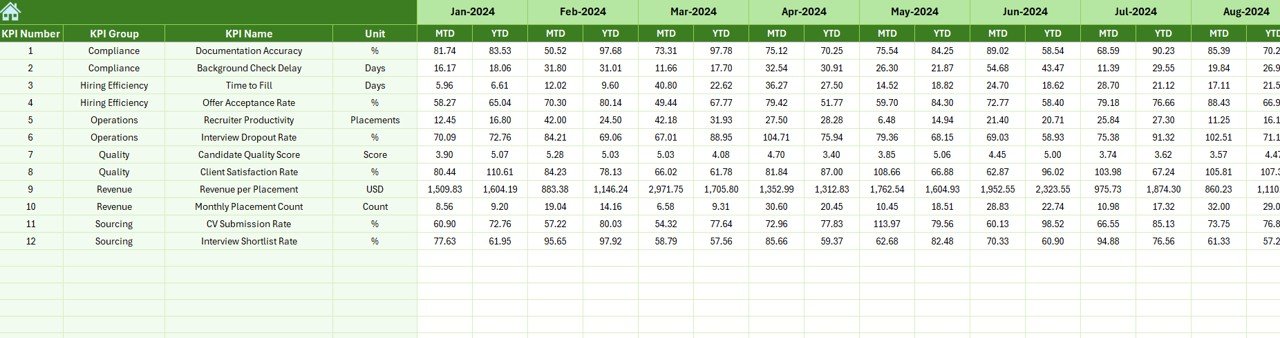
🎯 Target Sheet
Define and track monthly and yearly recruitment goals
📅 Previous Year Data Sheet
Store historical data for year-over-year comparison
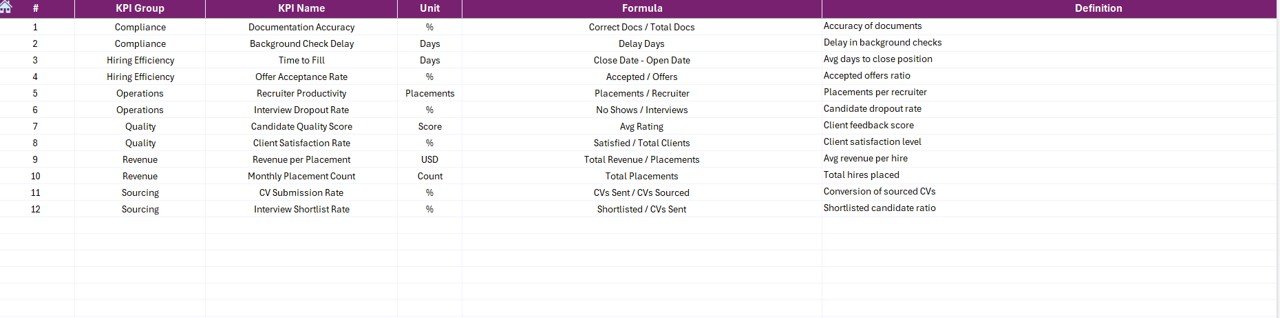
📘 KPI Definition Sheet
Clearly defines KPI names, groups, units, formulas, and logic
⚙️ How to Use the Recruitment Agencies KPI Dashboard in Excel
1️⃣ Enter KPI definitions in the KPI Definition Sheet
2️⃣ Add recruitment performance data in the Actual Numbers Sheet
3️⃣ Define targets in the Target Sheet
4️⃣ Enter last year’s data in the Previous Year Sheet
5️⃣ Select the month from the dropdown
6️⃣ View instant KPI insights, trends, and performance gaps
No advanced Excel skills required—this dashboard works out of the box.
👥 Who Can Benefit from This Recruitment Agencies KPI Dashboard in Excel
👔 Recruitment Agency Owners – Gain full visibility into agency performance
👩💼 Recruitment Managers – Track recruiter productivity and target achievement
📋 HR Consultants & Staffing Firms – Improve reporting and client confidence
📊 Operations & Leadership Teams – Support strategic decisions with real data
🏢 Small & Mid-Size Agencies – Professional analytics without expensive BI tools
Click here to read the Detailed Blog Post
Watch the step-by-step video tutorial:
Visit our YouTube channel to learn step-by-step video tutorials
Compatibility and Requirements
- Works in Microsoft Excel desktop (Excel 2016 or later, or Microsoft 365).
- You pick the month from a dropdown on the Dashboard sheet. The green and red arrows come from conditional formatting. Microsoft explains the feature in Use conditional formatting to highlight information in Excel.
Frequently Asked Questions
Which sheets are included?
The template has an Index sheet, a Dashboard sheet, a Trend Analysis sheet, an Actual Numbers input sheet, a Target sheet, a Previous Year Data sheet and a KPI Definition sheet.
How do I update the dashboard?
Enter your KPI definitions, your monthly actual numbers, your targets and last year’s data on the input sheets. Then select the month from the dropdown and the Dashboard sheet updates.
Does it compare results with targets and last year?
Yes. The Dashboard sheet shows MTD and YTD actuals next to targets and previous year figures. Green and red arrows mark improvement or decline.
Can I see the trend for a single KPI?
Yes. The Trend Analysis sheet shows MTD and YTD trends, and you choose the KPI you want to view.
Is there a Power BI version?
Yes. See the Recruitment Agencies KPI Dashboard in Power BI.
Related Recruitment Templates
- Recruitment Agencies KPI Dashboard in Power BI: the same KPIs in Power BI
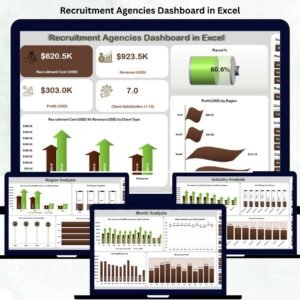
- Recruitment Agencies Dashboard in Excel: a dashboard view for agencies
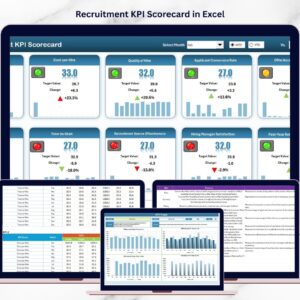
- Recruitment KPI Scorecard in Excel: a scorecard view of recruitment metrics
- Recruitment Funnel KPI Dashboard in Excel: KPIs along the hiring funnel
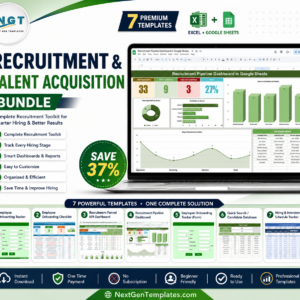
- Recruitment & Talent Acquisition Bundle: 7 Excel and Google Sheets templates in one download
Browse all Excel KPI dashboards.



Reviews
There are no reviews yet.