

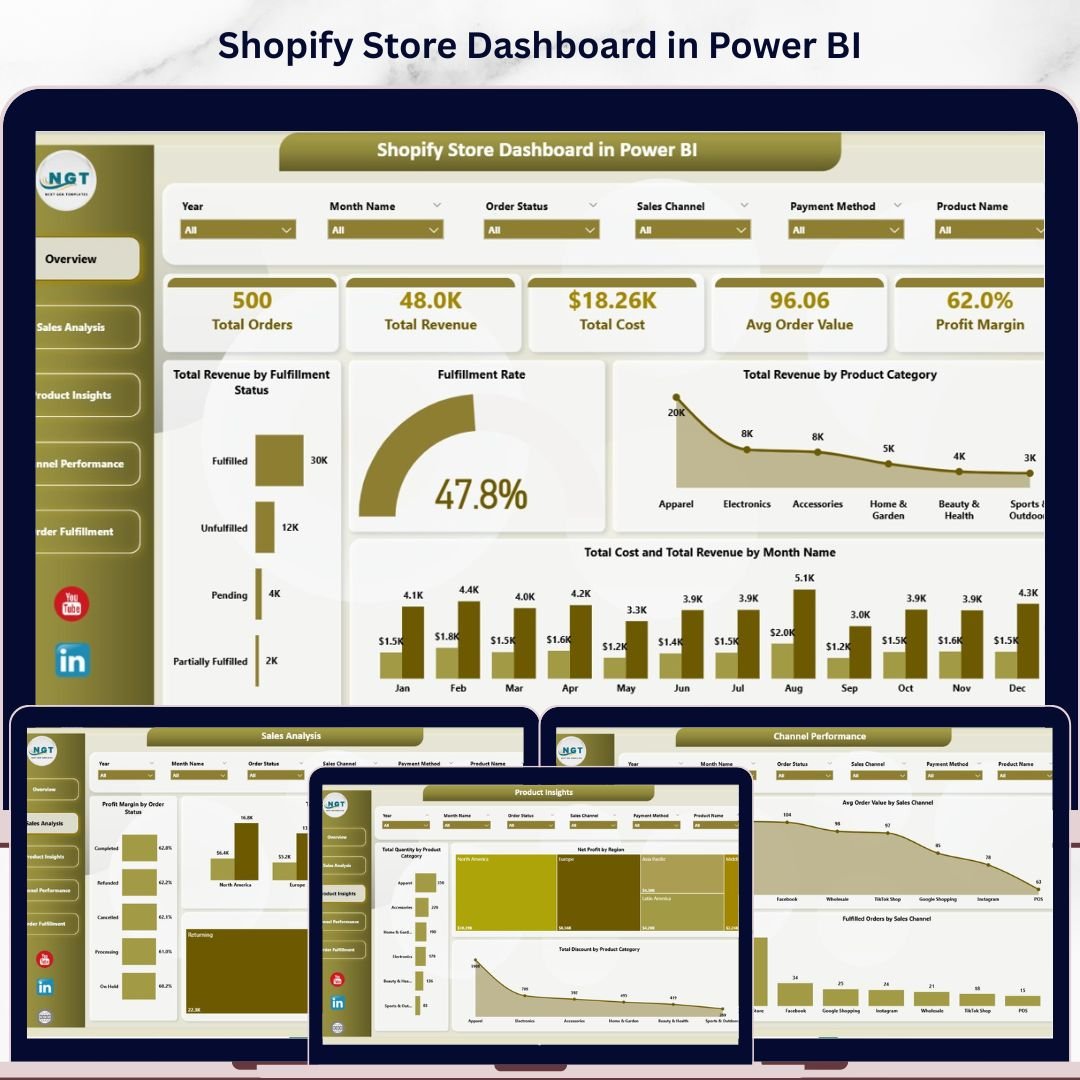
Shopify Store Dashboard in Power BI is the ultimate analytics solution for Shopify store owners who want complete visibility into their sales, costs, fulfillment, and profitability — all inside a single Power BI report. If you are managing a Shopify store and struggling to make sense of your order data, this dashboard transforms raw transactional data into powerful visual insights instantly. 📊💡
This dashboard includes 5 interactive analysis pages, each packed with dynamic charts, KPI cards, and slicers that let you filter your data with a single click. Whether you want to compare revenue by product category, track fulfillment rates, analyze sales channel performance, or monitor monthly trends — this Shopify Store Dashboard in Power BI delivers it all with professional-grade visualizations and zero coding. Built for Shopify entrepreneurs, e-commerce managers, operations teams, and business analysts who rely on data to make smarter decisions every day.
🔑 Key Features of Shopify Store Dashboard in Power BI
✅ 5 dedicated dashboard pages covering every aspect of Shopify store analytics
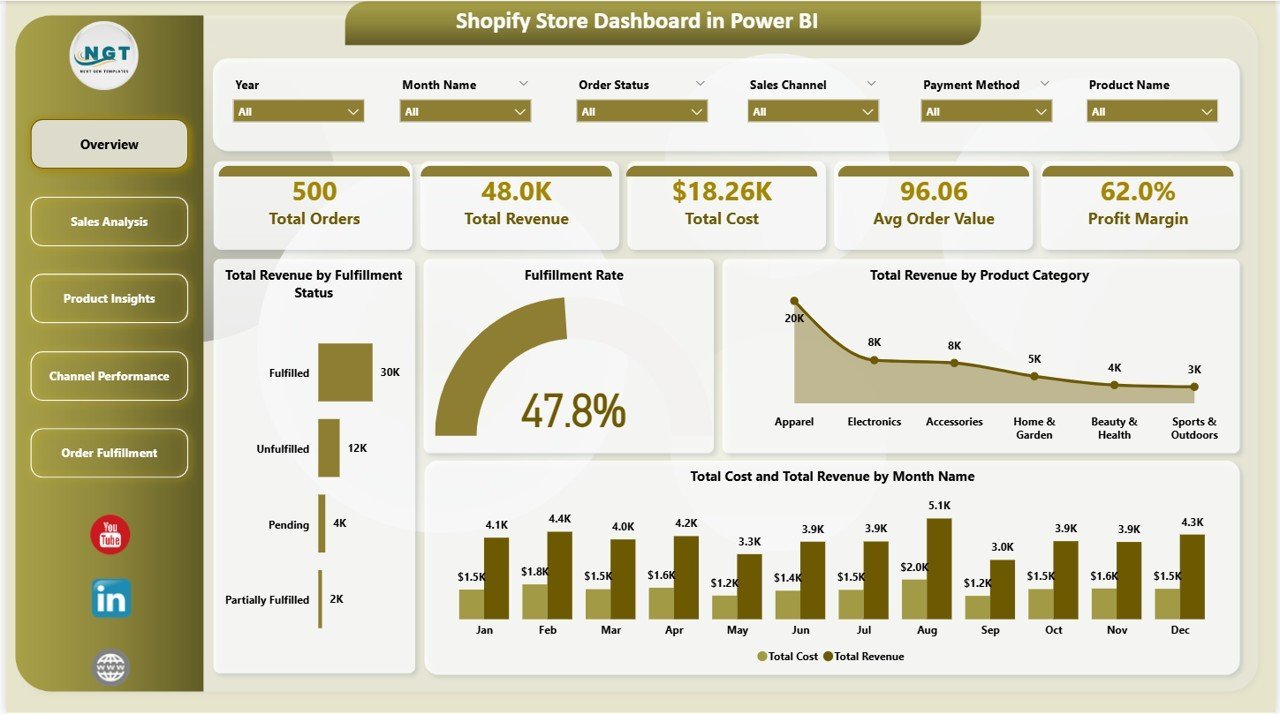
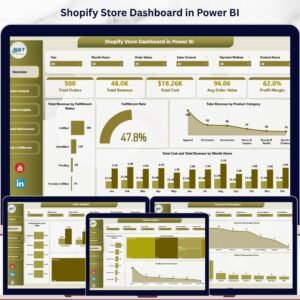
✅ Real-time KPI cards showing Total Orders, Total Revenue, Total Cost, Avg Order Value, and Profit Margin %
✅ Dynamic charts that refresh automatically when you update your data source
✅ Interactive slicers for instant filtering across all dashboard pages
✅ Sales channel performance comparison across all Shopify channels
✅ Product-level insights including quantity, discount, and net profit analysis
✅ Order fulfillment tracking with status breakdowns and monthly trends
✅ Regional profitability analysis with cost vs revenue comparisons
✅ Customer type segmentation for new vs returning buyer analysis
✅ Works with Power BI Desktop (free from Microsoft) — fully customizable and extendable
📦 What’s Inside the Shopify Store Dashboard in Power BI
This template includes 5 interactive dashboard pages that work together as a complete Shopify analytics system. The dashboard tracks 5 core KPIs and features over 15 analytical charts across all pages.
1️⃣ Overview Page — Your Shopify Command Center
The Overview Page provides a high-level snapshot of your entire Shopify store performance. At the top, you see KPI cards displaying Total Orders, Total Revenue, Total Cost, Avg Order Value, and Profit Margin %. Below, dynamic charts visualize Total Revenue by Fulfillment Status to compare fulfilled vs unfulfilled orders, Fulfillment Rate to monitor operational efficiency, Total Revenue by Product Category to pinpoint top-selling categories, and Total Cost and Total Revenue by Month Name to identify growth patterns. Multiple slicers let you filter the entire dashboard instantly.
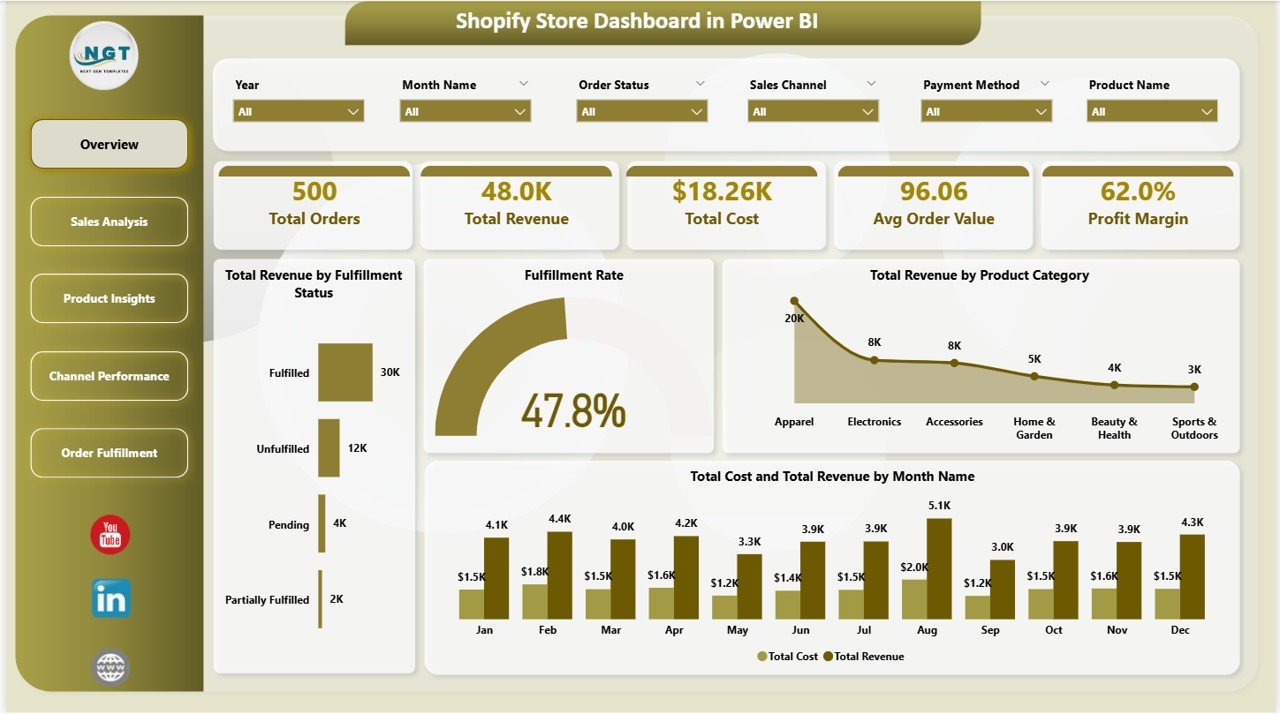
Shopify Store Dashboard in Power BI
2️⃣ Sales Analysis Page
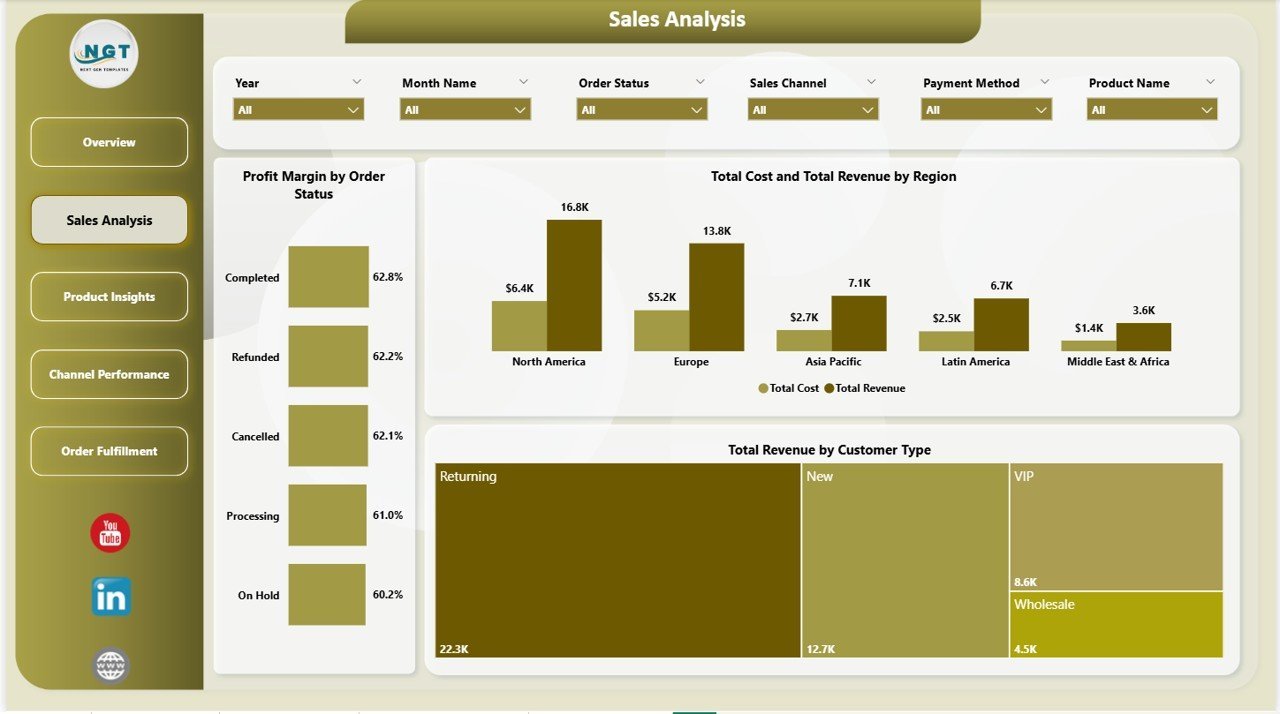
This page dives deeper into your Shopify sales performance with focused analytics. It features Profit Margin by Order Status to understand profitability across different order stages, Total Cost and Total Revenue by Region to evaluate geographic profitability, and Total Revenue by Customer Type to compare new vs returning buyers. These insights help you optimize pricing, improve regional targeting, and strengthen customer retention strategies.
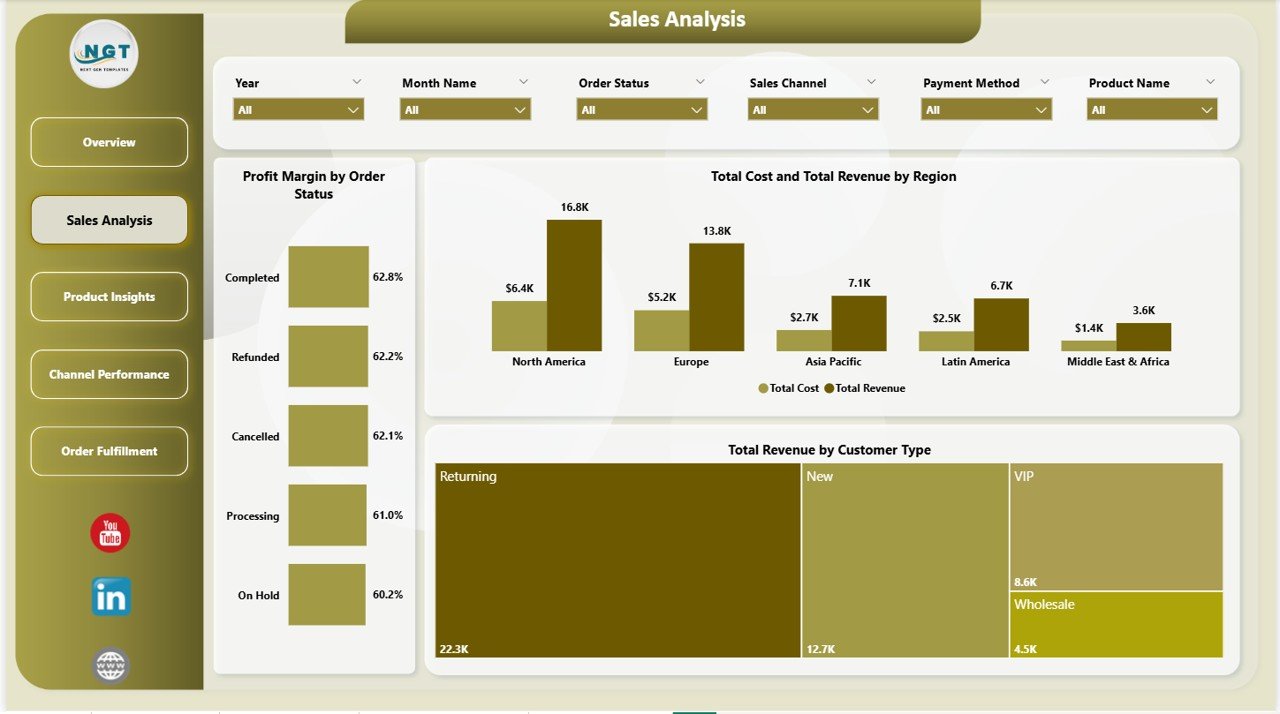
Sales Analysis
3️⃣ Product Insights Page
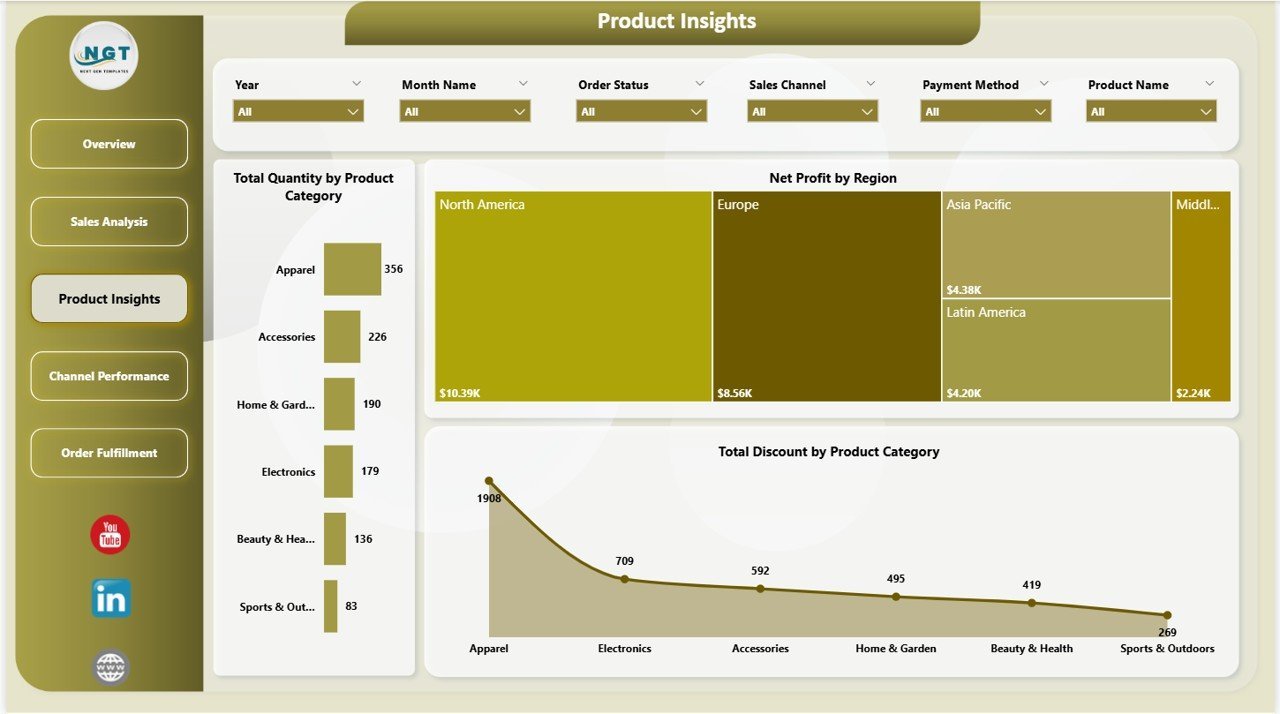
Understand your product performance at a granular level. This page shows Total Quantity by Product Category to identify volume leaders, Net Profit by Region to uncover your most profitable markets, and Total Discount by Product Category to track promotional impact. These analytics help you make smarter inventory and pricing decisions based on real data.
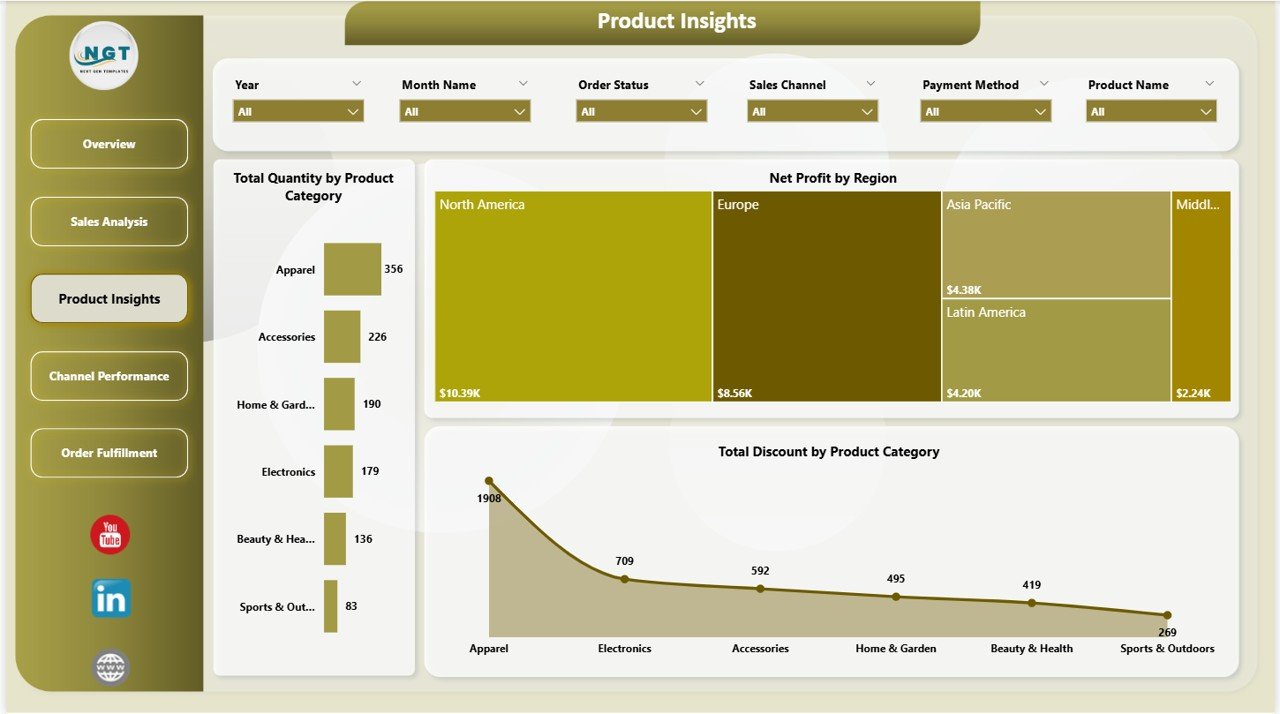
Product Insights
4️⃣ Channel Performance Page
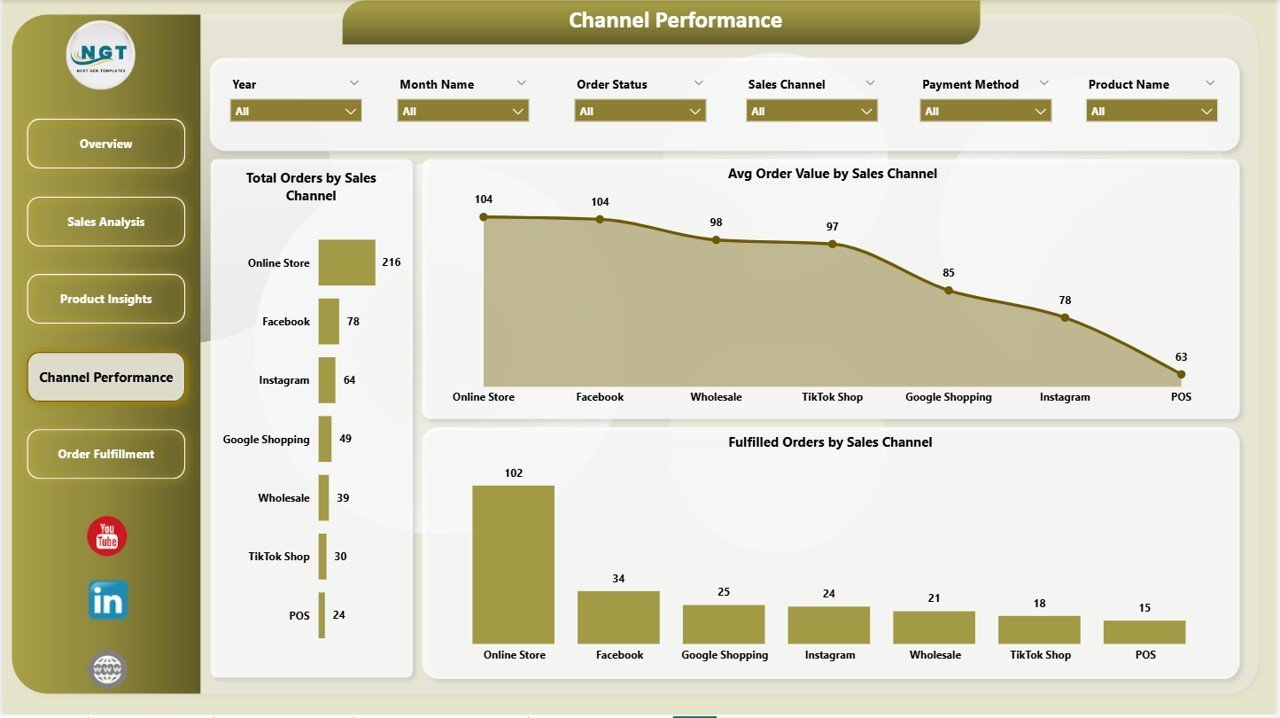
If you sell through multiple Shopify sales channels, this page is essential. It visualizes Total Orders by Sales Channel, Avg Order Value by Sales Channel, and Fulfilled Orders by Sales Channel — helping you identify your strongest and weakest channels quickly. Compare online store, POS, social media, and marketplace performance side by side.
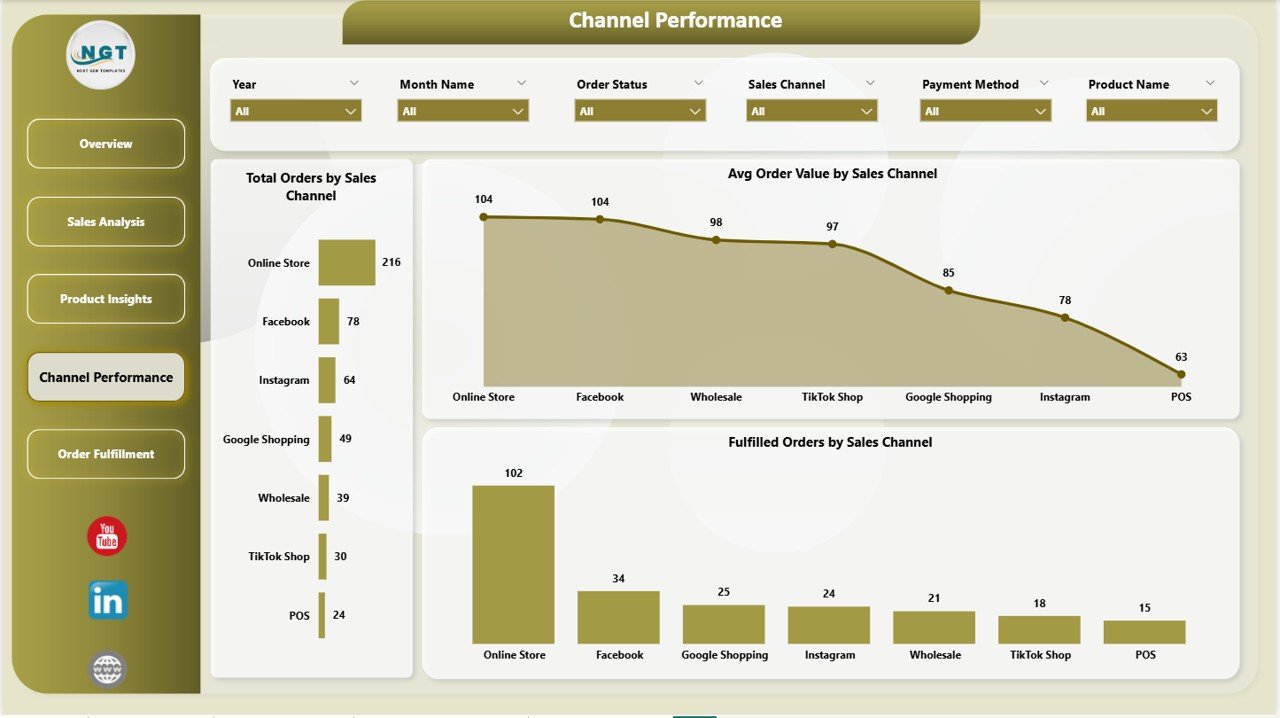
Channel Performance
5️⃣ Order Fulfillment Page
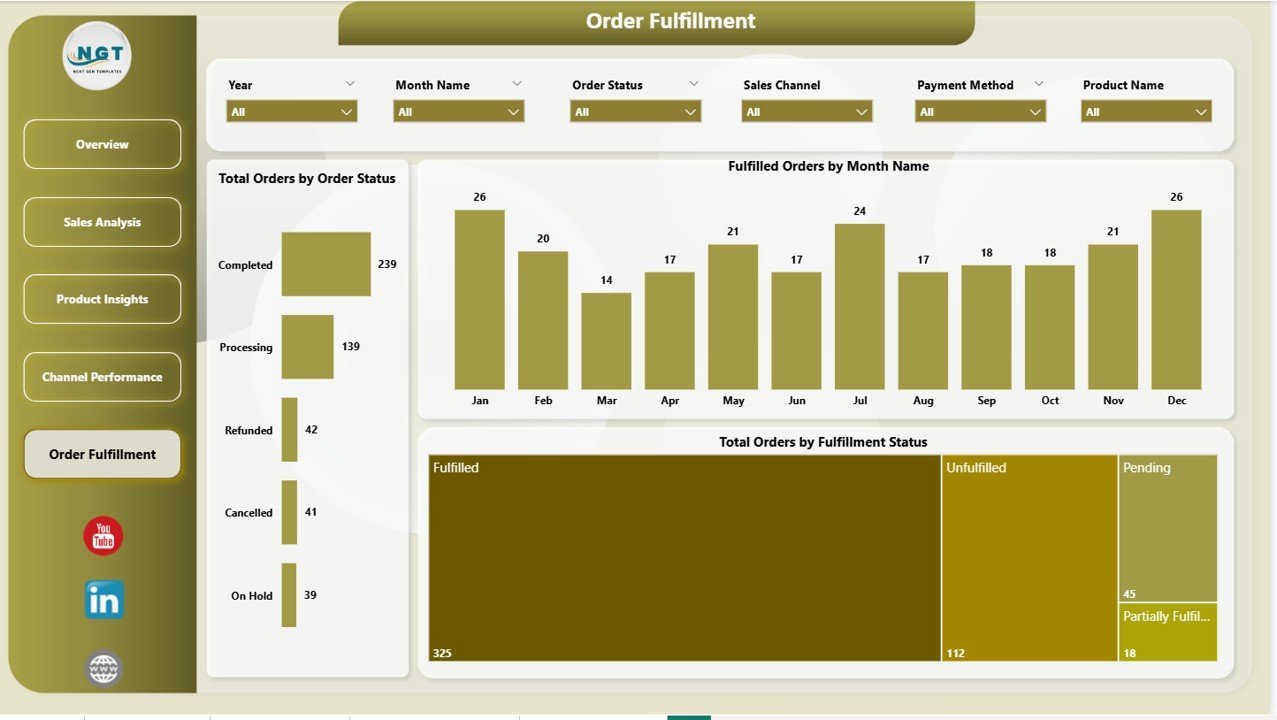
Monitor your fulfillment operations with dedicated tracking charts. This page displays Total Orders by Order Status, Fulfilled Orders by Month Name, and Total Orders by Fulfillment Status — giving you clear visibility into delivery performance and bottlenecks. Identify delayed shipments and optimize your fulfillment workflow with data-driven decisions.
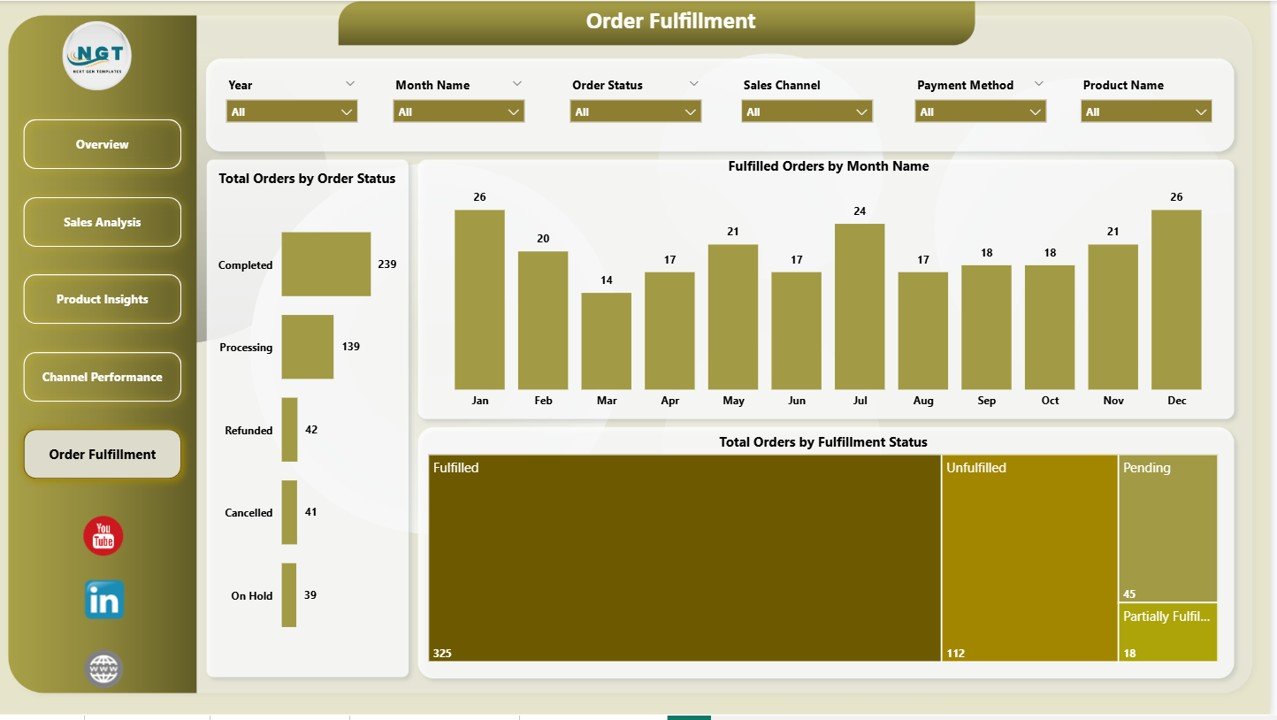
Order Fulfillment
⚙️ How to Use the Shopify Store Dashboard in Power BI
1️⃣ Download and install Power BI Desktop (free) from Microsoft.
2️⃣ Open the .pbix file included in your download.
3️⃣ Replace the sample data with your Shopify store export data.
4️⃣ Click Refresh to update all visuals and KPI cards automatically.
5️⃣ Navigate through the 5 dashboard pages to view your analytics.
6️⃣ Use slicers on each page to filter by category, region, channel, status, or month.
The entire process takes less than 10 minutes — no DAX formulas to write, no complex modeling needed.
👥 Who Can Benefit from This Shopify Store Dashboard
🛒 Shopify Store Owners tracking sales, costs, and profitability across their product catalog
📊 E-Commerce Managers monitoring fulfillment rates, channel performance, and order trends
💰 Finance Teams analyzing revenue vs cost by region and customer type
🚀 Marketing Teams evaluating sales channel effectiveness and discount impact
📦 Operations Teams tracking order fulfillment status and delivery performance
📈 Business Analysts building data-driven strategies using Shopify store data
If your business runs on Shopify, this dashboard helps you move from scattered data to actionable insights. Explore more Power BI Dashboard Templates or check out the Shopify Store Dashboard in Excel for a pivot-table based alternative. You may also like the Online Marketplaces Dashboard in Excel for multi-platform selling analytics.
❓ Frequently Asked Questions
What KPIs does the Shopify Store Dashboard in Power BI track?
The Shopify Store Dashboard in Power BI tracks 5 key performance indicators including Total Orders, Total Revenue, Total Cost, Average Order Value, and Profit Margin %. It also provides 15+ chart-based analyses across fulfillment rates, sales channels, product categories, customer types, and regional performance.
Do I need advanced Power BI skills to use this dashboard?
No. This dashboard comes ready to use with sample data pre-loaded. Simply replace the data source with your Shopify export and click Refresh. All 5 dashboard pages update automatically through Power BI visuals.
Can I use this dashboard for multiple Shopify stores?
Yes. You can combine order data from multiple Shopify stores into a single data source. The dashboard will analyze all data together. Alternatively, you can maintain separate copies of the .pbix file for each store.
How do I export data from Shopify to use with this dashboard?
Go to your Shopify Admin → Orders → Export. Download the CSV file, then use Power BI’s data import feature to connect it as your data source. Match the column headers to ensure accurate visualization.
Is this dashboard compatible with Power BI Service (cloud)?
Yes. You can publish the .pbix file to Power BI Service for cloud-based access and sharing with your team. The dashboard works in both Power BI Desktop and Power BI Service.
Can I customize the charts and add new analysis pages?
Yes. The dashboard is fully customizable. You can modify existing visuals, add new measures, create additional pages, or extend the data model to include more fields from your Shopify export.
🔗 Explore Related Templates
📊 Shopify Store Dashboard in Excel — Track Shopify store performance using Excel pivot tables and charts.
📋 Online Marketplaces KPI Scorecard in Excel — Monitor marketplace KPIs with actual vs target comparisons and trend analysis.
📈 E-Commerce Sales Performance Dashboard in Google Sheets — Cloud-based e-commerce analytics with real-time collaboration.
📖 Click here to read the Detailed Blog Post
🎥 Visit our YouTube channel to learn step-by-step video tutorials
👉 YouTube.com/@NextGenTemplates
Watch the step-by-step video tutorial:
YouTube


Reviews
There are no reviews yet.