
Tracking Key Performance Indicators (KPIs) is essential for business success. However, defining KPIs alone does not guarantee results. KPI Tracking Checklist in Excel Organizations must also manage the daily tasks, follow-ups, and responsibilities connected to those KPIs. Unfortunately, many teams still depend on emails, notebooks, or unstructured spreadsheets to manage KPI-related activities. Because of this, deadlines get missed, accountability becomes unclear, and performance tracking loses effectiveness.
The KPI Tracking Checklist in Excel solves this problem by combining KPI execution and task management into one structured and easy-to-use system. This ready-to-use Excel template helps teams organize KPI activities, assign responsibilities, monitor deadlines, and track completion progress in real time.
KPI Tracking Checklist in Excel Instead of juggling multiple tools, users manage all KPI action items inside one centralized worksheet. The checklist transforms strategic goals into clear, actionable steps that teams can follow consistently. Since the template works entirely within Microsoft Excel, organizations can implement it instantly without additional software or technical training.
Whether you manage projects, operations, HR processes, or performance initiatives, this checklist ensures every KPI task stays organized, visible, and accountable.
🚀 Key Feature of KPI Tracking Checklist in Excel
✅ Centralized KPI Task Management – Track all KPI-related activities in one organized checklist.
📊 Automatic Progress Dashboard – Instantly view completion status through summary metrics and progress bar.
👤 Responsibility Assignment – Assign clear ownership to each KPI task.
📅 Deadline Monitoring – Track due dates to prevent missed timelines.
✔️ Status-Based Tracking – Update tasks using simple ✔ Completed or ✘ Pending indicators.
📈 Real-Time Progress Updates – Dashboard metrics update automatically.
📋 Dropdown-Based Data Entry – Standardized responsible person selection reduces errors.
⚡ Beginner-Friendly Design – No advanced Excel skills required.
📦 What’s Inside the KPI Tracking Checklist in Excel
This professionally designed template contains 2 structured worksheets that create a complete KPI execution system.
📝 KPI Tracking Checklist Sheet – Main Working Area
This sheet acts as the central workspace where teams manage KPI tasks.
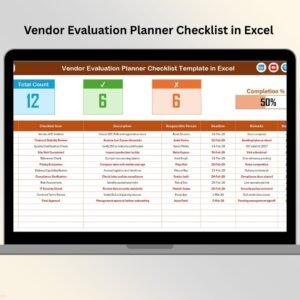
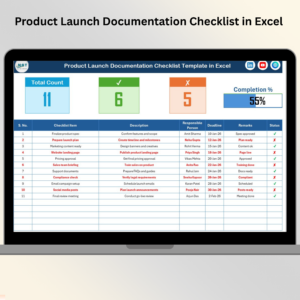
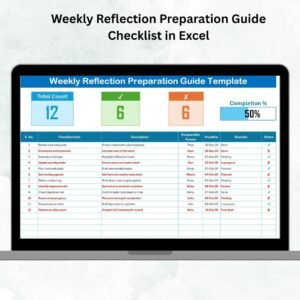
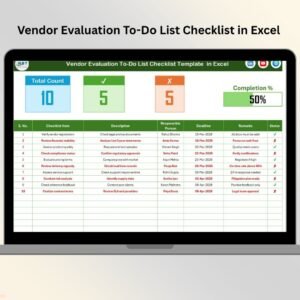
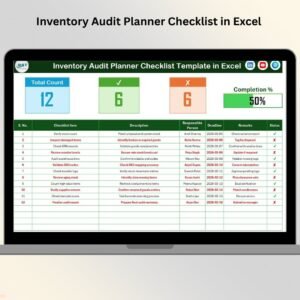
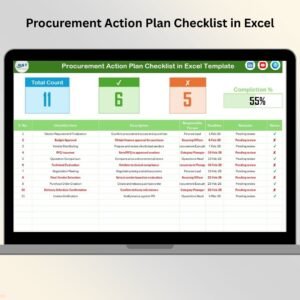
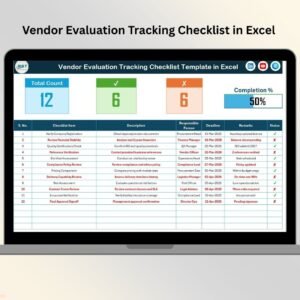
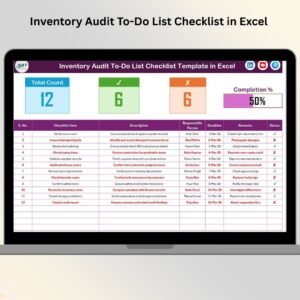
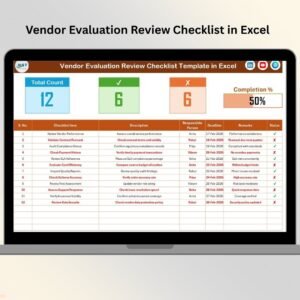
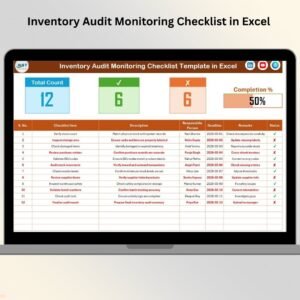
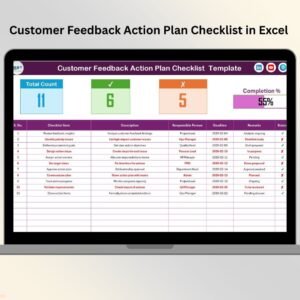
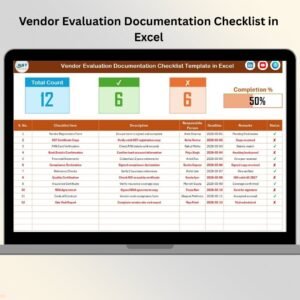
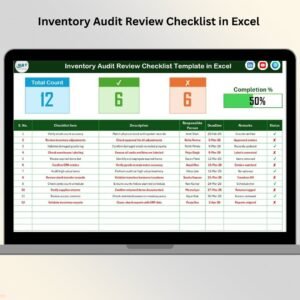
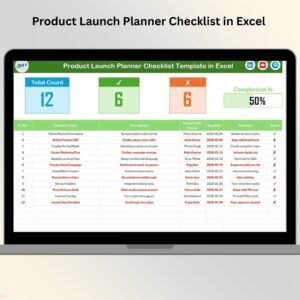
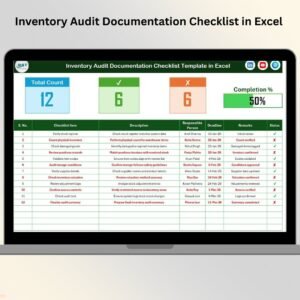
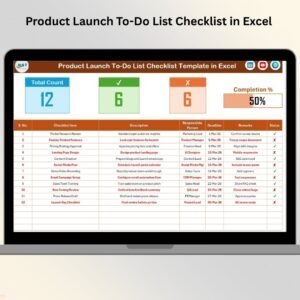
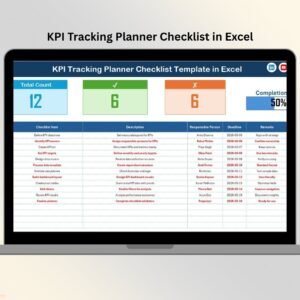
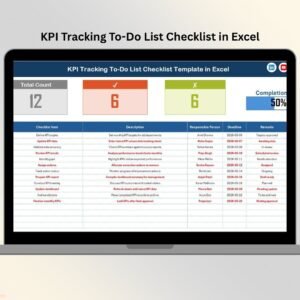
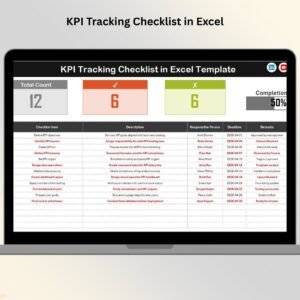
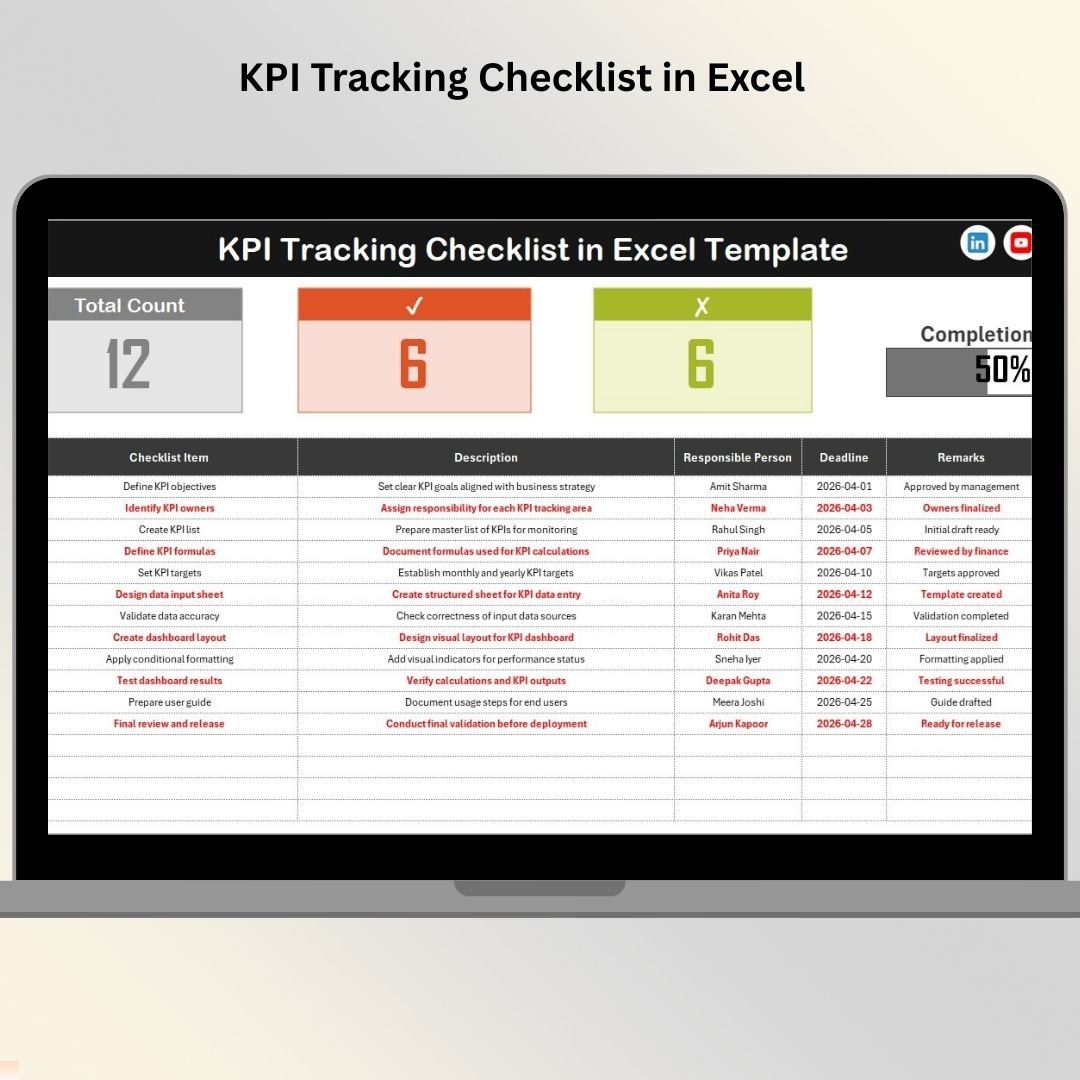
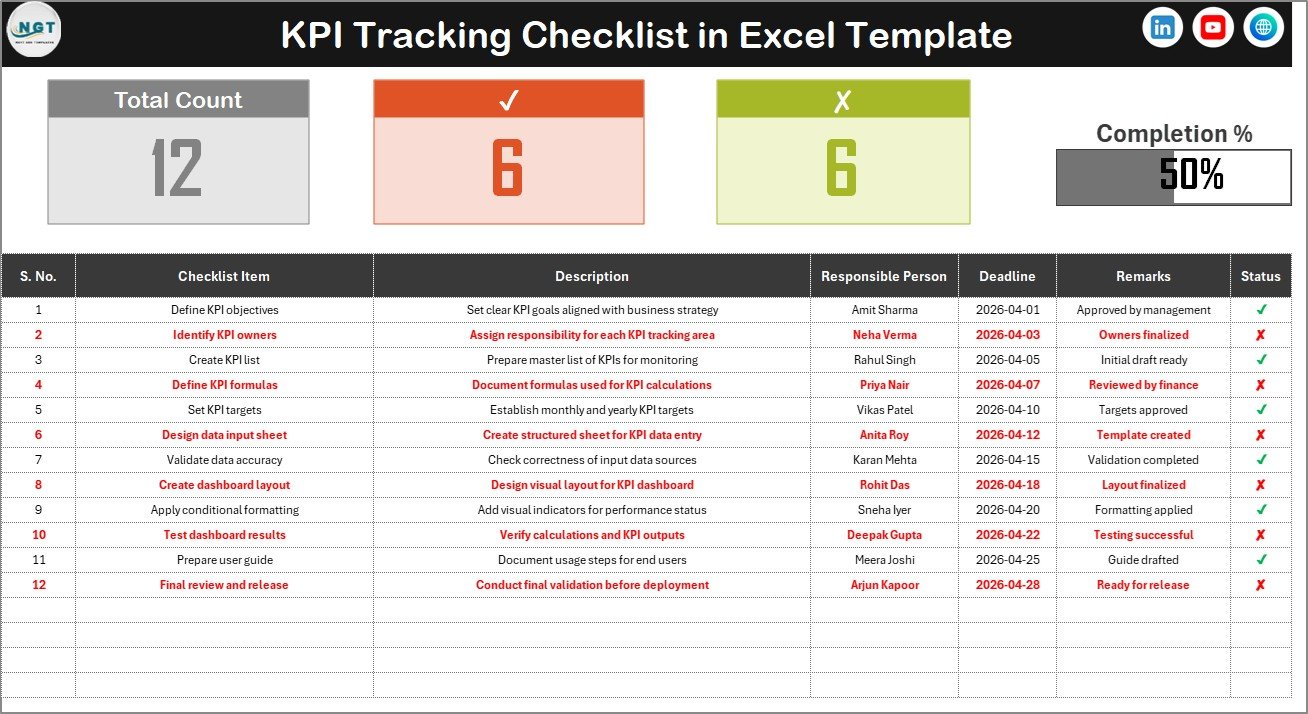
Top Summary Section Displays:
-
Total checklist items count
-
Completed tasks count
-
Pending tasks count
-
Visual progress bar showing completion percentage
Checklist Table Includes:
-
Serial Number
-
Checklist Item
-
Description
-
Responsible Person
-
Deadline
-
Remarks
-
Status (✔ or ✘)
Once users update task status, progress metrics refresh automatically, providing real-time performance visibility.
📂 List Sheet – Dropdown Management
The List sheet stores responsible person names used for dropdown selections.
Benefits include:
-
Faster data entry
-
Consistent naming conventions
-
Reduced manual entry mistakes
-
Easy team member updates
Together, these sheets create a structured KPI tracking workflow that improves accuracy and efficiency.
⚙️ How to Use the KPI Tracking Checklist in Excel
Getting started takes only a few minutes:
1️⃣ Define KPI-related tasks required for goal achievement.
2️⃣ Enter checklist items with descriptions.
3️⃣ Assign responsible persons using dropdown lists.
4️⃣ Set realistic deadlines for each activity.
5️⃣ Update task status regularly (✔ or ✘).
6️⃣ Monitor progress using the automatic dashboard.
With consistent updates, managers gain instant visibility into execution progress.
👥 Who Can Benefit from This KPI Tracking Checklist in Excel
This template works across industries and departments:
👨💼 Business Managers
📊 Operations Teams
👥 HR Departments
📈 Sales & Marketing Teams
📂 Project Managers
💼 Consultants & Freelancers
🏢 Small & Large Organizations
Any team that needs structured KPI execution and accountability can benefit from this checklist.
By transforming KPI planning into measurable actions, the KPI Tracking Checklist in Excel helps organizations improve productivity, meet deadlines, and achieve strategic objectives efficiently.
### Click here to read the Detailed blog post
Visit our YouTube channel to learn step-by-step video tutorials:
👉 https://youtube.com/@PKAnExcelExpert