

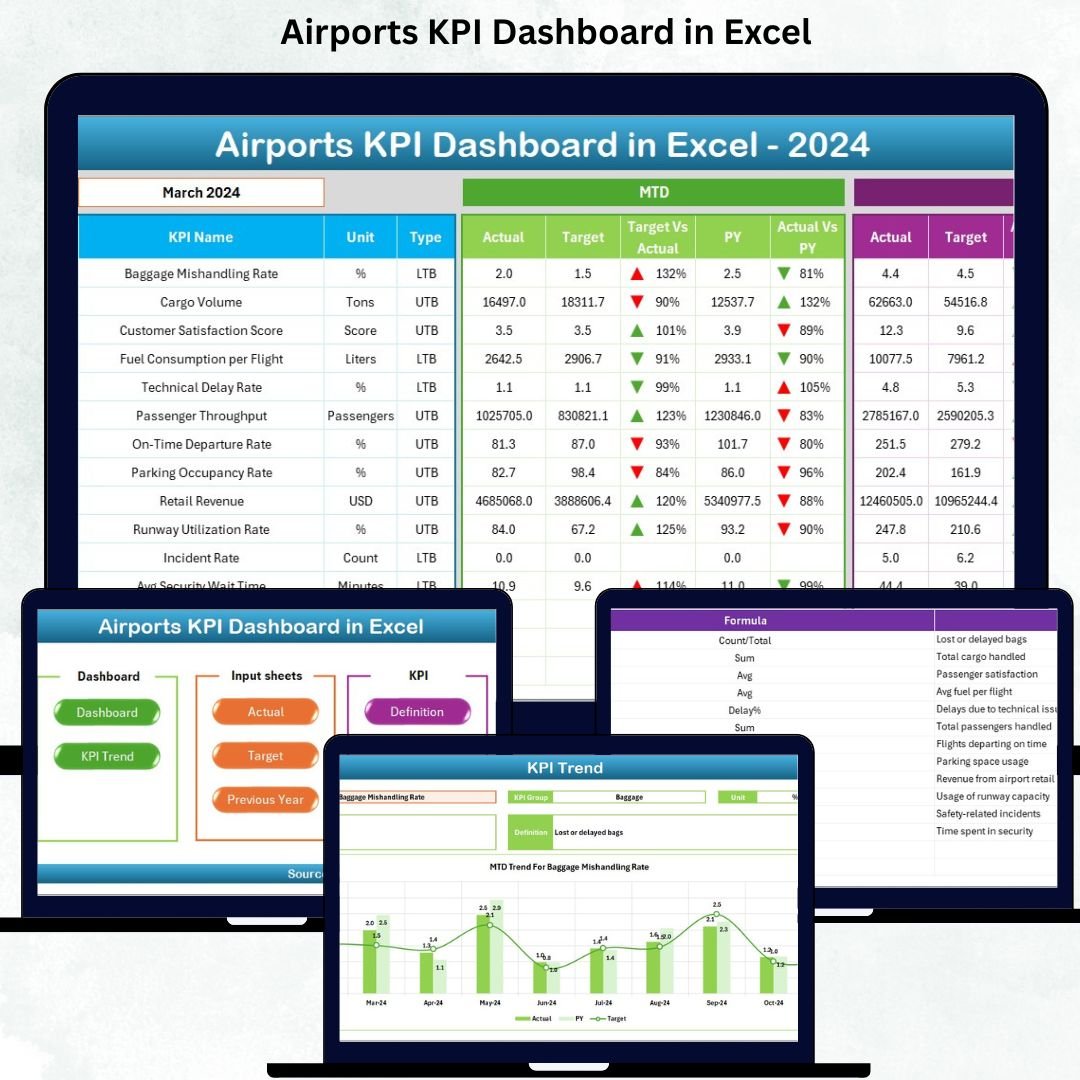


Managing airport operations requires accurate data, real-time insights, and fast decision-making. With thousands of passengers, multiple departments, and nonstop activities happening every single day, airport managers need a simple yet powerful system to monitor performance. The Airports KPI Dashboard in Excel is a ready-to-use, fully automated, and visually rich performance dashboard that helps airport teams track KPIs effortlessly.
This dashboard transforms complicated datasets into clean visuals, intuitive charts, and easy-to-read analytics—making it the perfect all-in-one tool for airport operations, passenger services, safety, cargo, and management teams.
✈️ Key Features of the Airports KPI Dashboard in Excel
The Airports KPI Dashboard in Excel is packed with smart features that simplify tracking, monitoring, and reporting airport performance.
✨ User-Friendly Layout
✔ Navigate through the dashboard with clean buttons
✔ Instantly jump to Dashboard, Trend, Input sheets & more
✔ Zero technical skills required
📊 Powerful MTD & YTD Analytics
✔ Compare Actual vs Target values
✔ Automatic color-coded visuals for positive/negative performance
✔ Real-time KPI direction indicators (⬆️⬇️)
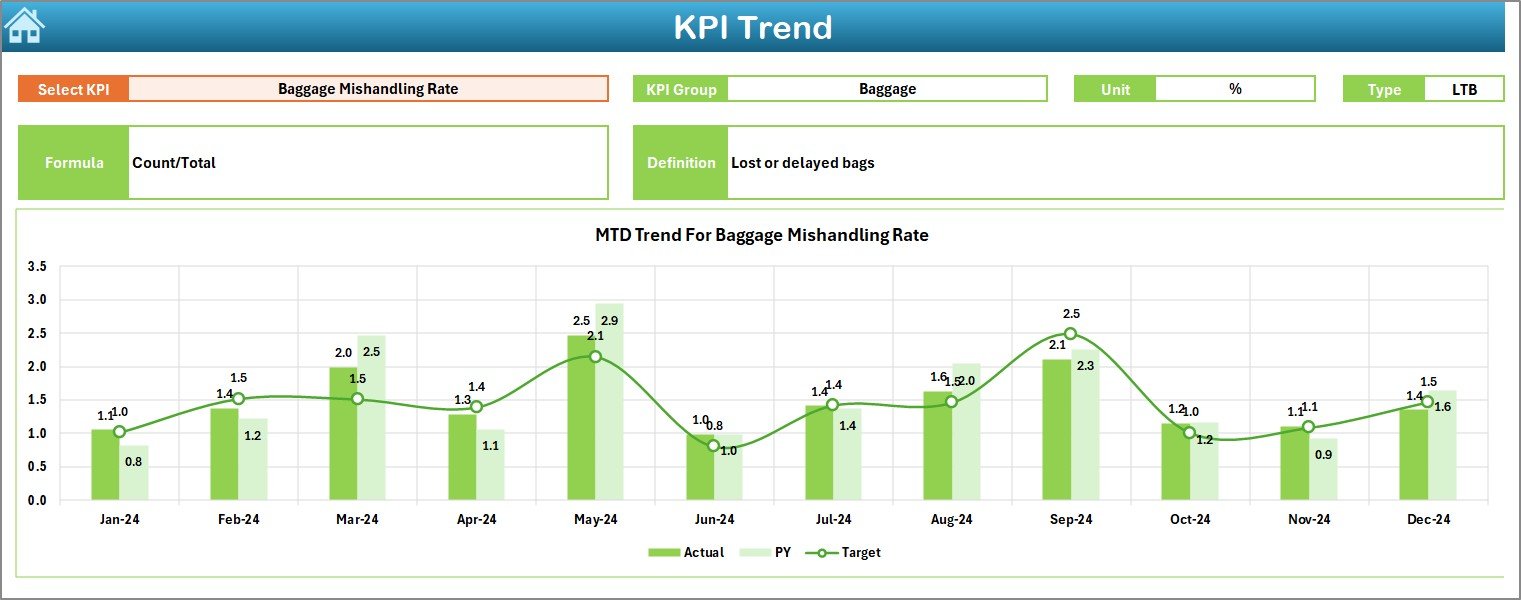
📈 Dynamic Trend Analysis
✔ Select any KPI and view yearly trends
✔ Analyze Actual, Target & Previous Year data
✔ Identify seasonal changes and performance gaps
⚙️ Fully Automated Data Flow
✔ Enter data once and all visuals update automatically
✔ No coding or advanced Excel knowledge needed
📑 Complete KPI Knowledge Base
✔ Understand KPI definitions, formulas, units & KPI types
✔ Ideal for training new employees

📂 What’s Inside the Airports KPI Dashboard
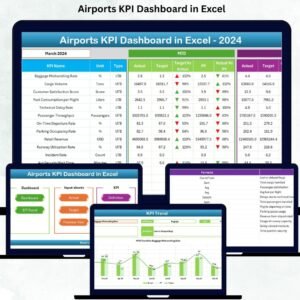
The dashboard contains 7 fully organized worksheets, each designed to give maximum clarity:
🔹 1. Summary Page
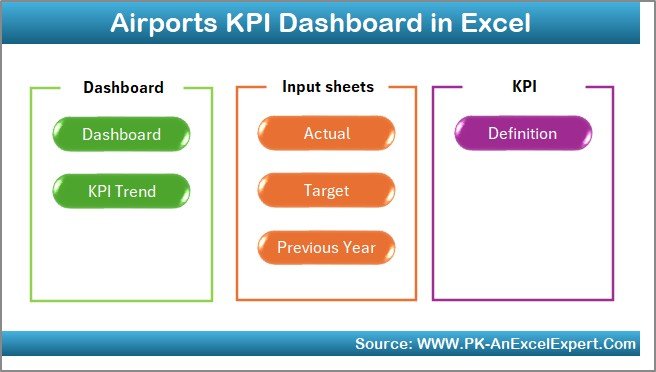
➡ Central navigation hub
➡ Six buttons to access every major sheet within seconds
🔹 2. Dashboard Sheet
➡ Visual control center for all KPIs
➡ MTD & YTD charts, performance arrows, comparisons, and KPI cards
➡ Month selector updates the entire dashboard instantly
🔹 3. Trend Sheet
➡ Deep KPI trend analysis
➡ MTD vs YTD charts for long-term insights
➡ Auto-filled KPI details for faster understanding
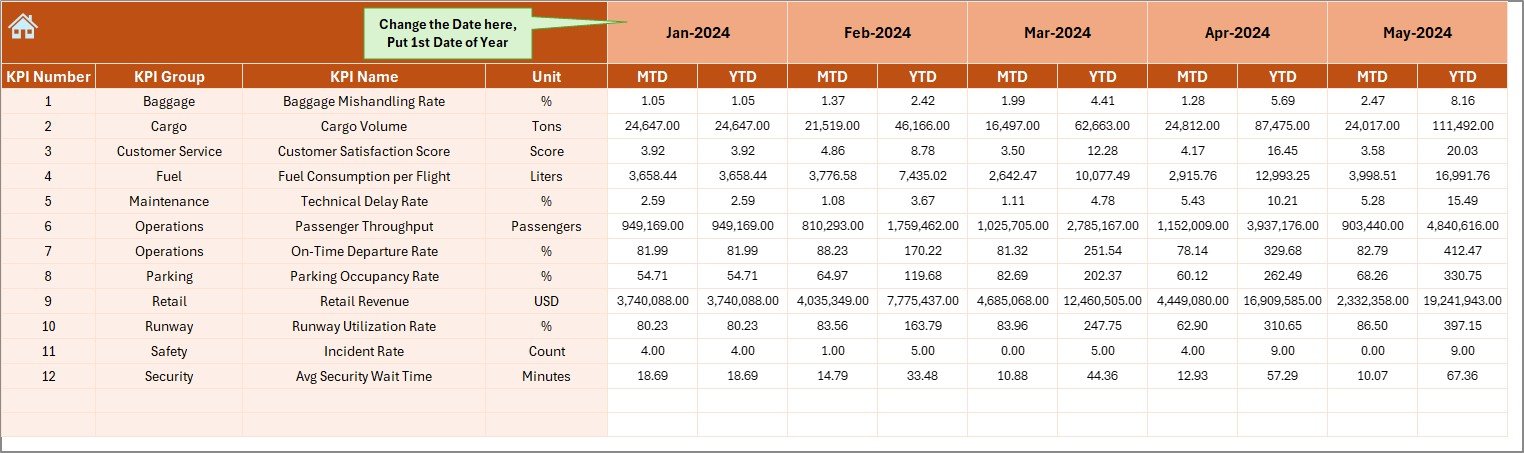
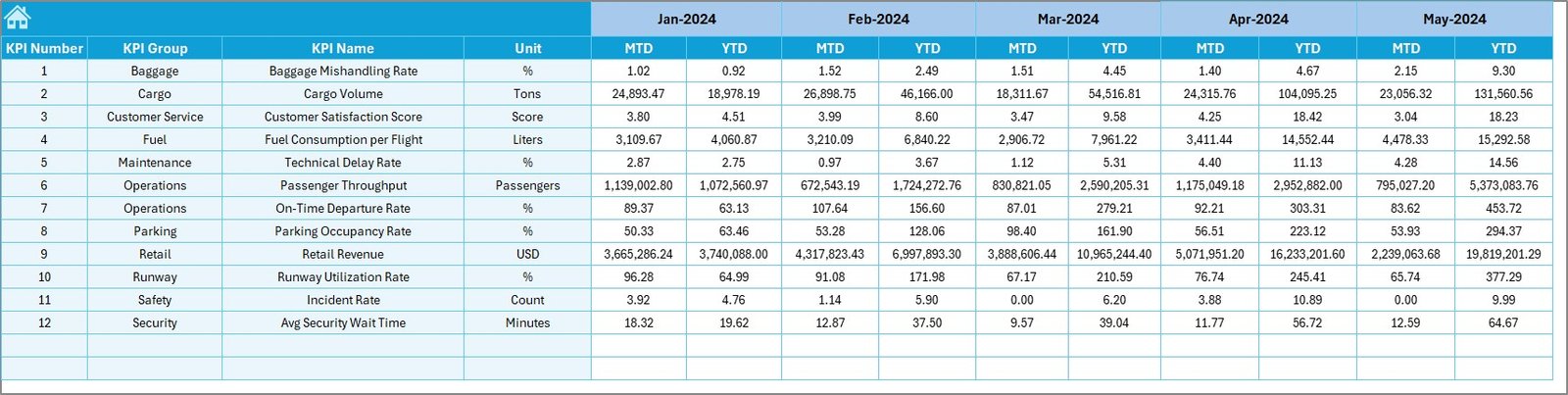
🔹 4. Actual Numbers Input Sheet
➡ Enter MTD & YTD actuals
➡ Choose starting month for flexible reporting
🔹 5. Target Sheet
➡ Enter monthly and yearly targets
➡ Helps plan staffing, resources, operations & efficiency
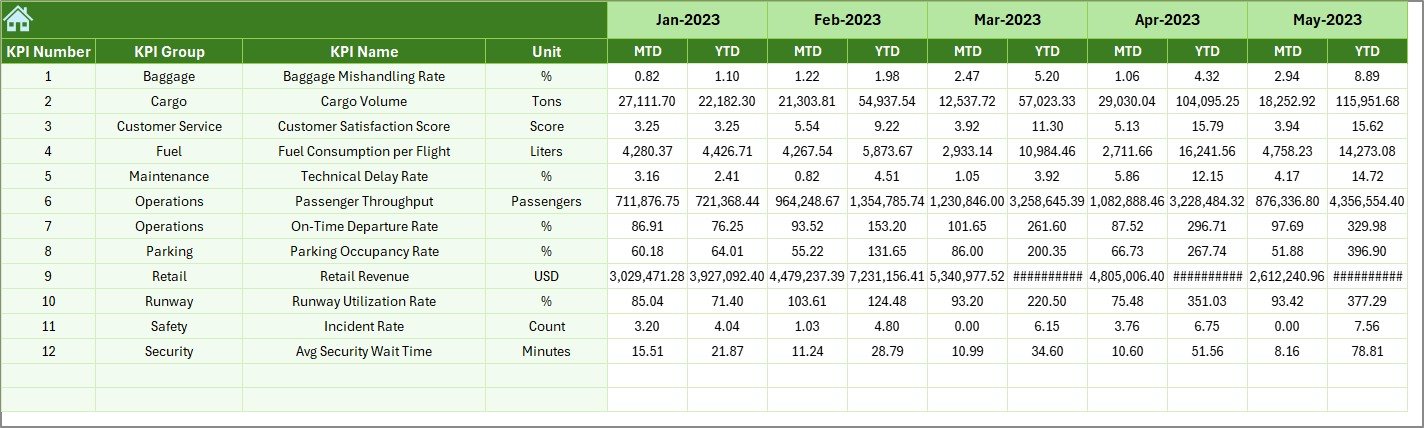
🔹 6. Previous Year Numbers
➡ Compare current performance vs past year
➡ Essential for forecasting and operational insights
🔹 7. KPI Definition Sheet
➡ Clear reference sheet for formulas, definitions & KPI types
➡ Perfect for onboarding and process-training
🧭 How to Use the Airports KPI Dashboard
This dashboard is designed for simplicity—anyone can use it.
👣 Step 1: Enter Data
Add your monthly actuals, yearly totals, and previous year numbers.
👣 Step 2: Enter Targets
Fill target values for each KPI in the Target Sheet.
👣 Step 3: Select the Month
Choose your desired month from the drop-down to update visuals.
👣 Step 4: Analyze Trends
Use the Trend Sheet to study performance patterns and gaps.
👣 Step 5: Review KPIs
Check dashboard visuals, KPI comparisons, and directional arrows.
Within minutes, your full airport performance review is ready—automatically.
👥 Who Can Benefit from This Airports KPI Dashboard
This dashboard is ideal for:
🛫 Airport Managers
Track overall airport performance across key KPIs.
👨✈️ Operations & Flight Control Teams
Monitor on-time performance, delays, and flight activity.
🧳 Passenger Services
Improve passenger handling, wait times, and service quality.
🛅 Baggage & Ground Handling Departments
Monitor baggage delivery, cargo handling, and efficiency.
🛒 Retail & Revenue Teams
Track passenger flow and optimize commercial operations.
🛡 Safety & Security Teams
Monitor safety metrics, incident frequency, and compliance.
Whether it’s a small regional airport or a large international hub, this dashboard helps every team work smarter, faster, and more efficiently.
### Click here to read the Detailed blog post
Watch the step-by-step video tutorial:
### Visit our YouTube channel to learn step-by-step video tutorials
Compatibility and Requirements
- Works in Microsoft Excel desktop (Excel 2016 or later, or Microsoft 365).
- Color-coded visuals use Excel conditional formatting. Microsoft explains it in Use conditional formatting to highlight information.
Frequently Asked Questions
How many sheets are in the dashboard?
Seven: Summary, Dashboard, Trend, Actual Numbers Input, Target, Previous Year Numbers and KPI Definition.
How do I change the reporting month?
Pick a month from the drop-down on the Dashboard sheet and every chart updates.
Does it compare against targets and last year?
Yes. It shows MTD and YTD actuals against targets and against previous year numbers, with up and down arrows.
Where are the KPI formulas explained?
The KPI Definition sheet lists each KPI’s definition, formula, unit and type.
Is there a Power BI version?
Yes. See the Airports KPI Dashboard in Power BI.
Related Airport and Aviation Templates
- Airports KPI Dashboard in Power BI: the same KPIs in Power BI
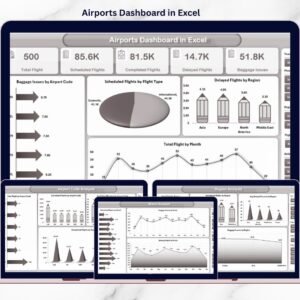
- Airports Dashboard in Excel: a chart dashboard for airport data
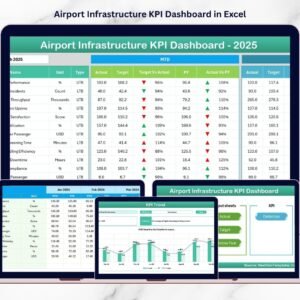
- Airport Infrastructure KPI Dashboard in Excel: infrastructure KPIs
- Aviation Operations KPI Dashboard in Excel: airline and flight operations KPIs
- Airport Checklist Template in Excel: a simple airport checklist
Browse all Excel KPI dashboards or the Power BI KPI dashboards.




Reviews
There are no reviews yet.