

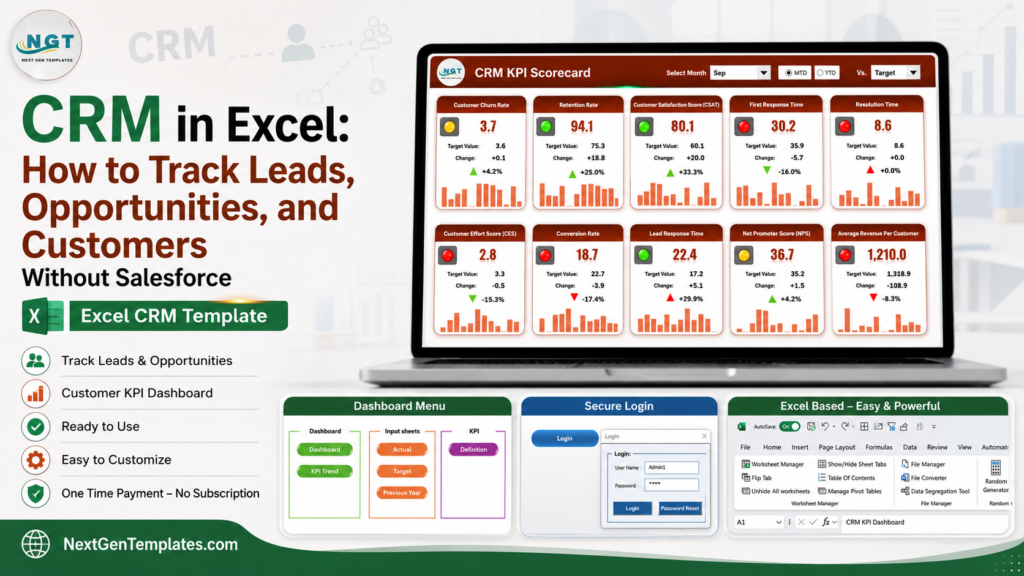
CRM in Excel is a practical way to track leads, opportunities, and customers before your team is ready for a full Salesforce implementation. CRM software is a serious market – Fortune Business Insights projects the CRM market to grow from USD 126.17 billion in 2026, and Salesforce lists Starter Suite at $25 USD per user per month. For a five-user team, that starts around $1,500 per year before add-ons, implementation, and admin time.CRM in Excel
If your current problem is simpler – capturing leads, knowing who owns each follow-up, seeing deal value by stage, and keeping customer details clean – an Excel CRM template can give you structure quickly. The goal is not to replace enterprise CRM forever. The goal is to stop losing sales conversations while you build a process your team will actually use.
Related reading: 10 CRM metrics to track in 2026, with formulas and benchmark ranges and the 12 customer service KPIs to track in 2026, mapped to eight ready-made dashboard templates.
Key Features of a CRM in Excel
A useful Excel CRM is more than a contact list. It should separate raw data entry from reporting, reduce manual typing, and make the next action obvious. At minimum, build these components:
- Lead tracker: capture lead source, priority, owner, status, follow-up date, and notes.CRM in Excel
- Opportunity pipeline: track deal stage, expected value, probability, weighted pipeline, close date, and next action.CRM in Excel
- Customer database: store account owner, industry, customer status, renewal date, revenue, and last contact date.CRM in Excel
- Activity log: record calls, emails, meetings, demos, and follow-up commitments.
- KPI dashboard: monitor open leads, conversion rate, pipeline value, won revenue, aging leads, and follow-ups due.
- Dropdowns and validation: standardize fields such as source, owner, stage, country, product, and status.CRM in Excel
Use Excel Tables for every data-entry sheet. Microsoft explains that structured references make formulas easier to read and help ranges adjust when rows are added or removed.CRM in Excel
 Launch offer
SUMIFS, XLOOKUP, FILTER, LAMBDA and checking AI-written formulas, with real business projects. 11h 47m of video by PK, with practice files, quizzes and a capstone.
Dashboard Pages Explanation: Build Your Own CRM Workbook
1. Create a Leads Sheet
Start with columns for Lead ID, Date Received, Company, Contact Name, Email, Phone, Source, Product Interest, Priority, Owner, Status, Next Follow-Up Date, Estimated Value, and Notes. Keep the status list short: New, Contacted, Qualified, Proposal Sent, Won, Lost, and Nurture.CRM in Excel
2. Create an Opportunities Sheet
Move qualified leads into a pipeline table. Add Opportunity ID, Lead ID, Stage, Deal Value, Probability, Weighted Value, Expected Close Date, Competitor, Next Action, and Owner. Weighted Value is usually Deal Value multiplied by Probability, which helps forecast without pretending every open deal will close.CRM in Excel
3. Create a Customers Sheet
When an opportunity is won, add it to a customer table. Track Customer ID, Company, Industry, Start Date, Account Owner, Current Status, Last Contact Date, Renewal Date, Monthly Revenue, and Customer Notes. This gives sales, service, and management one shared record.CRM in Excel
4. Add an Activity Log
The activity log is where accountability lives. Record Date, Owner, Related Lead or Customer, Channel, Summary, Next Step, and Due Date. This prevents the classic CRM problem where a lead exists but no one knows what happened last.CRM in Excel
5. Build the Dashboard
Your dashboard should answer the questions a manager asks every week: How many new leads came in? How many are overdue for follow-up? What is the pipeline value by stage? Which source creates the most qualified leads? Which owner has the highest conversion rate? Use PivotTables, slicers, and charts instead of manual copy-paste reporting.CRM in Excel
6. Protect the Process
Lock formulas, use data validation, freeze headers, and keep a clean instructions sheet. If multiple people edit the workbook, decide who owns the master file and how updates will be merged.CRM in Excel
CRM Excel Template vs. Google Sheets vs. Paid CRM/SaaS – Feature Comparison
| Decision Area | CRM Excel Template | Google Sheets Tracker | Paid CRM/SaaS such as Salesforce |
|---|---|---|---|
| Cost | Low one-time template cost | Low if your team already uses Google Workspace | Monthly per-user subscription |
| Setup time | Fast for small teams | Fast, especially for shared editing | Longer setup, migration, and admin planning |
| Real-time collaboration | Limited in desktop Excel | Strong | Strong |
| Mobile access | Basic | Good | Strong |
| Custom fields | Easy to edit | Easy to edit | Powerful but needs admin control |
| Year-1 cost at 5 users | Usually under the cost of one SaaS seat | Depends on Workspace plan | Salesforce Starter starts around $1,500 per year for 5 users |
| Best fit | Lead tracking, CRM KPIs, and early sales operations | Collaborative trackers | Large teams, automation, integrations, and enterprise workflows |
Who Should Use This Template
An Excel CRM template is best for founders, sales managers, consultants, agencies, real estate teams, education teams, B2B service providers, and small businesses that need discipline before they need heavy software. It is also useful for sales operations managers who want a quick prototype before building a larger CRM workflow.CRM in Excel
It is not the right long-term system if you need territory rules, complex permissions, API integrations, automated email sequences, or hundreds of simultaneous users. In those cases, Excel can still help you define fields and KPIs before implementation.CRM in Excel
Real-World Use Cases
Startup founder: track investor, partner, and customer conversations in one workbook while the business model is still changing.CRM in Excel
Sales manager: review weekly lead aging, follow-ups due, pipeline value, and conversion rate by owner without waiting for a custom report.CRM in Excel
Consulting agency: separate inbound leads, proposals, won clients, and renewal opportunities while keeping client notes searchable.CRM in Excel
CRM admin team: monitor CRM development KPIs, backlog progress, target vs actual performance, and user adoption metrics in Excel.CRM in Excel
Advantages of CRM Excel
- Fast to customize because every field is visible.
- Easy for non-technical users who already know basic Excel.
- Lower cost than most subscription CRM tools.
- Good for dashboards, KPI scorecards, pipeline snapshots, and weekly review meetings.
- Useful as a CRM blueprint before migrating to Salesforce, HubSpot, Zoho, or another system.
Opportunities for Improvement
Excel has limits. Version control can become messy, permissions are not as strong as a dedicated CRM, and desktop workbooks are weaker for real-time collaboration. The solution is to design a simple operating rhythm: one master workbook, clear owners, protected formulas, regular backups, and a monthly review of unused fields.
Best Practices
- Use one row per lead, opportunity, customer, or activity.
- Give every record a unique ID.
- Keep dropdown values controlled and short.
- Track next follow-up date on every open lead.
- Separate raw data sheets from dashboard sheets.
- Use PivotTables and slicers for reporting.
- Archive lost or inactive leads instead of deleting them.
- Review overdue follow-ups every Monday before prospecting.
Explore Relevant Templates
If you want to build from scratch, the structure above is enough to start. If you want a ready-made workbook, these NextGenTemplates products give you a faster path. To measure how well your CRM keeps customers, see the 10 churn & retention metrics to track in 2026.
| Template | Best For | Current Sale Price |
|---|---|---|
| CRM Development KPI Dashboard in Excel | CRM admins and development teams tracking MTD/YTD KPI performance | $14.99 |
| CRM KPI Scorecard in Excel | Monthly KPI scorecards with actual, target, variance, and status | $14.99 |
| Sales Lead Submission Tracker in Excel | Secure lead capture, VBA forms, user management, and sales dashboards | $6.99 |
| CRM KPI Dashboard in Excel | General CRM KPI tracking for leads, sales, retention, and customer metrics | $14.99 |
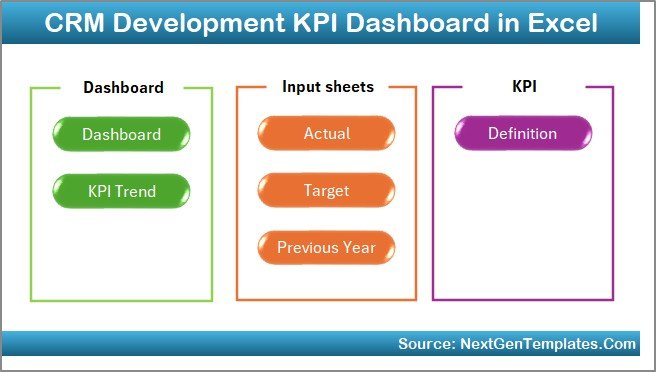
CRM Development KPI Dashboard in Excel
CRM Development KPI Dashboard in Excel is built for teams managing CRM development, CRM administration, target tracking, and performance reviews. It includes MTD and YTD comparisons, Actual vs Target tracking, previous-year comparison, KPI trend analysis, and KPI definition support.
View CRM Development KPI Dashboard in Excel
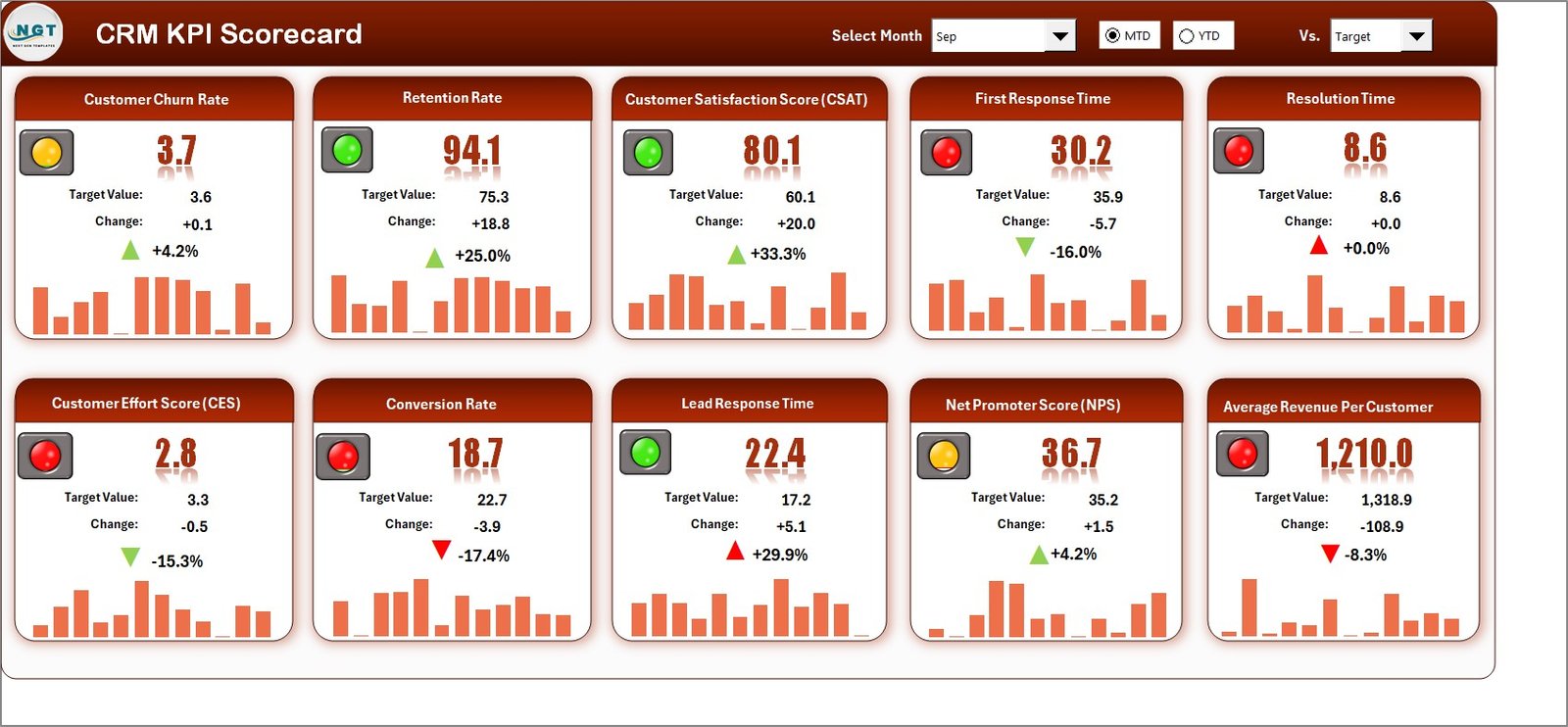
CRM KPI Scorecard in Excel
CRM KPI Scorecard in Excel is best when leadership wants a compact monthly performance view. Use it to track CRM KPIs by actual, target, variance, MTD/YTD view, trend chart, and KPI definition.
View CRM KPI Scorecard in Excel
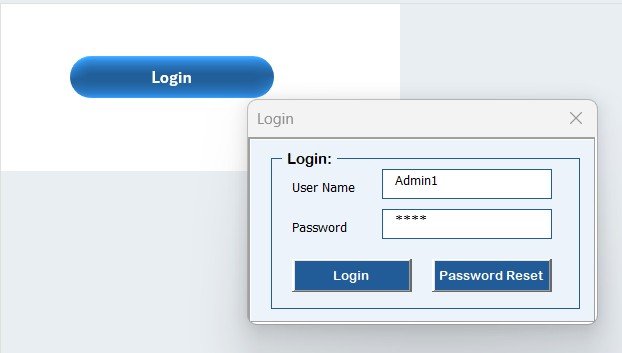
Sales Lead Submission Tracker in Excel
Sales Lead Submission Tracker in Excel is the strongest choice when your biggest issue is capturing and managing leads. It includes a secure login form, main form navigation, data entry automation, dashboards, slicers, manage-list sheets, support sheets, and user management.
View Sales Lead Submission Tracker in Excel
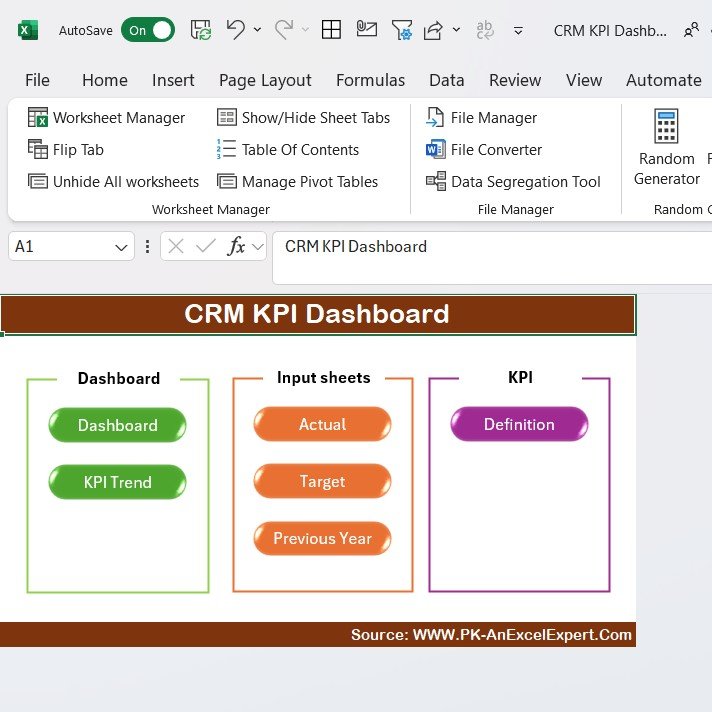
CRM KPI Dashboard in Excel
CRM KPI Dashboard in Excel gives sales and CRM managers a visual view of lead conversion, sales performance, customer retention, customer acquisition cost, and CRM performance tracking in a customizable Excel dashboard.
View CRM KPI Dashboard in Excel
Frequently Asked Questions
Can Excel work as a CRM?
Yes. Excel can work as a CRM for small teams when you use structured tables, controlled dropdowns, unique IDs, follow-up dates, and dashboard reporting. It is best for simple lead tracking, pipeline reviews, and customer lists.
What should an Excel CRM template include?
It should include lead tracking, opportunity pipeline, customer database, activity log, KPI dashboard, data validation lists, and clear follow-up ownership.
Is Excel better than Salesforce?
Excel is better for low-cost setup, simple customization, and early-stage process building. Salesforce is better for large teams, automation, advanced permissions, integrations, and enterprise reporting.
How do I track leads in Excel?
Create a lead table with source, owner, status, priority, next follow-up date, estimated value, and notes. Then use PivotTables or a dashboard to summarize lead count, overdue follow-ups, conversion rate, and pipeline value.
Which template should I buy first?
If you need lead capture and user forms, start with the Sales Lead Submission Tracker in Excel. If you already have lead data and need KPI reporting, choose the CRM KPI Dashboard or CRM KPI Scorecard.
Can multiple users manage an Excel CRM?
Yes, but you need rules. Use a shared location, define one master workbook, protect formulas, and schedule regular backups. For heavy simultaneous editing, consider a cloud CRM or Google Sheets workflow.
About the Author
Built by PK – Microsoft Certified Professional with 15+ years of Excel, Google Sheets, and Power BI experience. Founder of NextGenTemplates, reaching 300K+ subscribers across YouTube channels. Every template is hand-built and tested before release.
Conclusion
A CRM in Excel is not a compromise when your team needs clarity quickly. It can track leads, opportunities, customers, follow-ups, and CRM KPIs without forcing a full SaaS rollout on day one. Build your own workbook if you want complete control, or use the ready-made NextGenTemplates products above to start faster.
For tutorials and template walkthroughs, visit the NextGenTemplates YouTube channel.
Last updated: July 25, 2026
Comparing platforms? See our guide to HubSpot alternatives with CRM & marketing templates for eight Excel, Google Sheets and Power BI templates that replace HubSpot’s planning and reporting for a one-time $4.99-$17.99.
Related reading: Salesforce alternatives: 8 CRM templates in Excel & Sheets – compare the switch off Salesforce and what each template covers.
If you are pricing out subscription CRMs too, see the best Zoho CRM alternative templates in Excel and Sheets for a head-to-head against Zoho’s per-seat pricing.
If you carry a book of accounts rather than running the whole CRM, see the Account Executive template stack: 8 Excel, Google Sheets and Power BI tools grouped by plan, track, report and present, from $6.99.