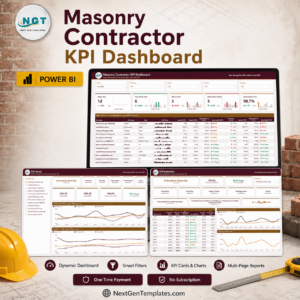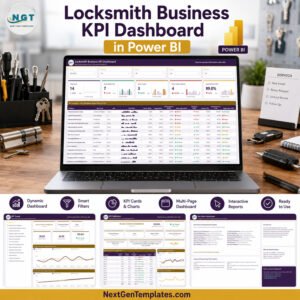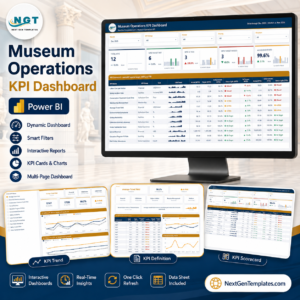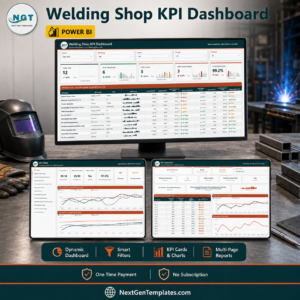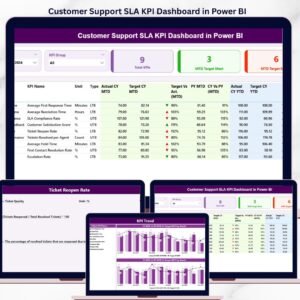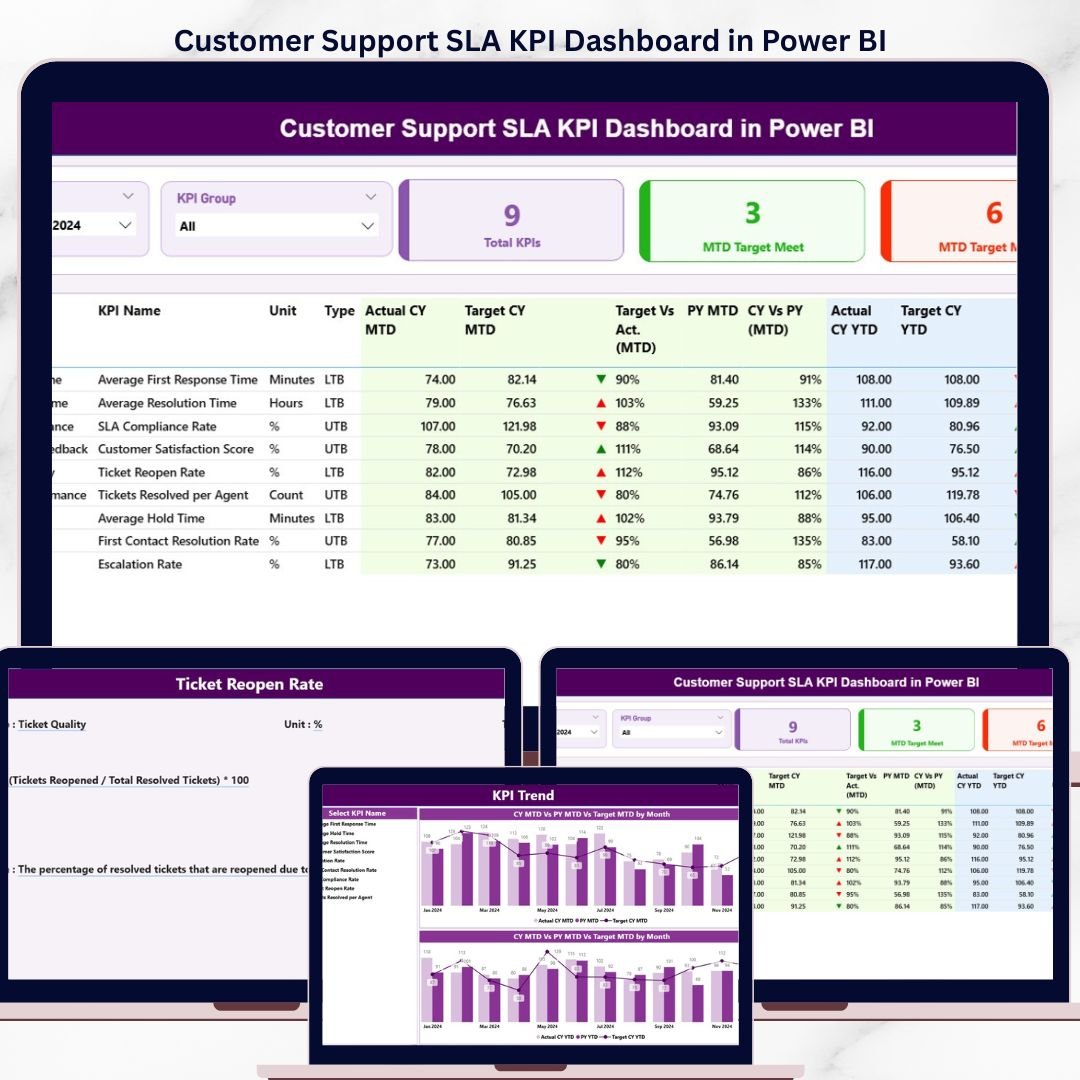
The Customer Support SLA KPI Dashboard in Power BI tracks customer support SLA performance across 3 interactive pages, with MTD and YTD comparisons against targets and prior-year benchmarks. Setup takes under 10 minutes — just fill 3 Excel tabs and every visual updates automatically.
🌍 Join 8,400+ teams in 40+ countries using NextGenTemplates to replace paid SaaS tools with one-time-purchase Excel, Google Sheets, Power BI, and HTML templates.
✅ Instant download · One-time payment of $11.99 · No subscription · No per-user fees · Lifetime access
🔑 Key Features of the Customer Support SLA KPI Dashboard
📊 3-page Power BI structure – A Summary page with a KPI table, a KPI Trend page with combo charts for MTD and YTD, and a hidden drill-through KPI Definition page accessible from any KPI row.
🎯 MTD and YTD comparison built in – Every SLA KPI shows Actual CY MTD vs Target CY MTD and Actual CY YTD vs Target CY YTD, plus side-by-side comparison with the same period of the previous year.
🟢🔴 Visual status indicators – Red ▼ and green ▲ icons in the MTD Icon and YTD Icon columns instantly flag SLA KPIs missing target. The dashboard automatically applies LTB (Lower the Better) or UTB (Upper the Better) logic per KPI type.
🎚️ Two interactive slicers – Filter the Summary page by Month or KPI Group with one click. The Trend page also includes a KPI-name slicer so support managers can isolate one metric at a time.
🃏 3 KPI summary cards – Total KPIs count, MTD Target Met count, and MTD Target Missed count sit at the top of the Summary page so support leaders see SLA posture in 5 seconds.
📥 Excel-driven data source – No DAX coding needed. Fill 3 worksheets — Input_Actual, Input_Target, and KPI Definition — and the .pbix file refreshes the entire dashboard.
🛟 Built for support teams – Track support-leader KPIs like First Response Time, Average Handle Time, SLA Compliance %, First Contact Resolution Rate, Resolution Time, CSAT score, ticket backlog, and escalation rate.
📦 What’s Inside the Customer Support SLA KPI Dashboard
This template ships as a Power BI .pbix file plus an Excel data source. Below is the page-by-page breakdown of what you get.
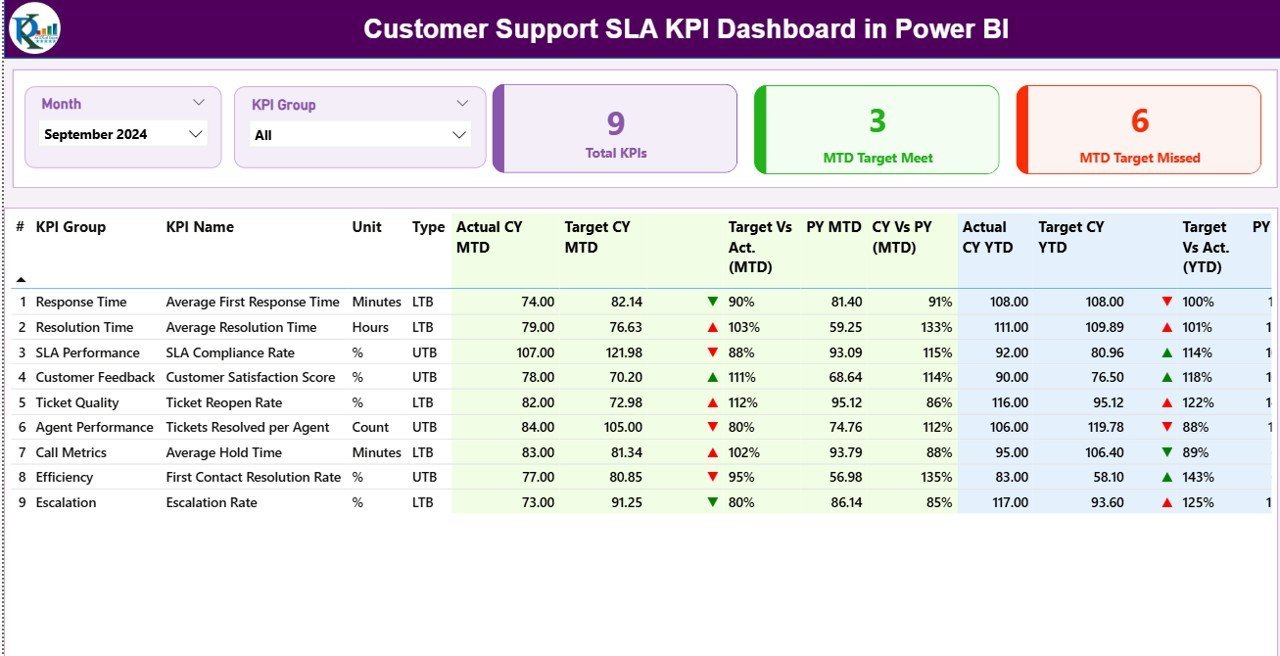
📍 1) Summary Page – the main page of the dashboard. It shows the Month and KPI Group slicer at the top, three cards displaying Total KPIs count, MTD Target Met count, and MTD Target Missed count, and a detailed table with the following columns: KPI Number (sequence number), KPI Group (category), KPI Name, Unit (unit of measurement), Type (LTB or UTB), Actual CY MTD, Target CY MTD, MTD Icon (▼/▲ in red/green), Target Vs Act. (MTD) — calculated as Actual MTD / Target MTD, PY MTD (same period previous year), CY Vs PY (MTD) — calculated as Current Year MTD / Previous Year MTD, Actual CY YTD, Target CY YTD, YTD Icon (▼/▲ in red/green), Target Vs Act. (YTD) — calculated as Actual YTD / Target YTD, PY YTD, and CY Vs PY (YTD) — calculated as Current Year YTD / Previous Year YTD.
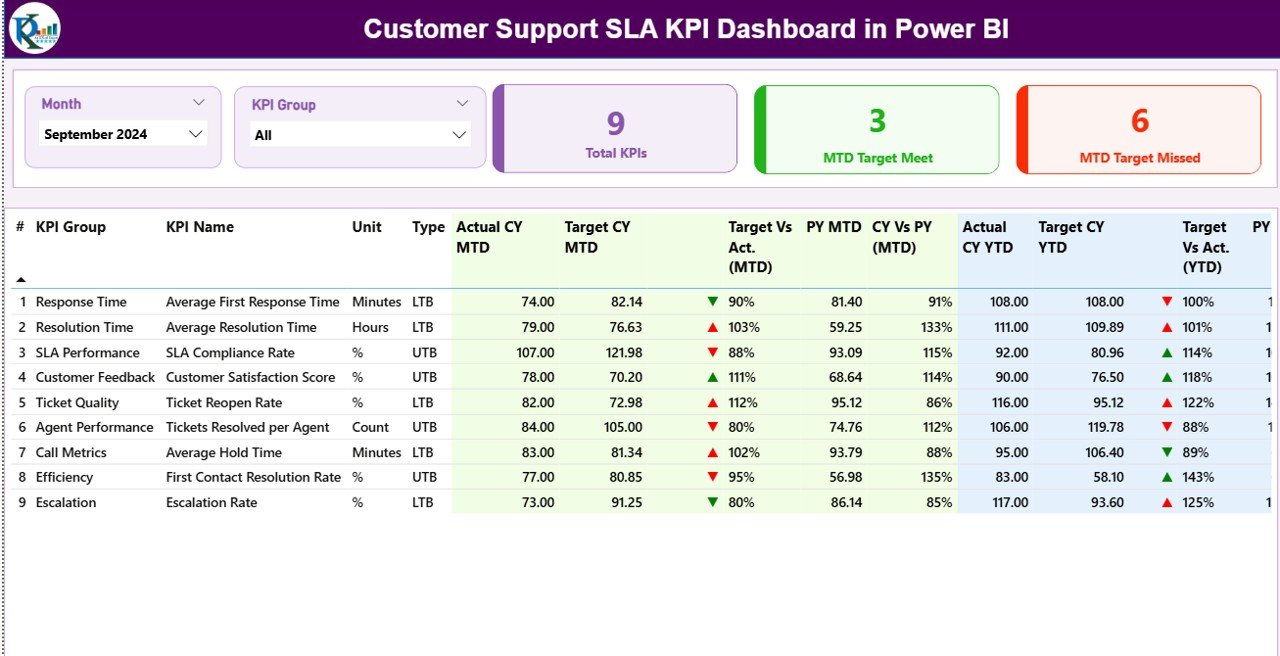
Customer Support SLA KPI Dashboard in Power BI
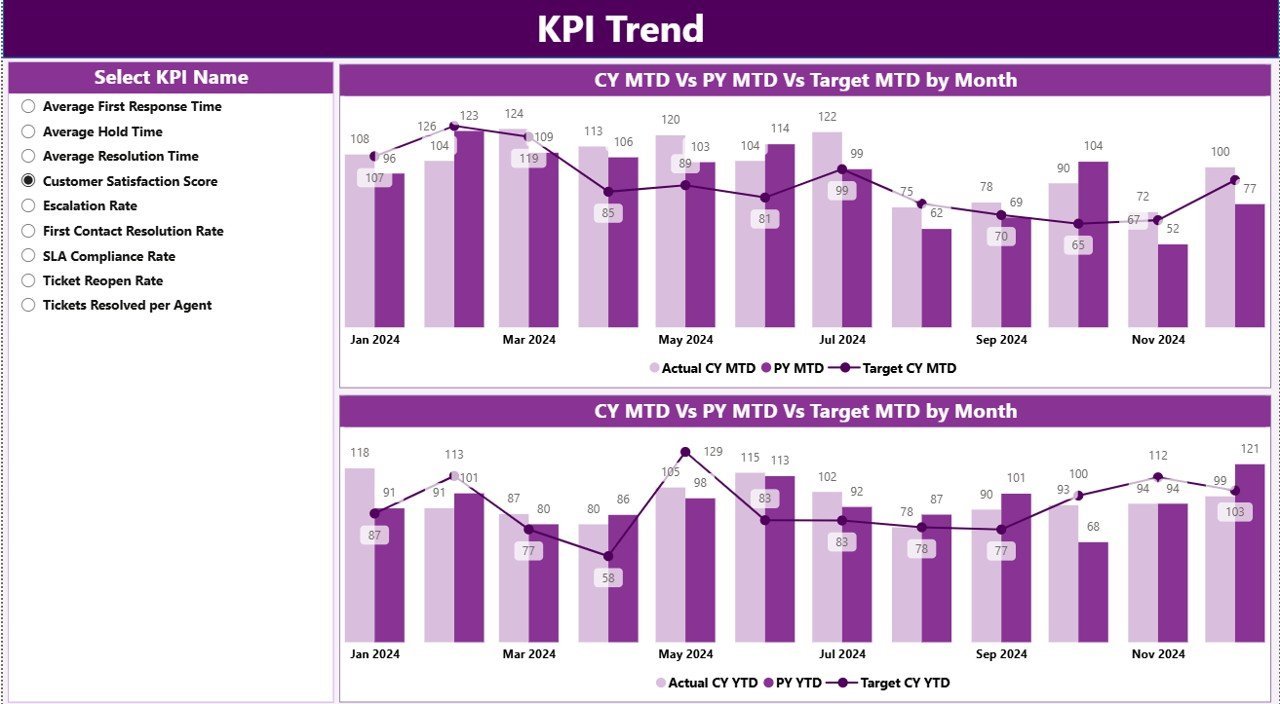
📍 2) KPI Trend Page – this page contains 2 combo charts that show the Actual numbers for the Current Year, Previous Year, and Target numbers for both MTD and YTD. A slicer on the left lets you select any specific KPI name to view its trend in isolation.
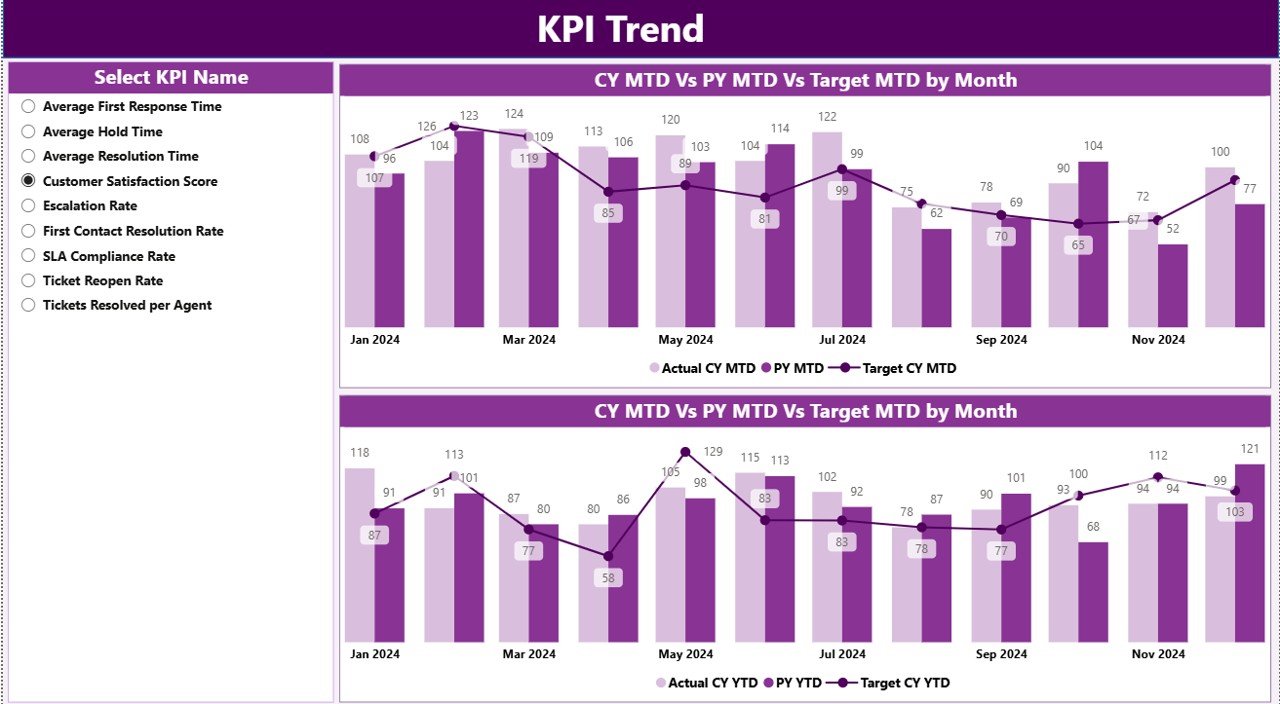
KPI Trend Page
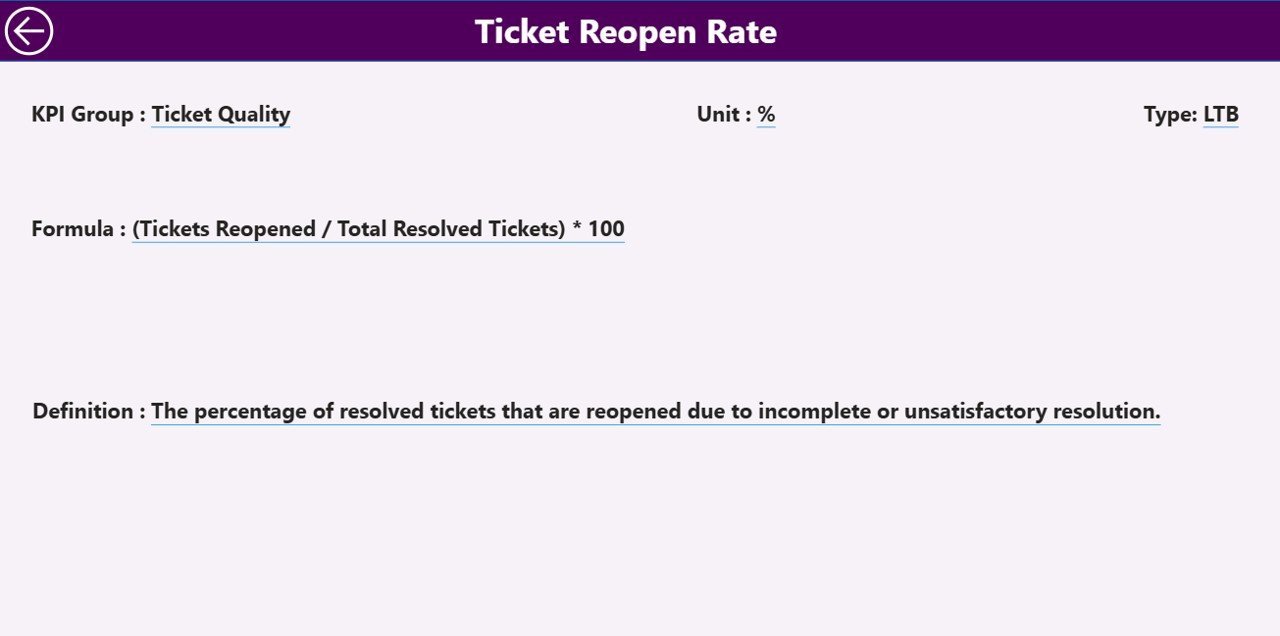
📍 3) KPI Definition Page – this is a drill-through page that has been kept hidden. From the Summary page, right-click any KPI row to drill through and view that KPI’s formula and definition. To return to the main page, click the back button at the top-left corner.
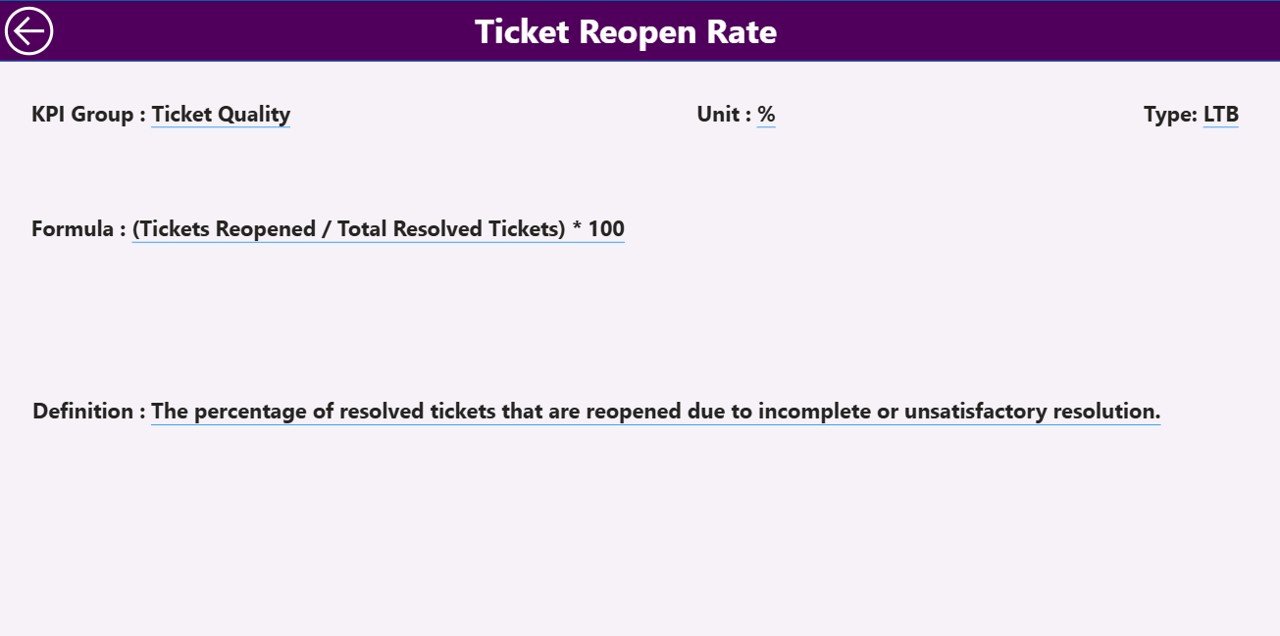
KPI Definition Page
📊 Excel Data Source – the dashboard pulls from an Excel file with 3 worksheets. Input_Actual: fill in the Actual number per KPI Name, Month (use the first date of the month), MTD number, and YTD numbers. Input_Target: fill in the Target number per KPI Name, Month (first date of month), MTD number, and YTD numbers. KPI Definition: fill in KPI Number, KPI Group, KPI Name, Unit, Formula, Definition, and Type (LTB or UTB).
📊 Customer Support SLA Dashboard vs. Tableau Alternative vs. Paid Help-Desk SaaS — Where This Fits
| Feature | This Power BI Dashboard | Tableau / Qlik Equivalent | Paid Help-Desk SaaS (Zendesk Explore, Freshdesk, ServiceNow) |
|---|---|---|---|
| Cost | $11.99 one-time | $70–$150 / user / month | $25–$215 / agent / month |
| Platform | Power BI Desktop (free from Microsoft) | Tableau / Qlik Sense | Vendor-hosted SaaS portal |
| Setup time | Under 10 minutes — fill 3 Excel tabs | 2–4 hours data modeling | 2–8 weeks implementation |
| MTD & YTD vs PY comparison | ✅ Built in | Custom calculations needed | Limited (vendor-defined) |
| Drill-through to KPI definitions | ✅ Hidden page included | Build manually | Rare |
| Custom KPIs (LTB / UTB) | ✅ Just edit the Excel tab | Edit data source + formulas | Restricted to vendor catalog |
| Year-1 cost at 5 agents | $11.99 | $4,200–$9,000 | $1,500–$12,900 |
| Lifetime access | ✅ One-time payment | ❌ Recurring | ❌ Recurring |
For support teams that want SLA-grade KPI tracking without paying $1,500+ per year for help-desk analytics add-ons, the Customer Support SLA KPI Dashboard in Power BI sits in the sweet spot.
👥 Who This Template Is For — and Who It’s Not For
✅ This template is built for:
- Customer support managers at 10–500 person companies who report monthly SLA performance to leadership
- Help-desk team leads tracking First Response Time, Resolution Time, and CSAT against monthly targets
- BPO and contact center supervisors managing multiple SLA tiers who need a defensible monthly scorecard
- IT service managers running ITIL-style support operations who report incident SLA compliance to the business
- Customer experience analysts who already export ticket data from Zendesk, Freshdesk, or ServiceNow and need a clean reporting layer
❌ This template is NOT for:
- Teams that need real-time SLA breach alerting with live integration to a help-desk system — those need Zendesk Explore or ServiceNow Performance Analytics
- Support orgs without anyone who can edit an Excel file (this is template-driven, not zero-touch)
- Agents looking for live ticket queue management — this is a monthly KPI reporting tool, not a ticketing system
⚙️ How to Use the Customer Support SLA KPI Dashboard
- Download the .zip file and extract the .pbix and Excel data source.
- Open the Excel file. Fill the KPI Definition tab with your KPI Number, Group, Name, Unit, Formula, Definition, and Type (LTB or UTB).
- Fill the Input_Target tab with monthly target MTD and YTD numbers per KPI (use the first date of the month).
- Fill the Input_Actual tab with monthly actual MTD and YTD numbers per KPI as the year progresses.
- Open the .pbix file in Power BI Desktop (free download from Microsoft) and click Refresh. All 3 pages update.
- Use the Month and KPI Group slicers on the Summary page to filter. Right-click any KPI row to drill through to its definition.
- Publish to the Power BI Service if you want to share with stakeholders, or export to PDF for monthly support review packs.
💼 Real-World Use Cases
Megan runs customer support at a 220-person SaaS company. Every month she reports 12 SLA KPIs to the COO. She uses the Customer Support SLA KPI Dashboard in Power BI to track First Response Time, Resolution Time, SLA Compliance %, First Contact Resolution Rate, and CSAT against targets, then exports the Summary page to PDF for the leadership pack — replacing a $9,600/year Zendesk Explore Professional subscription her team rarely fully used.
Rohan is a contact center supervisor managing a 35-agent help desk for a mid-market BFSI client. He duplicates the .pbix file at the start of each quarter, swaps the Excel data, and delivers branded monthly SLA scorecards to the client within 30 minutes. The drill-through KPI Definition page means new account managers don’t have to ask what each metric measures.
Priya leads CX analytics at a 90-person ecommerce company. She tracks MTD vs Target on 14 support KPIs, and the CY-vs-PY columns let her show the leadership team a clear trend line of improving response and resolution times year over year — exactly the evidence the board wants when reviewing whether to invest more in headcount or automation.
❓ Frequently Asked Questions
What KPIs does the Customer Support SLA KPI Dashboard track?
The Customer Support SLA KPI Dashboard in Power BI tracks any SLA KPIs you define in the Excel KPI Definition tab — typical examples include First Response Time, Average Handle Time, Resolution Time, SLA Compliance %, First Contact Resolution Rate, CSAT, NPS, ticket backlog, and escalation rate.
How does this compare to Zendesk Explore or Freshdesk Analytics?
Zendesk Explore and Freshdesk Analytics cost $25–$215 per agent per month with live ticket data and breach alerting. The Customer Support SLA KPI Dashboard in Power BI is a one-time $11.99 purchase for monthly board-style SLA reporting — ideal for teams that already have a help-desk tool and just need a clean reporting layer.
How long does setup take?
Setup of the Customer Support SLA KPI Dashboard takes under 10 minutes if you already have your KPI list and target values ready. You fill 3 Excel tabs (Input_Actual, Input_Target, KPI Definition), open the .pbix in Power BI Desktop, and click Refresh.
Do I need Power BI Pro or just Power BI Desktop?
Power BI Desktop (free from Microsoft) is enough to open and edit the Customer Support SLA KPI Dashboard. Power BI Pro is only needed if you want to publish to the Power BI Service and share live dashboards with colleagues — for PDF exports, free Desktop is sufficient.
Can I add or remove SLA KPIs?
Yes. Add a new row in the KPI Definition tab of the Excel data source, then add corresponding monthly rows in Input_Actual and Input_Target. The Customer Support SLA KPI Dashboard in Power BI will pick up the new KPI automatically on the next refresh — no DAX edits required.
What is LTB vs UTB?
LTB (Lower the Better) applies to KPIs where a lower value is good — for example, First Response Time or ticket backlog. UTB (Upper the Better) applies to KPIs where a higher value is good — for example, SLA Compliance % or First Contact Resolution Rate. The dashboard automatically flips the red/green icon logic per KPI type.
Can I rebrand the dashboard with my company colors and logo?
Yes. Open the .pbix file in Power BI Desktop and edit the theme colors, header images, and titles. The Customer Support SLA KPI Dashboard structure stays intact — only visuals are updated.
👤 About the Author
Built by PK — Microsoft Certified Professional with 15+ years of Excel, Google Sheets, and Power BI experience. Founder of NextGenTemplates, reaching 300K+ subscribers across YouTube channels (@PK-AnExcelExpert, @NextGenTemplates, @NeoTechNavigators). Every template is hand-built and tested before release.
🔗 Explore Related Templates
Strengthen your customer support reporting stack with these companion templates from our Power BI KPI Dashboard collection:
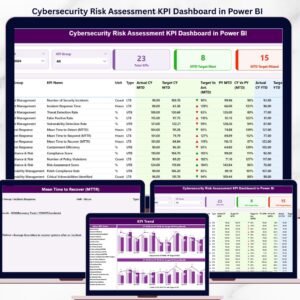
- 🛡️ Cybersecurity Risk Assessment KPI Dashboard in Power BI — security KPI scorecard built on the same 3-page architecture.
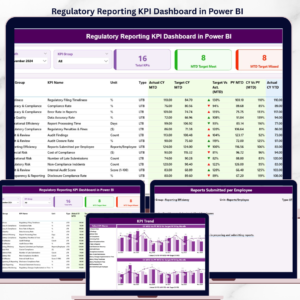
- 📋 Regulatory Reporting KPI Dashboard in Power BI — compliance scorecard for finance and risk teams.
- 🎫 IT Support Ticket Dashboard in HTML — lightweight HTML version for IT helpdesk volume tracking.
- 📞 Customer Service Dashboard in HTML — broader customer service operations view.
Browse the full Power BI Templates library for more dashboards.
📖 Click here to read the Detailed Blog Post
🎥 Visit our YouTube channel for step-by-step video tutorials
👉 YouTube.com/@NextGenTemplates
📅 Last updated: April 2026