

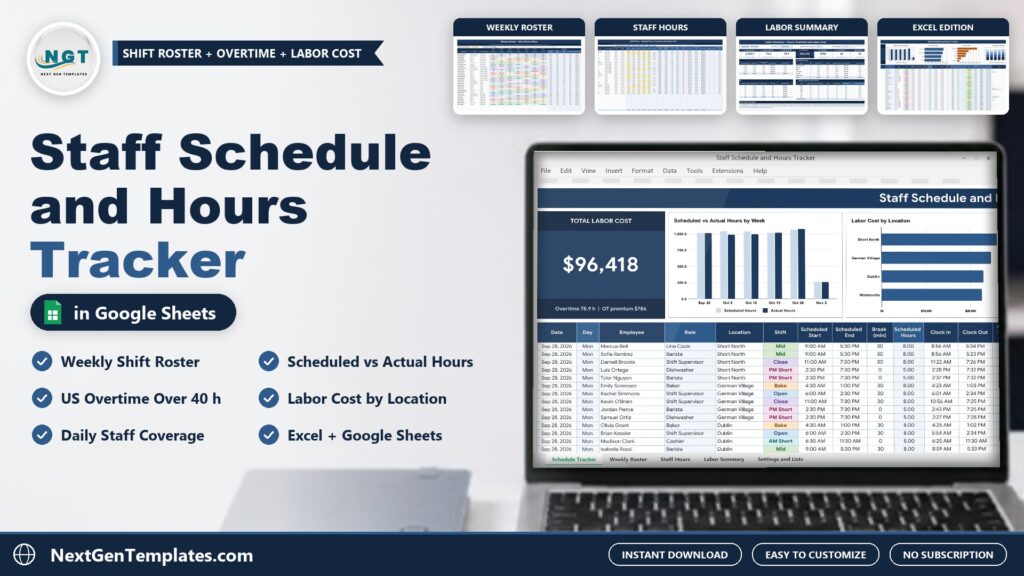
Building the weekly schedule is one job and paying for the hours people really worked is another. The Staff Schedule and Hours Tracker in Excel and Google Sheets puts both in one file, with the weekly roster, overtime and labor cost worked out for you.
Watch the Staff Schedule and Hours Tracker in Excel and Google Sheets walkthrough
 Launch offer
SUMIFS, XLOOKUP, FILTER, LAMBDA and checking AI-written formulas, with real business projects. 11h 47m of video by PK, with practice files, quizzes and a capstone.
What Is a Staff Schedule and Hours Tracker?
It is a workbook built around one shift log. You plan each shift with the employee, location, shift and scheduled times, then add the clock in, clock out and actual break when it is worked. The tracker calculates scheduled and actual hours, how many minutes late each person arrived, a status for every shift and the base pay. A Weekly Roster shows who works when, and a Labor Summary rolls everything up into labor cost by location, role and week. Think of it as a staff schedule template and an employee hours tracker in one file.
Inside the Template
Schedule Tracker
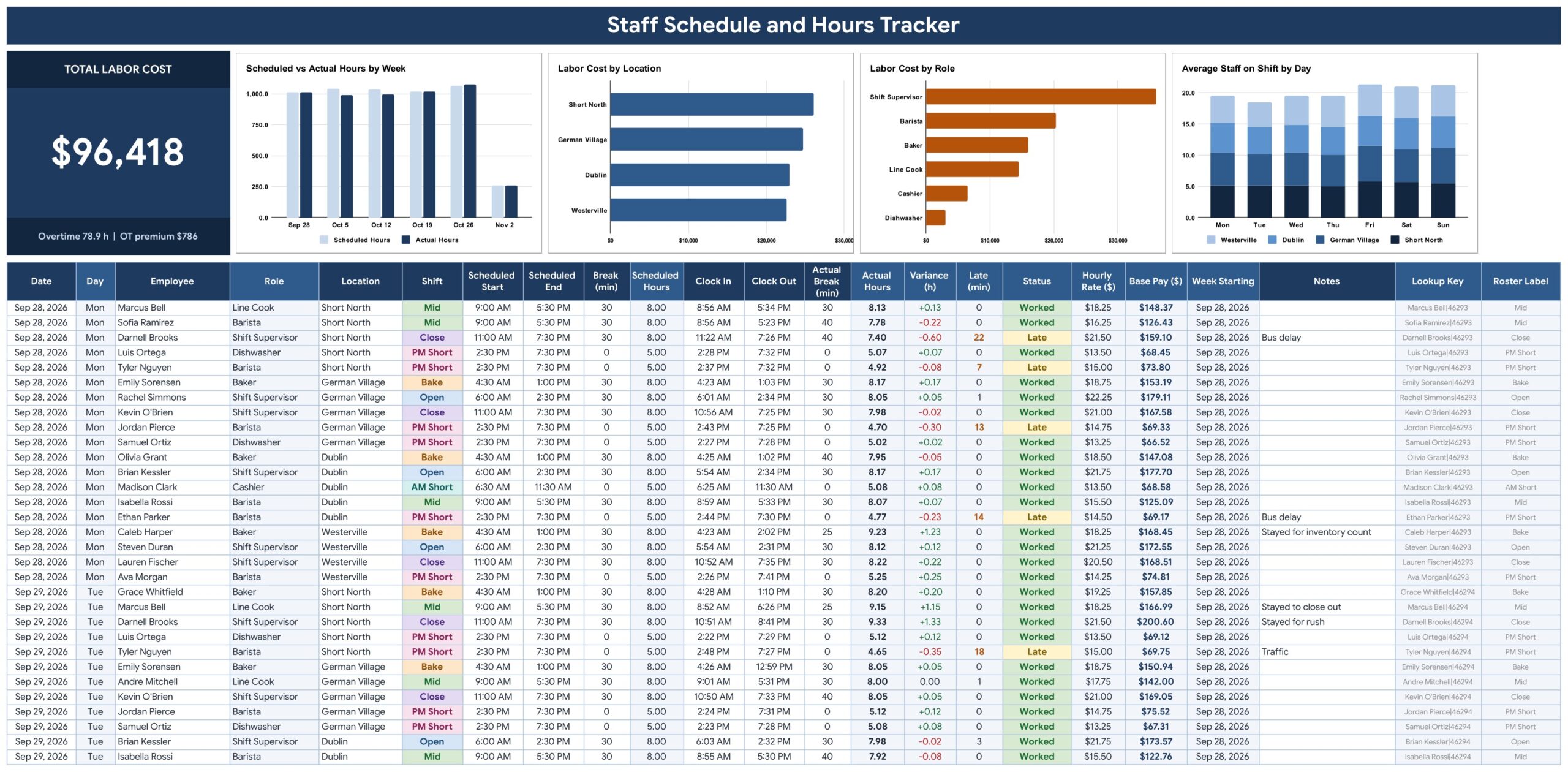
A Total Labor Cost card with the overtime hours and overtime premium sits above four charts: Scheduled vs Actual Hours by Week, Labor Cost by Location, Labor Cost by Role and Average Staff on Shift by Day. Below is the shift log. Every shift is one row with the date, employee, location, shift, scheduled start, end and unpaid break. When the shift is worked you type the clock in, clock out and actual break. The shaded columns calculate Scheduled Hours, Actual Hours, Variance, Minutes Late, Status (Worked, Late, Absent or Scheduled), Hourly Rate and Base Pay.
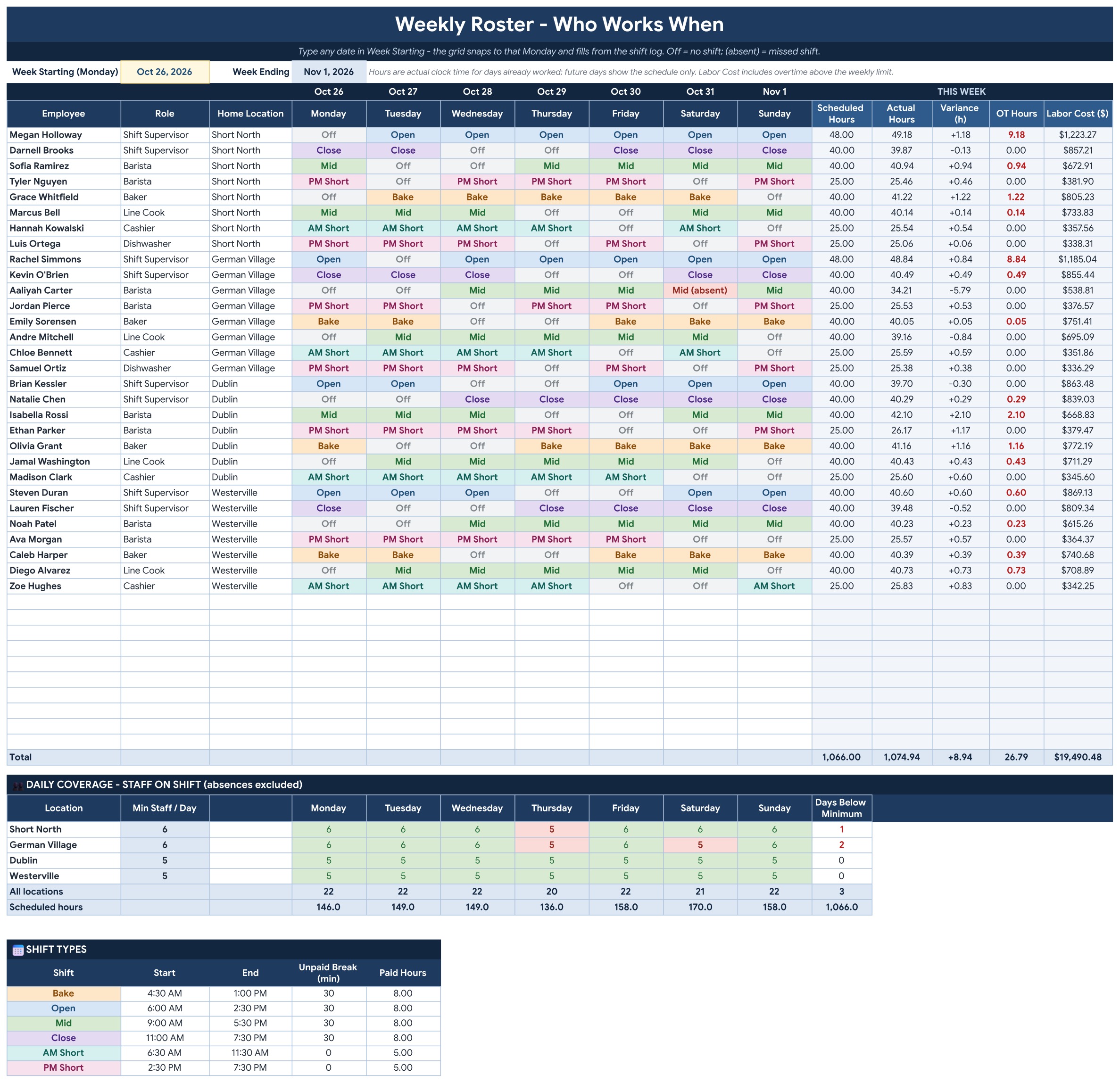
Weekly Roster
Type any date in Week Starting and the grid shows who works when, Monday to Sunday, with color-coded shifts. Off marks a day off and absent marks a missed shift. On the right are the scheduled hours, actual hours, variance, overtime hours and labor cost for that week. A daily coverage block counts the staff on shift per location per day and turns a cell red when you are below the minimum.
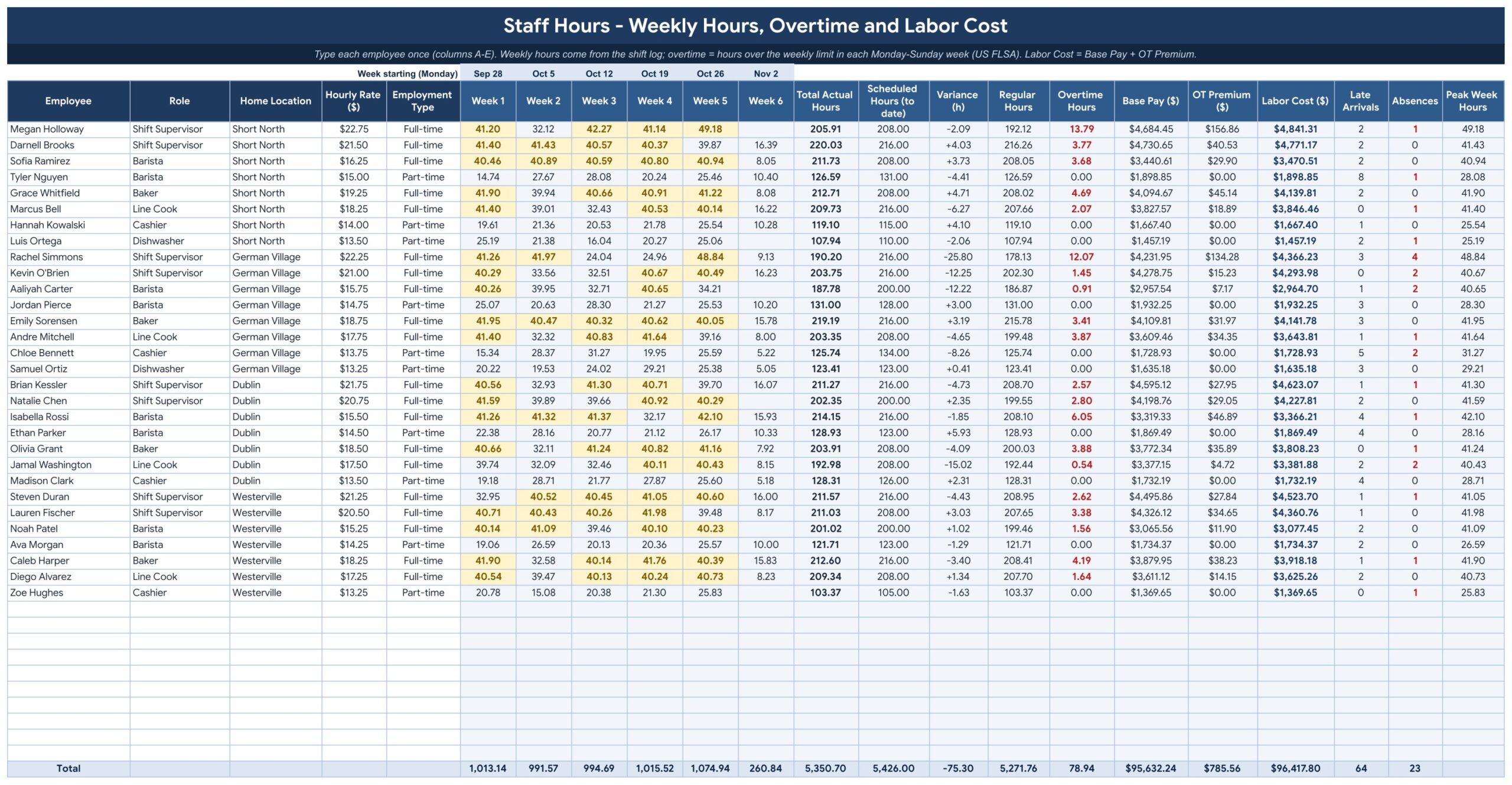
Staff Hours
List each employee once with the role, home location, hourly rate and full-time or part-time. The tracker adds up the actual hours for each of the six weeks, then shows regular hours, overtime hours, base pay, overtime premium and labor cost, plus late arrivals, absences and the peak week for every person.
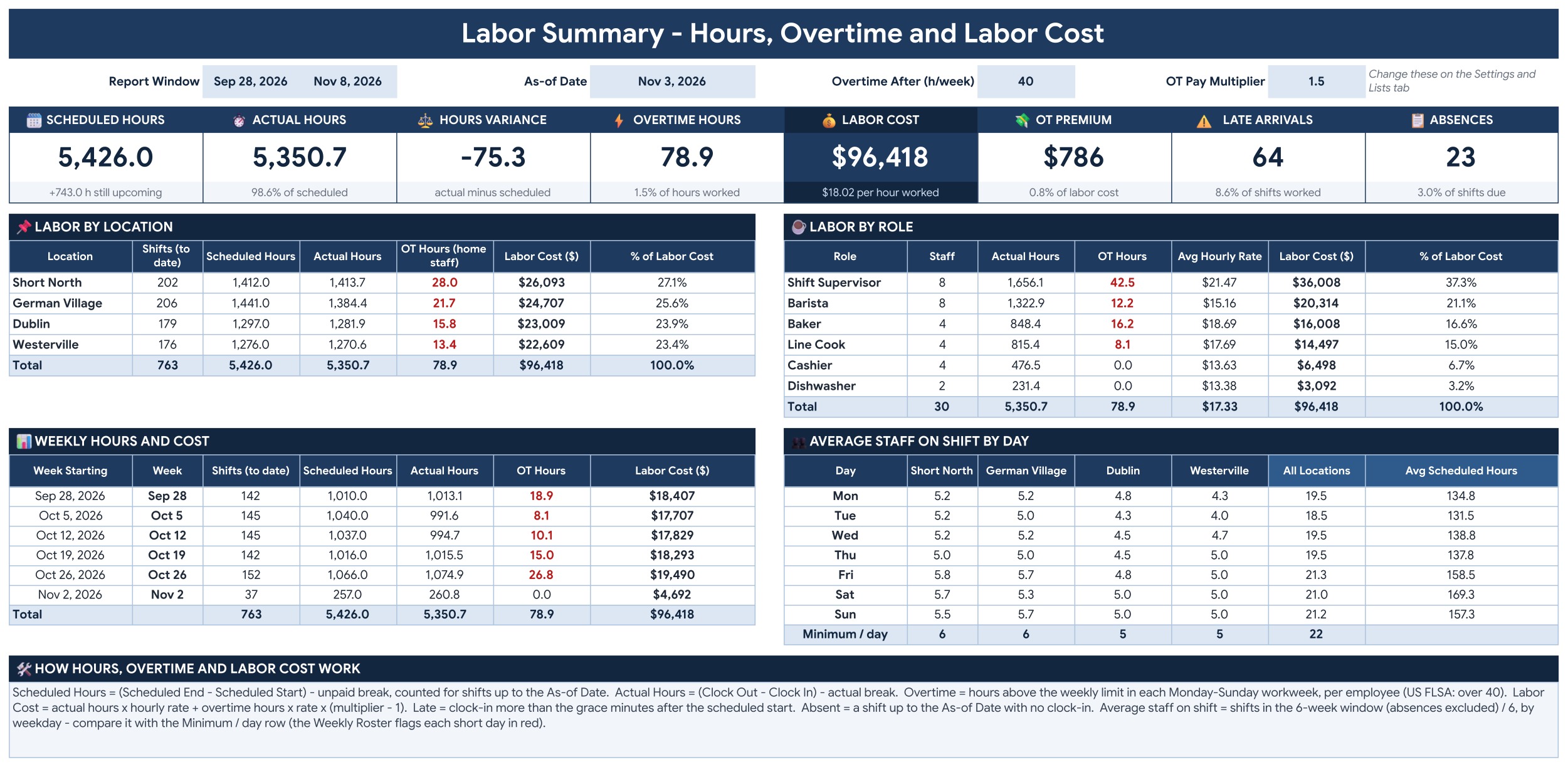
Labor Summary
Eight KPI tiles show Scheduled Hours, Actual Hours, Hours Variance, Overtime Hours, Labor Cost, Overtime Premium, Late Arrivals and Absences. Below them are labor by location, labor by role, weekly hours and cost, and the average staff on shift by day for each location.
Settings and Lists
Set the first week, the as-of date, the overtime limit and multiplier and the late grace minutes. Rename the six roles and four locations, set the minimum staff per day for each location, and adjust the shift types with their start, end and unpaid break.

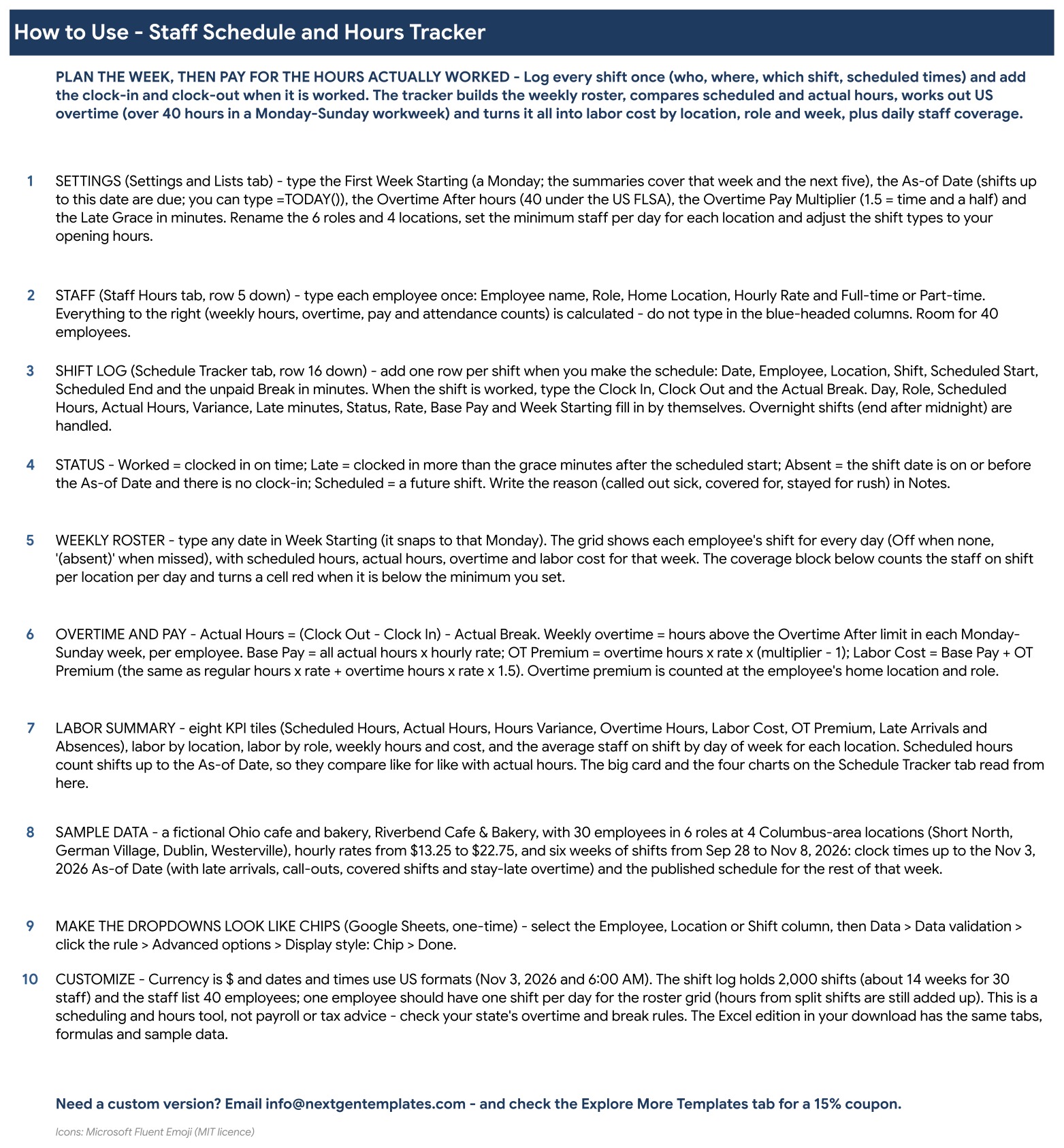
Instructions
A step by step guide to setting up the file, logging shifts, reading the roster and understanding the overtime and labor cost math.
How the Overtime and Labor Cost Math Works
Actual Hours is the clock out minus the clock in, minus the actual break. Overtime follows the US federal rule: the hours above the overtime limit in each Monday to Sunday workweek, per employee, 40 hours by default. Base Pay is all actual hours times the hourly rate. The Overtime Premium is the overtime hours times the rate times the multiplier minus one, so 0.5 at time and a half. Labor Cost is Base Pay plus the Overtime Premium, which is the same as regular hours at the rate plus overtime hours at one and a half times the rate. A shift counts as Late when the clock in is more than the grace minutes after the scheduled start, and as Absent when the shift date has passed and there is no clock in. In the sample, the grace is 5 minutes.
Setting It Up for Your Team
Start on the Settings and Lists tab with the first week, which should be a Monday, and the as-of date. Rename the roles and locations, set the minimum staff you need on each day for every location, and adjust the shift types to your opening hours. Then list your employees once on the Staff Hours tab and add shifts to the log as you plan each week. When the week is done, type the clock in and clock out times from your time clock or paper sheet. The overtime tracker and labor cost tracker update by themselves, so you can see a problem such as too much overtime at one location before it reaches payroll.
Pros and Limits
- One shift log drives the roster, hours, overtime and labor cost, in a file you already know how to use
- Google Sheets and Excel editions with the same formulas
- No subscription, macros or add-ons
- It does not connect to a time clock or payroll system, and you type the clock times yourself
- Overtime follows the US federal weekly rule, so check your state’s overtime and break rules
- The roster grid shows one shift per employee per day
How It Compares With the Other Ways to Track Staff Hours
Most small teams start with a paper roster or a blank spreadsheet and only look for something better once an overtime week goes wrong. The table below sets the usual options side by side, so you can see where this tracker fits and where a bigger system makes more sense.
| Option | Roster and hours in one place | Overtime and labor cost worked out | Setup effort | Best for |
|---|---|---|---|---|
| Staff Schedule and Hours Tracker | Yes, one shift log | Yes, built in | Low, add your staff and shifts | Teams that want a simple file in Excel or Google Sheets |
| Blank spreadsheet | Only if you build it | Only if you write the formulas | High | People who enjoy building their own |
| Paper roster | Roster only | No, done by hand later | Low, but slow every week | Very small teams with fixed shifts |
| Shift Scheduling Management System V1.0 | Yes, with forms and users | Depends on the setup | Medium | Larger teams that need a full scheduling system |
Related Templates Worth a Look
Hours and labor cost rarely live alone. Once the schedule is under control, these templates cover the neighbouring jobs:
- Work Order Management System Web App for assigning and tracking jobs your crew works on.
- Small Business Bookkeeping Template to record what the labor actually costs the business.
- Zero-Based Budget Template to plan payroll against the money you expect to earn.
- Inventory and Reorder Point Tracker if the same team also handles stock.
If you want many templates instead of one, the All-Access Templates Pass unlocks the full library for twelve months. You can also start from the Staff Schedule and Hours Tracker and add the others as your needs grow.
Frequently Asked Questions
How does the tracker work out overtime?
It follows the US federal rule. For each employee it adds the actual hours worked in every Monday to Sunday workweek. Hours above the limit on the Settings and Lists tab, 40 by default, count as overtime and are paid at the multiplier you set, 1.5 by default.
What is the difference between scheduled and actual hours?
Scheduled hours come from the planned start, end and unpaid break of each shift. Actual hours come from the clock in, clock out and actual break you type when the shift is worked. The tracker shows the variance between the two for every shift and every week.
How do I plan a week and see who works when?
Type any date in Week Starting on the Weekly Roster tab. It snaps to that Monday and shows every employee’s shift for each day, with Off for days off and absent for a missed shift. A coverage block turns red when a location has fewer staff than the minimum you set.
Do I get both Google Sheets and Excel?
Yes. One download holds the Excel workbook (.xlsx, no macros) and a PDF guide with the link to the Google Sheets edition. Both have the same tabs, formulas and sample data.
Can I change the roles, locations and shift types?
Yes. The Settings and Lists tab holds six roles, four locations and six shift types that you rename to match your business, including the start and end time and unpaid break of each shift. The dropdowns follow.
How many employees and shifts does it hold?
The staff list holds 40 employees and the shift log holds 2,000 shifts, about 14 weeks for a team of 30. The weekly roster grid shows one shift per employee per day.
Is this a payroll or tax tool?
No. It is a scheduling and hours tool with a labor cost estimate. Check your state’s overtime and break rules, which can differ from the federal rule, and run your actual payroll in your payroll system.
Does it need macros or add-ons?
No. It is formulas, dropdowns and charts only, in both editions.
Get the Staff Schedule and Hours Tracker
Get the template here: Staff Schedule and Hours Tracker in Excel and Google Sheets. If you need a full scheduling system with forms and users, see the Shift Scheduling Management System V1.0.