

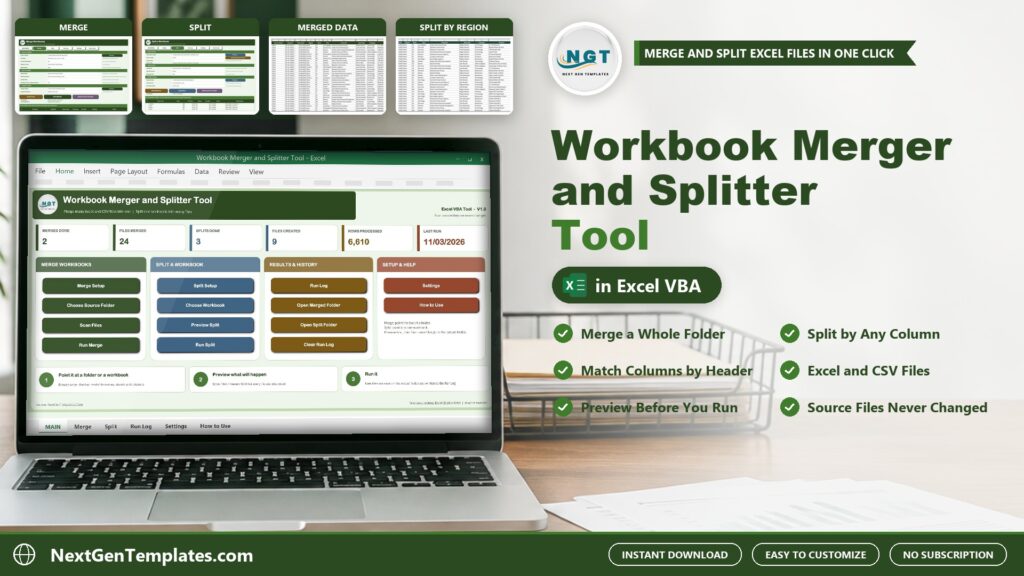
Merging a dozen monthly files by hand takes an afternoon, and splitting one big file by region takes another. The Workbook Merger and Splitter Tool V1.0 in Excel VBA does both from one Excel file, and it never changes your source files.
Watch the Workbook Merger and Splitter Tool in Excel VBA: Merge and Split walkthrough
 Launch offer
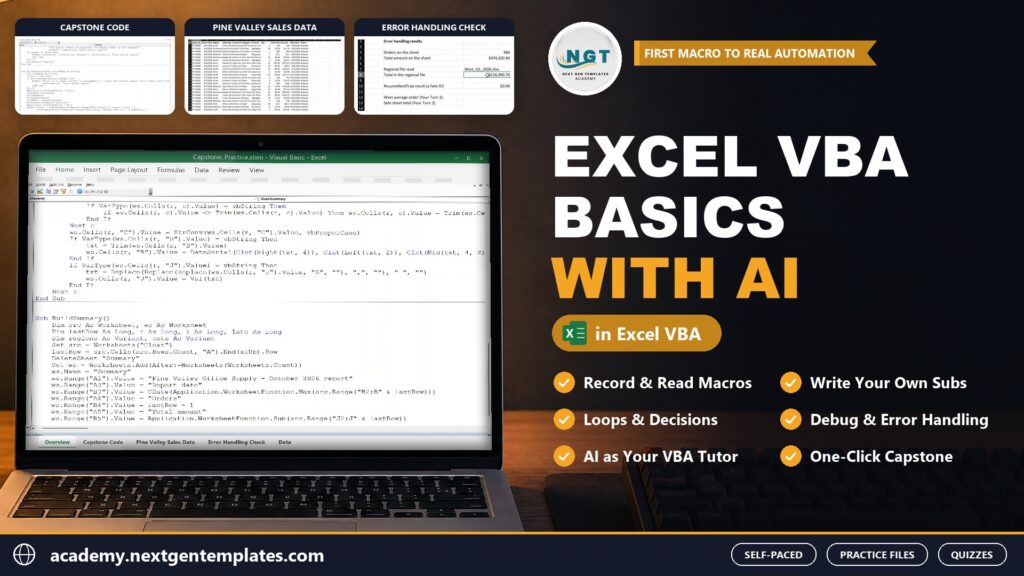
Record, read and write your own Excel macros and UserForms, and use AI assistants as your VBA tutor without trusting them blindly. 6h 12m of video by PK, with practice files and a capstone.
What Is a Workbook Merger and Splitter Tool?
It is a macro-enabled Excel workbook with two jobs. The merger reads every Excel and CSV file in a folder and builds one workbook, either one stacked table matched by header name or one tab per source sheet. The splitter takes one workbook and writes many files, one per value in a column, one per sheet, or a fixed number of rows per file. Every action is recorded in a Run Log.
Inside the Tool
MAIN menu
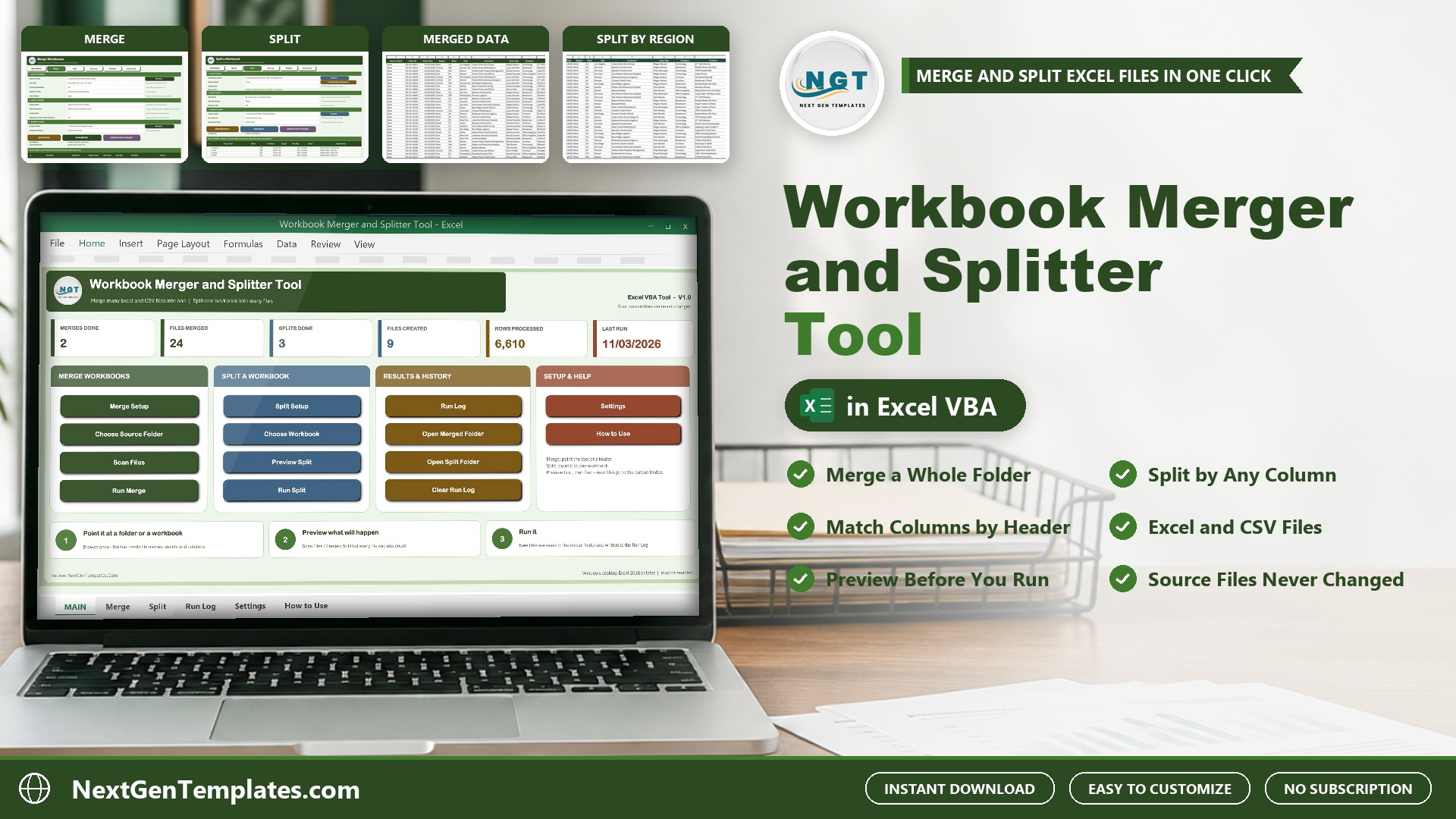
Four button groups (Merge Workbooks, Split a Workbook, Results and History, Setup and Help) and six cards: merges done, files merged, splits done, files created, rows processed and last run.

Merge Workbooks
Pick a source folder, the file type, whether to include sub-folders, which sheet to take and how to merge. Stack all rows into one sheet and match columns by header name, or copy every sheet as its own tab. Optional Source File and Source Sheet columns tell you where each row came from. Scan Files lists every file with its row count before Run Merge, and a Merge Summary tab records the rows of every file.

Split a Workbook
Choose a workbook and a sheet, then split by column value into one file per value, one sheet per value, each sheet to its own file, or a fixed number of rows per file. Preview Split shows every file it will create, with rows, share and size. New files keep column widths and number formats, with a header band, filter and frozen header row.

Run Log
Every merge and split is written to the Run Log with the date, mode, files in and out, rows and seconds, and totals appear on the MAIN menu.

Settings
Keep both, overwrite or skip existing files, add a date stamp to file names, open the merged file when done, and skip hidden sheets and blank rows.

How to Use
Three steps to merge and three steps to split, on the page inside the workbook.

The results


How a Merge and a Split Work
For a merge you choose the folder, press Scan Files to see each file and its row count, then press Run Merge. In the sample, 12 monthly sales files with 1,322 orders become one table, with a Merge Summary tab that lists the rows of every file. For a split you choose the workbook, the sheet and the split column, press Preview Split to see every file and its rows, then press Run Split. The sample orders file splits into one file for each region. Files that are password protected are skipped, never guessed.
Good Habits for Clean Merges
Keep each report in its own folder and use the same header names in every file, then let the tool match columns by header name so a file with an extra column still lines up. Turn on the Source File column when you want to trace a row back to its file. Run Scan Files first and compare the total rows with what you expect, because a missing or skipped file is much easier to spot before the merge than after. For splits, set a file name prefix such as the report name and a date stamp, so the files you send out are easy to recognise. Keep the output folder separate from your source folder, which also keeps your originals untouched.
Pros and Limits
- One click for jobs that normally take an afternoon of copy and paste
- Preview before anything is written, and source files are never changed
- No subscription, and your data stays on your PC
- Needs Excel for Windows 2016 or later with macros enabled
- Does not work on Mac or in Excel for the web
Frequently Asked Questions
What does the Workbook Merger and Splitter Tool do?
It merges many Excel and CSV files from a folder, sub-folders included, into one workbook, and it splits one workbook into many files by a column value, by sheet or by a fixed number of rows. It runs from one macro-enabled Excel file.
Does it change my source files?
No. Source files are opened read-only with their macros switched off and are never changed. New files are written to the output folder you choose.
What if my files have columns in a different order?
Choose Stack all rows into one sheet and Match columns by header name. A file with another column order or an extra column still lines up under the right headings.
Can I preview before anything is written?
Yes. Scan Files lists every file and its row count before a merge, and Preview Split lists every file that a split would create, with its row count.
Which Excel do I need?
Microsoft Excel for Windows 2016 or later with macros enabled. It does not work on Mac or in Excel for the web.
Can I try it first?
Yes. A 7-day free trial is available from the product page. It is a separate file that stops working after 7 days.
What happens to password-protected files?
They are skipped and marked as password protected in the file list. The tool never tries to guess a password.
Is sample data included?
Yes. Practice files hold 12 monthly US sales files with 1,322 orders, one all-regions orders file and a quarterly summary, plus an illustrated PDF user manual.
Get the Workbook Merger and Splitter Tool
Get the tool here: Workbook Merger and Splitter Tool V1.0 in Excel VBA. You can try it free for 7 days first. For another macro-enabled tool, see the Customer Payment Reminder Tool in Excel VBA.