
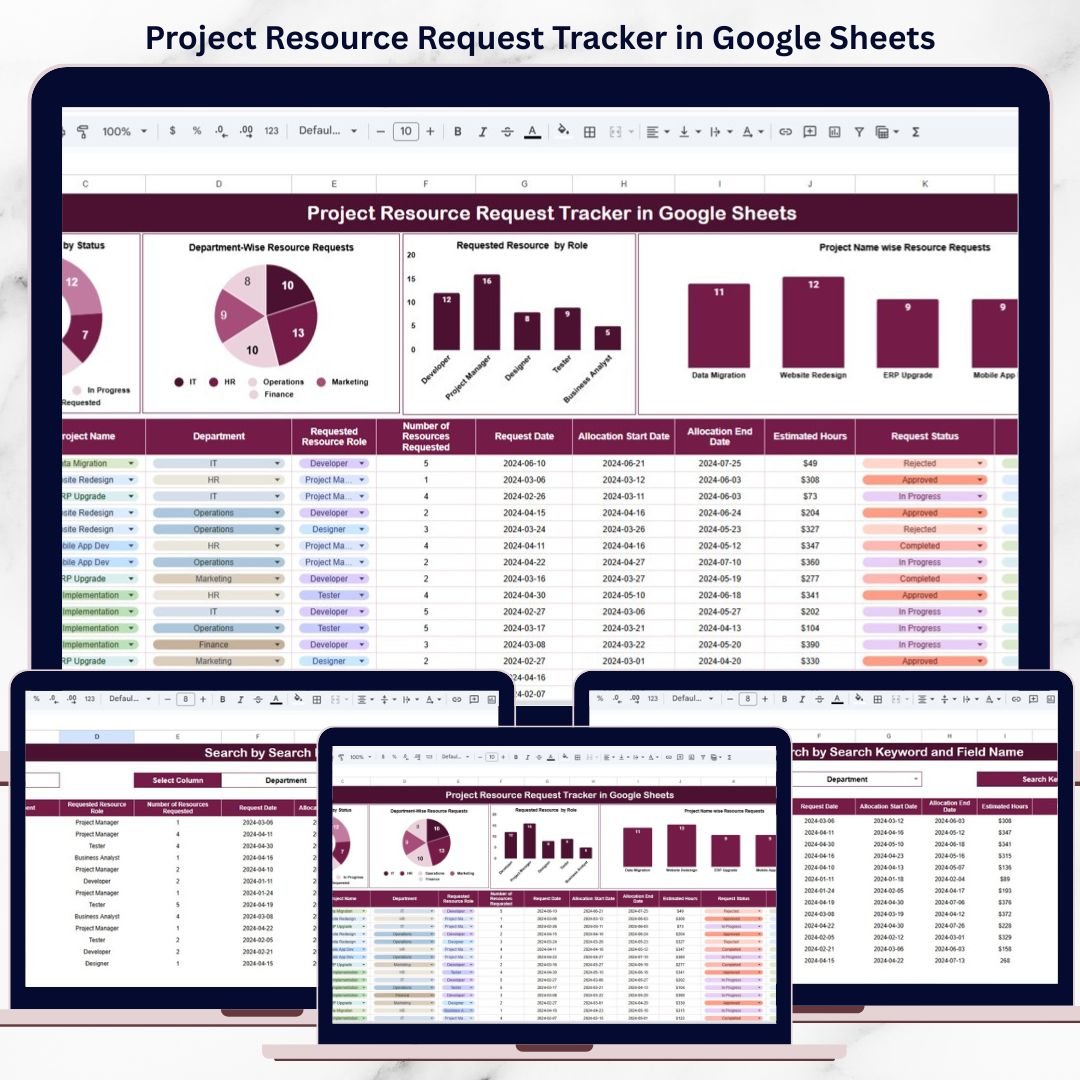
Managing project resources efficiently is one of the biggest challenges for fast-growing organizations. Teams continuously request developers, designers, testers, analysts, and specialists for multiple projects running in parallel. However, when these requests are handled through emails or unstructured spreadsheets, delays, miscommunication, and poor allocation become unavoidable.
That is where the Project Resource Request Tracker in Google Sheets becomes a powerful operational solution.
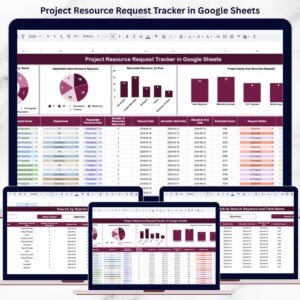
This ready-to-use tracker centralizes all project resource requests into one structured, visual, and searchable Google Sheets system. Instead of chasing emails or reconciling multiple files, project managers, PMOs, HR teams, and leadership gain complete visibility into resource demand, approval status, and allocation trends—all in real time.
Because it is built in Google Sheets, the tracker is cloud-based, collaborative, easy to customize, and does not require any technical or software setup.
📊 Key Features of the Project Resource Request Tracker
🚀 Centralized Resource Request Management
All project resource requests live in one structured tracker.
👥 Role-Wise Demand Visibility
Analyze demand for developers, designers, testers, analysts, and more.
🏢 Department & Project Insights
Understand which teams and projects require the most resources.
📈 Real-Time Dashboards & Charts
Instant visibility into approval status and workload trends.
🔍 Smart Search & Filtering
Find any request in seconds using keyword-based search.
📦 What’s Inside the Project Resource Request Tracker
🗂️ Tracker Sheet Tab – Core Data Hub
This is the main working sheet where all resource requests are logged in a structured table.
Key Columns Included:
-
Request ID
-
Project Name
-
Department
-
Requested Resource Role
-
Number of Resources Requested
-
Request Date
-
Allocation Start Date
-
Allocation End Date
-
Estimated Hours
-
Request Status
-
Priority
-
Requested By
This standardized structure ensures accurate tracking, reporting, and analysis across projects and departments.
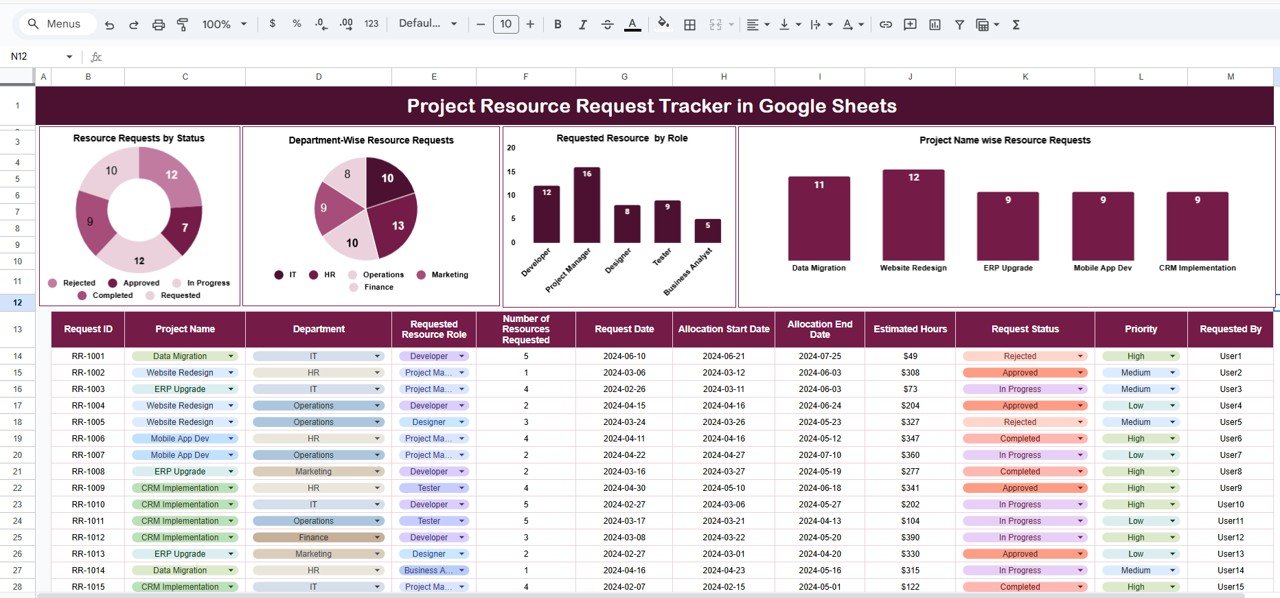
📊 Dashboard & Visual Charts
The tracker includes built-in charts that convert raw request data into actionable insights.
📌 Resource Requests by Status
Visualizes requests as:
-
Requested
-
Approved
-
In Progress
-
Completed
-
Rejected
This helps managers instantly understand the approval pipeline and pending workload.
🏢 Department-Wise Resource Requests
Shows how many resource requests originate from each department, such as:
-
IT
-
HR
-
Operations
-
Finance
-
Marketing
This insight supports capacity planning and fair resource distribution.
👨💻 Requested Resource by Role
Displays demand by role, including:
-
Developer
-
Designer
-
Tester
-
Business Analyst
-
Project Manager
This chart helps HR and PMO teams forecast hiring, training, or outsourcing needs.
📁 Project Name-Wise Resource Requests
Highlights which projects consume the most resources, such as:
-
ERP Upgrade
-
Website Redesign
-
Data Migration
-
Mobile App Development
This supports workload justification and prioritization.
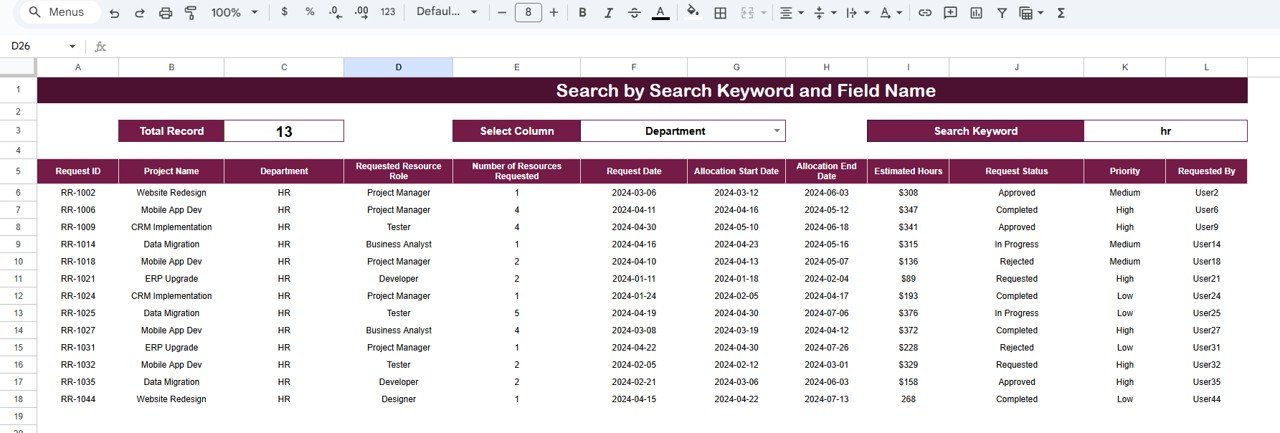
🔍 Search by Search Keyword and Field Name
One of the most powerful features of this tracker is its built-in Search functionality.
🔎 How It Works
-
Select a Field Name (Project Name, Department, Status, Role, Priority)
-
Enter a search keyword
-
Instantly view matching records
This feature saves time during audits, management reviews, and follow-ups.
👥 Who Can Benefit from This Tracker
-
Project Managers
-
PMO & Delivery Teams
-
HR & Workforce Planning Teams
-
IT & Engineering Departments
-
Consulting & Professional Services Firms
-
Corporate Operations Teams
Whether you manage small internal projects or large enterprise portfolios, this tracker scales effortlessly.
⚙️ How to Use the Project Resource Request Tracker
-
Log every resource request in the Tracker Sheet
-
Update approval and allocation status regularly
-
Review dashboards weekly or monthly
-
Use role-wise and department-wise insights for planning
-
Search and filter requests during reviews
No advanced Google Sheets knowledge required.
### Click here to read the Detailed blog post
Watch the step-by-step video tutorial:













Reviews
There are no reviews yet.