



Libraries and archives are evolving rapidly. Physical collections, digital resources, user engagement, and operational efficiency must all be tracked with precision. However, managing performance through scattered spreadsheets and manual reports slows decision-making. That is exactly why the Libraries & Archives KPI Dashboard in Power BI is a must-have solution for modern institutions.
This ready-to-use dashboard converts raw Excel data into powerful, interactive Power BI visuals. As a result, library directors, archivists, administrators, and decision-makers gain instant clarity on performance, trends, and gaps. Instead of guessing, you act with confidence—backed by data.
🚀 Key Features of Libraries & Archives KPI Dashboard in Power BI
📌 Interactive Summary Page – Instantly track overall performance using Month and KPI Group slicers with automated KPI cards.
📌 MTD & YTD Performance Tracking – Monitor both short-term and long-term performance in one unified view.
📌 Target vs Actual Analysis – Easily identify whether KPIs are meeting or missing targets with visual indicators.
📌 UTB & LTB KPI Logic – Supports Upper-the-Better and Lower-the-Better KPIs for accurate evaluation.
📌 Dynamic KPI Trend Analysis – Analyze historical trends using interactive combo charts.
📌 Excel-Based Data Input – Simple and familiar Excel structure for easy data updates.
📌 Auto-Refreshing Power BI Visuals – Update Excel and see results instantly in Power BI.
📌 Professional & Clean Design – Built for clarity, usability, and executive-level reporting.

📂 What’s Inside the Libraries & Archives KPI Dashboard in Power BI
This digital product includes a Power BI Desktop (.pbix) file connected to a structured Excel data source.
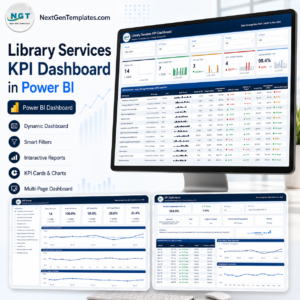
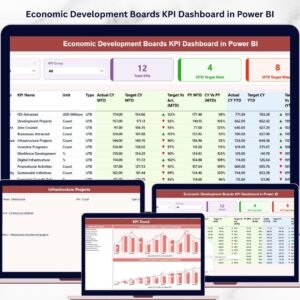
🔹 Summary Page
The main control center displaying:
Month slicer
KPI Group slicer
KPI cards for Total KPIs, MTD Target Met, and MTD Target Missed
Detailed KPI table with:
Actual CY MTD & YTD
Target CY MTD & YTD
Previous Year comparisons
Conditional formatting icons
Target vs Actual and CY vs PY ratios
🔹 KPI Trend Page
MTD trend chart
YTD trend chart
Actual vs Target vs Previous Year comparisons
KPI Name slicer for focused analysis
🔹 KPI Definition Page
Drill-through page
KPI Formula
KPI Definition
Measurement logic
Clear explanation for stakeholders
🔹 Excel Data Source
Includes three structured sheets:
Input_Actual – Enter MTD & YTD actuals
Input_Target – Enter MTD & YTD targets
KPI Definition – KPI master data with units, formulas, and type
🧭 How to Use the Libraries & Archives KPI Dashboard in Power BI
1️⃣ Enter KPI data in the Excel input sheets
2️⃣ Open the Power BI dashboard file
3️⃣ Refresh data with one click
4️⃣ Use slicers to filter by Month and KPI Group
5️⃣ Analyze MTD and YTD performance instantly
6️⃣ Drill into KPI definitions for deeper understanding
7️⃣ Share insights with stakeholders and leadership
No advanced Power BI skills are required. If you know Excel, you can use this dashboard confidently.
🎯 Who Can Benefit from This Libraries & Archives KPI Dashboard in Power BI
📚 Academic Libraries – Track student usage, research support, and digital access
🏛️ Public Libraries – Monitor visitor footfall, programs, and service efficiency
📜 National & Government Archives – Analyze preservation backlog and digitization progress
🏢 Corporate Archives – Measure retrieval time, compliance, and operational efficiency
🎓 Educational Institutions – Improve accountability and performance reporting
📊 Library Administrators & Analysts – Save time and improve reporting accuracy
If performance tracking matters to your institution, this dashboard delivers immediate value.
Click here to read the Detailed blog post
Watch the step-by-step video tutorial:



Reviews
There are no reviews yet.