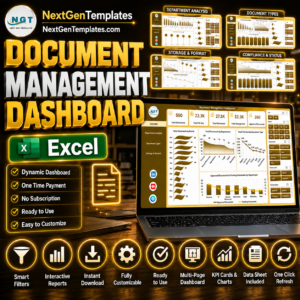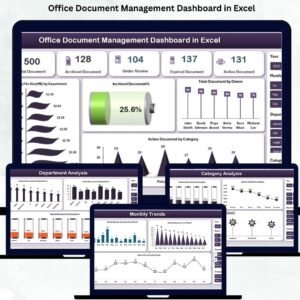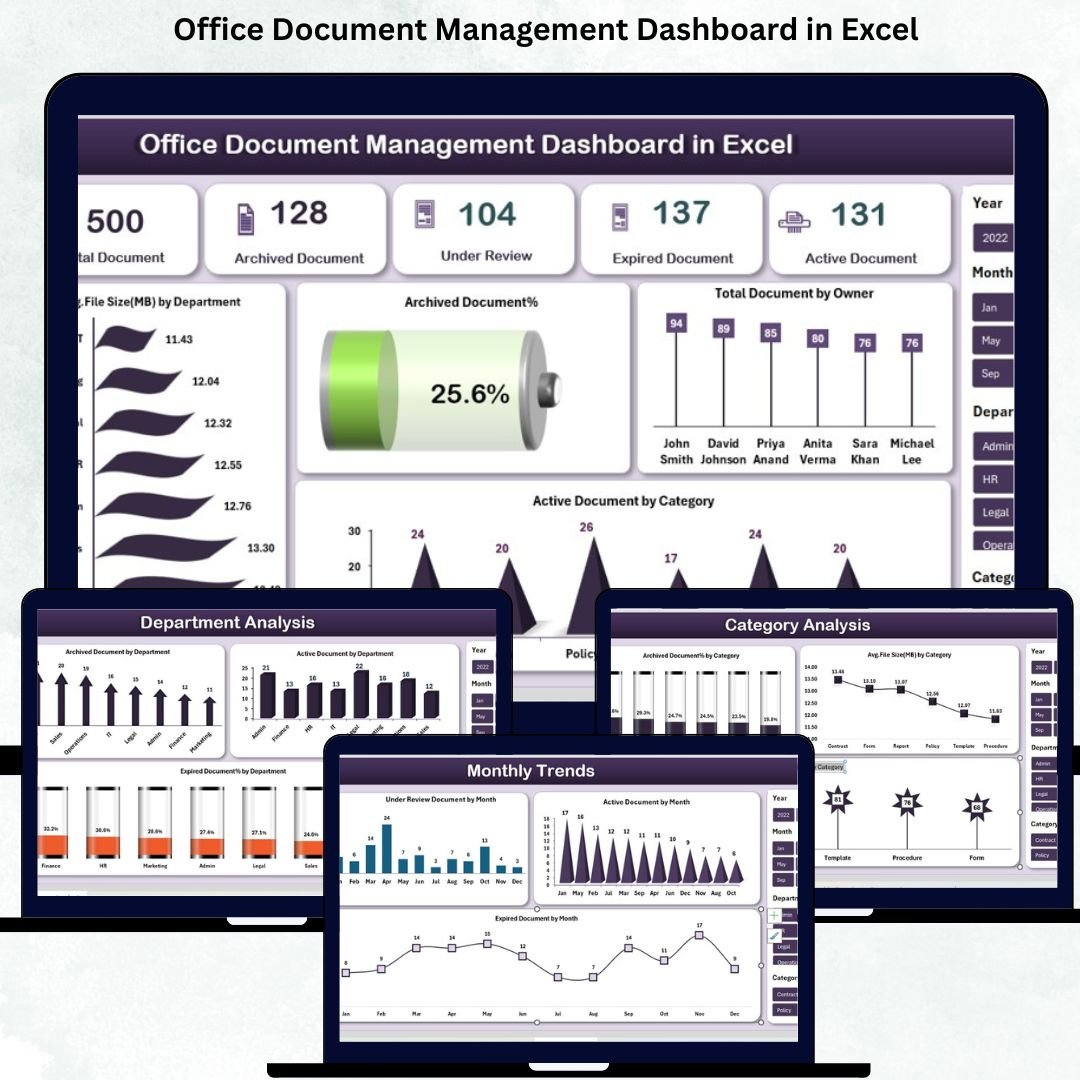
Managing office documents becomes overwhelming as organizations expand. Files get scattered, versions get mixed up, and teams lose track of what’s active, expired, or archived. That’s exactly why the Office Document Management Dashboard in Excel is the perfect solution for businesses that want clarity, control, and complete document visibility — without learning any new software.
This professionally designed Excel dashboard helps you organize all your files in one place, track their status instantly, and make smarter decisions using powerful pivot-based analytics. If you want to eliminate manual tracking, reduce confusion, and manage your documents effortlessly, this dashboard is your all-in-one command center.Office Document Management Dashboard in Excel
✨ Key Features of Office Document Management Dashboard in Excel
This dashboard is packed with smart, time-saving features that make document management simple and reliable:
📊 Real-Time Status Tracking: Instantly analyze Active, Archived, Expired, and Under-Review files.
🏷️ Multi-Level Categorization: Classify documents by Department, Owner, Category, Status, and Month.
🎯 Pivot-Based Charts & Cards: Enjoy professional insights with auto-updated KPIs.
🗂️ Centralized Master Database: Manage all files from a single, well-structured table.
🧭 Easy Navigation Panel: Jump across pages with one click — no scrolling, no confusion.
🔍 Deep-Dive Analytics Pages: Analyze documents through Overview, Department, Category, Owner, and Monthly Trends pages.
💾 Zero Additional Software: Works 100% inside Excel — perfect for non-technical users.
📈 Storage Optimization Insights: Track Avg. File Size per Category & Department for better storage planning.
These features collectively transform how your team organizes, tracks, and manages documents every day.Office Document Management Dashboard in Excel
📦 What’s Inside the Office Document Management Dashboard in Excel
This dashboard comes with five powerful pages, each offering unique insights:Office Document Management Dashboard in Excel
🏠 1. Overview Page
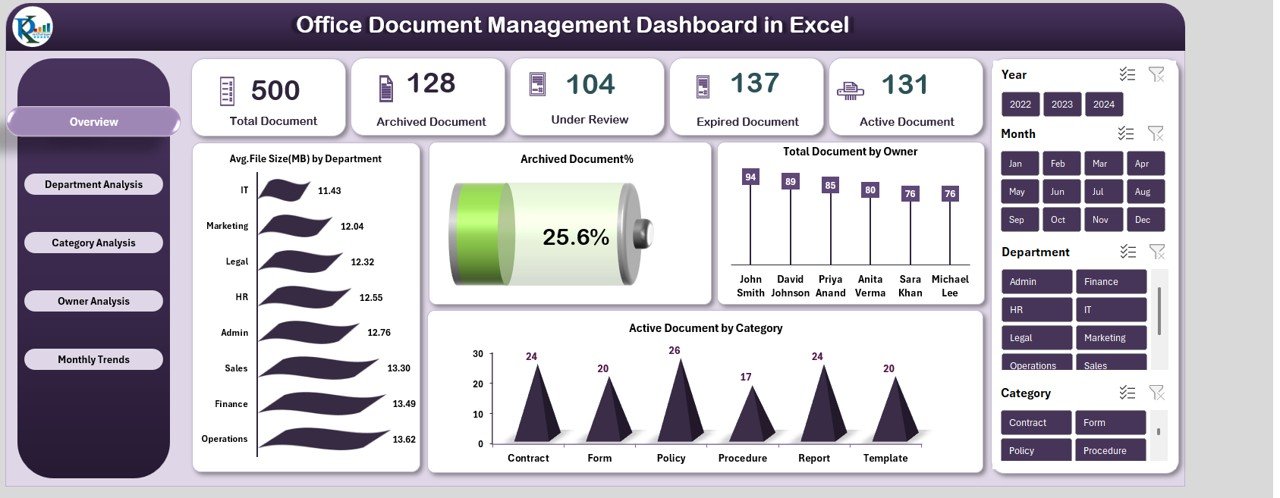
Your command center — view Total Documents, Active Files, Archived Files, Expired Files, and File-Size Insights. Includes slicers, summary cards, and trend highlights.
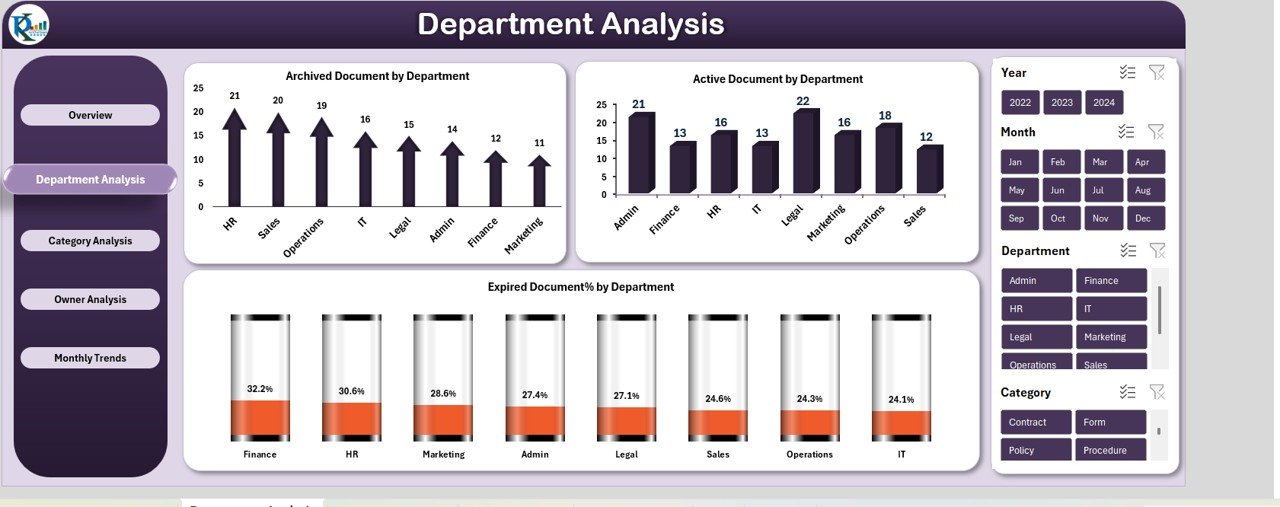
🏢 2. Department Analysis Page
Analyze how each department handles files. Compare active, archived, and expired documents effortlessly.
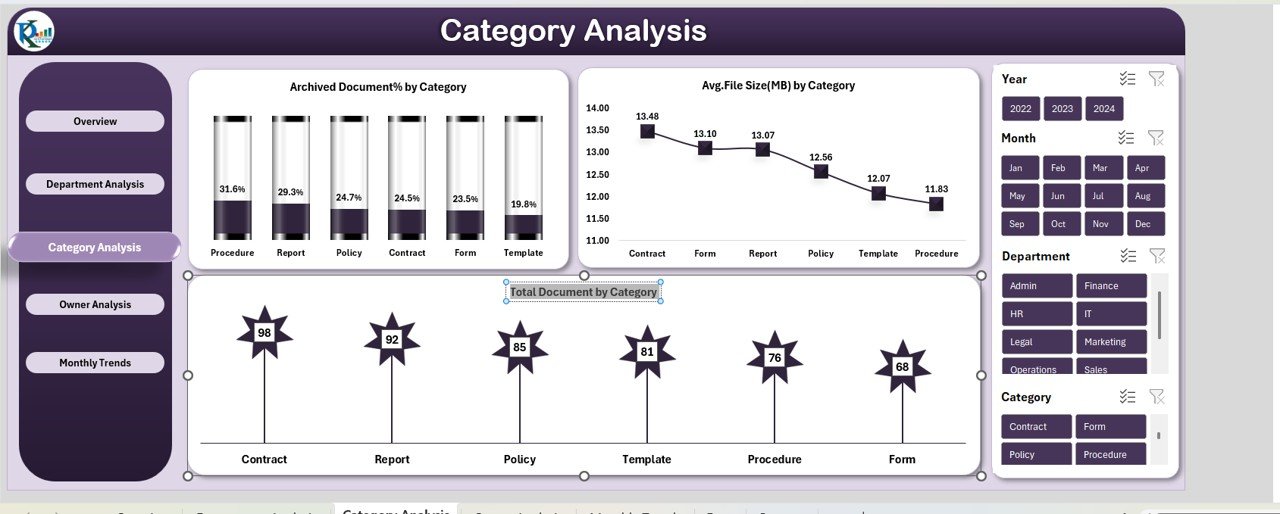
🗂️ 3. Category Analysis Page
Understand which categories hold the most documents, largest file sizes, and highest archived percentages.
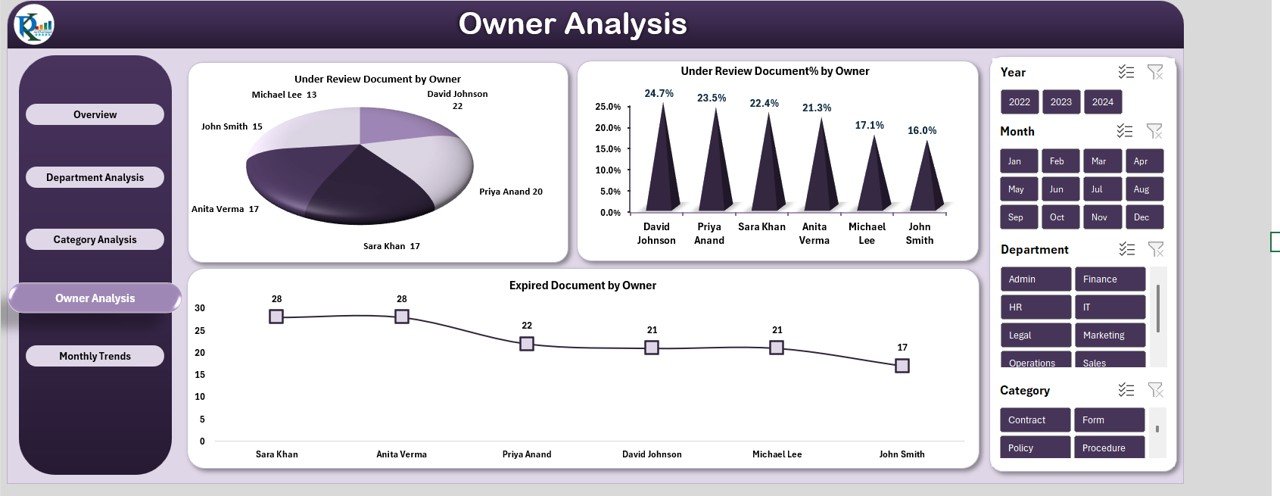
👤 4. Owner Analysis Page
Check file ownership, workload distribution, under-review documents, and owner-wise expired files to boost accountability.
📆 5. Monthly Trends Page
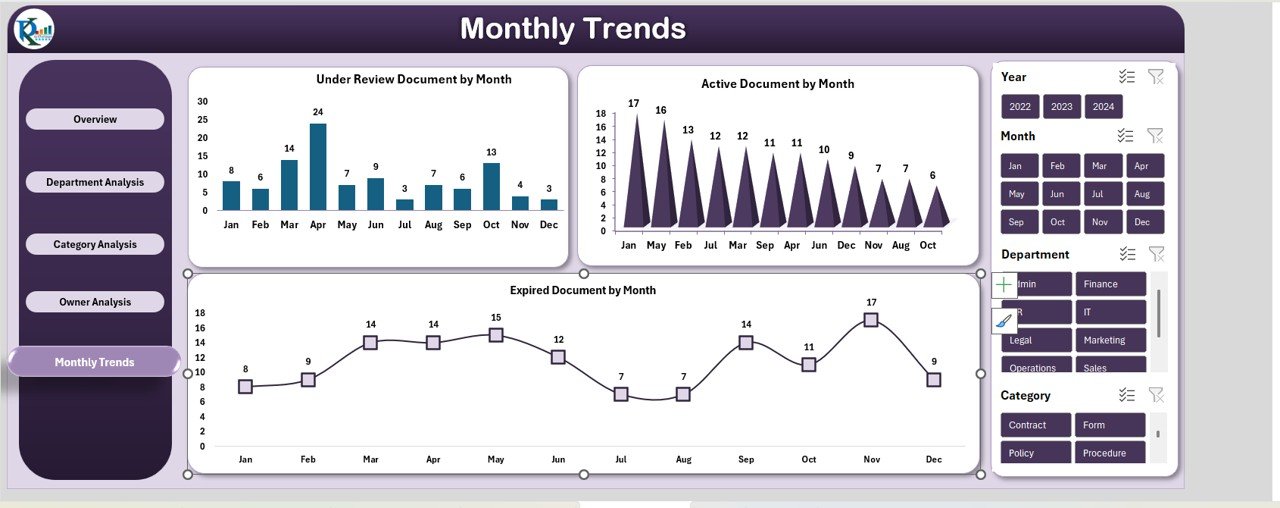
Discover monthly activity patterns for Active, Expired, and Under-Review documents to plan work cycles strategically.
All pages are powered by pivot tables, giving you accurate, auto-updated insights with every refresh.
🧩 How to Use the Office Document Management Dashboard in Excel
Using this ready-to-use dashboard is simple:
📥 Enter or paste your document data into the master database sheet.
🔄 Refresh the dashboard — all charts update automatically.
🎛️ Use slicers to filter by category, department, owner, and status.
👁️ Review daily insights on active, expired, and under-review files.
📁 Archive outdated documents regularly to maintain a clean workflow.
📅 Track monthly patterns to identify document growth or compliance gaps.
No formulas, no complex settings — just plug, refresh, and manage.
👥 Who Can Benefit from This Office Document Management Dashboard
This dashboard is the perfect fit for:
🧑💼 Administrative Teams
👩💼 HR Departments
💼 Finance Teams
🛡️ Compliance Teams
🖥️ IT Departments
🏢 Operations Managers
🗂️ Project Managers
⚖️ Legal Departments
Any organization that handles digital documents will instantly benefit from improved clarity, faster processing, and reduced manual effort.
### Click Here to Read the Detailed Blog Post
Watch the step-by-step video tutorial: