

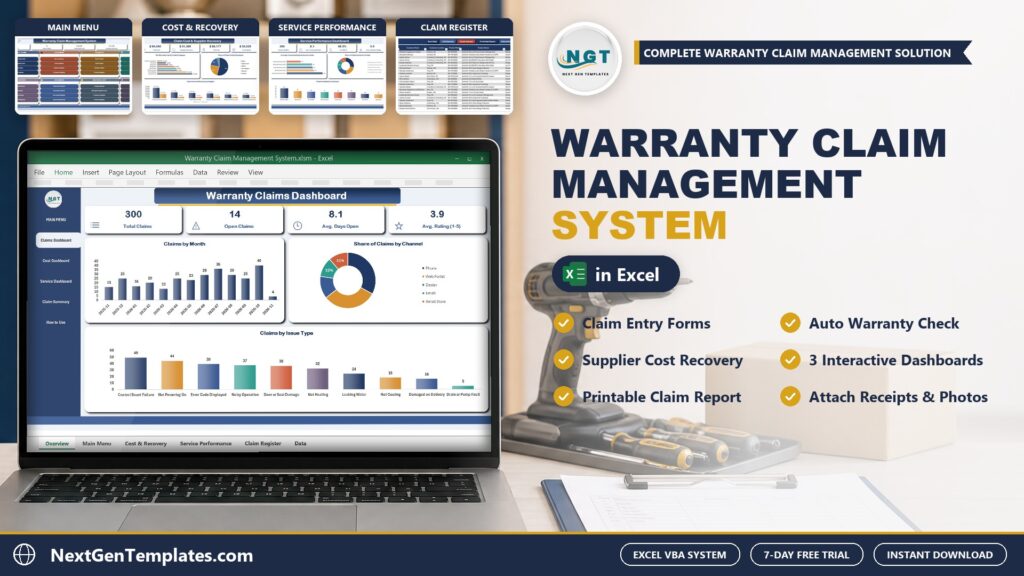
A warranty claim touches the customer, the product, a service center and a supplier, and a plain spreadsheet loses track of at least one of them. The Warranty Claim Management System V1.0 in Excel VBA keeps all four in one Excel file and works out the warranty status, the days open and the net cost for you.
Watch the Warranty Claim Management System in Excel VBA: Track Claims walkthrough
 Launch offer
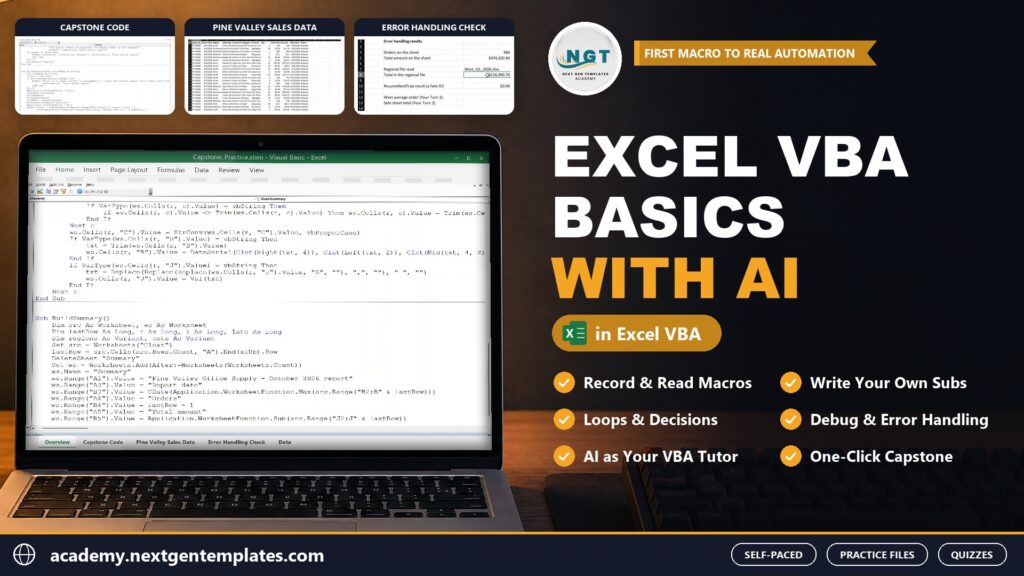
Record, read and write your own Excel macros and UserForms, and use AI assistants as your VBA tutor without trusting them blindly. 6h 12m of video by PK, with practice files and a capstone.
What Is a Warranty Claim Management System?
It is a macro-enabled Excel workbook for an appliance seller or service business, an Excel VBA warranty claim system that runs on your own PC. You register your customers and products, with the warranty months for each model, then log each claim through a three-tab warranty claim form: the claim itself, the service job and the cost and recovery. The workbook checks the warranty, tracks the claim from Open to Resolved or Rejected, and keeps a Warranty Claim Register that you can filter and print.
Inside the System
MAIN menu
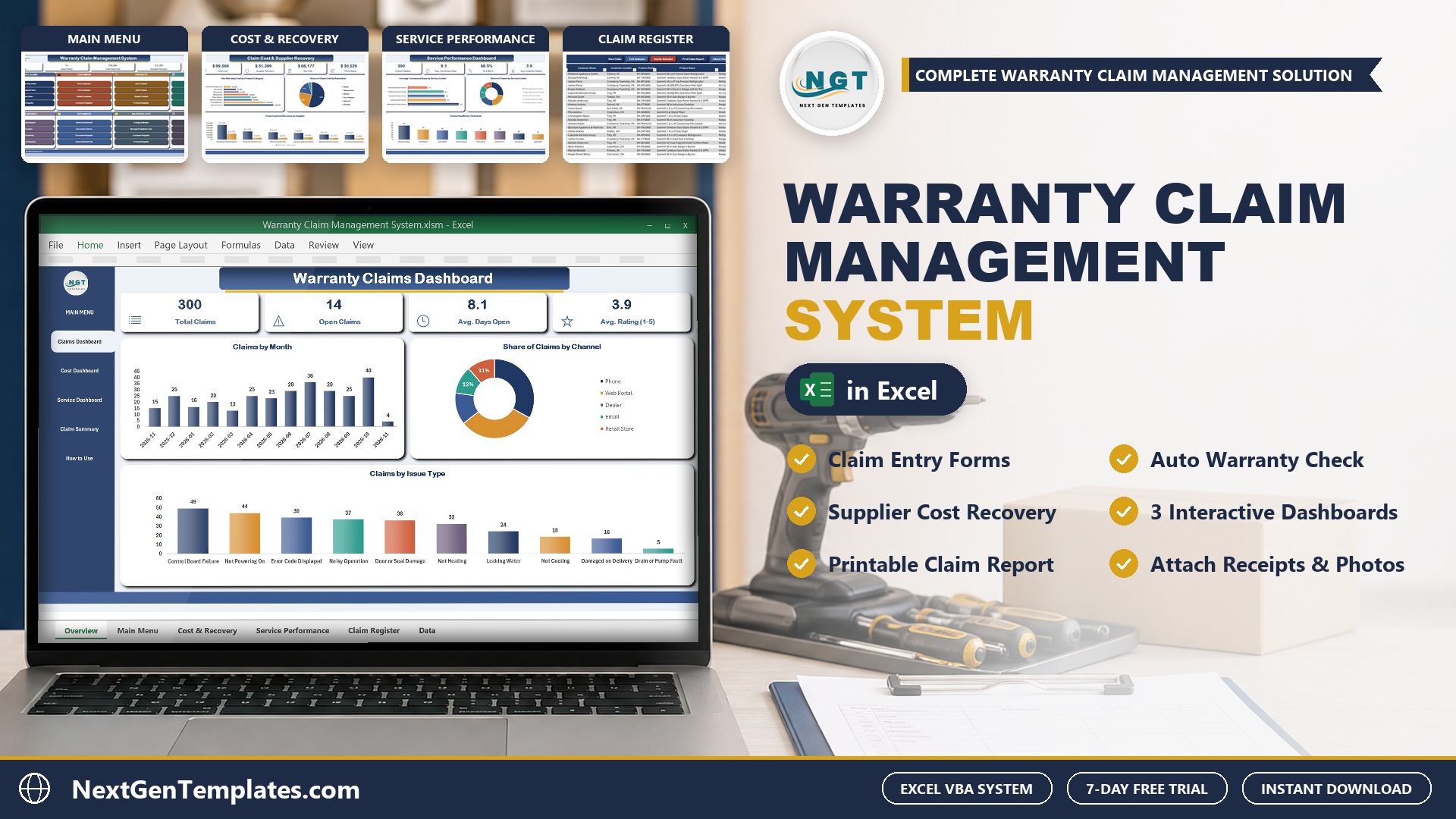
The file opens here every time. Five live KPI chips (Total Claims, Open Claims, Total Claim Cost, Supplier Recovery and Average Days to Resolve) sit above colour-coded cards for Warranty Claims, Customers, Products, Dashboards, Print and Reports, Documents, Masters and Lists, and Setup and Help. Every job starts from one of its buttons.

Warranty Claims Dashboard
Total Claims, Open Claims, Average Days Open, Average Rating and Claim Cost, with Claims by Month, Share of Claims by Channel and Claims by Issue Type. Slicers for Year, Claim Status and Priority drive every figure and chart on the page.

Claim Cost and Supplier Recovery
Total Cost, Supplier Recovery, Net Cost, Parts Spend and Shipping Spend, with Net Warranty Cost by Product Category, Share of Claim Cost by Resolution and Claim Cost and Recovery by Supplier. Filter by Year, Recovery Status and Warranty Status.

Service Performance Dashboard
Claims Handled, Average Turnaround Days, SLA Met percent, Average Customer Rating and Labor Spend, with Average Turnaround Days by Service Center, Share of Claims by Service Center and Claims Handled by Technician.

Warranty Claim Summary
Claims, open claims, claim cost, recovered amount, net cost and average days for the report year, by product category and by supplier, with Claims by Month and Claim Cost and Recovery by Month charts.

How to Use
Six numbered steps on one page: set up once, add customers and products, log every claim, service and resolve, cost and recovery, and read the reports.

Warranty Claim Register
One row per claim: claim number and date, customer and location, product model, name, category and supplier, serial number, purchase date, warranty months, warranty expiry and the In Warranty or Out of Warranty status. New Claim, Edit Selected, Delete Selected, Print Claim Report and Attach Documents sit on the action bar.

Customer Register
Homeowners, dealers, property managers and businesses with their contact details, the number of claims, open claims and claim cost for each customer.

Product Register
Every model you sell with its category, supplier, unit price and warranty months, plus the claims, claim cost, amount recovered and net cost for each product.

Document Register
Purchase receipts, product photos, technician reports and supplier credit memos linked to the claim or customer they belong to, with file type, size and who uploaded them. Open Selected File opens any of them in one click.

Category Master
Product categories, suppliers, service centers, technicians and issue types in one place. Extend them here or from the Manage Dropdown Lists form and every drop-down follows.

Settings
Target Resolution Days, the Report Year, company details, currency, permissions, the document folder and the paper size for printing.

How a Claim Moves Through the System
A customer reports a fault. You choose New Warranty Claim, pick the customer and the model, enter the serial number, the purchase date and the issue, and the warranty claim tracker in Excel shows In Warranty or Out of Warranty at once. On the Service tab you assign a service center and technician and move the status to Under Review, In Repair and then Resolved. On the Cost and Recovery tab you enter parts, labor, shipping and any replacement or refund, claim the cost back from the supplier and record the amount received. In the sample file, 300 claims cost $99,566, suppliers refunded $31,389 and the net cost is $68,177.
Good Habits for Warranty Tracking in Excel
Enter the purchase date and serial number on every claim, because the warranty check depends on them. Keep one product record per model so the warranty months are right. File supplier recovery as soon as a part fails, and update the recovery status when the credit memo arrives, so the net cost stays honest. Set a Target Resolution Days that you can really meet, then watch the SLA Met percentage on the Service dashboard. Attach the receipt and photos to the claim, which saves a search later. Review the Claim Summary each month to see which product categories and suppliers cost the most.
Pros and Limits
- One file for the claim, the service job, the cost and the supplier refund
- Automatic In Warranty or Out of Warranty check and days open for every claim
- No subscription, and your data stays on your PC
- Needs Excel 2016 or later for Windows with macros enabled
- Single user, no customer portal and no barcode scanning, and it does not work on Mac or in Excel for the web
Frequently Asked Questions
What is the Warranty Claim Management System in Excel VBA?
It is one macro-enabled Excel file that tracks every warranty claim of an appliance seller or service business: the customer, the product and serial number, the issue, the service center and technician, the repair or replacement cost and what the supplier paid back. Claims go in through an entry form, and the dashboards update themselves.
How does the automatic warranty check work?
Each product in the Product Register has its warranty in months. When you enter the purchase date on a claim, the workbook works out the expiry date and shows In Warranty or Out of Warranty straight away, so nobody has to count months by hand.
Can I track what the supplier refunds?
Yes. The Cost and Recovery tab of the claim form holds parts, labor, shipping and replacement or refund cost, the supplier recovery status (Not Filed, Filed, Received or Denied) and the amount recovered. The Net Warranty Cost is what the claim really cost you.
Can I measure how fast claims are closed?
Yes. Days Open is calculated for every claim, and the Settings sheet holds your Target Resolution Days. A resolved claim closed inside that target counts as SLA met, and the Service dashboard shows the SLA Met percentage.
Can I print a claim report for the customer?
Yes. Print Claim Report produces a Warranty Claim Report in A4, 4 inch or 3 inch size. Choose the paper size once on the Settings sheet and every printout follows it.
Which Excel do I need?
Microsoft Excel 2016 or later for Windows with macros enabled. It does not work on Mac, in Excel for the web or in Google Sheets, because the entry forms are VBA UserForms.
Can I try it before I buy?
Yes. A 7-day free trial is available from the product page. It is a separate file with every form, register and dashboard working, and it stops working after 7 days.
Is sample data included?
Yes. The file ships with 300 claims, 72 customers, 28 products and 14 documents for a demo appliance company, plus an illustrated PDF user manual, so every dashboard is populated when you open it.
Get the Warranty Claim Management System
Get the system here: Warranty Claim Management System V1.0 in Excel VBA. You can try it free for 7 days first. For another macro-enabled system, see the Fixed Asset Register and Depreciation System in Excel VBA.