
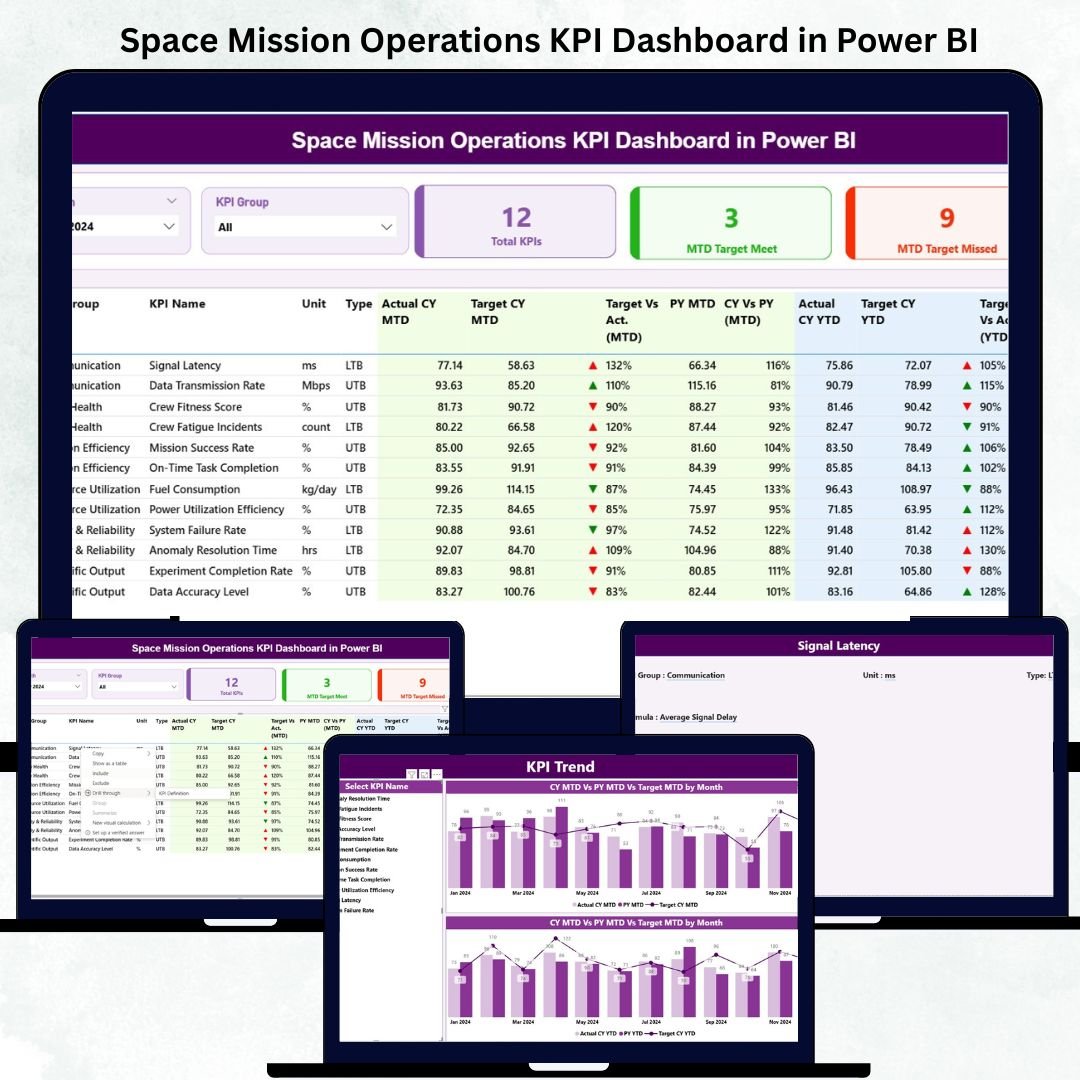
The Space Mission Operations KPI Dashboard in Power BI is a groundbreaking analytical tool built for space agencies, aerospace research centers, and private satellite operators. It brings all essential mission performance metrics into one interactive and visually engaging platform — giving you total control over every stage of your mission lifecycle.Space Mission Operations KPI Dashboard in Power BI
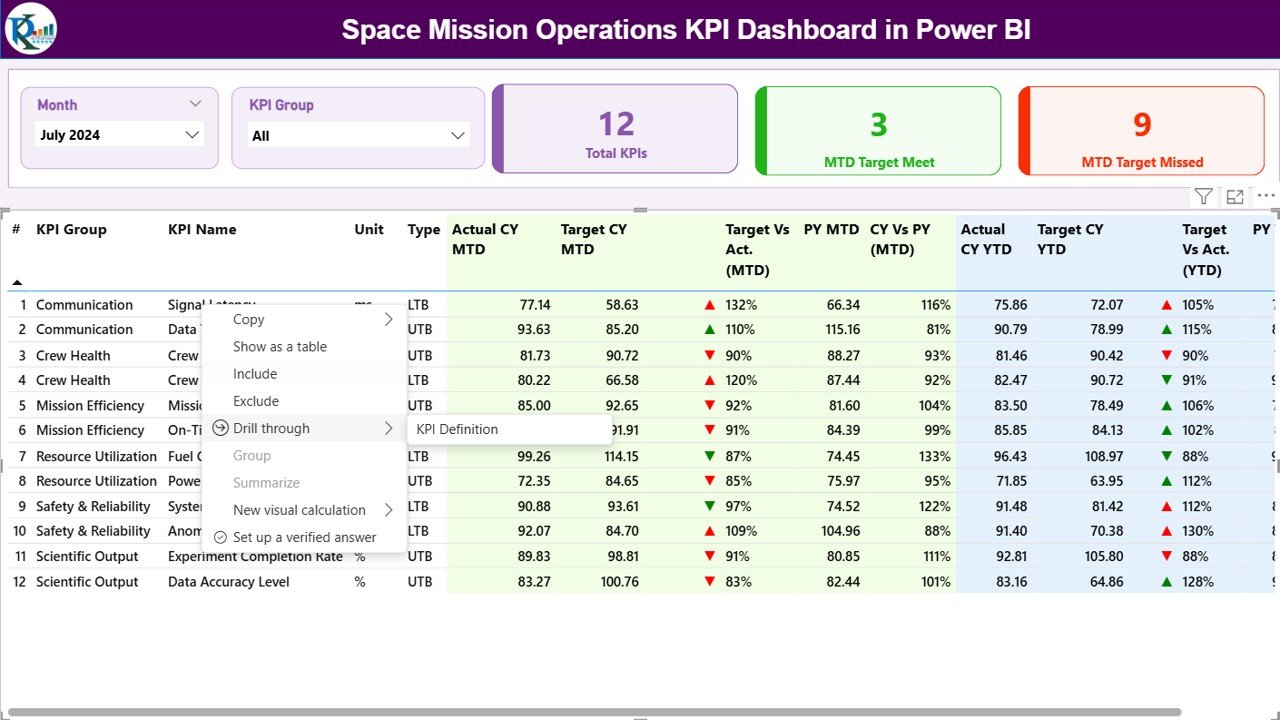
📊 Mission Summary in One View: Instantly assess total KPIs tracked, targets met, and performance gaps.
🎯 Automated Insights: Real-time calculations for MTD and YTD data comparisons.
🛰️ Visual Storytelling: Dynamic charts and KPI cards that make complex mission data intuitive.
🔄 Excel Integration: Seamless link between Power BI and Excel for live data refresh.
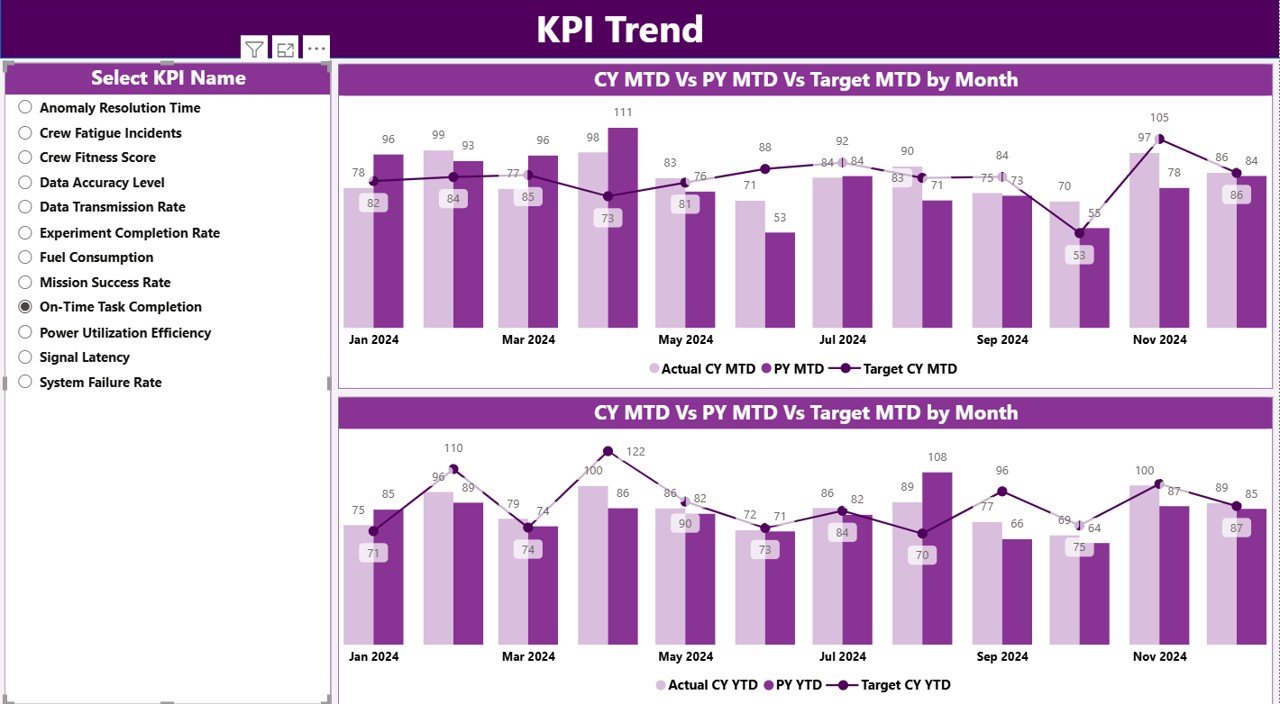
📅 Trend Analysis: Visualize performance over multiple months with Actual vs Target charts.
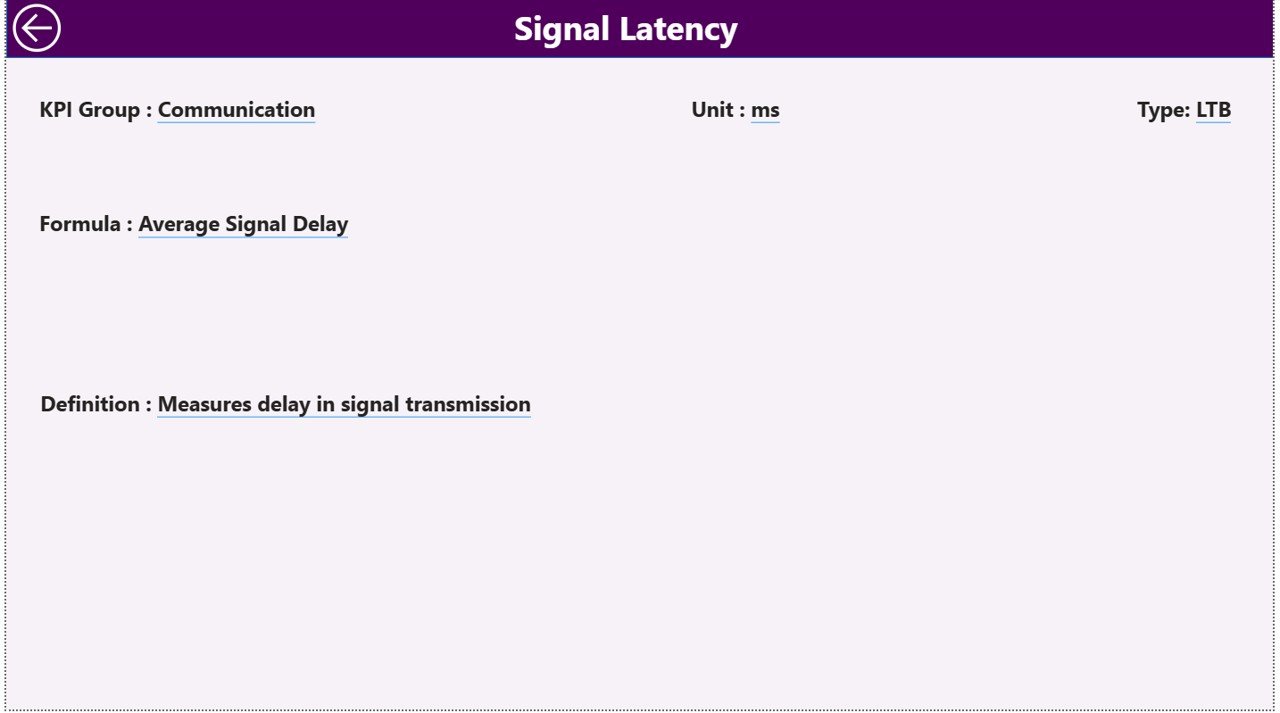
🧭 Drill-Through Navigation: Jump directly from a summary KPI to its detailed definition.
⚙️ Customizable KPIs: Easily modify or add new indicators in the Excel data source.
🔐 Data Security & Collaboration: Share dashboards with defined user roles in Power BI Service.
💡 Instant Alerts: Conditional icons highlight deviations to help you act quickly.
With this dashboard, mission controllers, analysts, and project managers can transform raw telemetry data into actionable insights — improving decision-making, reducing risks, and enhancing mission success rates.
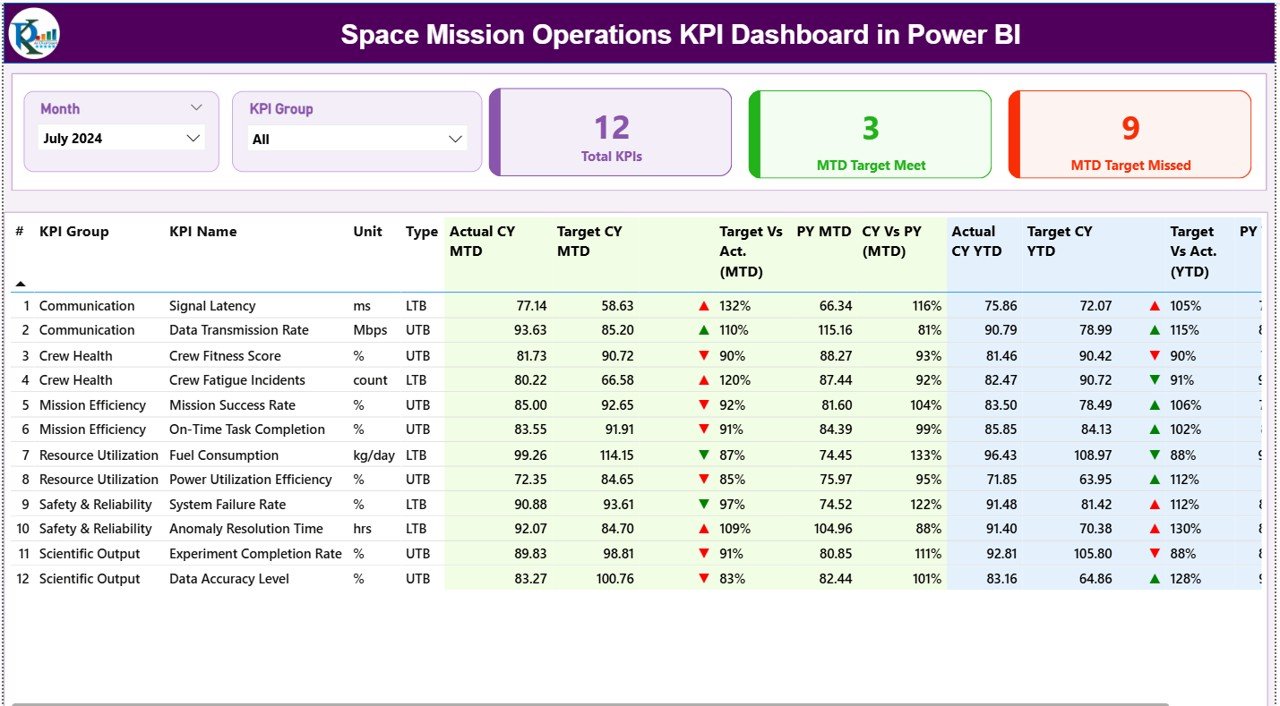
📦 What’s Inside the Space Mission Operations KPI Dashboard in Power BI
The dashboard is structured into three powerful pages that simplify analysis:
1️⃣ Summary Page – The central command center of mission performance.
-
Displays mission health indicators and progress cards.
-
Includes slicers for Month and KPI Group.
-
Highlights MTD Target Met and Target Missed counts with intuitive visuals.
2️⃣ KPI Trend Page – Visualize changes over time.
-
Two interactive combo charts show Actual vs Target for MTD and YTD.
-
A KPI Name slicer lets you focus on specific performance parameters like signal quality, propulsion efficiency, or satellite uptime.
3️⃣ KPI Definition Page – A transparent reference for every indicator.
-
Displays KPI Number, Formula, Definition, and Type (UTB or LTB).
-
Allows easy drill-through from the Summary Page and a Back button for smooth navigation.
All three pages are powered by an Excel data model that includes:
-
Input_ActualSheet (real mission data) -
Input_TargetSheet (planned targets) -
KPI_DefinitionSheet (definitions and formulas)
⚙️ How to Use the Space Mission Operations KPI Dashboard
1️⃣ Connect Your Data:
Replace the sample Excel file with your mission dataset while keeping the same structure.
2️⃣ Refresh Power BI:
Click “Refresh” to instantly update all charts, cards, and metrics.
3️⃣ Use Filters Smartly:
Filter by month, KPI group, or individual KPIs to focus on critical mission aspects.
4️⃣ Monitor Real-Time Results:
Review MTD vs Target and YTD vs PY (Previous Year) comparisons.
5️⃣ Drill-Down to Insights:
Click on any KPI to open its definition and formula for deeper understanding.
6️⃣ Collaborate & Share:
Publish the report to Power BI Service, assign user access, and share insights securely with your team.
This dashboard is designed for non-technical and technical users alike, making advanced mission analytics effortless.
👥 Who Can Benefit from This Dashboard
🛰️ Space Agencies: To track mission success rates, satellite performance, and fuel efficiency.
🏢 Private Aerospace Companies: To evaluate launch operations, cost metrics, and client performance KPIs.
🔬 Research Institutions: To monitor ongoing experiments, telemetry, and data transmissions.
🛠️ Engineers & Analysts: To detect anomalies and improve operational precision.
📡 Mission Control Teams: To visualize communication, trajectory accuracy, and resource usage in real time.
📈 Executives & Project Managers: To review performance trends, budgets, and mission milestones at a glance.
With every detail centralized, teams can save time, reduce complexity, and enhance mission performance.
📖 Click Here to Read the Detailed Blog Post
Watch the step-by-step video tutorial:
(Visit our website to explore the complete breakdown, screenshots, and use cases.)
🔗 Visit Our YouTube Channel
👉 PKAnExcelExpert – Watch step-by-step tutorials and demos of this dashboard.






Reviews
There are no reviews yet.