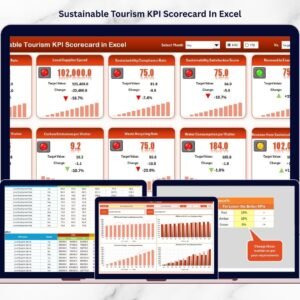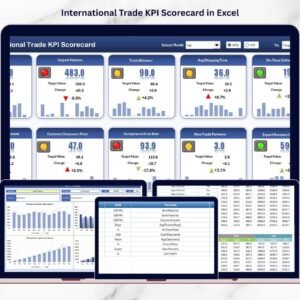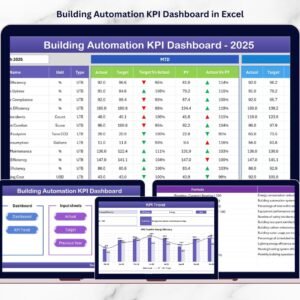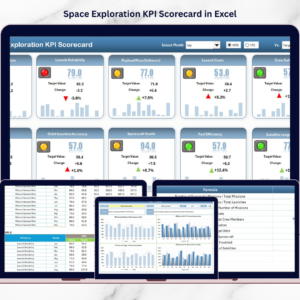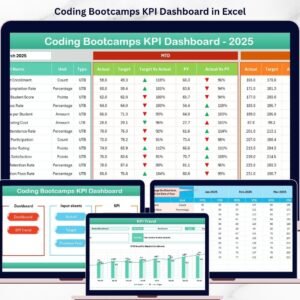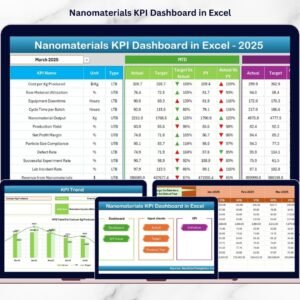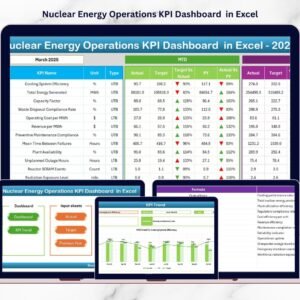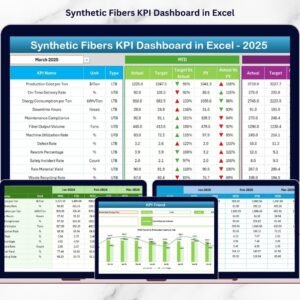
Running an automotive parts manufacturing business requires precision, efficiency, and constant performance monitoring. Production lines generate massive amounts of operational data every day — but without proper analysis, data alone cannot improve performance.
What if you could monitor production efficiency, quality metrics, delivery performance, and operational targets from one powerful dashboard?
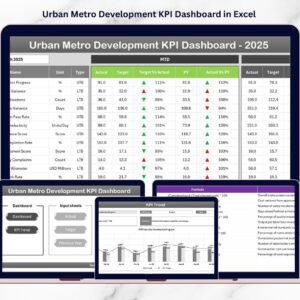
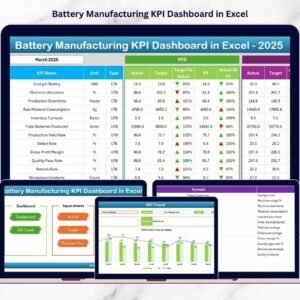
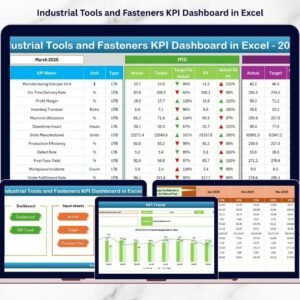
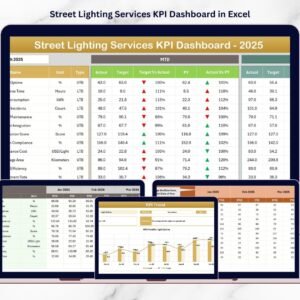
Introducing the Automotive Parts Manufacturing KPI Dashboard in Excel — a ready-to-use, intelligent Excel solution designed to transform complex manufacturing data into clear, actionable insights.
Instead of managing multiple spreadsheets and manual reports, this dashboard centralizes all manufacturing KPIs into one interactive environment. With automated calculations, dynamic visuals, and structured KPI tracking, managers can instantly evaluate performance and make faster decisions.
Whether you manage a single production unit or multiple plants, this dashboard helps you track targets, compare historical performance, and identify operational bottlenecks before they impact productivity.
🚀 Key Feature of Automotive Parts Manufacturing KPI Dashboard in Excel
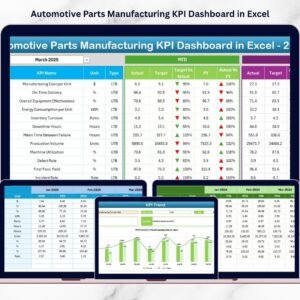
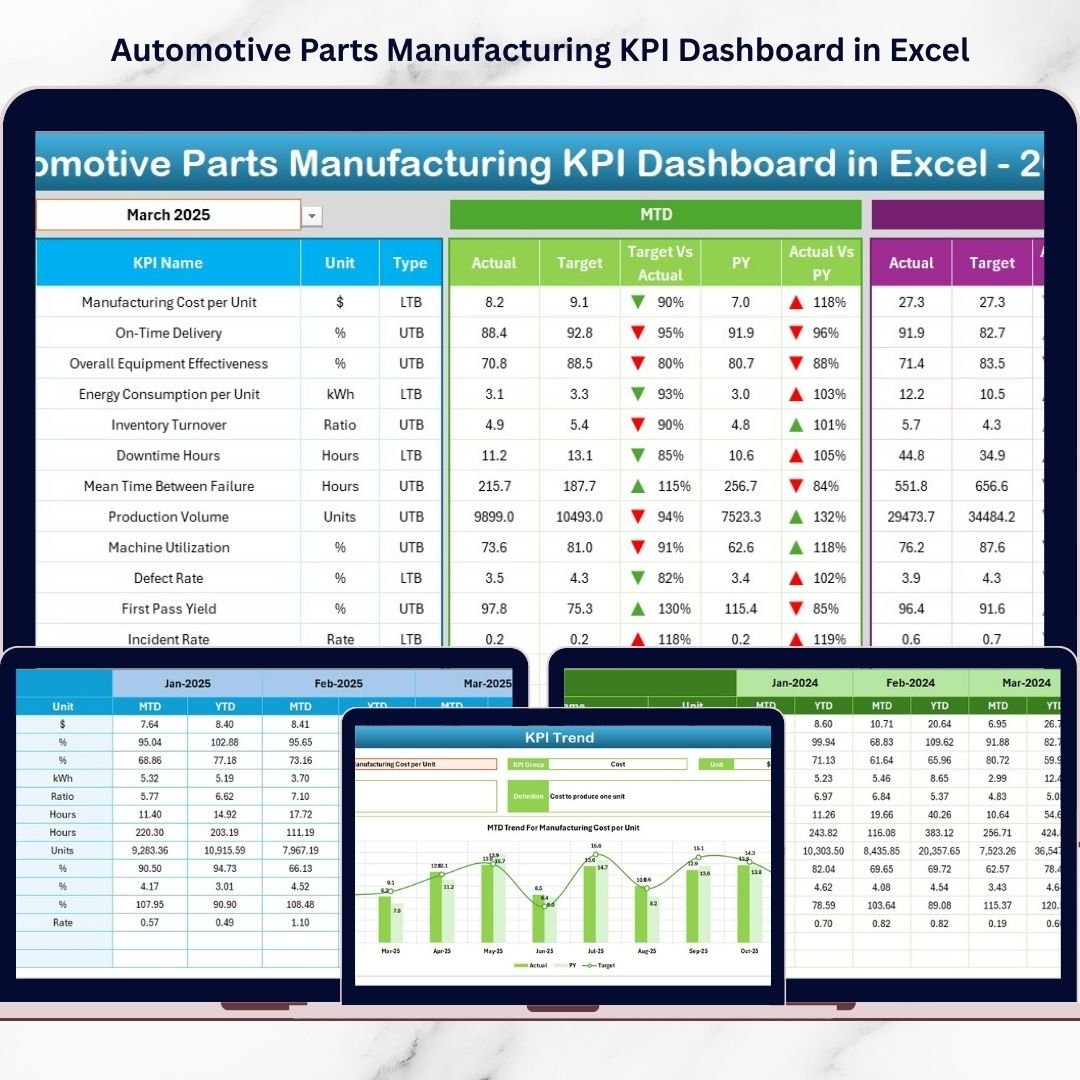
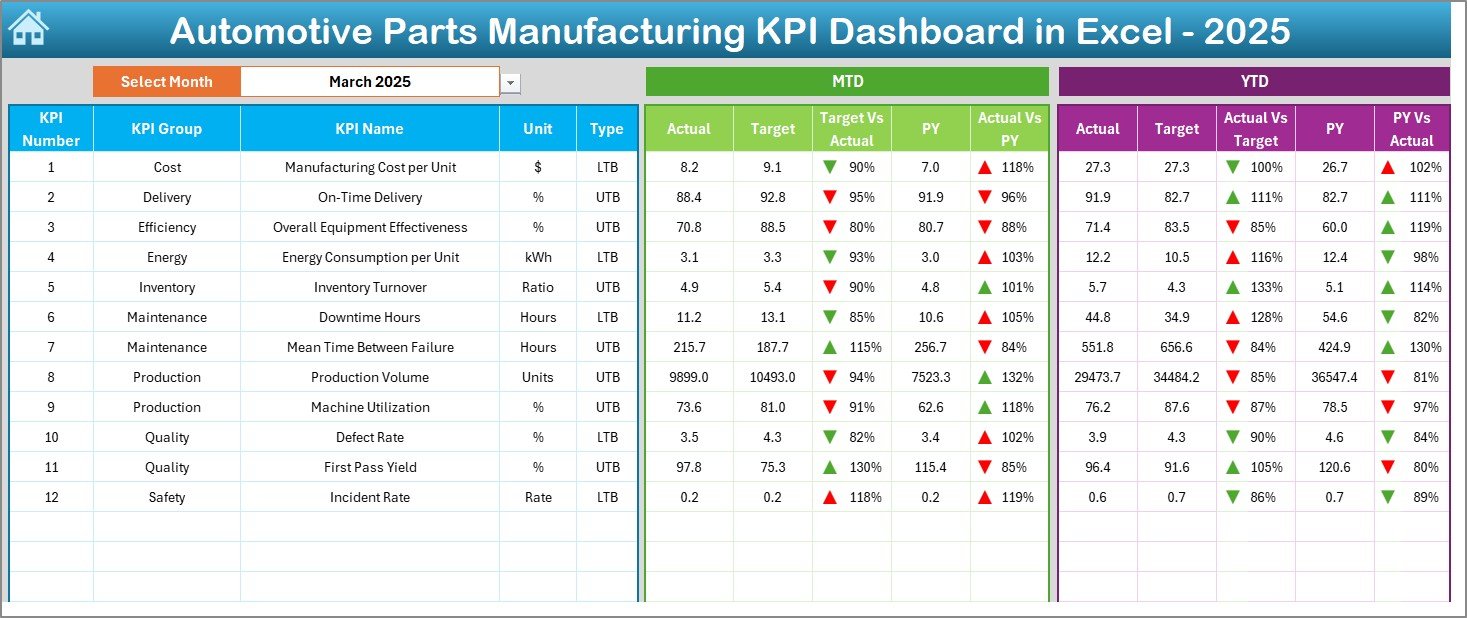
✅ Interactive main dashboard with automated KPI calculations
✅ Month selection dropdown for instant reporting updates
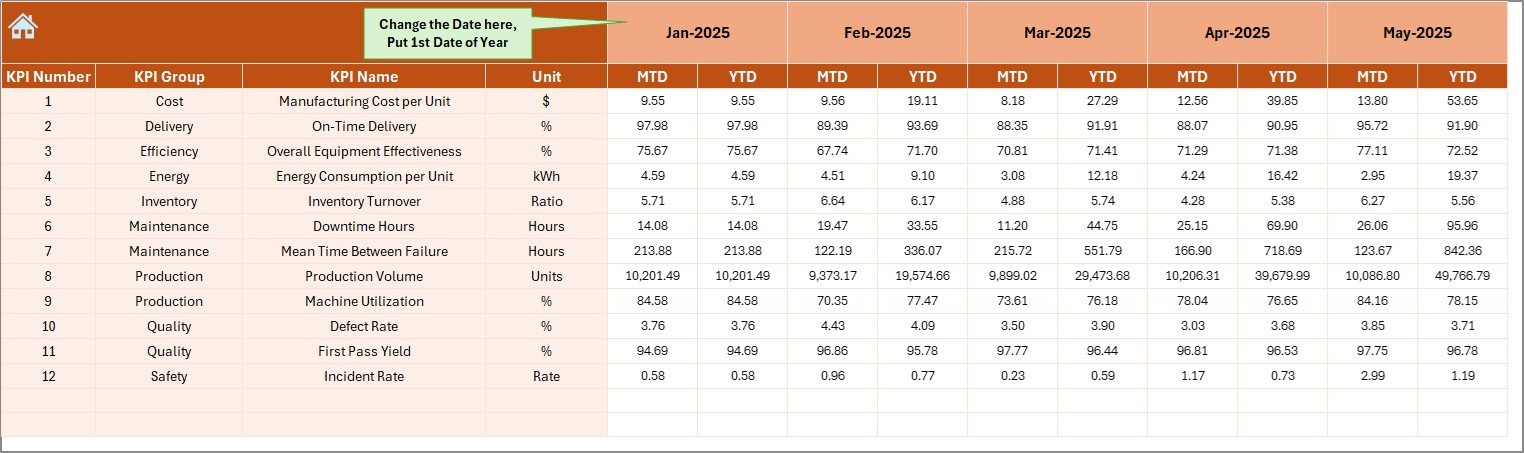
✅ MTD and YTD performance analysis
✅ Target vs Actual and Previous Year comparisons
✅ Conditional formatting indicators for performance tracking
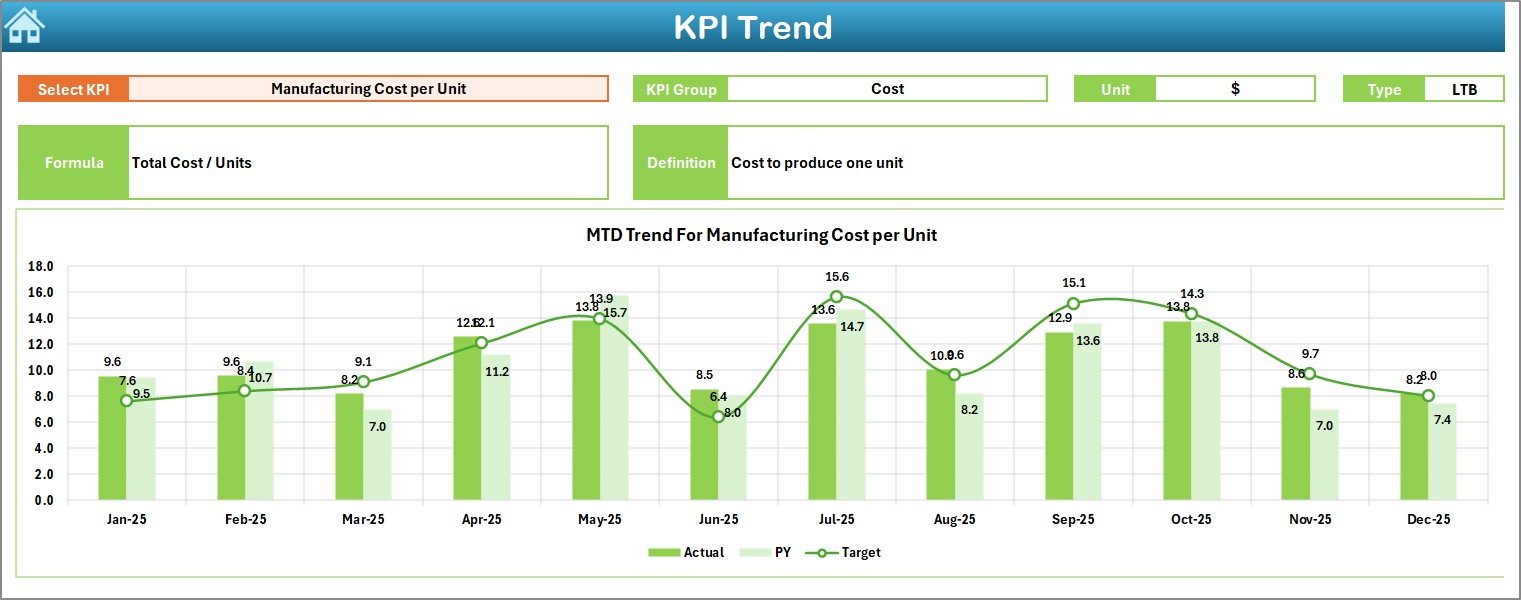
✅ Dedicated KPI Trend analysis with dynamic charts
✅ Centralized data entry system for improved accuracy
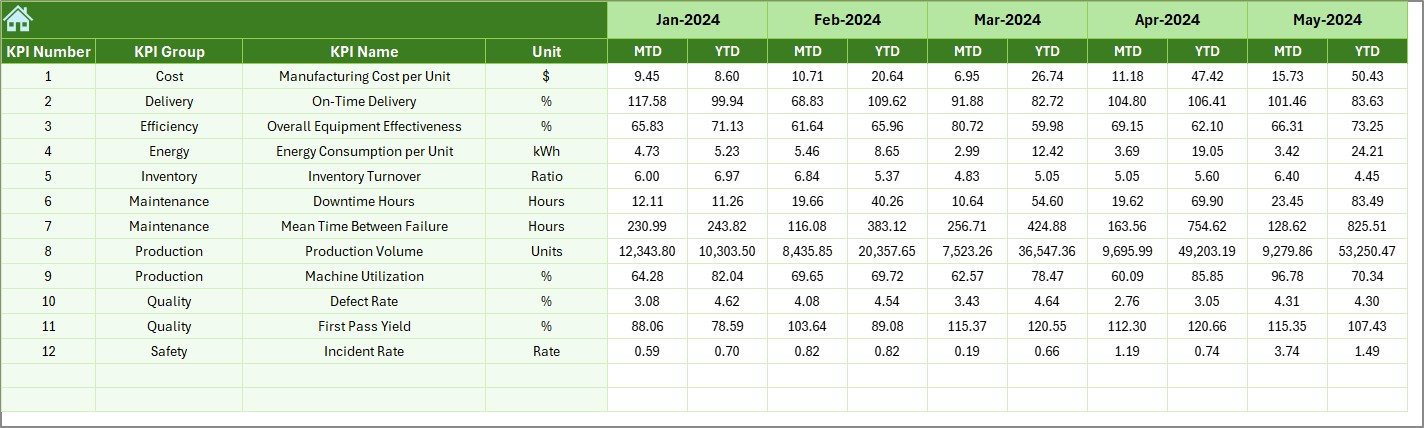
✅ Historical performance comparison capability
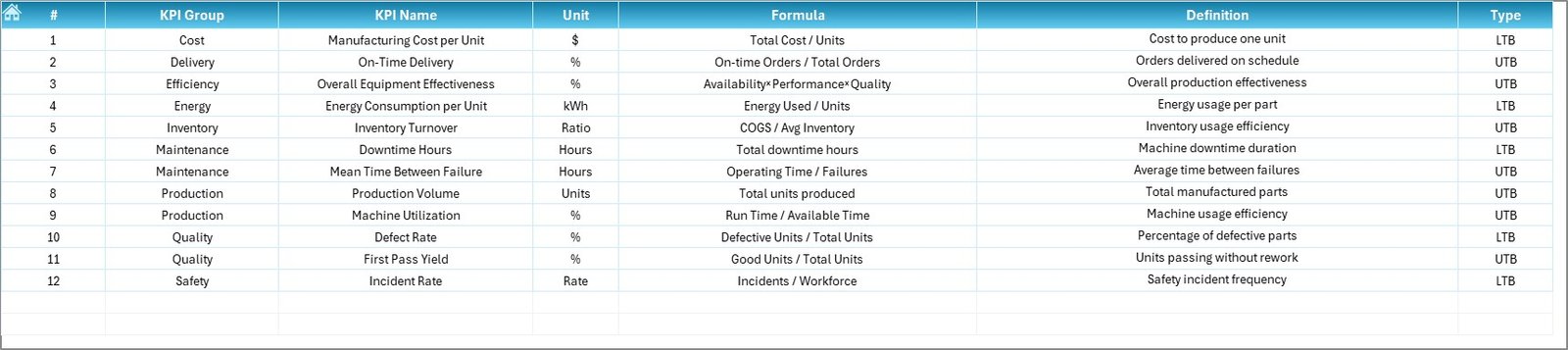
✅ KPI documentation and formula management sheet
✅ User-friendly navigation with quick access buttons
This structured design ensures manufacturing leaders gain complete visibility into operations without complex software.
📦 What’s Inside the Automotive Parts Manufacturing KPI Dashboard in Excel
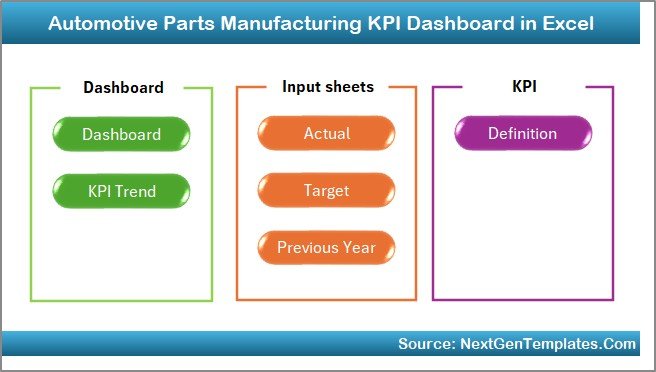
The dashboard includes 7 professionally designed worksheets that create a full performance management system:
-
Home Sheet – Central navigation hub for easy movement between reports
-
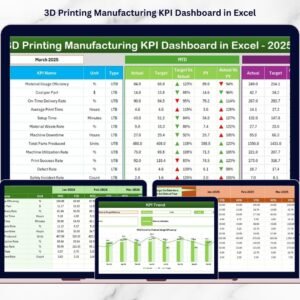
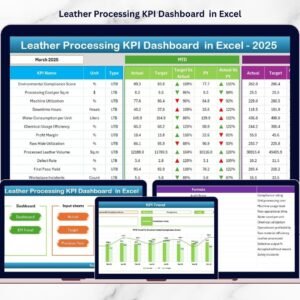
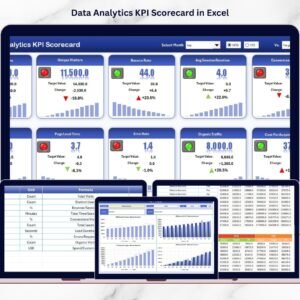
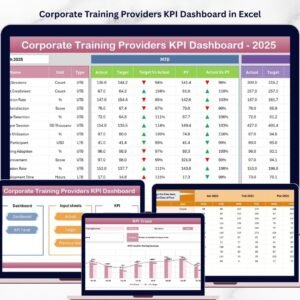
Dashboard Sheet – Complete KPI overview with automated visuals
-
KPI Trend Sheet – Deep performance analysis with trend charts
-
Actual Numbers Input Sheet – Simple monthly data entry interface
-
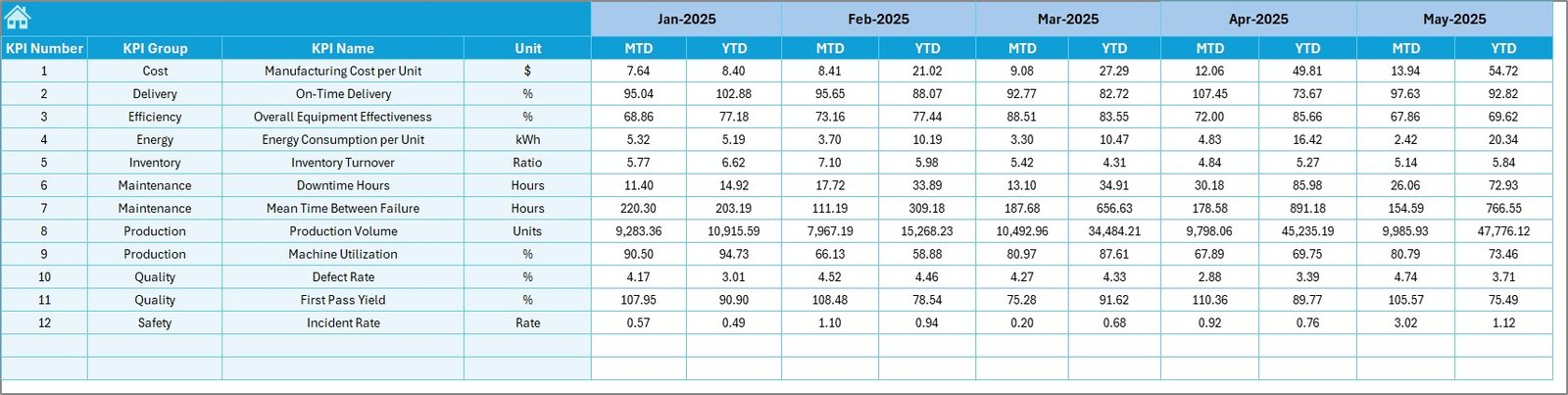
Target Sheet – KPI goal setting and planning structure
-
Previous Year Sheet – Historical performance comparison
-
KPI Definition Sheet – Central KPI knowledge base
Each worksheet works together seamlessly to deliver accurate and meaningful insights.
⚙️ How to Use the Automotive Parts Manufacturing KPI Dashboard in Excel
Getting started is simple — no advanced Excel skills required.
1️⃣ Enter KPI definitions and measurement units.
2️⃣ Add monthly and yearly targets.
3️⃣ Input previous-year performance data.
4️⃣ Enter actual operational numbers regularly.
5️⃣ Select the reporting month from the dropdown.
6️⃣ Instantly review automated dashboard insights.
The dashboard updates automatically, allowing managers to focus on improving operations rather than preparing reports.
👨🏭 Who Can Benefit from This Automotive Parts Manufacturing KPI Dashboard in Excel
This dashboard is designed for professionals across automotive manufacturing operations:
✅ Production Managers monitoring efficiency and output
✅ Plant Managers evaluating overall performance
✅ Quality Managers tracking defect trends
✅ Supply Chain Teams analyzing delivery metrics
✅ Operations Analysts reviewing KPI trends
✅ Senior Executives making strategic decisions
From small manufacturers to large production facilities, anyone seeking structured performance monitoring will benefit from this solution.
By implementing this dashboard, organizations move from reactive reporting to proactive decision-making. Instead of guessing performance outcomes, leaders rely on real data insights.
Because the solution runs entirely inside Microsoft Excel, deployment is fast, cost-effective, and highly customizable. No expensive ERP or BI tools are required.
The result? Improved efficiency, better planning, reduced downtime, and stronger operational control.
📖 Click here to read the Detailed blog post
▶ Visit our YouTube channel to learn step-by-step video tutorials
👉 https://youtube.com/@PKAnExcelExpert