

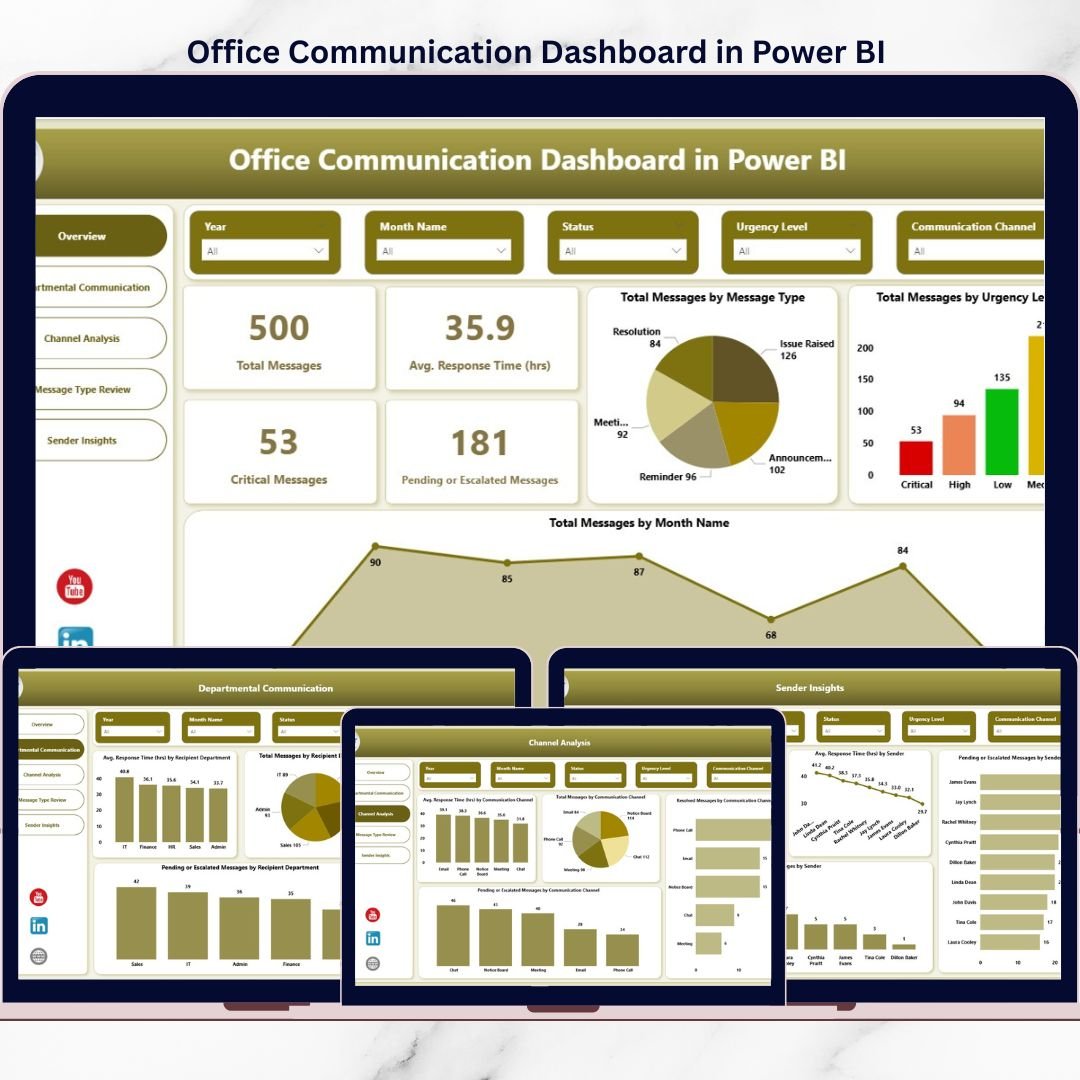
Office communication is the backbone of daily business operations. However, when messages, escalations, and response times are not tracked properly, delays increase, accountability weakens, and critical information gets missed. That is exactly where the Office Communication Dashboard in Power BI becomes a game-changing solution.
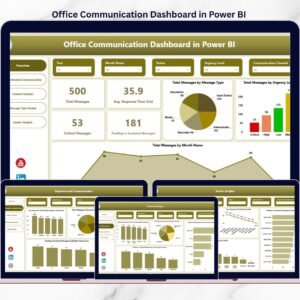
This ready-to-use Power BI dashboard transforms raw office communication data into clear, actionable insights. Instead of manually checking emails, chat logs, or internal systems, you get a centralized, interactive view of message flow, urgency levels, response times, escalations, and departmental performance. As a result, teams communicate better, respond faster, and operate with clarity.
Designed for both technical and non-technical users, this dashboard helps organizations proactively manage internal communication using real-time visuals and KPIs.
🔑 Key Features of Office Communication Dashboard in Power BI
📈 Centralized Communication Monitoring
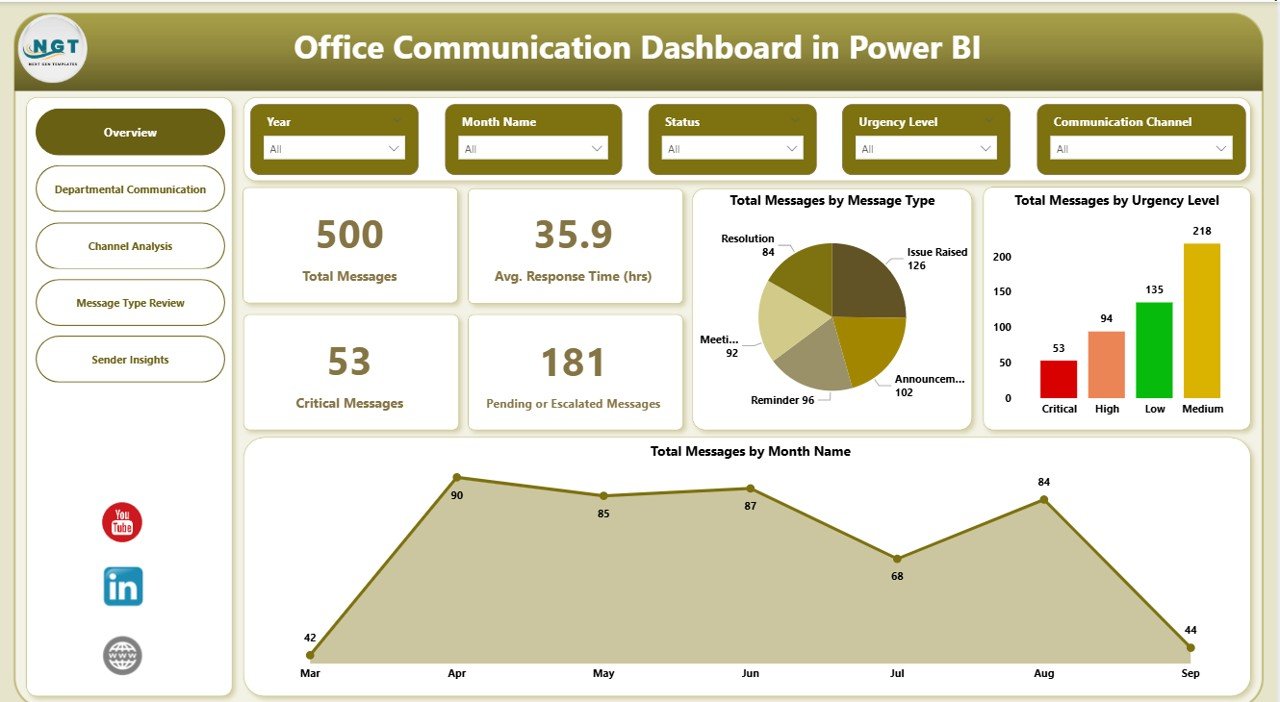
Track total messages, critical messages, response times, and escalations from one single dashboard.
⏱️ Response Time Tracking
Monitor average response time (in hours) to identify delays and improve turnaround speed.
🚨 Critical & Escalated Message Visibility
Instantly identify high-priority and unresolved messages before they impact operations.
🏢 Department-Level Insights
Analyze communication performance across departments to improve accountability.
💬 Channel Performance Analysis
Compare email, chat, portals, and other communication channels to find bottlenecks.
📊 Sender & Message-Type Analysis
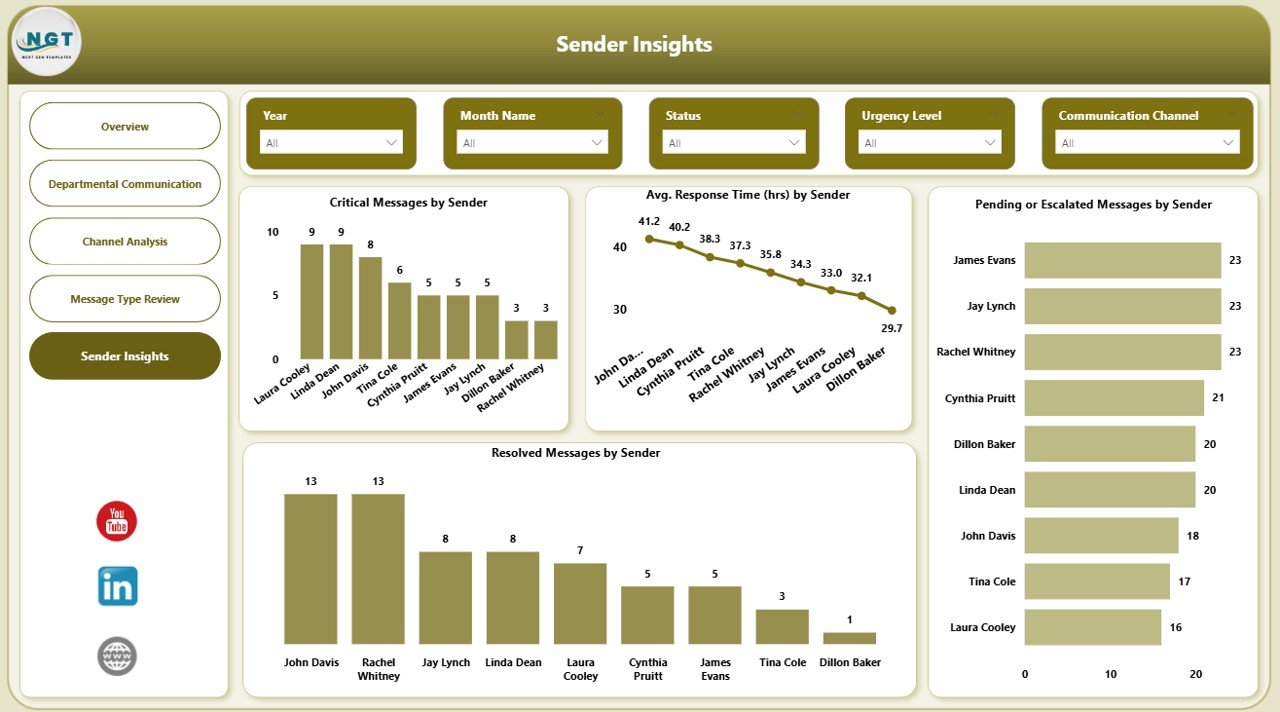
Understand who sends the most critical messages and which message types cause delays.
🎛️ Interactive Filters & Slicers
Filter data by month, department, channel, sender, urgency, and message type.
📦 What’s Inside the Office Communication Dashboard in Power BI
This Power BI file includes 5 professionally designed pages, each focused on a specific communication question:
📌 Overview Page
Shows total messages, critical messages, average response time, and pending or escalated messages along with trend charts.
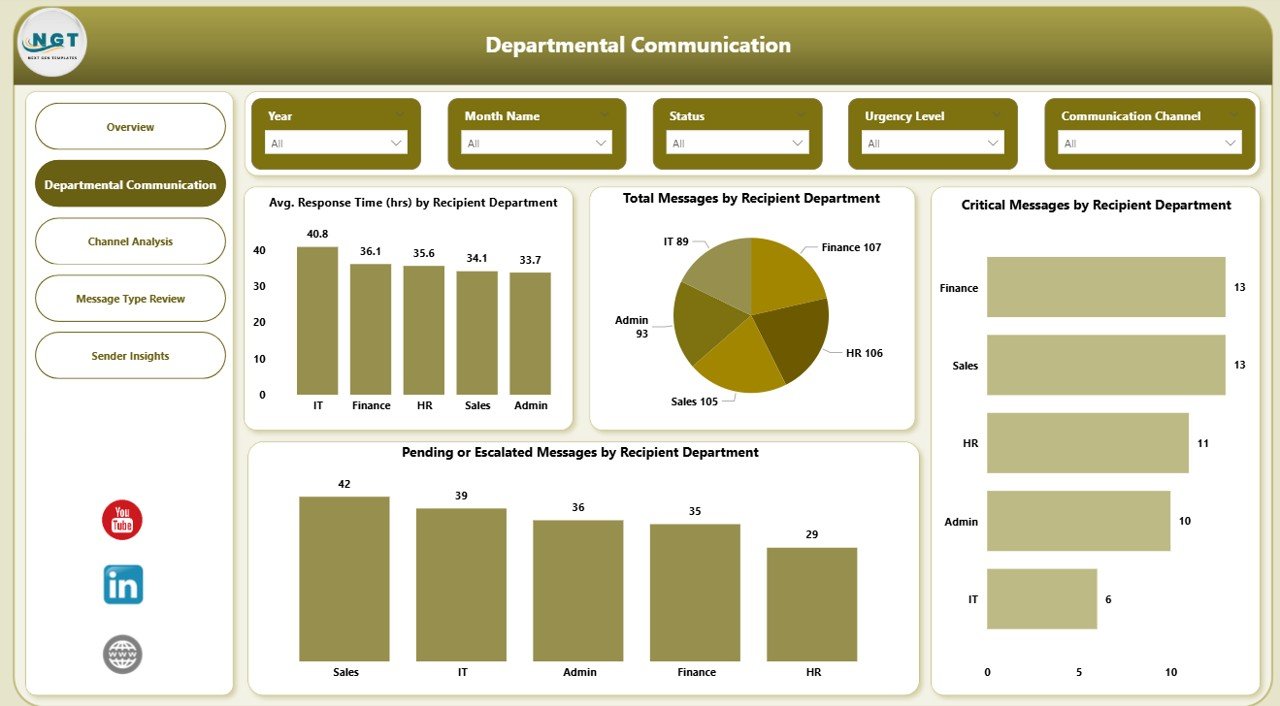
📌 Departmental Communication Page
Analyzes response times, message volume, critical messages, and escalations by recipient department.
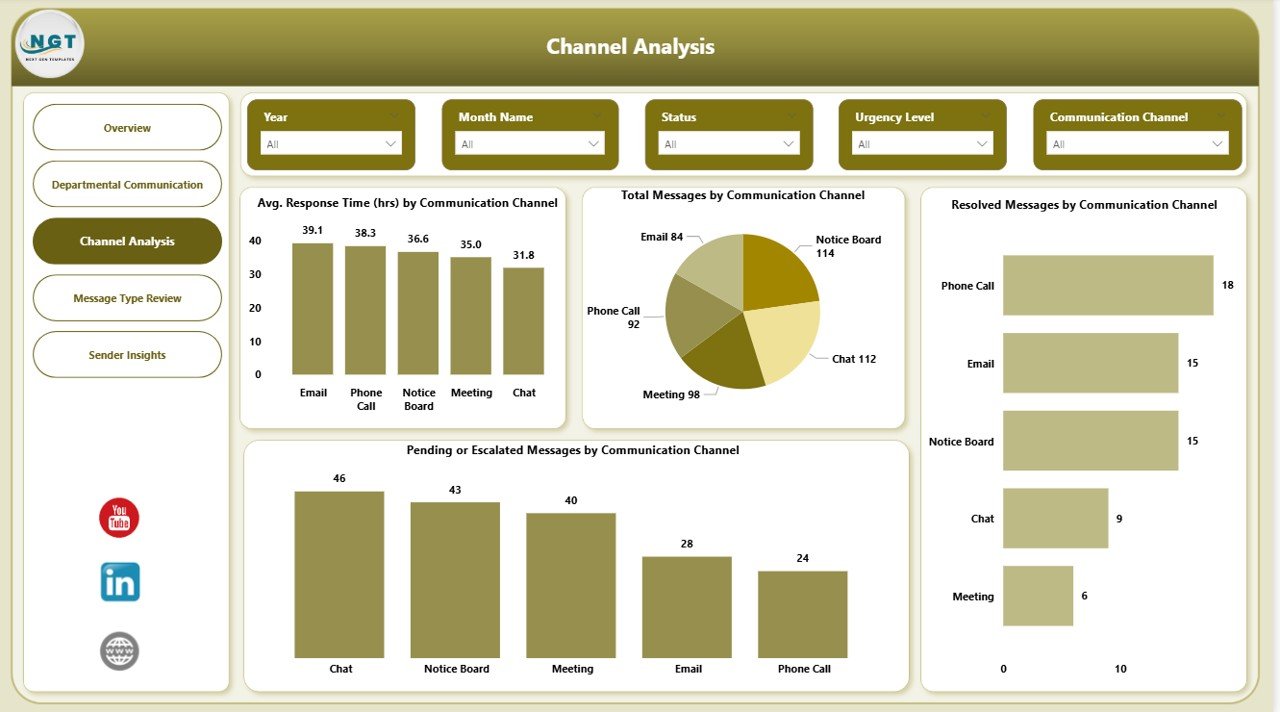
📌 Channel Analysis Page
Evaluates communication performance across different channels to identify slow or overloaded platforms.
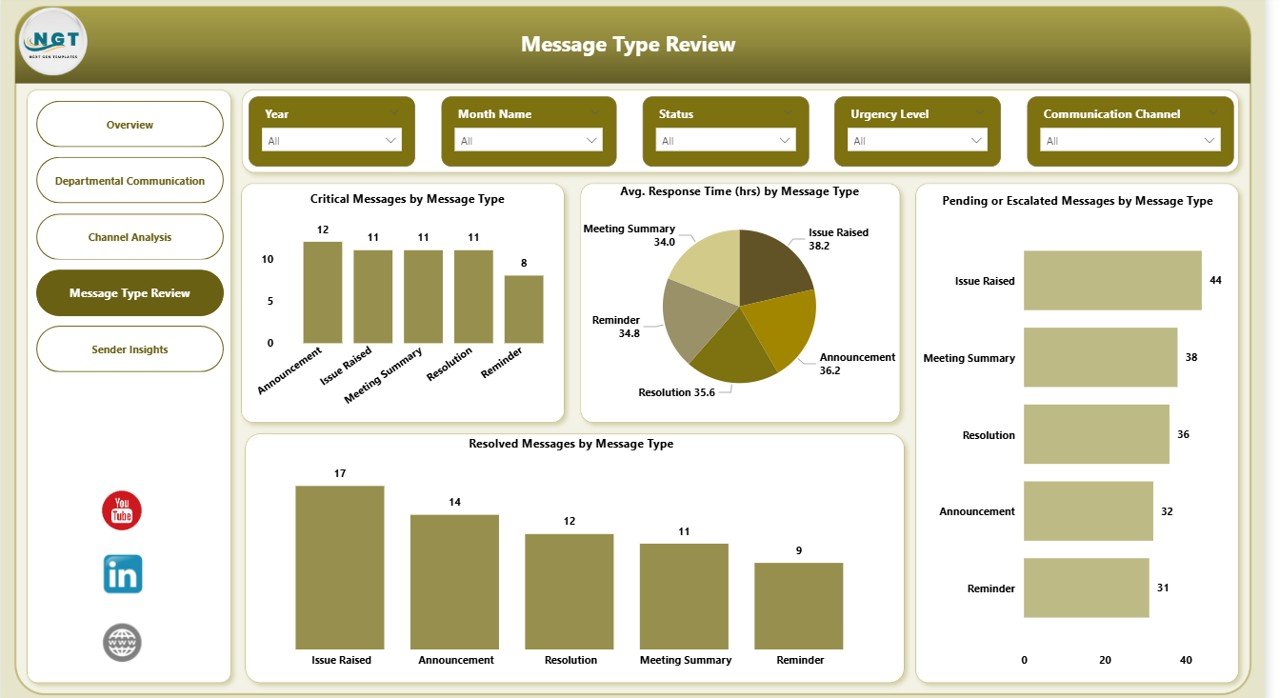
📌 Message Type Review Page
Highlights which message categories generate delays, escalations, or critical workload.
📌 Sender Insights Page
Identifies frequent senders, high-impact users, and communication hotspots.
Each page is fully interactive and designed for quick decision-making.
🛠️ How to Use the Office Communication Dashboard in Power BI
1️⃣ Import your office communication data into Power BI
2️⃣ Refresh the dataset using Power Query
3️⃣ Use slicers to filter by date, department, channel, or sender
4️⃣ Review KPIs and charts to identify communication gaps
5️⃣ Take action to improve response speed and accountability
No advanced Power BI knowledge is required to use this dashboard.
👥 Who Can Benefit from This Office Communication Dashboard in Power BI
👔 Office Managers
📋 Operations Managers
🧑💼 HR Teams
💻 IT & Support Teams
🏢 Department Heads
📊 Senior Leadership
Any organization that wants clear visibility into internal communication will benefit from this dashboard.
Click here to read the Detailed Blog Post
Watch the step-by-step video tutorial:
















Reviews
There are no reviews yet.