

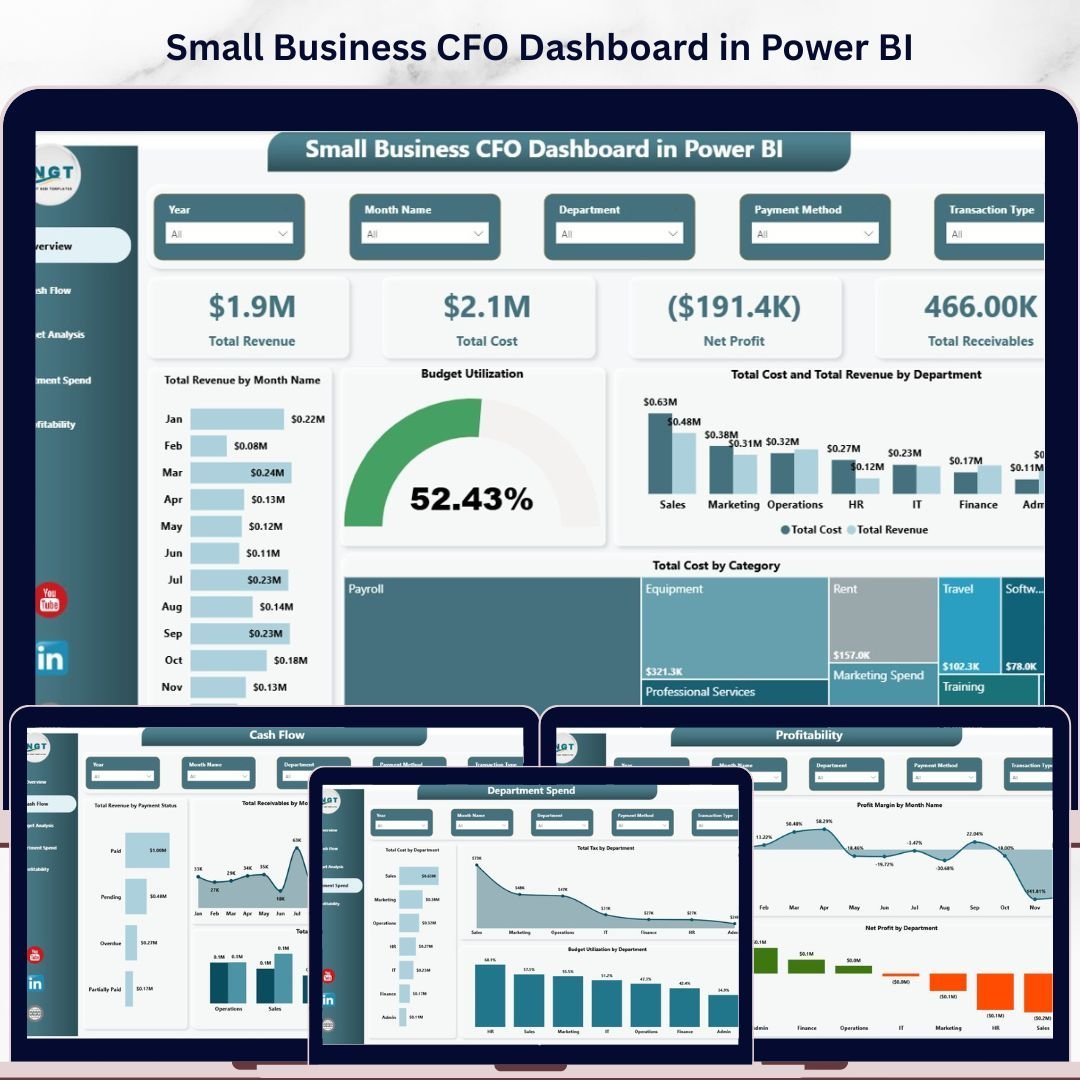
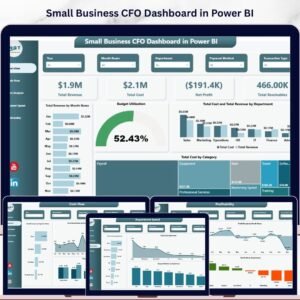
Small Business CFO Dashboard in Power BI is a professionally designed financial analytics template built for small business owners, CFOs, finance managers, and startup founders who need to monitor Total Revenue, Total Cost, Net Profit, and Total Receivables from a single, powerful dashboard. This template includes 5 interactive dashboard pages covering Overview, Cash Flow, Budget Analysis, Department Spend, and Profitability — making it one of the most comprehensive Power BI Dashboard Templates available for small business financial management.
Whether you run a growing startup or manage finances for an established small business, this dashboard transforms raw financial data into stunning, actionable visual insights. If you have been searching for a reliable, data-driven way to monitor cash flow, analyze department spending, evaluate budget utilization, and track profitability trends, the Small Business CFO Dashboard in Power BI is the solution you need. Also explore our Small Business CFO Dashboard in Excel and Small Business CFO Dashboard in HTML for alternative platforms.
🔑 Key Features of Small Business CFO Dashboard in Power BI
📌 5 Interactive Dashboard Pages — Overview, Cash Flow, Budget Analysis, Department Spend, and Profitability pages provide a 360-degree view of your small business finances.
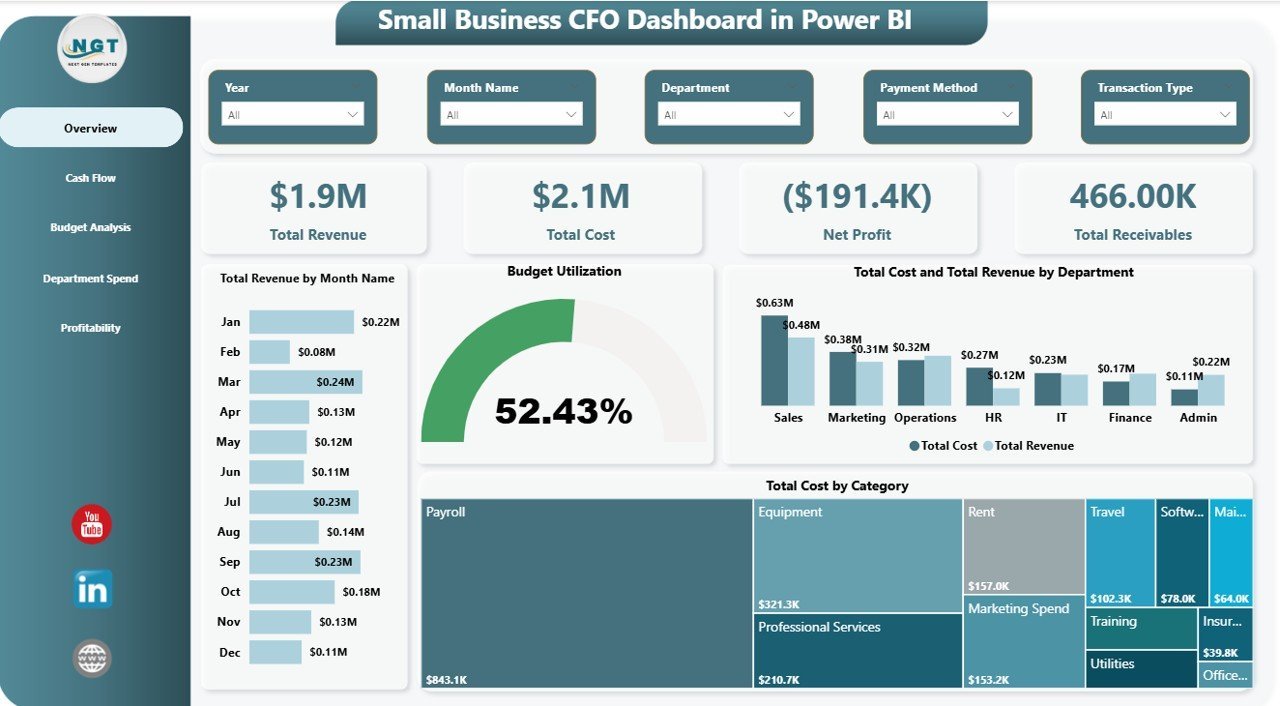
📌 Real-Time KPI Cards — Track Total Revenue, Total Cost, Net Profit, and Total Receivables at a glance from the Overview page.
📌 Dynamic Slicers and Filters — Apply filters instantly to see department-wise, month-wise, or category-wise breakdowns across all pages.
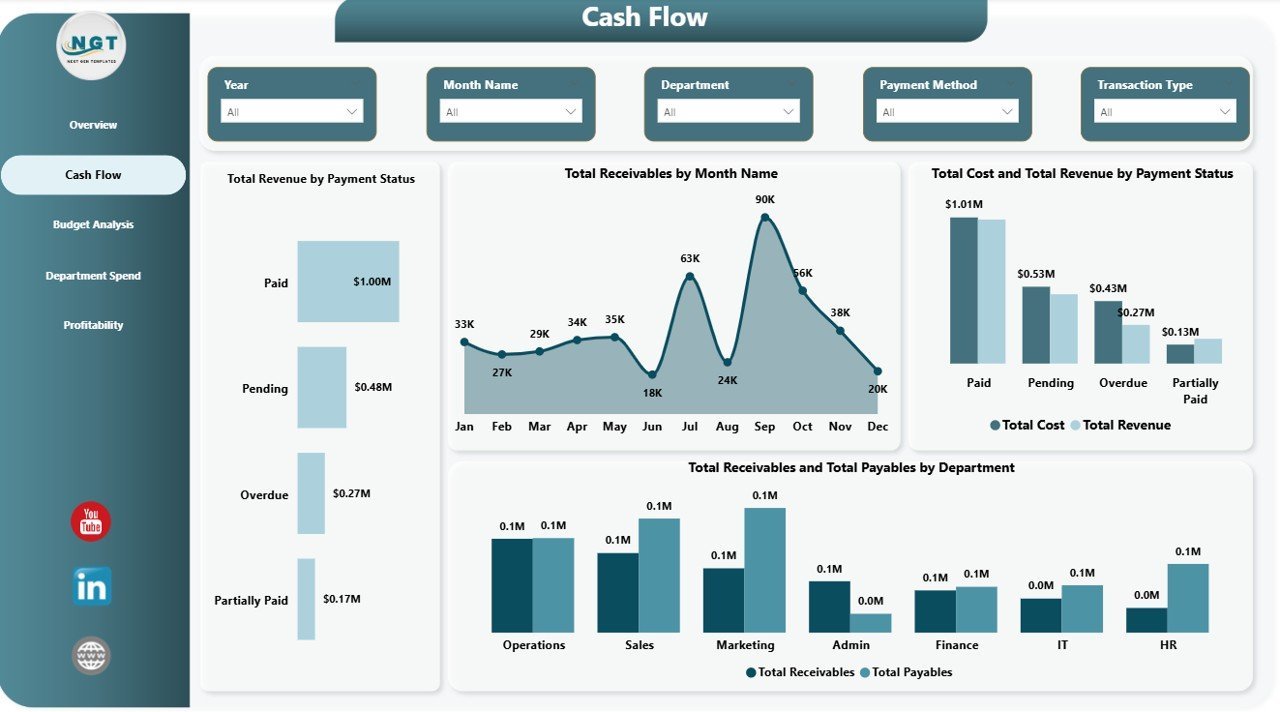
📌 Cash Flow Monitoring — Analyze revenue by payment status, receivables by month, and compare payables vs receivables by department.
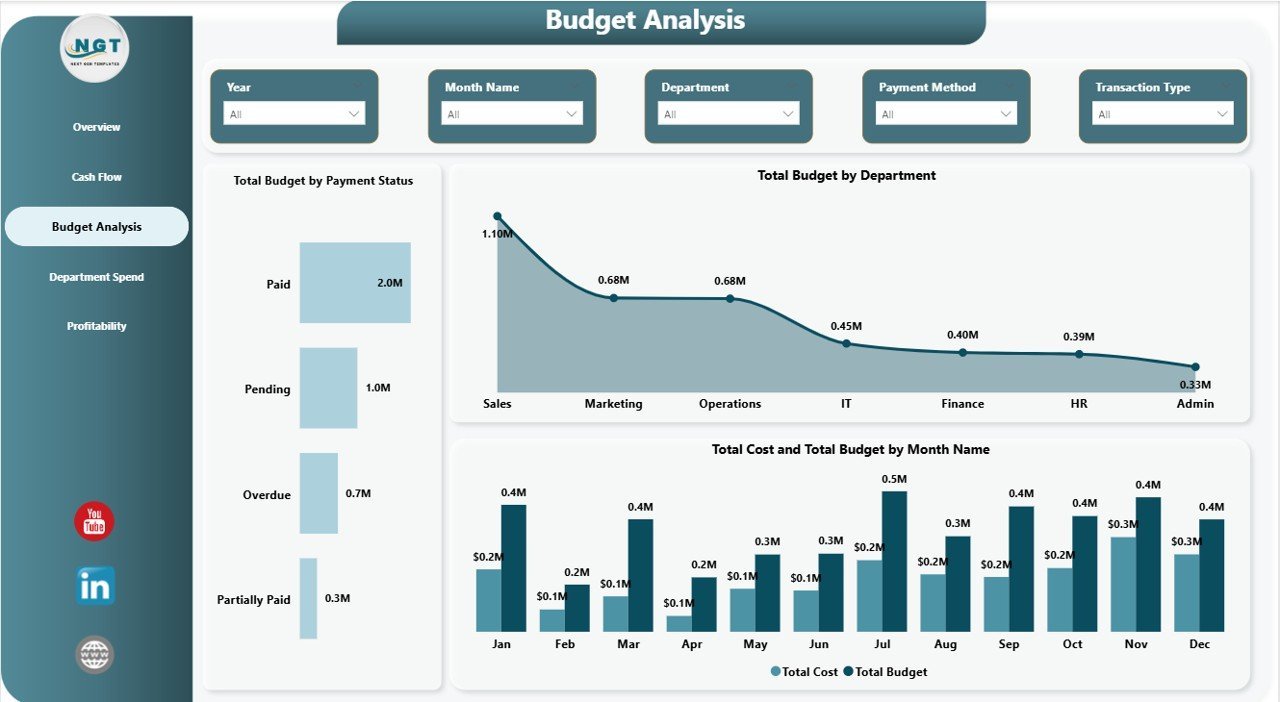
📌 Budget Analysis — Visualize total budget by payment status, department-wise budget allocation, and monthly cost vs budget trends.
📌 Profitability Tracking — Monitor profit margin by month, net profit by department, and identify overdue transactions by category.
📌 Professional Design — Clean, modern layout with intuitive navigation between pages for executive-level reporting.
📌 Plug-and-Play — Simply replace the sample data with your own business data and all charts, KPIs, and visuals update automatically.
📦 What’s Inside the Small Business CFO Dashboard in Power BI
This Power BI template delivers 5 fully interactive dashboard pages designed to give you complete financial visibility:
📊 Overview Page — Displays KPI cards for Total Revenue, Total Cost, Net Profit, and Total Receivables. Includes charts for Total Revenue by Month Name, Budget Utilization, Total Cost and Total Revenue by Department, and Total Cost by Category. Multiple slicers let you filter the entire dashboard instantly.
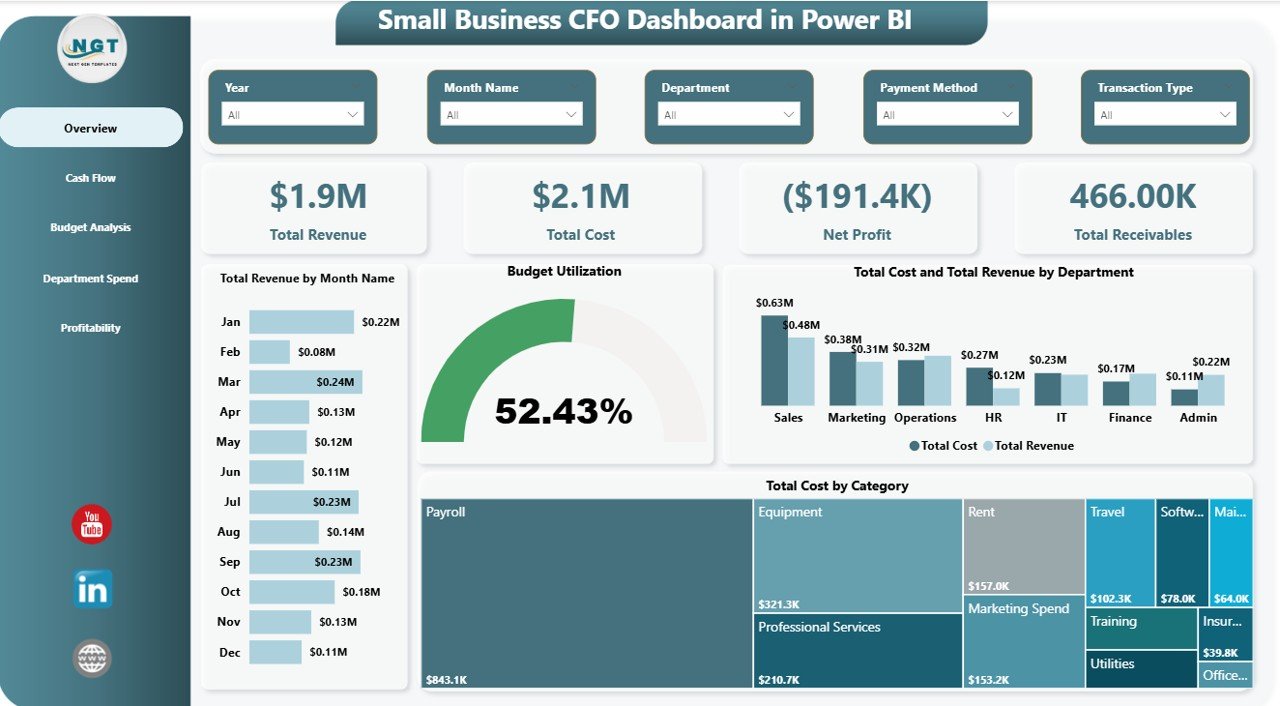 Overview Page
📊 Cash Flow Page — Analyzes Total Revenue by Payment Status, Total Receivables by Month Name, Total Cost and Total Revenue by Payment Status, and Total Receivables and Total Payables by Department.
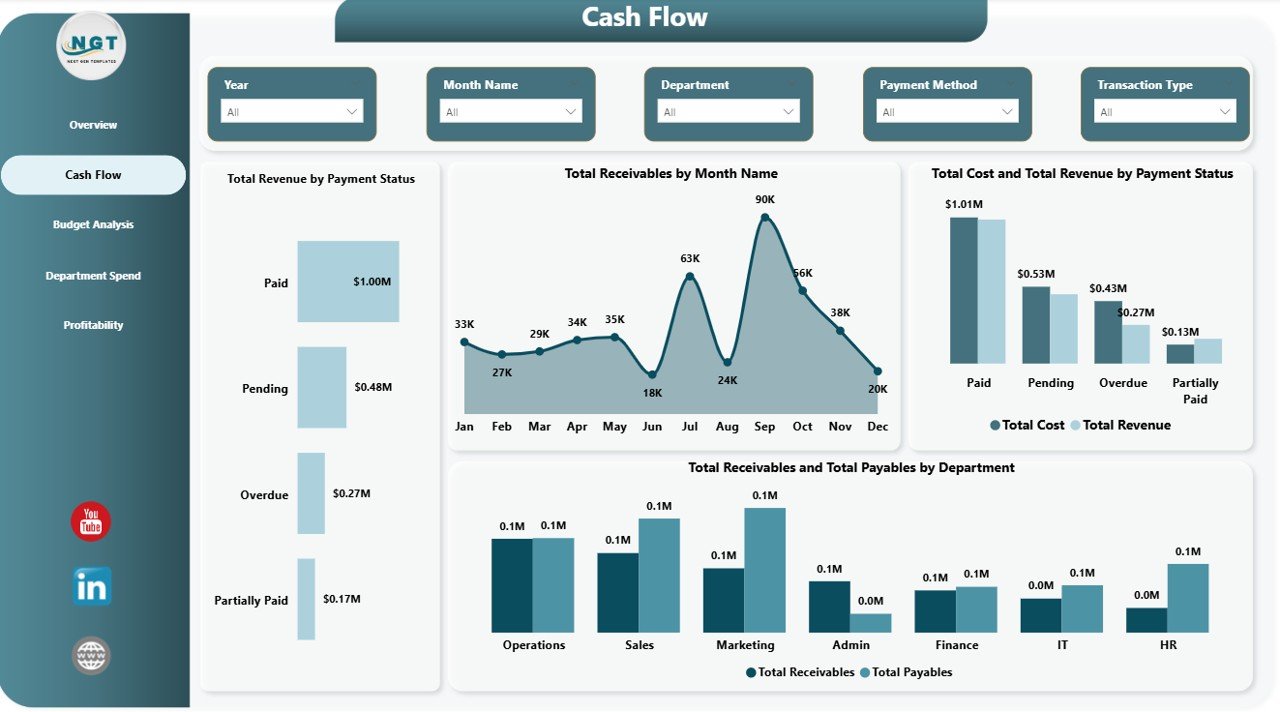 Cash Flow
📊 Budget Analysis Page — Tracks Total Budget by Payment Status, Total Budget by Department, and Total Cost and Total Budget by Month Name.
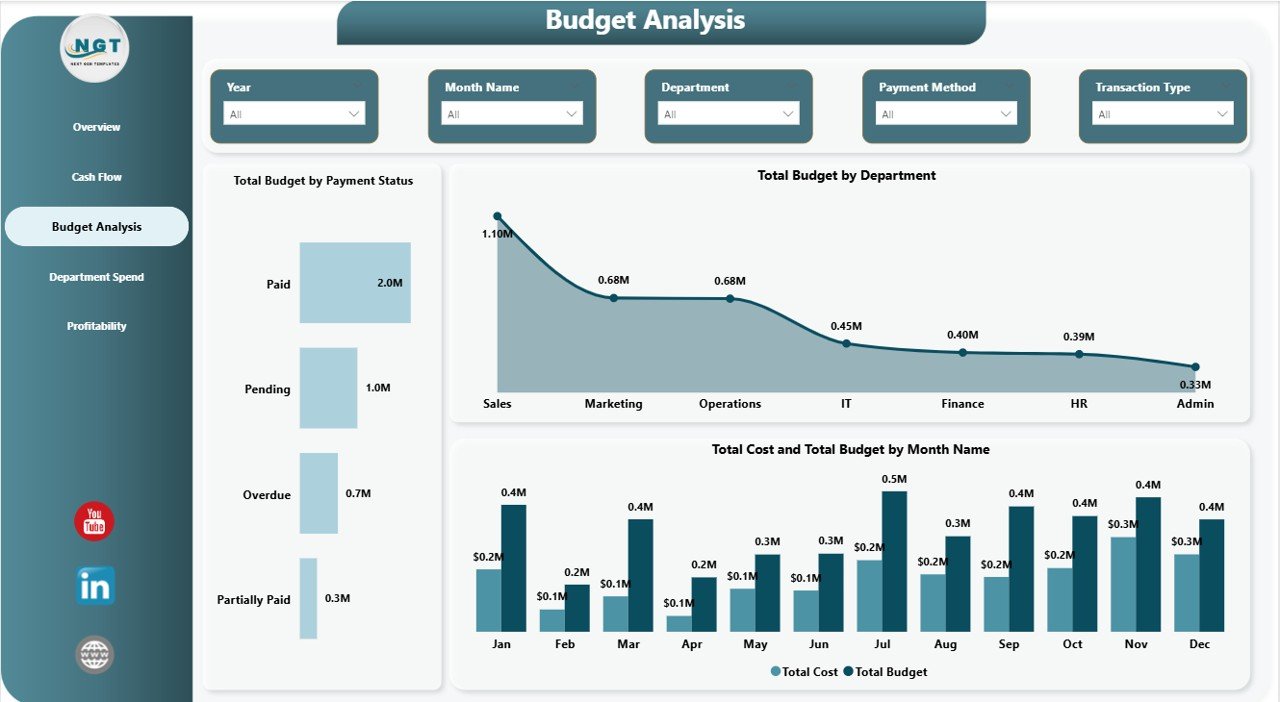 Budget Analysis
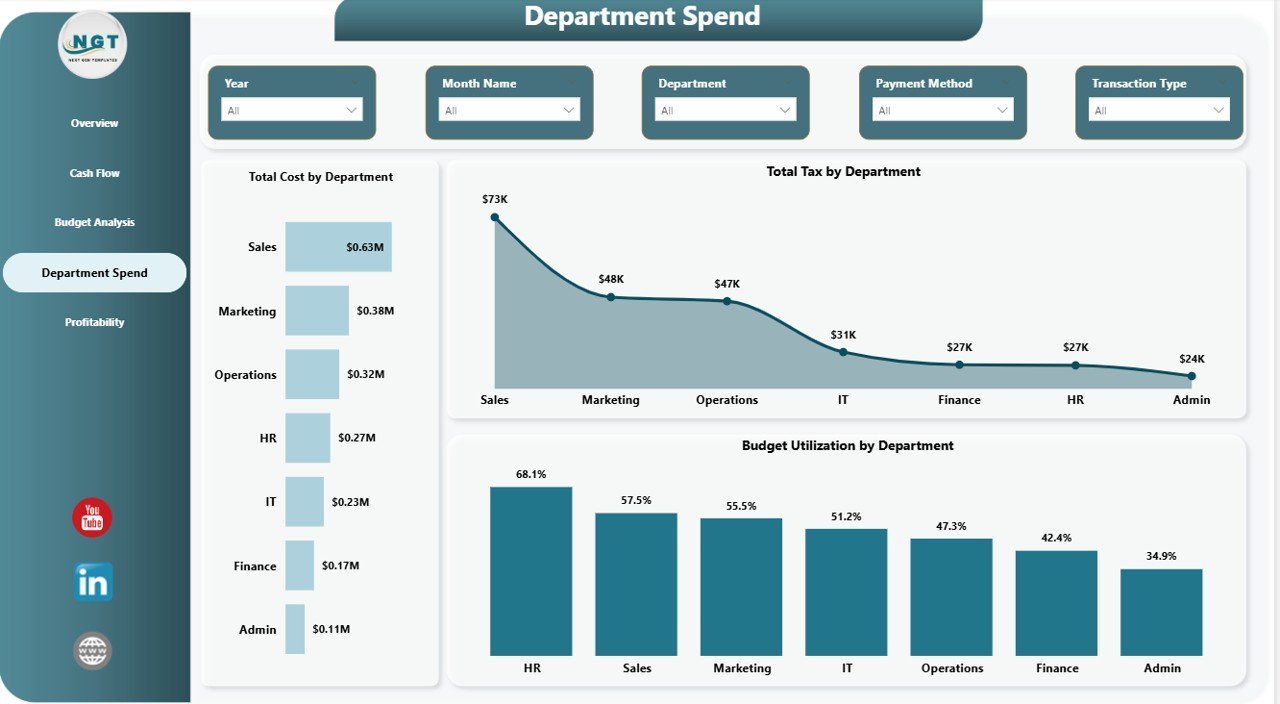
📊 Department Spend Page — Visualizes Total Cost by Department, Total Tax by Department, and Budget Utilization by Department.
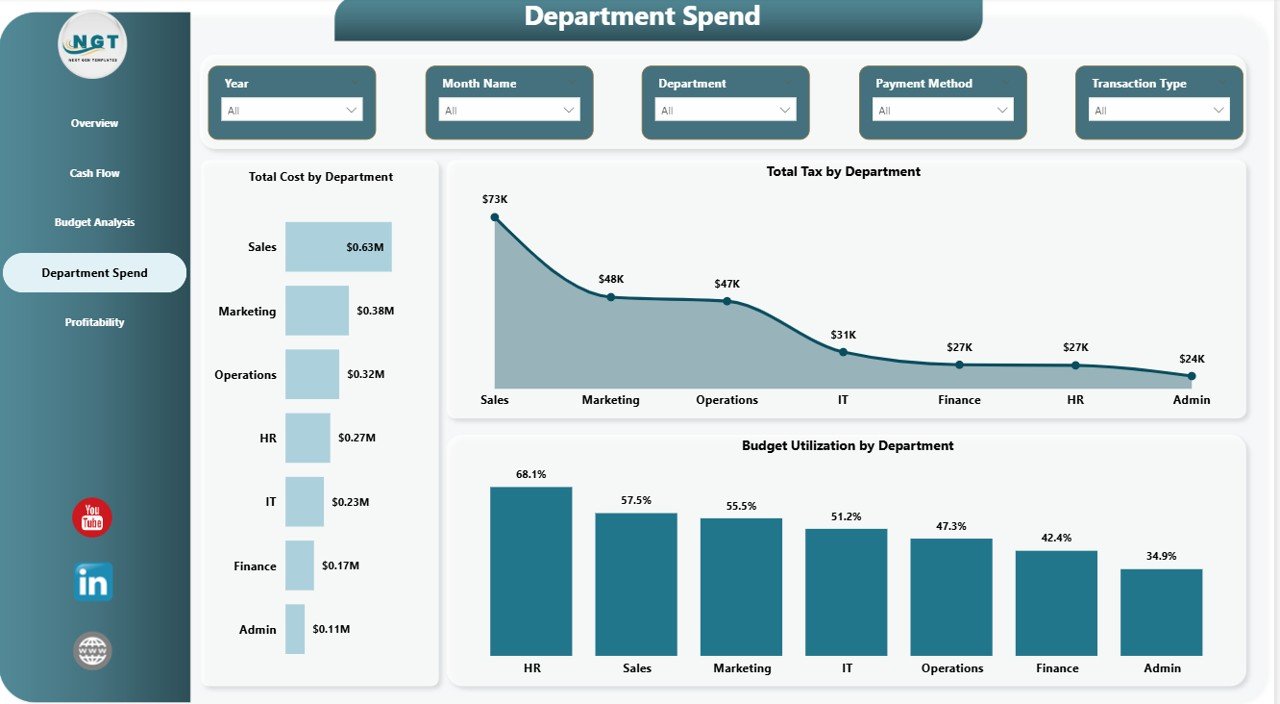 Department Spend
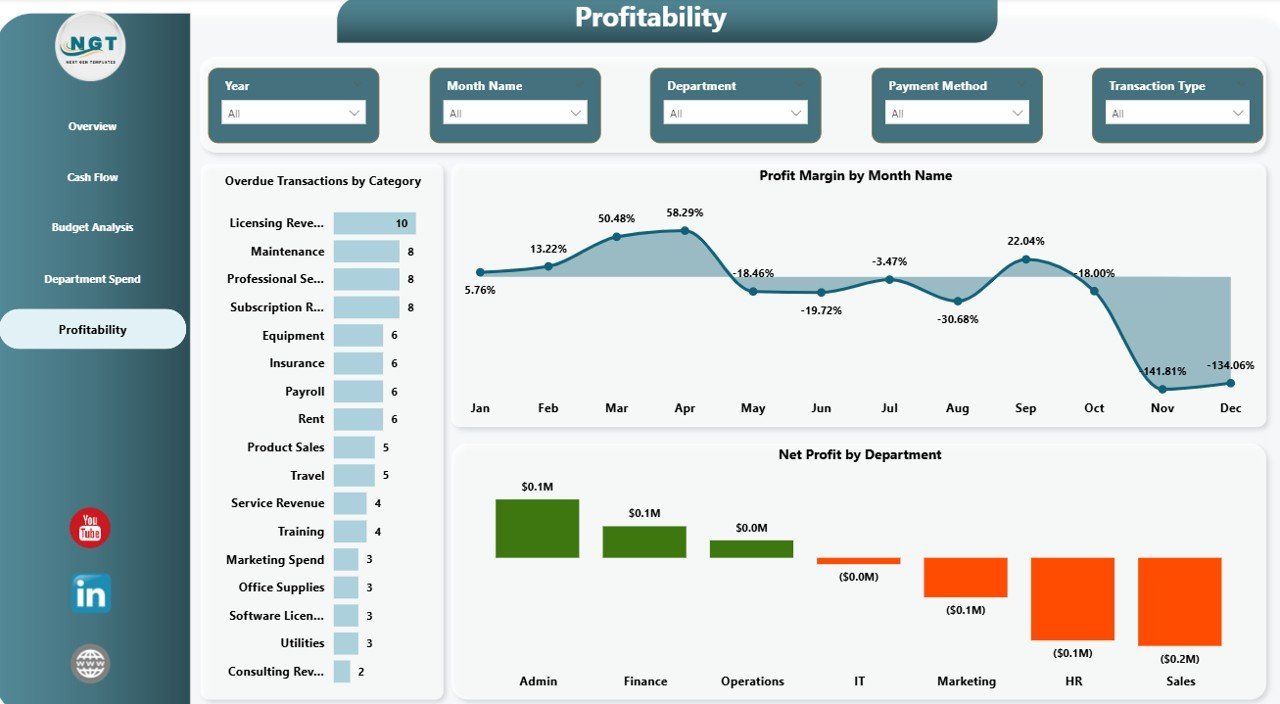
📊 Profitability Page — Displays Overdue Transactions by Category, Profit Margin by Month Name, and Net Profit by Department.
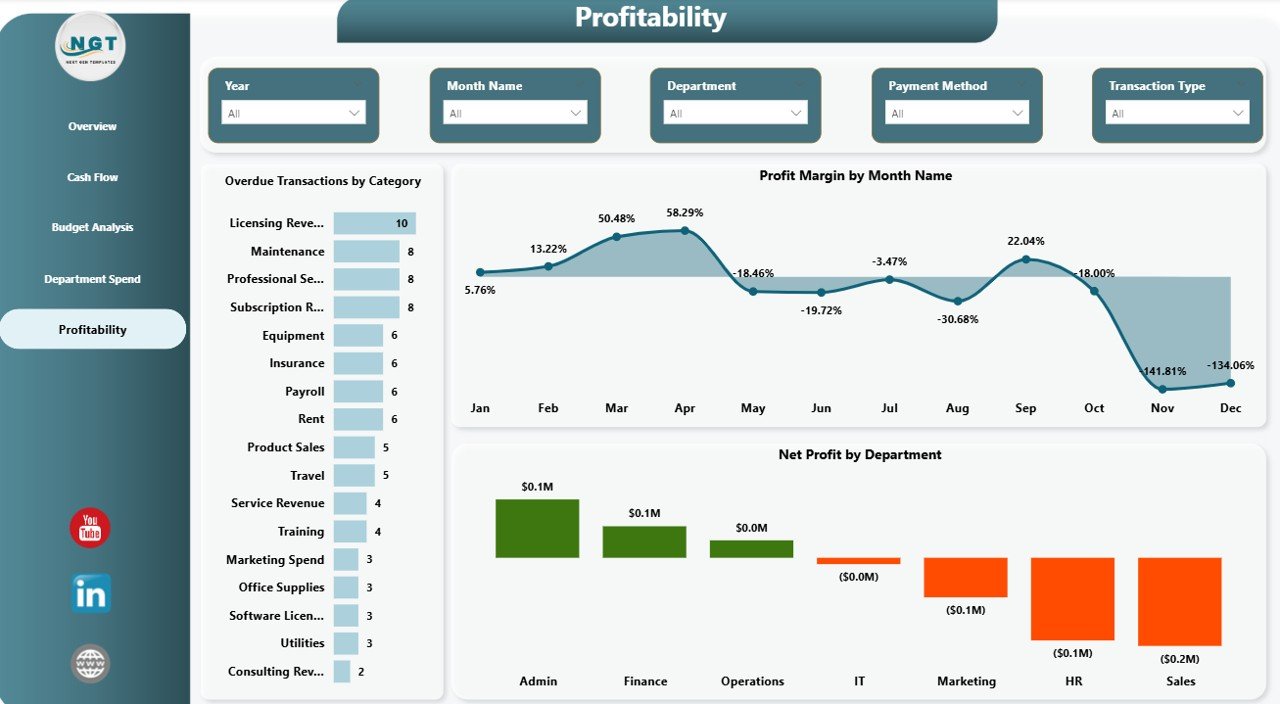 Profitability
⚙️ How to Use the Small Business CFO Dashboard in Power BI
1️⃣ Download and unzip the file after purchase.
2️⃣ Open the .pbix file in Power BI Desktop (free download from Microsoft).
3️⃣ Navigate through the 5 dashboard pages using the page tabs at the bottom.
4️⃣ Replace the sample data with your own business financial data.
5️⃣ Use the slicers and filters to drill down into specific departments, months, or categories.
6️⃣ Share the dashboard with your team or publish it to Power BI Service for cloud access.
👥 Who Can Benefit from This Dashboard
📌 Small Business Owners who want full visibility into their company finances without hiring a data analyst.
📌 CFOs and Finance Managers who need executive-level dashboards for board presentations and stakeholder meetings.
📌 Startup Founders who want to track revenue, costs, cash flow, and profitability from day one.
📌 Accountants and Bookkeepers who need a visual layer on top of raw financial data.
📌 Business Consultants who provide financial advisory services to small business clients.
❓ Frequently Asked Questions
What KPIs does the Small Business CFO Dashboard in Power BI track?
The Small Business CFO Dashboard in Power BI tracks Total Revenue, Total Cost, Net Profit, Total Receivables, Total Payables, Budget Utilization, Profit Margin, and Total Tax across 5 interactive dashboard pages.
Do I need advanced Power BI skills to use this template?
No. Simply open the .pbix file in Power BI Desktop, replace the sample data with your own financial data, and all charts and KPIs update automatically. No DAX or Power Query knowledge required.
Can I customize the Small Business CFO Dashboard?
Yes. You can modify colors, add new visuals, create additional measures, and connect your own data sources. The template is fully editable in Power BI Desktop.
What is the best Power BI dashboard for small business finance?
The Small Business CFO Dashboard in Power BI is one of the best financial dashboard templates for small businesses. It covers 5 critical areas — Overview, Cash Flow, Budget Analysis, Department Spend, and Profitability — in a single ready-to-use .pbix file.
Is this template compatible with Power BI Service?
Yes. You can publish the dashboard from Power BI Desktop to Power BI Service for cloud-based sharing, scheduled data refreshes, and mobile access.
🔗 Explore Related Templates
📌 Small Business CFO Dashboard in Excel — Same financial analytics in a familiar Excel format with interactive charts and pivot tables.
📌 Small Business CFO Dashboard in HTML — Browser-based version with no software installation required.
📌 Finance Summary Dashboard in Excel — A compact financial summary dashboard for quick reporting.
Browse all our Power BI Dashboard Templates and Power BI Templates for more options.
📖 Click here to read the Detailed Blog Post
Watch the step-by-step video tutorial:


Reviews
There are no reviews yet.