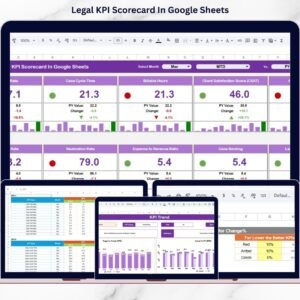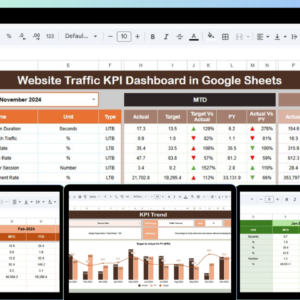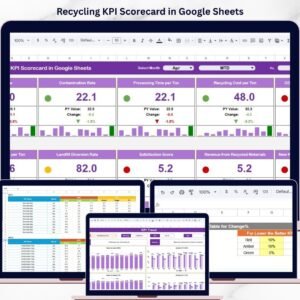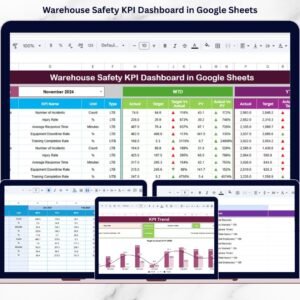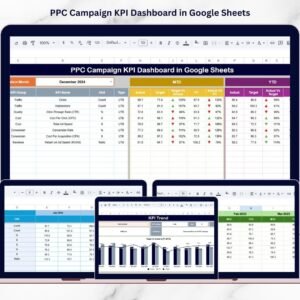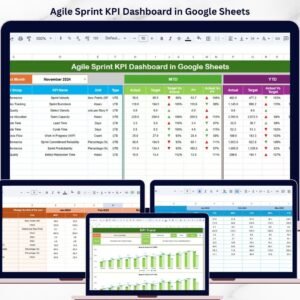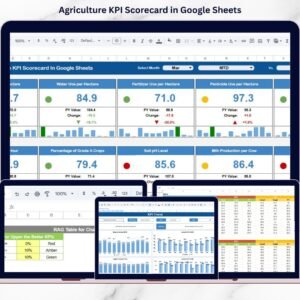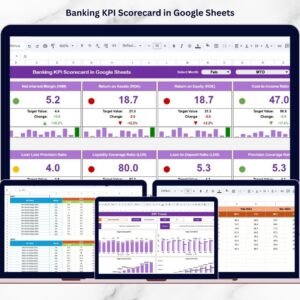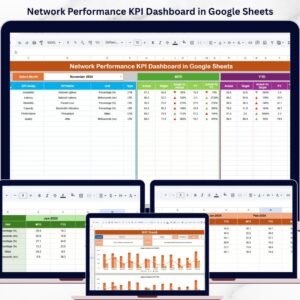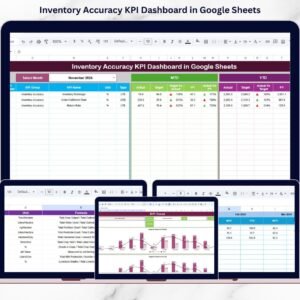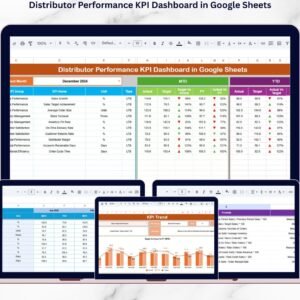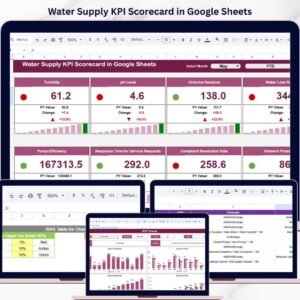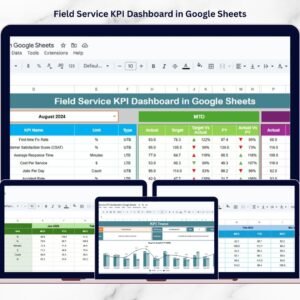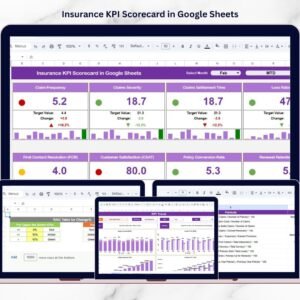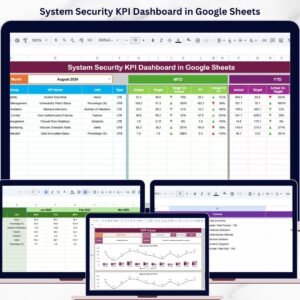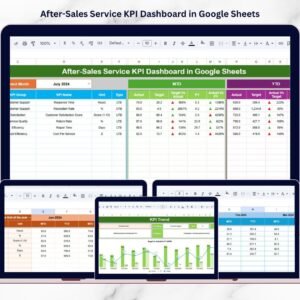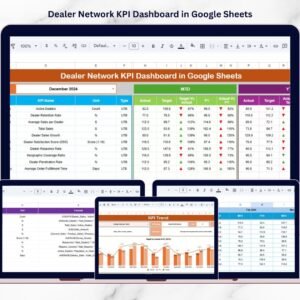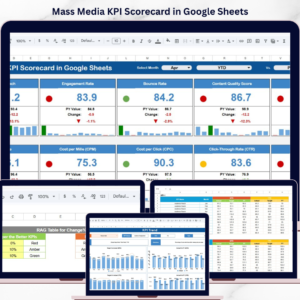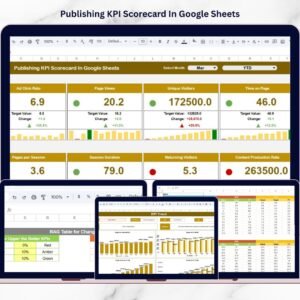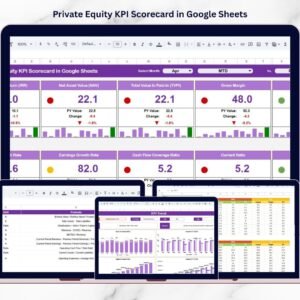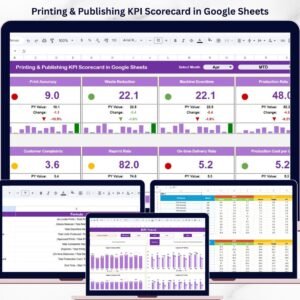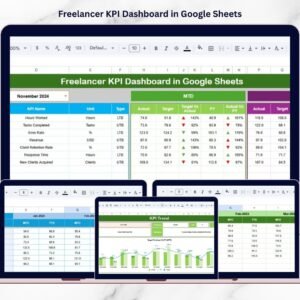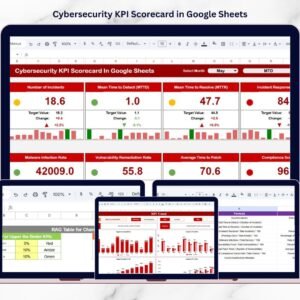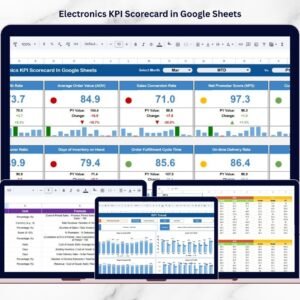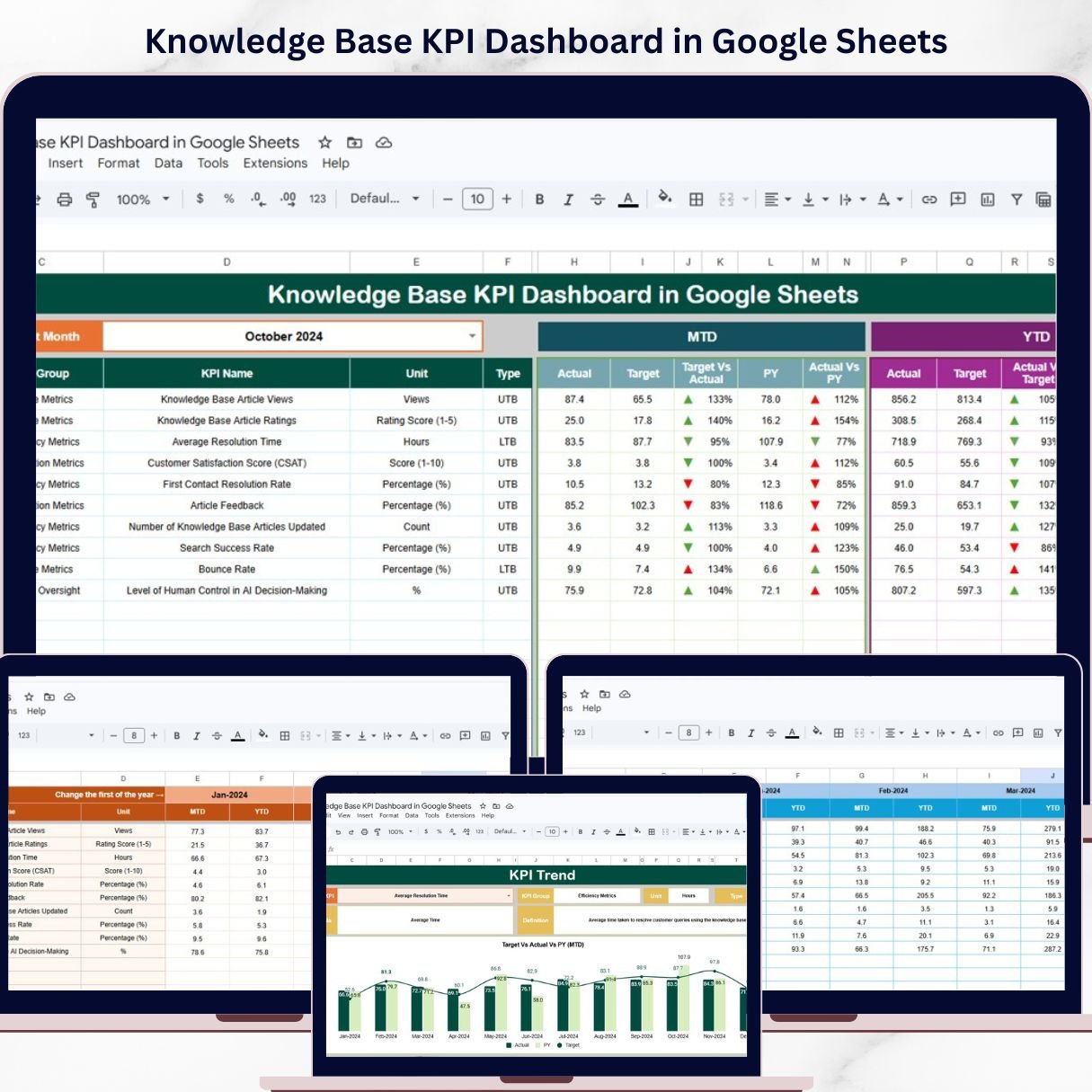
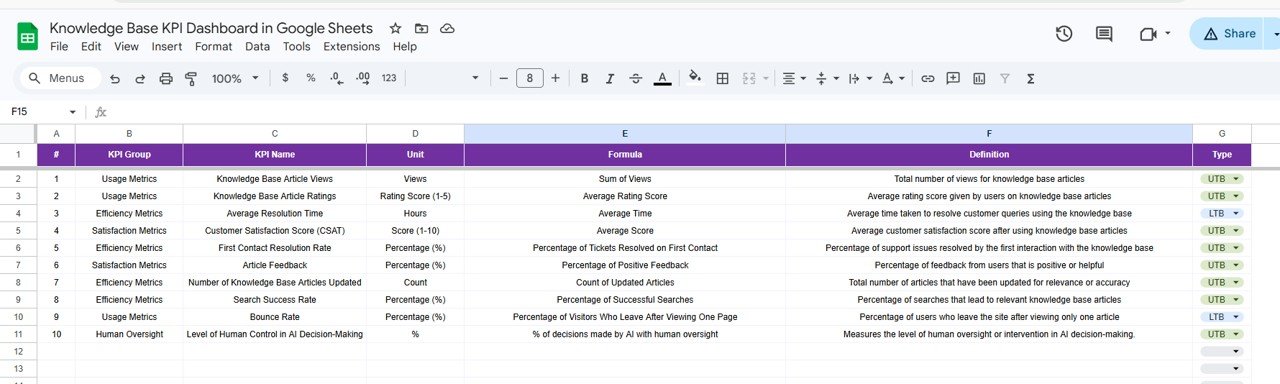
Introducing the Knowledge Base KPI Dashboard in Google Sheets — a powerful, ready-to-use tool designed to help you track performance, monitor KPIs, and optimize your knowledge management system with ease.
In today’s knowledge-driven environment, organizations rely heavily on internal documentation and support content. However, without proper tracking, it becomes difficult to evaluate performance or improve efficiency.
✨ Key Features of Knowledge Base KPI Dashboard in Google Sheets
📊 Centralized KPI Dashboard
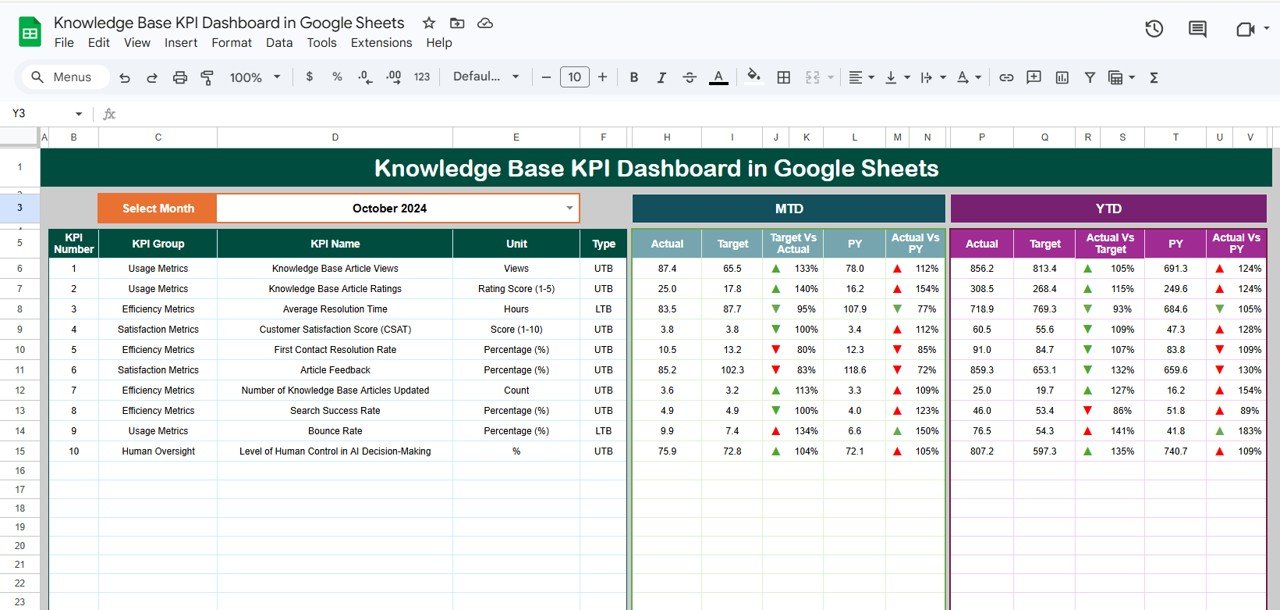
Track all your KPIs in one place with dynamic MTD and YTD performance metrics.
📅 Monthly Performance Tracking
Select any month and instantly update all dashboard visuals.
🎯 Actual vs Target vs Previous Year Comparison
Evaluate performance with clear comparisons and trend indicators.
🔺 Conditional Formatting Indicators
Visual arrows highlight KPI performance instantly.
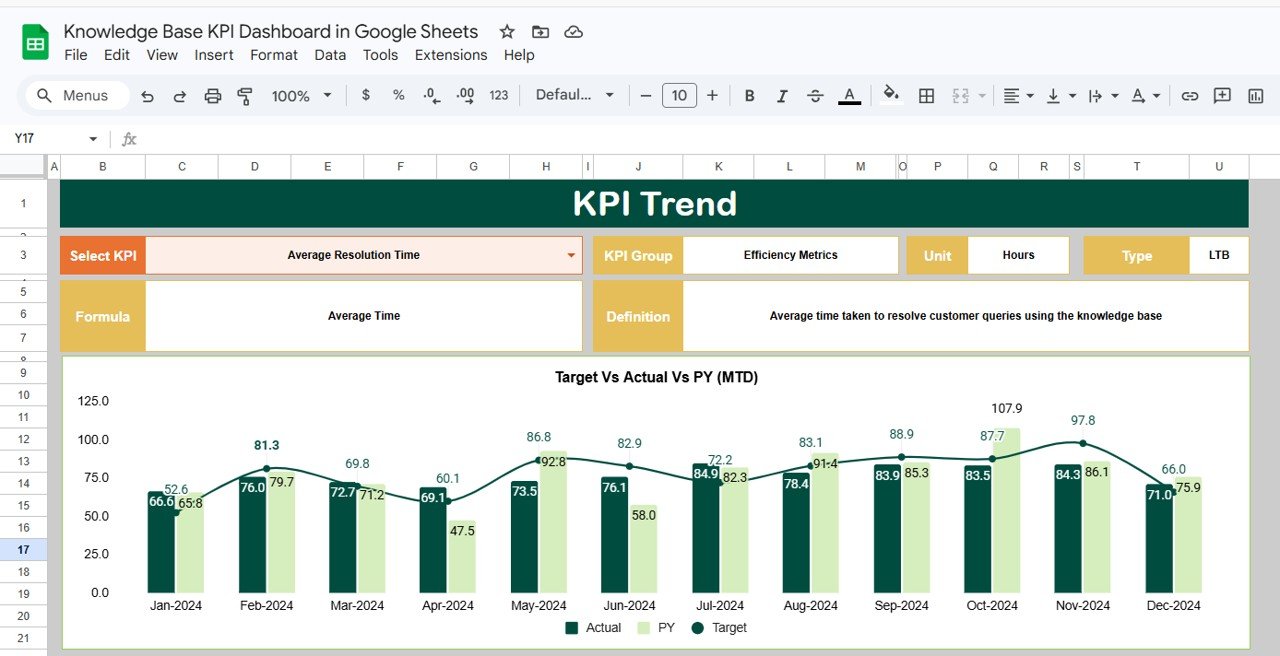
📈 Detailed KPI Trend Analysis
Analyze individual KPIs with complete context including definitions and formulas.
🧠 KPI Documentation Included
Access KPI group, unit, formula, and definition in one structured sheet.
⚡ Interactive & User-Friendly Design
Simple inputs, dropdowns, and filters make analysis quick and easy.
📊 Data-Driven Insights
Make smarter decisions with clear performance tracking and trend analysis.
📂 What’s Inside the Knowledge Base KPI Dashboard in Google Sheets
📌 Dashboard Sheet
The main control panel showing MTD & YTD metrics with comparisons and visual indicators.
📌 KPI Trend Sheet
Deep dive into individual KPIs with dropdown selection and detailed information.
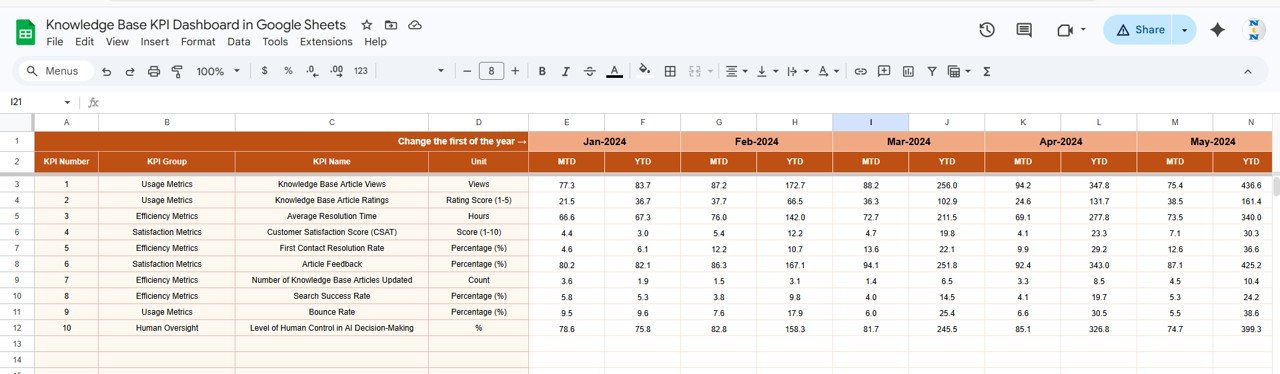
📌 Actual Number Sheet
Input current performance data including MTD and YTD values.
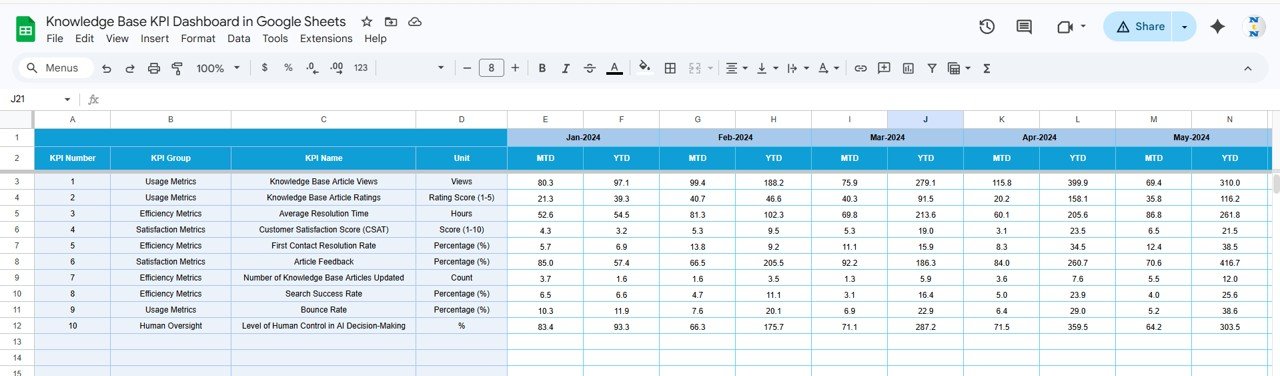
📌 Target Sheet
Set KPI targets for monthly performance tracking.
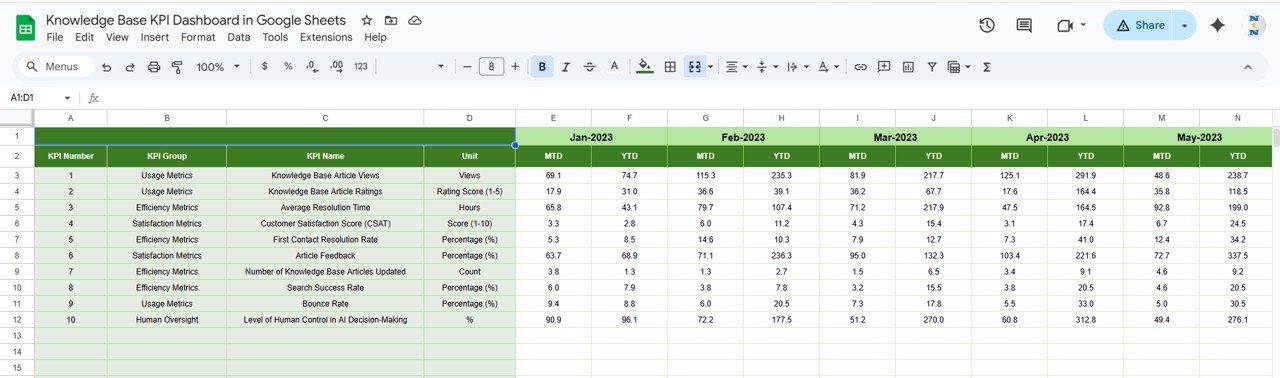
📌 Previous Year Sheet
Store historical data for year-over-year comparison.
📌 KPI Definition Sheet
Complete repository of KPI names, formulas, units, and definitions.
🛠️ How to Use the Knowledge Base KPI Dashboard in Google Sheets
Using this dashboard is simple—even if you’re not an expert! 💡
1️⃣ Enter KPI Data
Input actual performance values in the Actual sheet.
2️⃣ Set Targets
Define KPI targets in the Target sheet.
3️⃣ Add Previous Year Data
Input historical data for comparison.
4️⃣ Select Month
Choose the desired month from the dropdown.
5️⃣ Analyze Dashboard
Review KPIs, charts, and performance indicators.
6️⃣ Take Action
Identify gaps and improve knowledge base performance.
👥 Who Can Benefit from This Knowledge Base KPI Dashboard in Google Sheets
💼 Knowledge Managers – Monitor and improve content performance
🧠 Support Teams – Enhance efficiency and reduce resolution time
📊 Data Analysts – Analyze KPI trends and insights
🏢 Business Managers – Improve decision-making with data
🌐 Customer Support Teams – Boost user satisfaction and service quality
💡 Why This Dashboard is a Must-Have?
✔ Track KPIs in real time
✔ Standardize KPI definitions
✔ Improve knowledge base performance
✔ Reduce manual reporting
✔ Make faster, data-driven decisions
👉 If you want to optimize your knowledge base and boost performance, this dashboard is your ultimate solution!