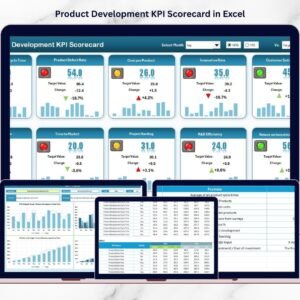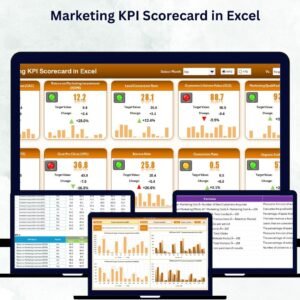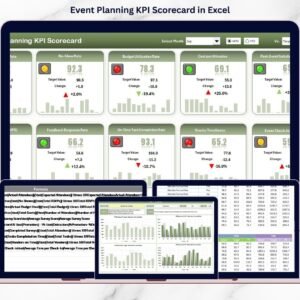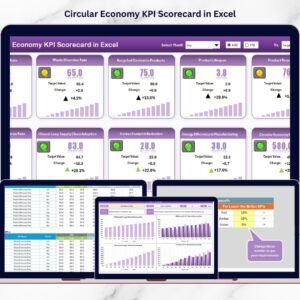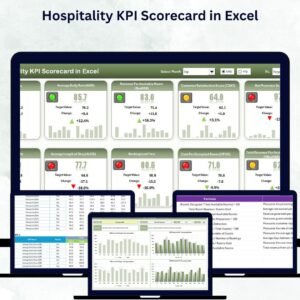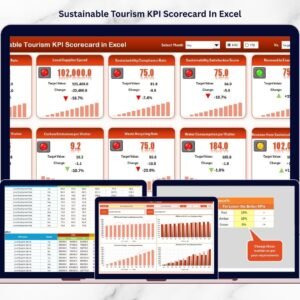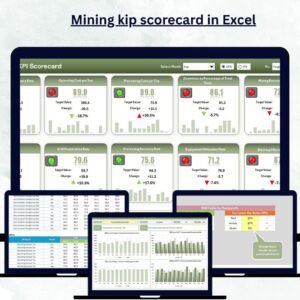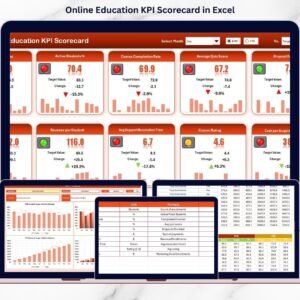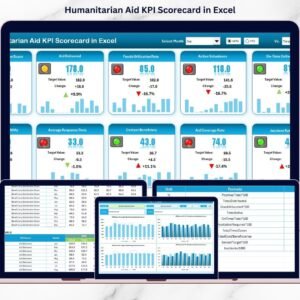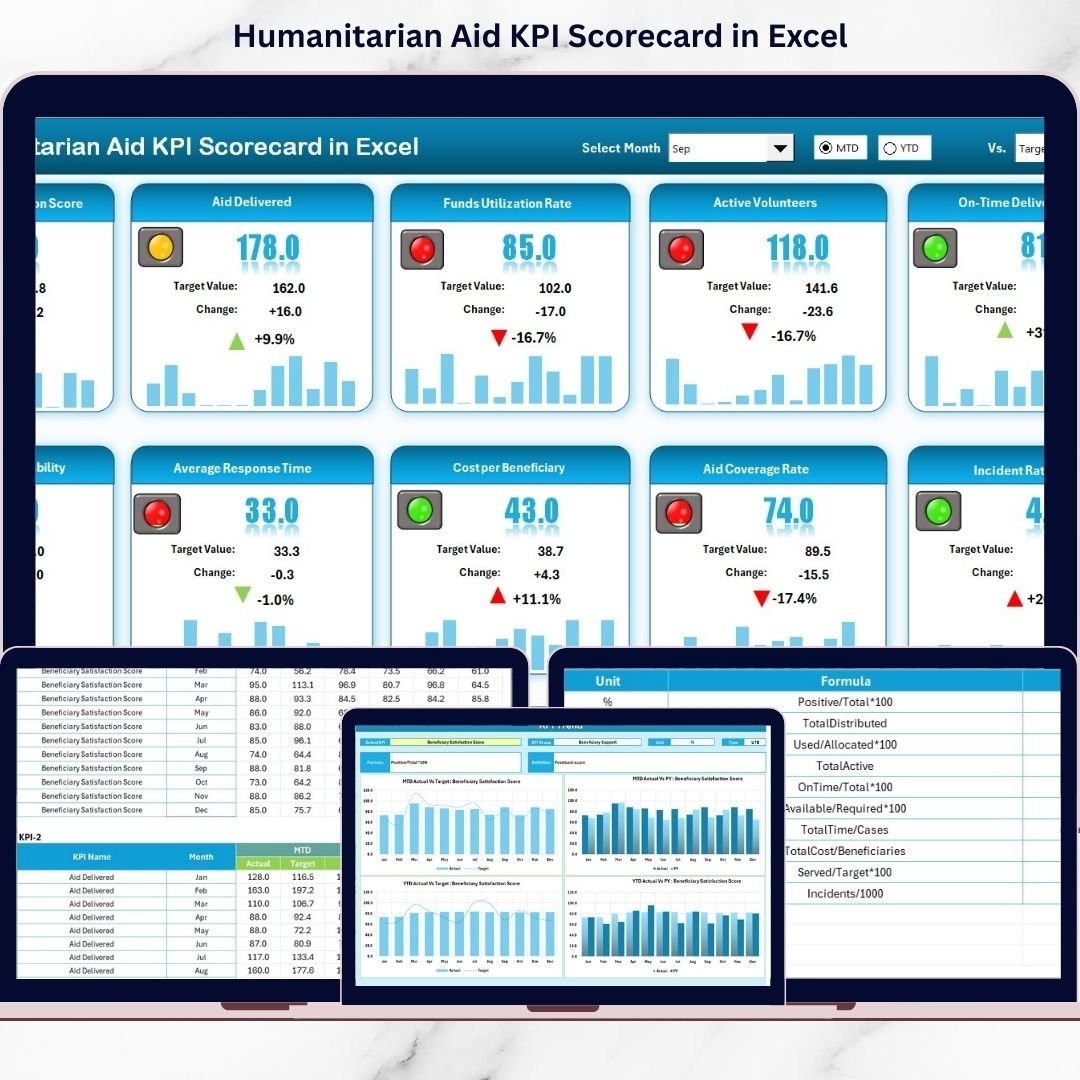

Humanitarian work demands precision, accountability, and measurable impact. From emergency relief and food distribution to medical assistance and education programs, every initiative must be tracked clearly. Humanitarian Aid KPI Scorecard in Excel but when performance data lives in scattered spreadsheets, leadership struggles to see the real story behind the numbers.
Delayed decisions. Missed performance gaps. Weak donor confidence.
What if you could measure humanitarian impact in one structured, professional, and easy-to-use Excel system?
Humanitarian Aid KPI Scorecard in Excel That’s exactly what the Humanitarian Aid KPI Scorecard in Excel delivers. 🚀
This ready-to-use Excel scorecard helps NGOs and humanitarian organizations monitor Actual vs Target performance, track MTD (Month-to-Date) and YTD (Year-to-Date) results, analyze trends, and document KPI definitions — all inside one organized workbook.
No expensive BI tools. No complicated setup. Just smart, structured performance tracking.
🚀 Key Feature of Humanitarian Aid KPI Scorecard in Excel
This professionally designed scorecard includes 4 fully integrated worksheets that work together seamlessly.
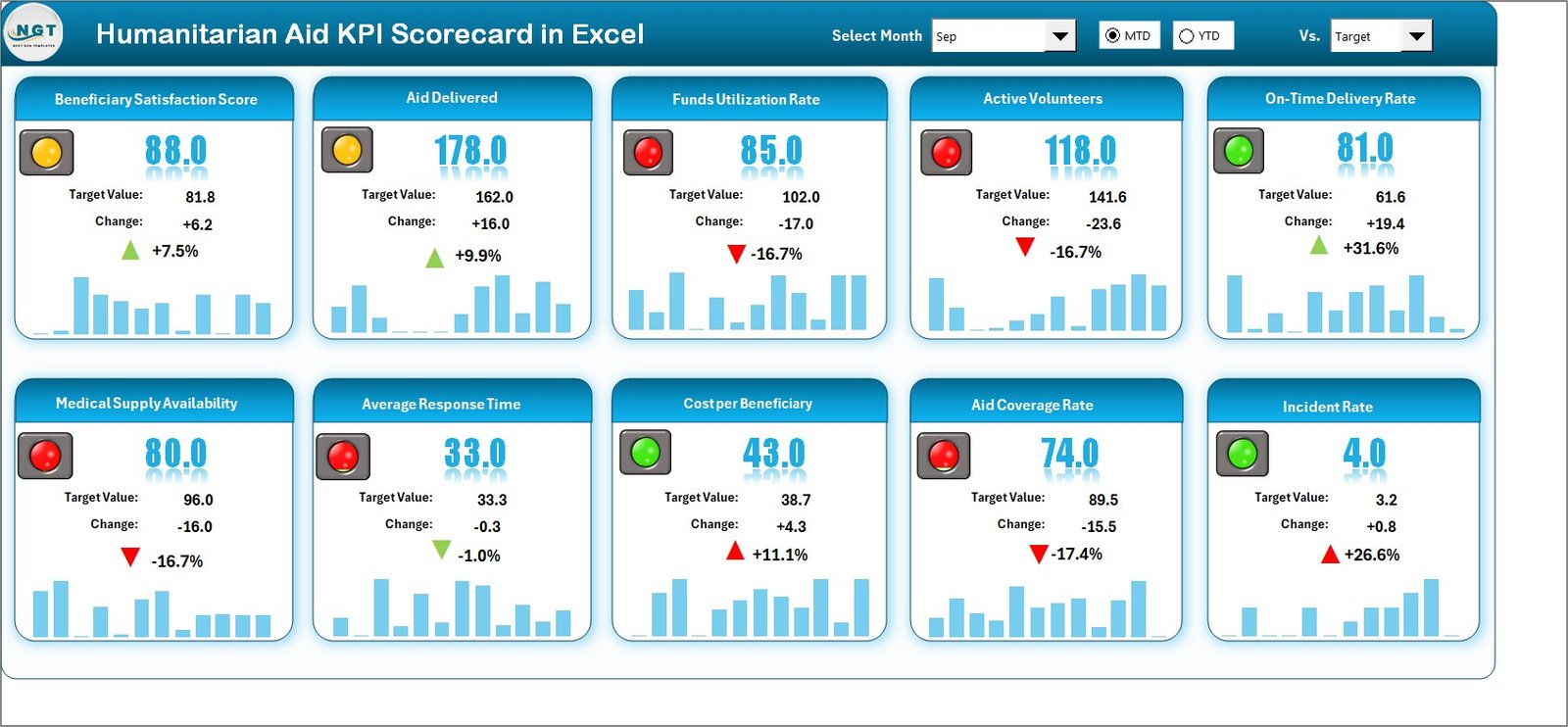
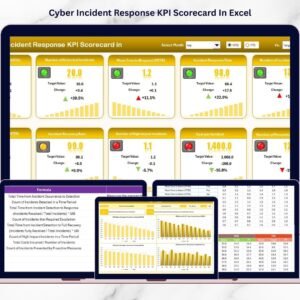
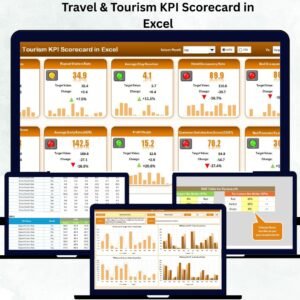
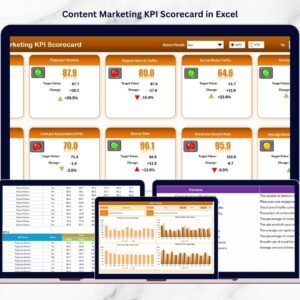
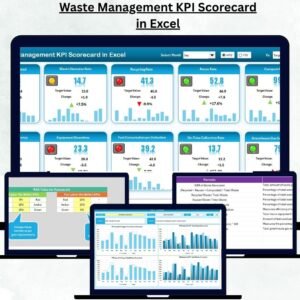
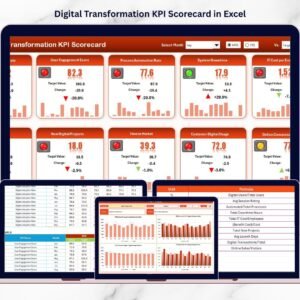
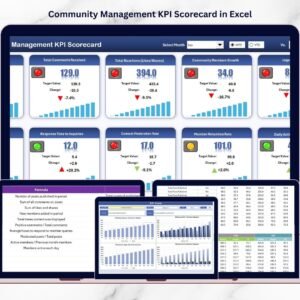
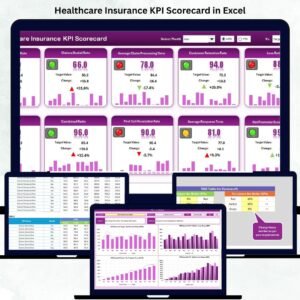
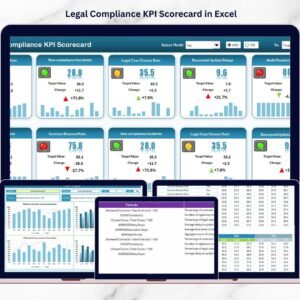
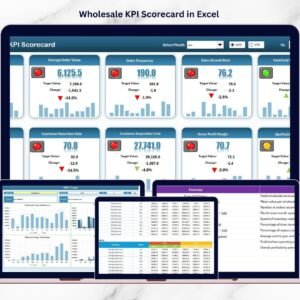
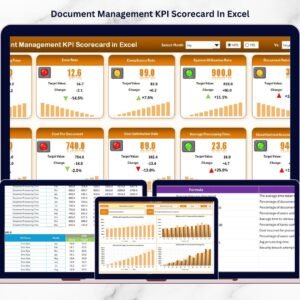
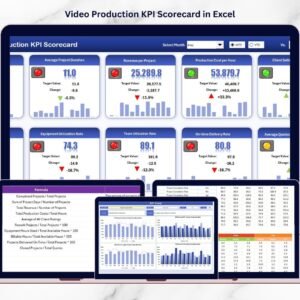
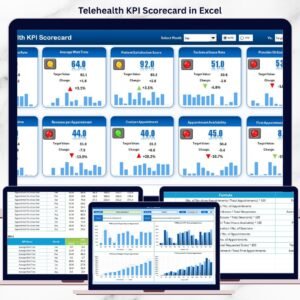
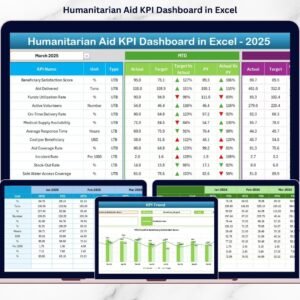
📊 Scorecard Sheet – Main Performance Dashboard
Select Month, choose MTD or YTD view, and watch the entire scorecard update automatically.
✔ Actual MTD vs Target MTD
✔ Actual YTD vs Target YTD
✔ Color-coded performance indicators
✔ Clear KPI grouping and unit display
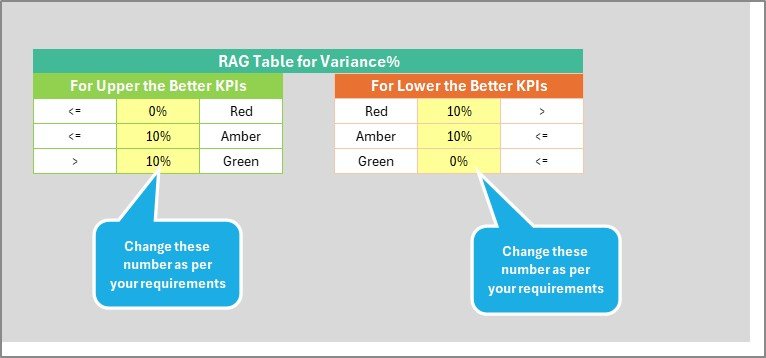
🟢 Visual Performance Indicators
Green = KPI meets or exceeds target
Red = KPI underperforms
This allows leadership to instantly detect gaps.
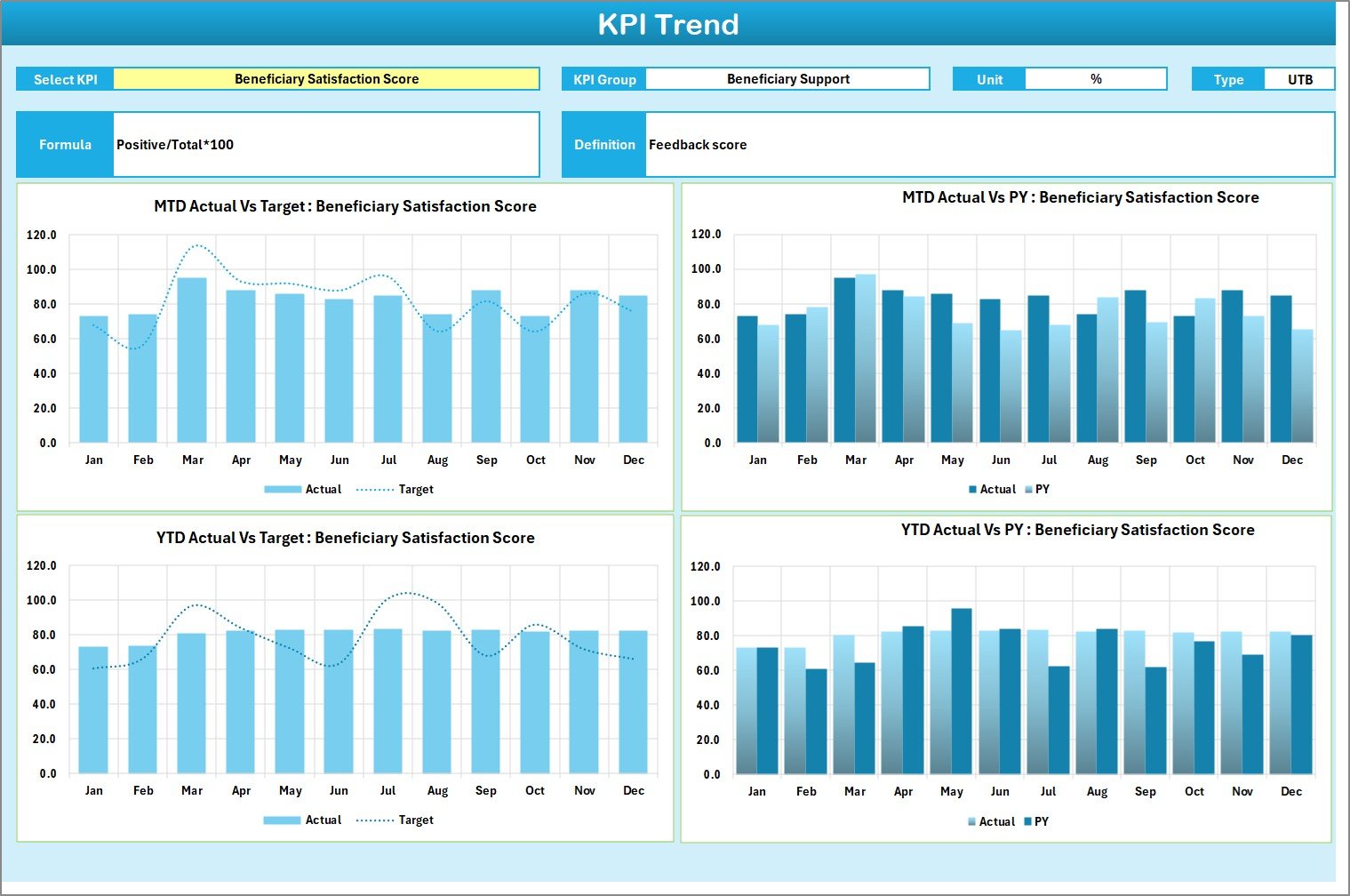
📈 KPI Trend Sheet – Time-Based Analysis
Select any KPI in cell C3 and analyze:
✔ KPI Group
✔ KPI Type (Lower the Better / Upper the Better)
✔ KPI Formula & Definition
✔ MTD Trend Chart (Actual vs Target vs PY)
✔ YTD Trend Chart (Actual vs Target vs PY)
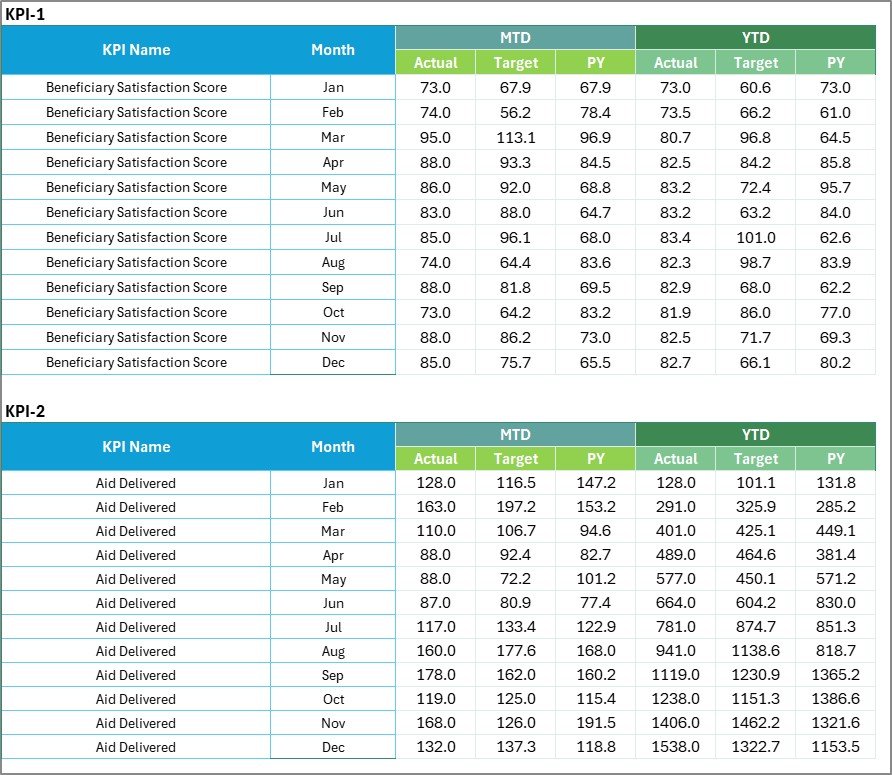
📝 Input Data Sheet – Central Data Entry Area
Enter Actual and Target values monthly. All calculations update automatically.
📘 KPI Definition Sheet – Governance & Documentation
Document KPI name, group, formula, unit, and definition for transparency and audit readiness.
Everything is connected dynamically. Update numbers once — see results everywhere.
📦 What’s Inside the Humanitarian Aid KPI Scorecard in Excel
When you purchase this scorecard, you receive:
✔ 4 structured Excel worksheets
✔ Automated MTD & YTD calculations
✔ Actual vs Target comparison logic
✔ Conditional formatting performance indicators
✔ Trend charts for each KPI
✔ Centralized KPI documentation framework
✔ Easy dropdown selection controls
✔ Fully customizable KPI structure
This is not just a spreadsheet — it’s a structured humanitarian performance monitoring system.
🛠 How to Use the Humanitarian Aid KPI Scorecard in Excel
Getting started is simple:
1️⃣ Enter monthly data in the “Input Data” sheet.
2️⃣ Define KPIs in the “KPI Definition” sheet.
3️⃣ Open the Scorecard sheet.
4️⃣ Select Month and choose MTD or YTD view.
The scorecard instantly displays:
• Actual vs Target comparisons
• Color-coded performance results
• KPI grouping and unit clarity
For deeper analysis:
Go to KPI Trend → Select KPI → Review trend charts and historical comparisons.
No advanced Excel knowledge required.
🌍 Who Can Benefit from This Humanitarian Aid KPI Scorecard in Excel
This scorecard is ideal for:
🤝 NGOs
🌍 International Relief Agencies
🏥 Health & Medical Aid Programs
🍚 Food Distribution Initiatives
🏠 Shelter & Community Support Projects
📊 Donor Reporting Teams
👩💼 Executive Leadership
Whether your organization operates locally or internationally, this scorecard provides structured visibility into your humanitarian impact.
The Humanitarian Aid KPI Scorecard in Excel helps you:
✔ Improve transparency
✔ Strengthen accountability
✔ Identify underperformance quickly
✔ Optimize resource allocation
✔ Increase donor confidence
✔ Support long-term strategic planning
Instead of reacting to problems late, you make proactive, data-driven decisions.
If your organization wants measurable, transparent, and organized KPI tracking without complex systems, this Excel scorecard is your ultimate solution.
Click here to read the Detailed blog post
Visit our YouTube channel to learn step-by-step video tutorials:
👉 https://youtube.com/@PKAnExcelExpert