

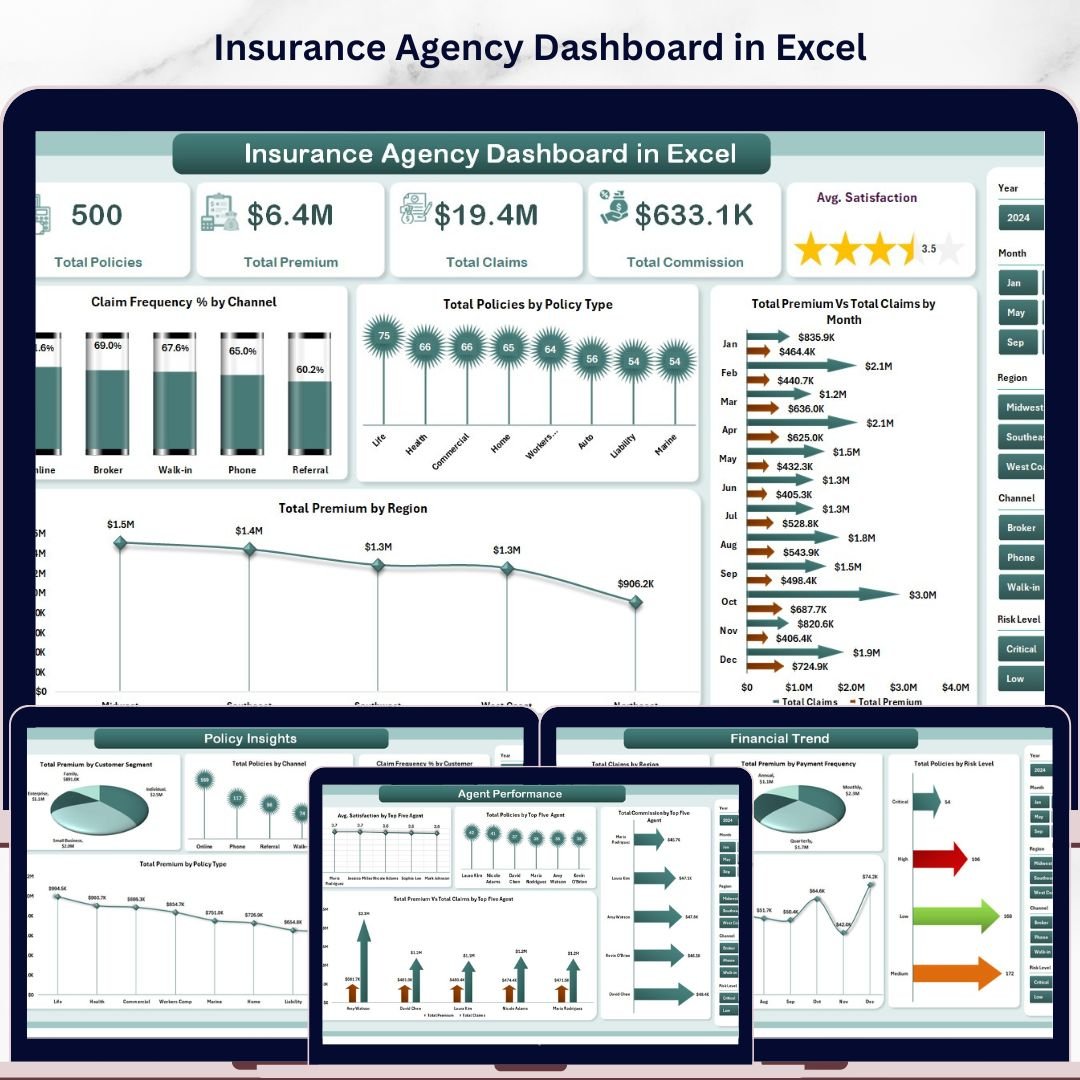
🔑 Key Features of Insurance Agency Dashboard in Excel
Insurance Agency Dashboard in Excel is a comprehensive, ready-to-use analytics template designed for insurance agencies, brokers, underwriters, and risk managers who need to monitor policy performance, claims activity, agent productivity, premium trends, and customer satisfaction from a single interactive Excel workbook. This professionally built Excel Dashboard Template includes 5 interactive analysis pages, a structured data sheet, and a support sheet with pivot tables that power the entire dashboard dynamically.
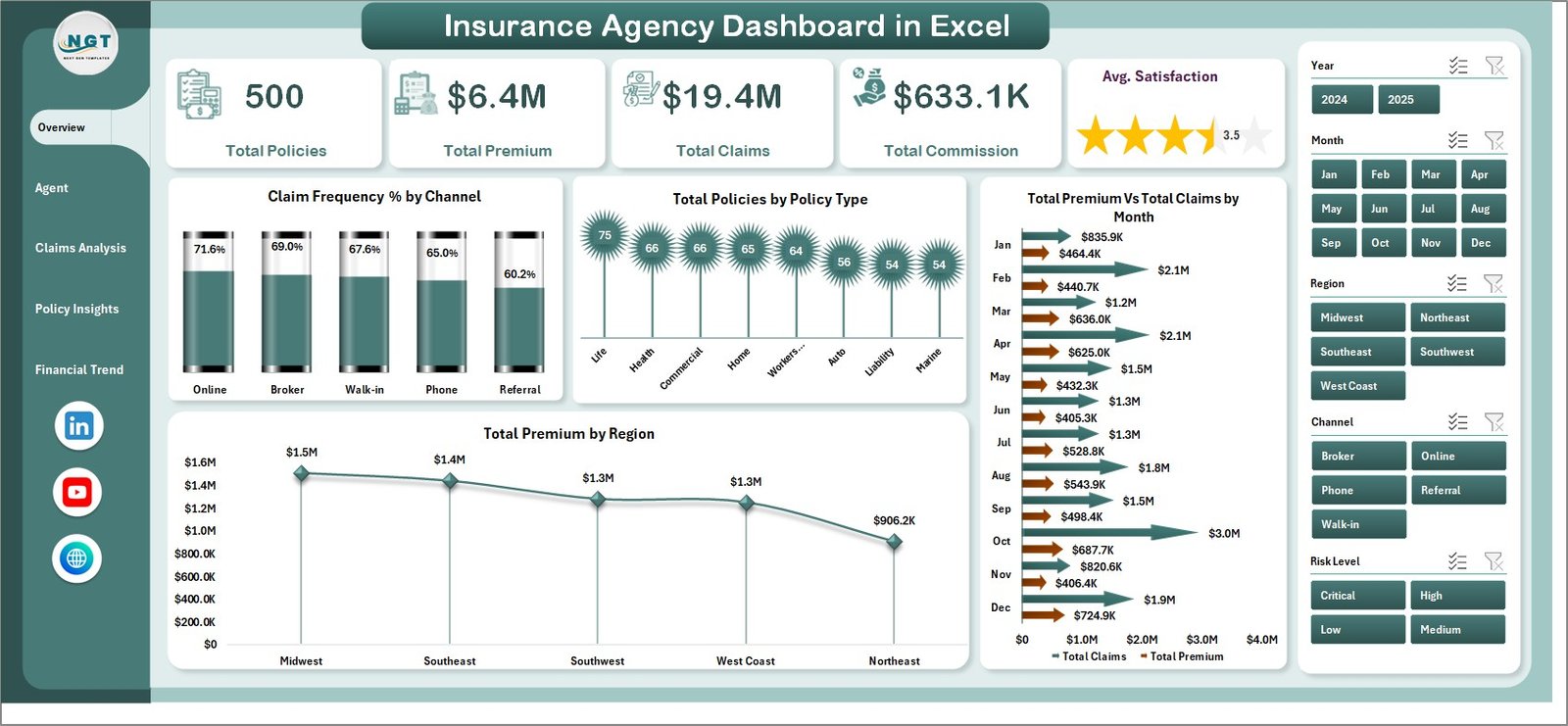
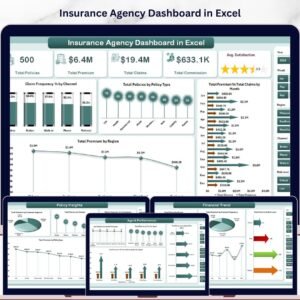
Whether you manage a small insurance brokerage or a large agency with multiple agents and regions, this dashboard gives you instant visibility into your total policies, total premium collected, total claims filed, total commission earned, and average customer satisfaction scores. The dashboard tracks these 5 key performance indicators on the overview page with dynamic KPI cards and interactive slicers that let you filter by policy type, channel, region, and more. Explore more Excel Dashboard Templates and Insurance Templates on our store.
📦 What’s Inside the Insurance Agency Dashboard in Excel
This dashboard contains 7 sheet tabs — 5 analytical pages, 1 data sheet, and 1 support sheet with pivot tables. Here is what each page delivers:
📊 1. Overview Page — The command center of your insurance analytics. High-level KPI cards display Total Policies, Total Premium, Total Claims, Total Commission, and Avg. Satisfaction at the top. Below the cards, interactive charts show Claim Frequency % by Channel, Total Policies by Policy Type, Total Premium Vs Total Claims by Region, and Total Premium by Region. Multiple slicers let you filter the entire dashboard by policy type, region, channel, and other dimensions instantly.
📊 2. Agent Performance — This page evaluates individual agent productivity and effectiveness. Charts include Avg. Satisfaction by Top Five Agent, Total Policies by Top Five Agent, Total Commission by Top Five Agent, and Total Premium Vs Total Claims by Top Five Agent. These insights help agency managers identify top performers and coaching opportunities.
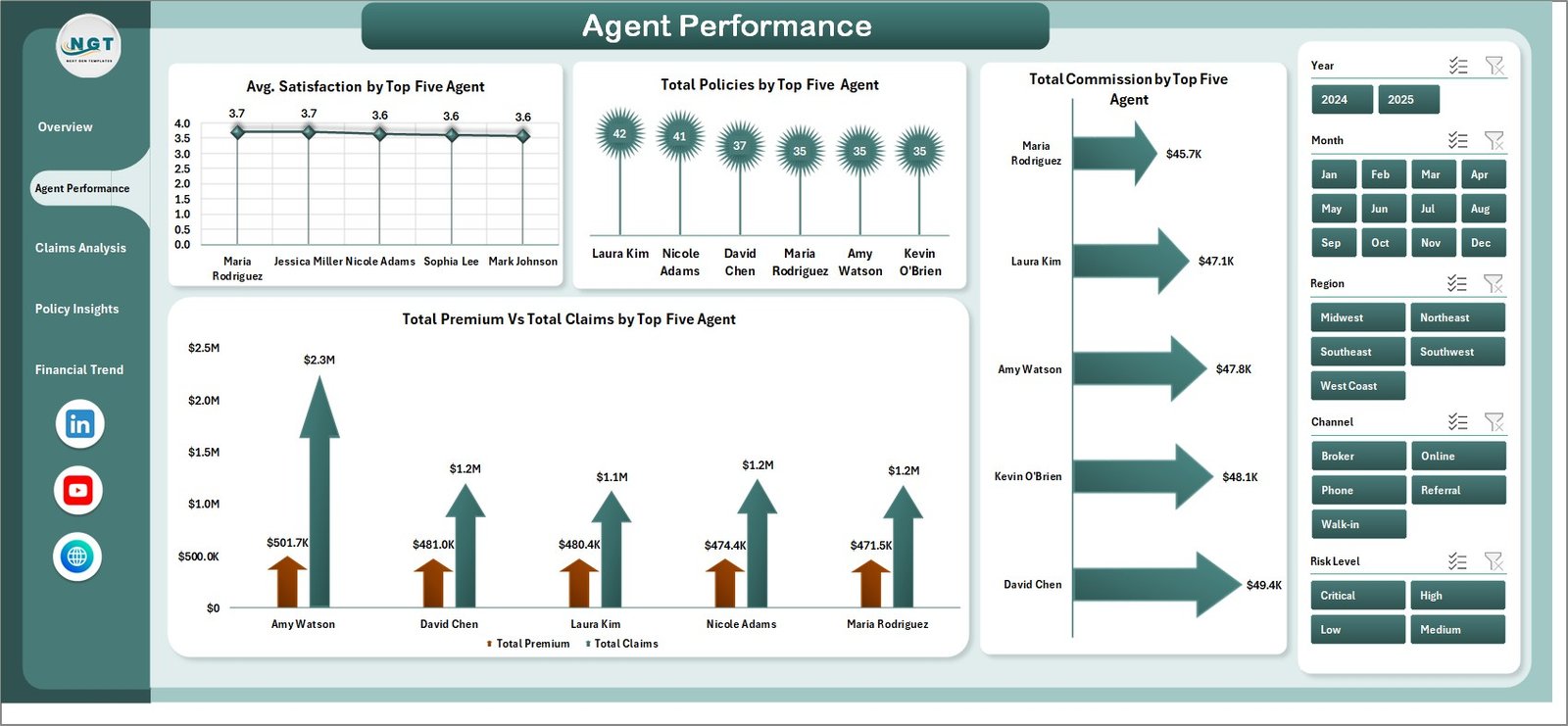
Agent Performance
📊 3. Claims Analysis — Deep dive into claims behavior and risk patterns. Charts include Total Policies by Claim Status, Total Claims by Policy Type, Total Claims Filed by Customer Segment, and Total Claims Vs Total Premium by Risk Level. This page helps underwriters and risk teams identify high-risk segments and optimize claims management. If you also track insurance policies in Google Sheets, check out our Policy Performance and Risk Analysis Dashboard in Google Sheets.
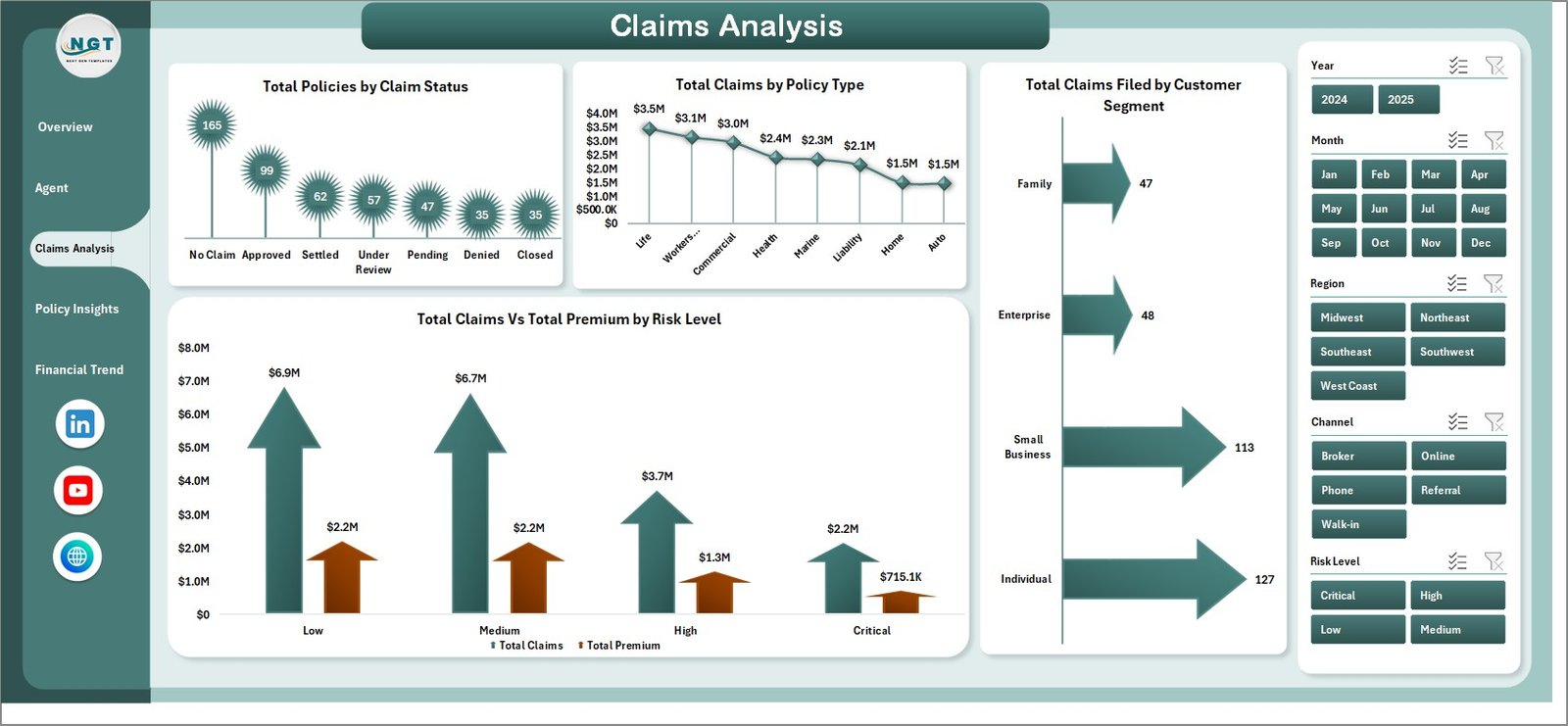
Claims Analysis
📊 4. Policy Insights — Understand your policy portfolio composition and customer distribution. Charts include Total Premium by Customer Segment, Total Policies by Channel, Claim Frequency % by Customer Segment, and Total Premium by Policy Type. This page is essential for marketing and product strategy decisions.
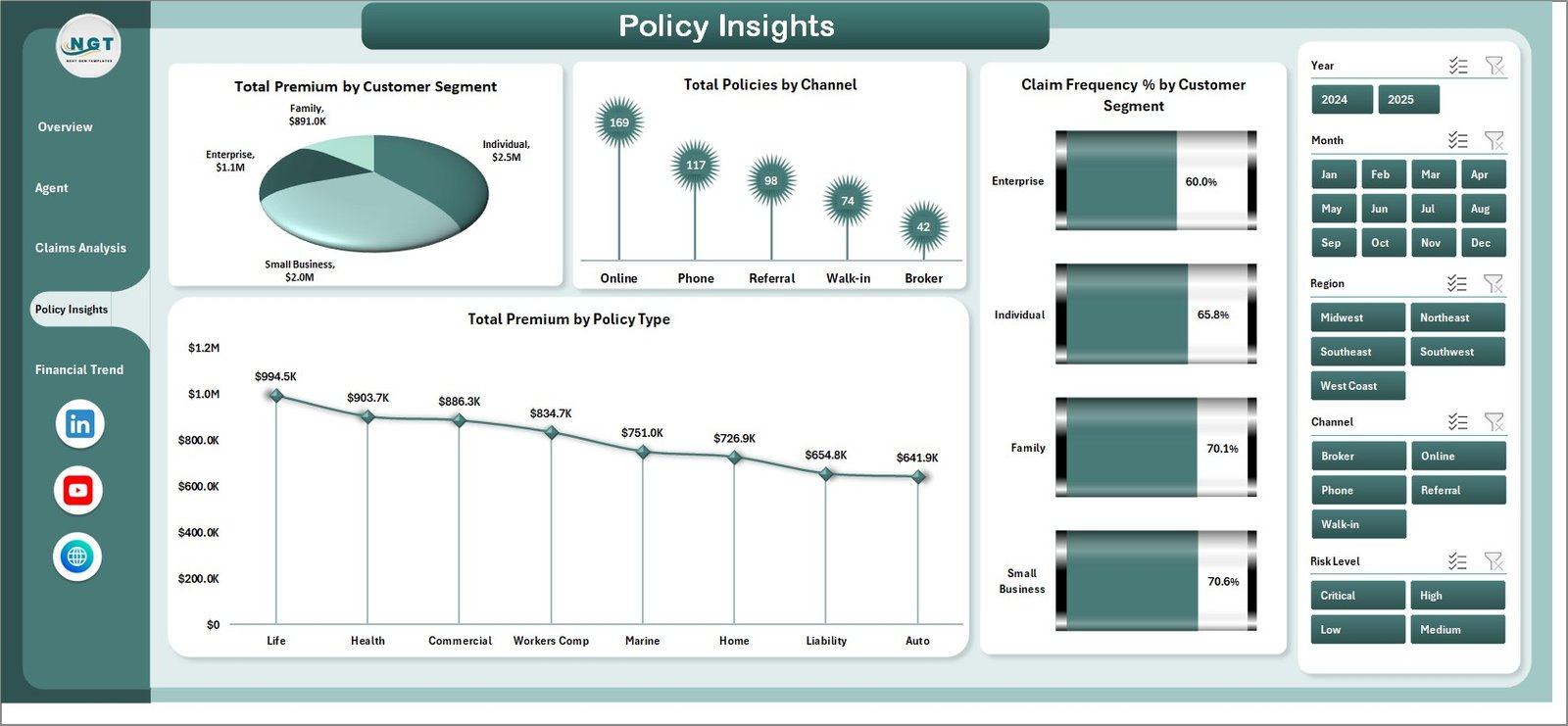
Policy Insights
📊 5. Financial Trend — Track financial performance over time with charts showing Total Claims by Region, Total Premium by Payment Frequency, Total Policies by Risk Level, and Total Commission by Month. This page supports budgeting, forecasting, and strategic financial planning for insurance agencies.
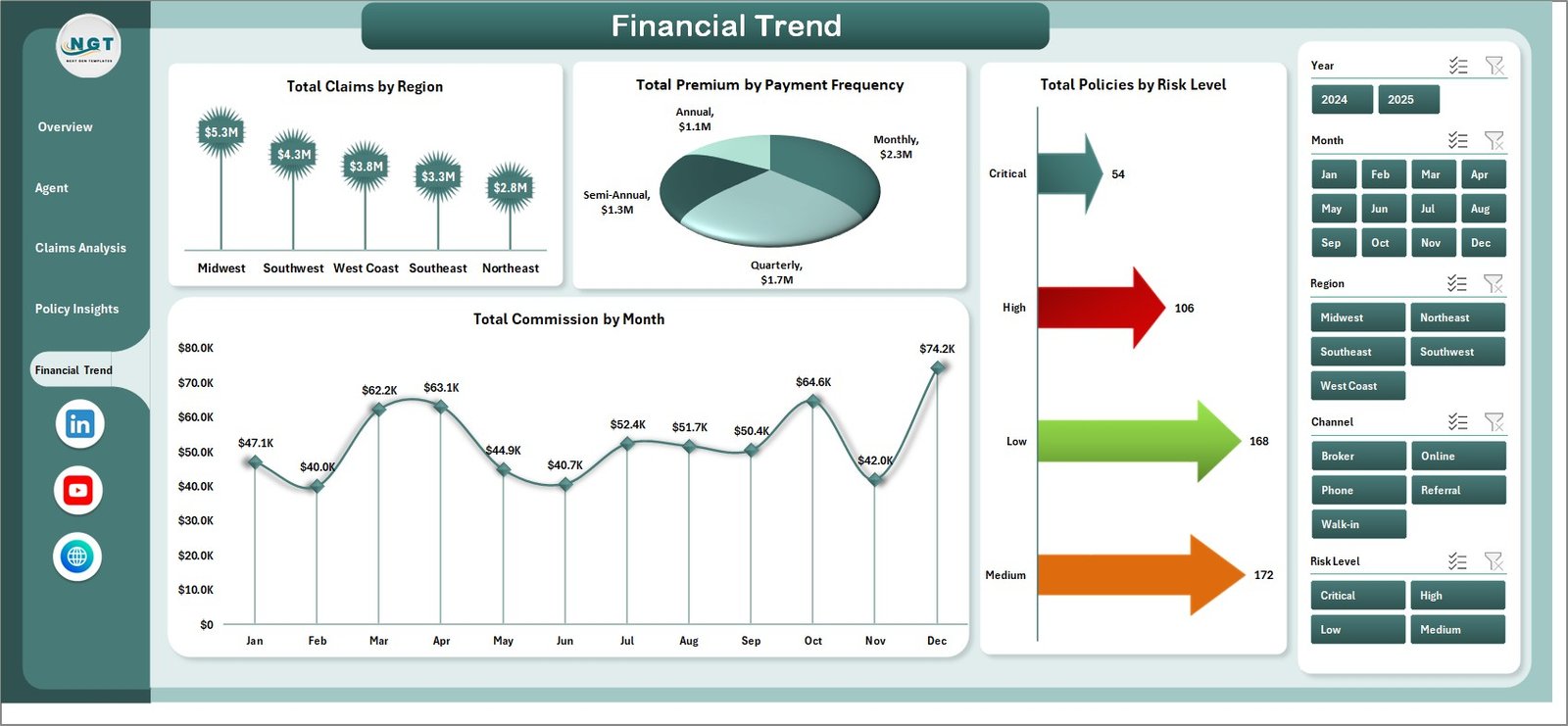
Financial Trend
📋 6. Data Sheet — This is the structured data entry sheet where you add your insurance agency records. Simply replace the sample data with your own policy, claims, agent, and customer data in the same column format and refresh.

Data Sheet Tab
⚙️ 7. Support Sheet — Contains all pivot tables that power the dashboard dynamically. After updating your data, go to the Data tab in the Excel Ribbon and click Refresh All — every pivot table and chart updates instantly. You can keep this sheet hidden during presentations.

Support Sheet Tab
⚙️ How to Use the Insurance Agency Dashboard in Excel
📌 Step 1: Download and open the Excel file on your computer.
📌 Step 2: Navigate to the Data Sheet tab and replace the sample records with your own insurance agency data — policies, claims, agents, premiums, and customer details.
📌 Step 3: Go to the Data tab in the Excel Ribbon and click Refresh All to update every pivot table.
📌 Step 4: Return to the Overview page — all KPI cards, charts, and analysis pages update automatically based on your data.
📌 Step 5: Use the slicers and filters to drill down into specific policy types, regions, channels, or agents.
👥 Who Can Benefit from This Insurance Agency Dashboard in Excel
📌 Insurance agency owners and managers tracking premium collection, claims, and agent performance
📌 Insurance brokers monitoring policy portfolios and customer segment distribution
📌 Underwriters and risk analysts evaluating claim frequency and risk level patterns
📌 Finance teams tracking commission earnings, premium trends, and payment frequency
📌 Insurance consultants preparing data-driven performance reports for agency clients
📌 Students and researchers studying insurance analytics and risk management
❓ Frequently Asked Questions
What KPIs does the Insurance Agency Dashboard in Excel track?
The Insurance Agency Dashboard in Excel tracks 5 key performance indicators on the overview page: Total Policies, Total Premium, Total Claims, Total Commission, and Average Satisfaction. It also provides detailed analysis across 5 interactive pages covering agent performance, claims analysis, policy insights, and financial trends.
Do I need advanced Excel skills to use this insurance dashboard?
No. This template is built with pivot tables and slicers that work automatically. Simply paste your data into the Data Sheet tab, click Refresh All in the Excel ribbon, and every chart and KPI card updates instantly. No formulas to write, no VBA macros required.
Can I filter the dashboard by specific agent or policy type?
Yes. The dashboard includes multiple slicers on the Overview page that let you filter all charts and KPIs by policy type, channel, region, and other dimensions. The Agent Performance page specifically ranks the top five agents across multiple metrics.
How many dashboard pages are included in this template?
The template includes 5 interactive dashboard pages (Overview, Agent Performance, Claims Analysis, Policy Insights, and Financial Trend), plus a Data Sheet for input and a Support Sheet containing all pivot tables. That is 7 sheet tabs in total.
What is the best Excel template for tracking insurance agency performance?
The Insurance Agency Dashboard in Excel from NextGen Templates is one of the most comprehensive options available. It covers policy tracking, claims analysis, agent performance, customer segmentation, and financial trends across 5 dedicated dashboard pages with automatic pivot-table refresh — making it ideal for any insurance agency looking to make data-driven decisions.
🔗 Explore Related Templates
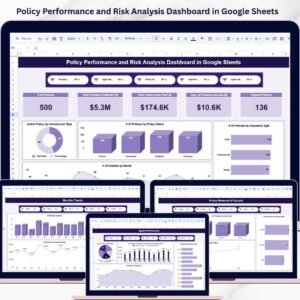
📌 Policy Performance and Risk Analysis Dashboard in Google Sheets — Track policy performance, risk exposure, premiums, and claims in a collaborative Google Sheets dashboard.
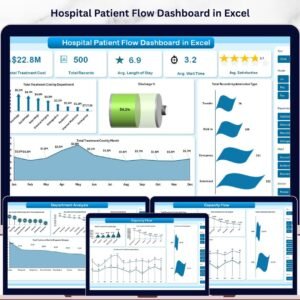
📌 Hospital Patient Flow Dashboard in Excel — Monitor patient flow, treatment costs, wait times, and satisfaction with an interactive Excel dashboard.
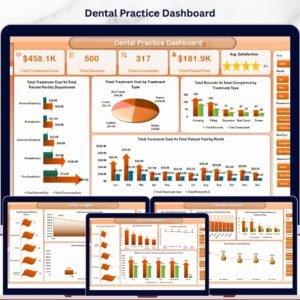
📌 Dental Practice Dashboard in Excel — Track dental clinic performance metrics including treatments, dentist performance, and insurance analytics.
📖 Click here to read the Detailed Blog Post
🎥 Visit our YouTube channel to learn step-by-step video tutorials
👉 YouTube.com/@NextGenTemplates
Watch the step-by-step video tutorial:
YouTube







Reviews
There are no reviews yet.